
If you’ve ever tried to copy a file or extract a folder and suddenly saw a CRC error, it can feel confusing. You just want your file to work but something blocks it. When this happens, your system is telling you that the data is not safe or complete.
But don’t worry, in this guide you’ll learn what a CRC error really means, why it shows up, how to fix it step by step and how to stop it from happening again.
What Is a CRC Error?
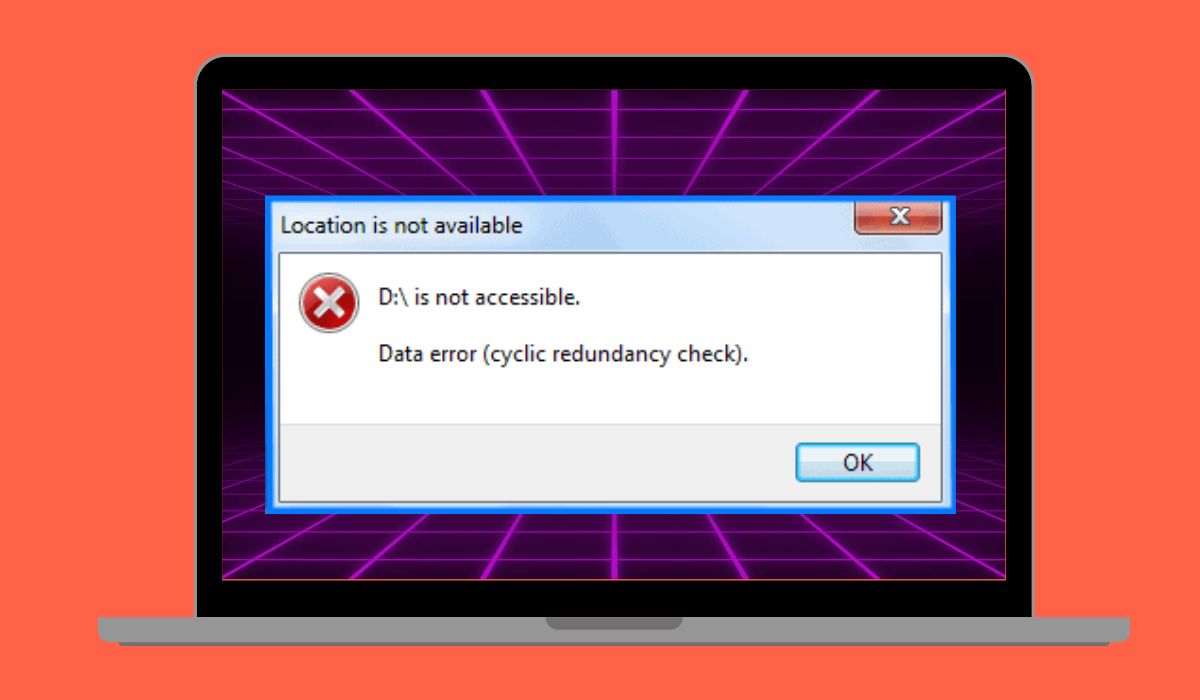
A CRC error means your system checked the data and found a mismatch. It uses a method called Cyclic Redundancy Check to verify Data Integrity. If the calculated value does not match the original, the system flags an error.
You may see this error in tools like Windows File Explorer, during extraction in WinRAR, or while copying files from a USB Flash Drive. It can also appear when reading from a Hard Disk Drive or external drive.
Common Causes of CRC Error
This error can happen for several reasons, depending on your device or settings. Below are the most common causes you should be aware of.
- Damaged sectors on a Hard Disk Drive
- Corrupted files during File Compression or extraction
- Weak or unstable connection causing Packet Loss
- Faulty USB ports or cables affecting a USB Flash Drive
- Scratched or damaged CD/DVD media
- Interrupted downloads leading to incomplete Binary Data
- Failing storage devices like Solid State Drive
How to Fix CRC Error
Fixing a CRC error depends on what caused it. Sometimes it’s just a bad download. Other times, it points to disk issues. However, you can try the fixes below to solve it.
Fix #1: Re-download the File
This error often shows up when a file becomes damaged during download. It usually happens due to an unstable internet connection, sudden connection drops, or issues during Data Transmission. When even a small part of the Binary Data is missing or altered, the Cyclic Redundancy Check fails and triggers the error. So even if the file looks complete, it may still be broken internally.
To fix this, delete the corrupted file completely and download it again from a trusted source. Make sure your internet connection is stable during the download process. If possible, avoid pausing or interrupting the download, as this can sometimes cause file corruption. Once the new file is downloaded, open or extract it again. In most cases, this simple step resolves the issue because the system now reads clean and complete data.
Fix #2: Run Disk Check Using CHKDSK
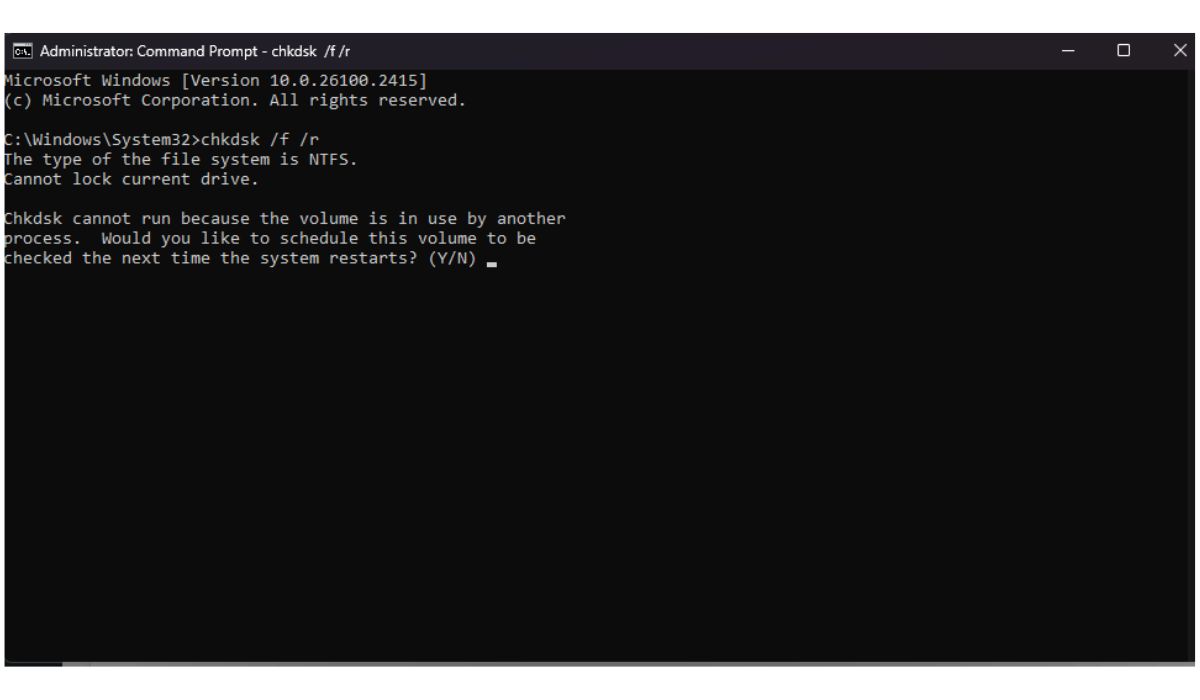
This error can happen when your drive has bad sectors. Running a scan with CHKDSK helps detect and repair those areas.
Follow the steps below to easily run disk check:
- Press Windows + S and type Command Prompt
- Right-click and select Run as administrator
- Type
chkdsk /f /rand press Enter - If asked, press Y to schedule the scan
- Restart your computer
- Wait while the scan completes
Once finished, your system may fix the damaged sectors automatically.
Fix #3: Check and Replace Cables or Ports
Sometimes the issue is not the file itself but the connection between your device and storage. A loose cable, damaged USB port, or unstable link can interrupt Data Transmission, which leads to corrupted Binary Data and triggers a CRC error. Because the system cannot read the data properly, it reports a mismatch during the Cyclic Redundancy Check.
To fix this, try connecting your drive to a different USB port or use another cable. This simple change often restores a stable connection and allows your system to read the data correctly without interruption.
Fix #4: Extract File Using Repair Option
If the error appears in WinRAR, it may have a built-in repair tool.
Here’s how you can repair the archive in just a few seconds:
- Open WinRAR
- Select the corrupted file
- Click on “Repair” in the menu
- Choose a location for the repaired file
- Wait for the process to complete
After that, try extracting the repaired file again.
Fix #5: Use Disk Utility on macOS
If you’re using macOS, you can check your drive using Disk Utility.
Try these simple steps to quickly repair disk errors:
- Open Disk Utility
- Select your drive from the list
- Click on First Aid
- Confirm and start the scan
- Wait until the process finishes
This helps fix minor disk issues that may cause CRC errors.
Fix #6: Copy Files to Another Drive
Sometimes a CRC error happens because only a small section of your storage device is damaged, not the whole drive. In devices like a Hard Disk Drive or Solid State Drive, certain areas can develop bad sectors that affect how Binary Data is read. When your system tries to access data from that damaged part, the Cyclic Redundancy Check fails and shows an error.
To work around this, try copying the file to another drive, USB, or different partition on the same system. If the file transfers successfully and opens without errors, it means the original location may have a damaged section. This method helps you recover usable data while also confirming that your original drive might need further checking or replacement.
Prevention Tips to Avoid CRC Error in Future
Prevention helps you avoid stress later. Small habits can reduce these errors.
- Keep your system updated in Windows or Linux
- Always download files from trusted sources
- Avoid unplugging drives during file transfer
- Run disk checks regularly using tools like CHKDSK
- Replace old or failing Hard Disk Drive on time
- Use high-quality cables and USB ports
- Keep backups of important data
Conclusion
In short, a CRC error means your system found a mismatch in data using Cyclic Redundancy Check. It often happens due to corrupted files, bad sectors, or connection issues.
You can fix it by re-downloading files, scanning your disk, or checking hardware connections. Try the steps above, and in many cases, the issue will go away. But if it keeps happening, it’s better to contact official support or a technician for deeper help.
If this guide helped you, share it with others or drop a comment with your issue. Someone else might be facing the same problem.