
A CRC error means your computer, app, drive, or network device found a problem while checking data. In simple words, the data it expected and the data it actually read did not match. So it stops and shows an error instead of trusting a file that may be broken.
You may see a CRC error while opening a ZIP file, extracting a RAR archive, copying files from an external drive, installing software, downloading a file, or checking network equipment. Same idea. Different places. And yeah, that can make it confusing because a CRC error on a hard drive is not fixed the same way as a CRC error in a ZIP file.
This guide explains what CRC means, why the error happens, and how to fix it based on where you see it. We’ll keep it practical. No heavy computer science talk unless it helps.
Quick Answer: A CRC error means data failed a cyclic redundancy check. The file, drive, download, archive, installer, or network packet may be corrupted or incomplete. Try downloading the file again, copying it again, checking the drive, testing the cable, or repairing the archive.
What Does CRC Error Mean?
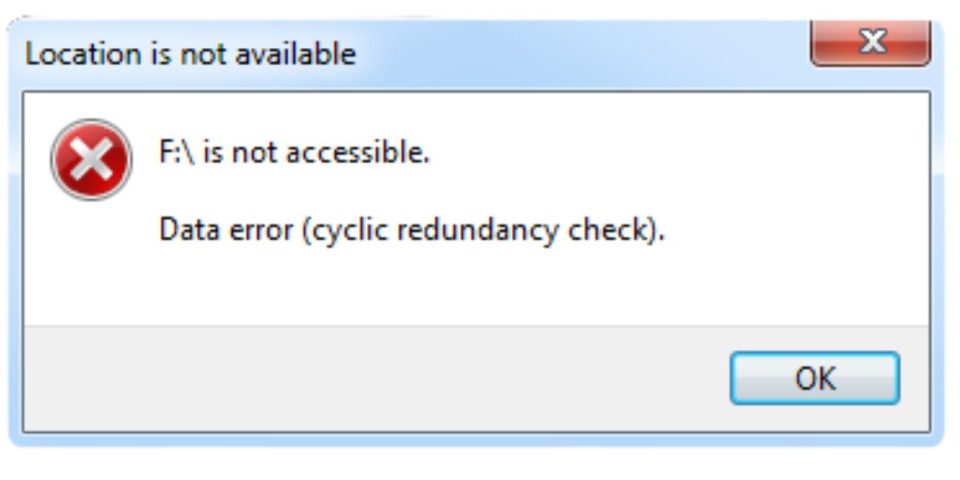
CRC stands for cyclic redundancy check. It is a way to check whether data stayed the same while being stored, copied, downloaded, or sent over a network. A CRC check creates a small value from the data. You can think of it like a quick check number.
When the file or data is read later, the system checks that value again. If the new value does not match the old one, something changed. Maybe the file is damaged. Maybe the download did not finish properly. Maybe the drive has a bad sector. That mismatch is what causes a CRC error.
Small thing but important. CRC usually detects the problem. It does not always repair it. So when you see the error, the real job is to find out where the damage happened and whether the file or storage device is still safe to use.
Where You May See a CRC Error
A CRC error can show up in different places. The wording may change a little but the meaning is similar. The data failed an integrity check. The fix depends on where the error appears, so don’t treat every CRC error the same.
| Where It Appears | What It Usually Means | Best First Fix |
|---|---|---|
| ZIP/RAR file | Archive data is damaged or incomplete | Re-download or repair archive |
| External drive | Drive, cable, port, or file system issue | Back up then check drive |
| File download | Download is incomplete or corrupted | Download again |
| Software installer | Setup file or media is damaged | Get a fresh installer |
| Network device | Packets/frames are being corrupted | Check cable, port, or interface |
If you see the error while extracting a file, start with the archive. If it happens while copying from a drive, check the drive and cable first. If it appears on a switch or router interface, that’s more of a network problem. Same CRC idea but different repair path.
What Causes a CRC Error?
A CRC error happens when the data being read or received does not match the expected checksum. That sounds technical, but it’s not too hard to understand. The system checks the data and says “this does not look right.” The cause can be a damaged file, bad storage device, weak connection, broken download, or network signal problem.
Common causes include:
- An incomplete or interrupted download
- A corrupted ZIP, RAR, or installer file
- Missing parts from a split archive
- Wrong password for some protected archives
- Bad sectors on a hard drive
- File system errors on an external drive
- A weak USB cable or loose port
- A failing USB flash drive or SD card
- A damaged ISO file or setup package
- A scratched DVD or bad USB installer
- Packet corruption on a network
- Bad Ethernet cable or switch port
- Fiber, transceiver, or duplex issues in networking
Sometimes the problem is on your side. Sometimes the file was already bad before you downloaded it. That part matters because you can repair your PC all day and still get the same CRC error if the source file itself is corrupted.
Is a CRC Error Serious?
A CRC error can be minor or serious. It depends where you see it. If one downloaded ZIP file shows a CRC failed message, the file may simply be incomplete. Downloading it again may fix the whole thing. Annoying yes, but not always scary.
Repeated CRC errors from the same hard drive, SSD, USB drive, or SD card are different. That can mean the device is having trouble reading data. If important files are on that drive, back them up before running repair tools. Honestly, this is the part people often skip and then regret later.
| Situation | How Serious It May Be |
|---|---|
| One failed download | Usually minor |
| One damaged ZIP file | Usually fixable by re-downloading |
| CRC error on external drive | Could be cable, port, or drive issue |
| Repeated CRC errors on same drive | More serious, possible drive failure |
| CRC errors on switch ports | Usually network cable, port, or physical layer issue |
The main thing is context. One bad file is usually not a big deal. A drive that keeps giving CRC errors needs careful handling.
How to Fix a CRC Error
There is no single fix for every CRC error. That’s the honest answer. A corrupted download, a damaged archive, a failing external drive, and a bad Ethernet cable all need different fixes.
Start with the place where you saw the error. If it happened during download, download the file again. If it happened while extracting a ZIP file, repair or replace the archive. If it happened on a drive, back up first and then check the device. If it happened on a network switch, check cables and port counters.
1. Try the File Again or Re-download It
If the CRC error appeared after downloading a file, try downloading it again. Downloads can break if the connection drops, the browser stops early, the server sends a bad file, or the file gets interrupted near the end. It happens more often with large files like games, ISO files, software installers, videos, and compressed archives.
Use the original source if possible. If the same file keeps failing, try another browser, another internet connection, or clear the browser cache before downloading again. If the website provides a checksum, compare it with your downloaded file. If the checksum does not match, the download is not the same as the original file.
This is one of the easiest fixes. Not fancy. Just get a clean copy and test again.
2. Copy the File to Another Location
If the CRC error appears while opening or copying a file from an external drive, try copying it to another location. For example, copy the file from the external drive to your internal drive and open it from there. This can help show whether the issue is with the file, the drive, or the transfer path.
If the copy fails with the same error, try another USB port, another cable, or another computer. A weak cable can cause strange read errors. A bad USB port can do the same. It doesn’t always look broken from the outside.
If the file copies fine from another device, your original port or cable may be the problem. If it fails everywhere, the file or storage device may be damaged. That’s when you should stop guessing and back up anything important from that drive.
3. Fix CRC Error in ZIP or RAR Files
A CRC failed message in a ZIP or RAR file usually means the extracted data does not match what the archive expected. The archive may be incomplete, damaged, badly downloaded, or missing one of its parts. Sometimes a wrong password can also cause extraction problems in protected archives.
Try these checks:
- Re-download the archive
- Make sure all split parts are in the same folder
- Try extracting with 7-Zip or WinRAR
- Use archive repair if the tool supports it
- Check the password if the archive is protected
- Ask the sender/source for a fresh copy
For split archives, make sure every part is there. Files may look like.part1.rar,.part2.rar, and so on. If even one part is missing or damaged, extraction may fail with a CRC error. Yeah, one missing piece can break the whole thing.
Archive repair tools can help sometimes, but don’t expect magic. If the archive is badly damaged, you may need a fresh copy from the sender or source.
4. Check the Drive or Storage Device
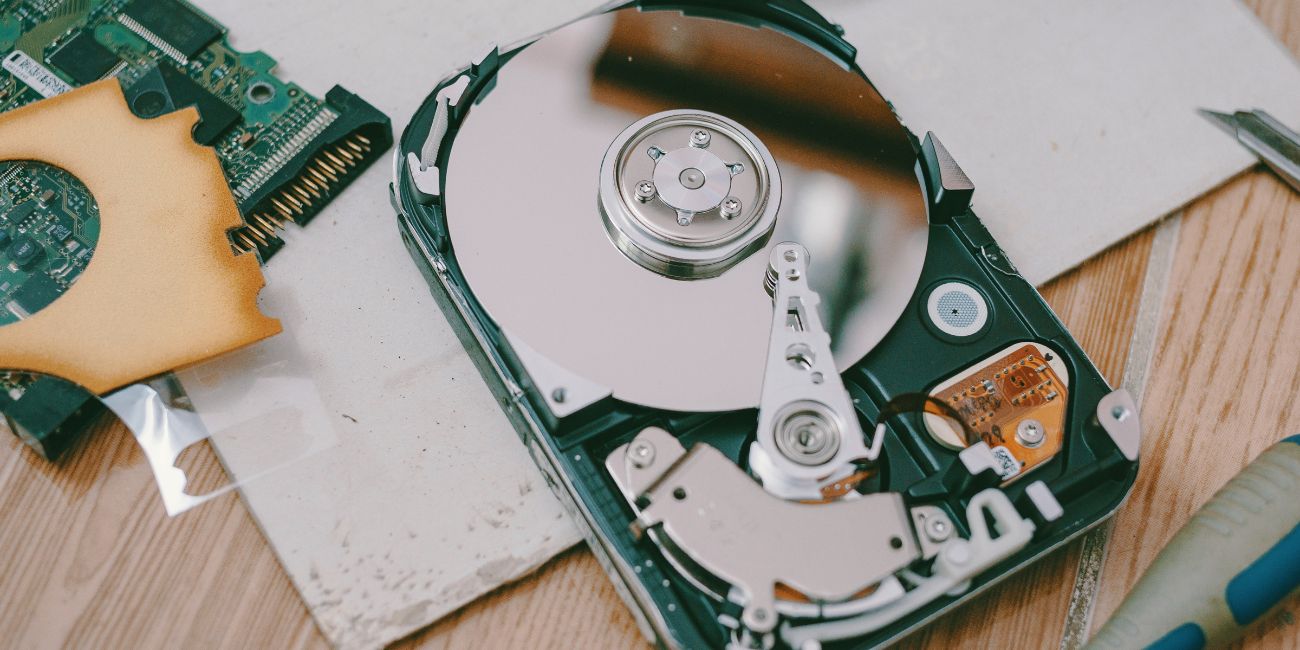
If the CRC error happens while reading from a hard drive, SSD, USB drive, SD card, or external drive, take it seriously. The device may have file system errors, weak sectors, connection problems, or hardware failure. Before doing anything heavy, back up important files if the drive is still readable.
Repeated CRC errors from the same drive can mean the device is struggling to read data correctly. This is common with older hard drives, damaged USB drives, failing memory cards, and external drives with bad cables or enclosures. It may not fail completely today. But it’s giving you a warning.
Check the drive’s health if you can. Many SSD and hard drive brands offer health tools. Windows may also show drive warnings in some cases. If the device disconnects during copy, freezes the PC, or keeps failing on the same files, don’t keep forcing it over and over.
For important data, copy the most valuable files first. Not the biggest folder. Not the least important stuff. Start with what you cannot replace.
5. Run CHKDSK Carefully on Windows
CHKDSK can help fix file system errors on Windows. It can be useful for “data error cyclic redundancy check” messages, especially when the issue is with an external drive or a damaged file system. But be careful. If the drive is physically failing, repair commands can put more stress on it.
Back up important files first if the drive still opens. Then open Command Prompt as administrator and run this command:
chkdsk X: /f
Replace X: with the correct drive letter. For example, if the external drive is E:, use chkdsk E: /f.
Let the scan finish. Don’t unplug the drive while it is running. If CHKDSK reports many errors or the drive keeps failing after repair, the drive may need replacement. Yes it may still open sometimes, but that does not mean it is safe for important files.
6. Check the Cable, USB Port, or Card Reader
A CRC error can come from a bad connection. This is easy to miss because the drive may still appear in Windows. But if the cable, port, enclosure, or card reader is unstable, data can get corrupted during transfer.
Try these simple checks:
- Use another USB cable
- Try another USB port
- Connect the drive directly instead of through a hub
- Test the drive on another computer
- Use another card reader for SD or microSD cards
- Check if the external drive enclosure is loose or damaged
- Avoid moving the drive while copying files
This fix is boring but useful. A cheap or damaged cable can make a good drive look bad. If the error disappears after changing the cable or port, you probably found the issue.
7. Scan for Malware or Suspicious File Damage
Malware is not the most common reason for a CRC error. Still, it can damage files, interrupt downloads, change system behavior, or mess with storage. If you’re seeing repeated file corruption, strange popups, unknown apps, or browser redirects, run a scan.
Use Windows Security or one trusted antivirus tool. Run a full scan and remove anything suspicious. Don’t install three antivirus programs at once because that can create new problems and slow the PC down.
If the CRC error only happens with one downloaded file, malware is less likely. If many files start acting strange at the same time, then scanning makes more sense.
8. Fix CRC Error During Software Installation
A CRC error during software installation usually means the setup file, ISO image, USB installer, or DVD media is damaged. The installer checks the data and sees that something does not match. So it stops instead of installing broken files.
Start by downloading the installer again from the official source. If it’s a large game or software package, use a stable connection and avoid pausing the download too many times. If the file has a checksum, compare it after download. Small thing, but it can save you from running a bad installer again.
If you’re installing from a USB drive, recreate the USB installer. If you’re using a DVD, check for scratches or try another disc drive. For ISO files, download the ISO again if the checksum fails. Don’t bypass the error just to force the install. That can leave you with a broken program or a system that crashes later.
9. Fix CRC Errors in Networking

CRC errors in networking are a bit different. You may see them on a router, switch, Cisco device, Meraki dashboard, or network interface counter. Here, CRC errors usually mean Ethernet frames or network packets are arriving damaged.
This often points to a physical layer issue. In normal English, check the cable, port, connector, fiber, transceiver, or speed settings.
| Network Cause | What to Check |
|---|---|
| Bad Ethernet cable | Replace cable and test again |
| Dirty or damaged fiber | Clean or replace fiber/transceiver |
| Bad switch port | Move device to another port |
| Duplex/speed mismatch | Check interface settings |
| High interface errors | Review port counters |
Start with the simple stuff. Replace the cable. Try another switch port. Check whether the errors keep increasing. If CRC errors keep rising on one port but stop when you move the cable, the port or cable path may be the issue.
For fiber links, dirty connectors and bad transceivers can cause errors too. Don’t treat network CRC errors like ZIP file errors. They’re still CRC errors, but the fix is usually in the connection path.
10. Use File Recovery or Data Recovery If the File Matters
If the file is important and basic fixes fail, stop forcing it. This is especially true when the CRC error comes from a hard drive, SSD, USB drive, or SD card. Repeated copying, repeated repair commands, and repeated scans can make a weak device worse.
If the drive clicks, disconnects, freezes the computer, or shows many errors, consider professional data recovery. It may cost money, but it can be safer than trying random tools when the data really matters.
For less important files, you can try file recovery software. But don’t install recovery software onto the same failing drive. That can overwrite data. Use another drive if possible. And keep expectations real. Some corrupted files cannot be fully repaired.
What Not to Do When You See a CRC Error
A CRC error can make people panic and click anything that looks like a fix. Try not to do that. Some actions can make the problem worse, especially when the error comes from a storage device.
Avoid these mistakes:
- Do not format the drive before backing up important files
- Do not keep forcing copies from a failing drive
- Do not run repair tools again and again if errors keep returning
- Do not trust a repaired file without opening or testing it
- Do not ignore repeated CRC errors on the same device
Also don’t assume every CRC error means the drive is dead. Sometimes it’s just a bad download or cable. But if the same device keeps showing the error, treat it like a warning.
How to Prevent CRC Errors
You can’t prevent every CRC error. Files can get damaged. Downloads can break. Drives can fail. But you can lower the chances by using safer habits when downloading, copying, storing, and moving files.
Good habits help:
- Keep backups of important files
- Use stable internet for large downloads
- Re-download files if the first copy looks broken
- Use good USB cables for external drives
- Avoid cheap or loose card readers
- Safely eject USB drives before unplugging
- Check drive health now and then
- Keep enough free space on your storage device
- Verify checksums for important ISO or installer files
- Replace drives that keep showing read errors
For large installers, ISO files, backups, and archives, checksum verification is useful. It may feel a little technical at first. But it tells you whether the file you downloaded matches the original file.
Frequently Asked Questions About CRC Errors
What does CRC stand for?
CRC stands for cyclic redundancy check. It is a method used to check whether data stayed the same during storage, transfer, or download. If the check does not match, you may see a CRC error.
What is a CRC error in simple words?
A CRC error means the data looks damaged or changed. The system expected one result but got another. This often happens with corrupted files, broken downloads, bad drives, or network transfer problems.
Can CRC errors be fixed?
Sometimes yes. If the cause is a bad download, downloading the file again may fix it. If the cause is a damaged drive, the fix may involve backup, disk repair, or replacing the device. It depends where the error appears.
Is a CRC error a virus?
A CRC error is not a virus by itself. It is an error that means data failed a check. Malware can damage files in some cases, but many CRC errors are caused by downloads, drives, cables, or corrupted archives.
Does CRC error mean my hard drive is failing?
Not always. A CRC error can come from a bad cable, bad USB port, corrupted file, or the file system issue. But repeated CRC errors from the same hard drive can be a warning sign. Back up important files and check the drive health.
How do I fix data error cyclic redundancy check?
Back up the drive first if you can. Then try another cable or USB port, copy files to another location, and run CHKDSK carefully on Windows. If the drive keeps failing, replace it or consider data recovery.
Why does WinRAR say CRC failed?
WinRAR may say CRC failed when the extracted file does not match the archive’s expected checksum. The archive may be damaged, incomplete, missing a split part, or downloaded badly. Re-download it or ask for a fresh copy.
What are CRC errors in networking?
CRC errors in networking mean frames or packets are arriving damaged. This often points to cable issues, dirty fiber, bad switch ports, duplex mismatch, or interface problems. Check port counters and test with another cable or port.
Can CRC detect all errors?
CRC can detect many data errors, but not every possible error. It is made for error detection, not perfect repair. That is why a CRC error tells you something is wrong, but may not fix the damaged data.
Is it safe to ignore CRC errors?
One CRC error on one bad download may not be a big deal. Repeated CRC errors on the same drive, file transfer, or network port should not be ignored. That pattern can point to a real problem.
Final Thoughts
A CRC error means data failed an integrity check. The computer expected one checksum and got another. In normal words, something may be corrupted, incomplete, unreadable, or damaged during transfer.
The best fix depends on where you saw the error. Re-download files that failed during download. Repair or replace damaged ZIP and RAR archives. Back up first if the error is coming from a drive. For network CRC errors, check cables, ports, fiber, and interface counters.
Where did you see the CRC error: a ZIP file, external drive, software installer, or network device?