
Subtitles not working on a browser can be a really annoying issue. The video plays fine and the audio is clear. But the captions do not show up. Sometimes you see the CC button, but nothing happens when you click it. Other times subtitles show on one video but stay missing on another.
This happens on Chrome, Firefox, Edge, Safari and even mobile browsers. It does not mean your browser is completely broken. It can be a small setting in the video player. It could also be cache, extensions, VPN or a problem from the streaming website itself. You should check things one by one before changing too many settings. This guide will help you fix the problem if subtitles are not working in your browser.
Why Do Subtitles Stop Working on a Browser?
There are many reasons subtitles stop working in a browser. Sometimes the captions are simply turned off. Sometimes the video does not even have a subtitle file. In other cases the browser loads the video but fails to load the caption track. That is exactly why the video plays normally, but the subtitles stay missing.
Here are some common causes:
- Subtitles or CC are turned off in the video player
- The wrong subtitle language is selected
- The video does not have subtitles available
- Browser cache or cookies are causing a problem
- An extension is blocking part of the video player
- VPN changes your region or subtitle options
- Your browser is outdated
- The website has a temporary subtitle issue
- Hardware acceleration is causing a display bug
- Account language settings are not correct
The good thing is that most subtitle problems are not hard to fix. You should start with the simple checks first. If that does not work then you can move to browser settings.
How to Fix Subtitles Not Working on Browser
To fix it, try these fixes below in order. Do not change everything at the same time. You will not know what actually fixed it if you do that. Let’s start with one by one fix:
1. Check If Subtitles Are Turned On
First, check the video player itself. Many videos start with subtitles turned off by default. The option may appear as CC, Captions, Subtitles or a small speech bubble icon near the bottom of the player. Move your mouse over the video and open the player controls. Click the subtitle option and choose the language you want. Select the one that matches your video and audio if there are many tracks.
Try this:
- Play the video.
- Move your mouse on the video player.
- Click CC, Captions, Subtitles or the speech bubble icon.
- Choose the subtitle language.
- Pause the video and play it again.
The video may not have captions if the subtitle button is not showing at all. But it can also happen when the player does not load properly. So keep checking the next fixes too.
2. Test Another Video on the Same Website
Sometimes only one video has the subtitle problem. The website may be fine and your browser may be fine too. The issue can be with that one video only. Open another video on the same website and turn on subtitles there. The first video may have a missing or broken subtitle file if captions work on the second video. There is not much to fix from your browser side in that case.
But the issue is bigger if subtitles do not work on any video. It may be your browser, extensions, cache, VPN, account settings or the website subtitle system. This simple test helps a lot because it tells you exactly where to look next.
3. Refresh the Page and Restart the Browser
A video player does not always load everything correctly the first time. The main video may load but subtitles may fail in the background. This happens if the tab was open for too long or your connection dropped for a moment.
Try these quick checks:
- Refresh the page once.
- Close the video tab and open it again.
- Restart the browser fully.
- Open the same video again.
- Turn subtitles on from the video player.
This fix looks very basic but it works in many cases. Online video players load different things at the same time. Video, audio, subtitles, ads, controls and scripts all load separately. Subtitles may disappear even when the video still plays if one part fails.
4. Clear Browser Cache and Cookies
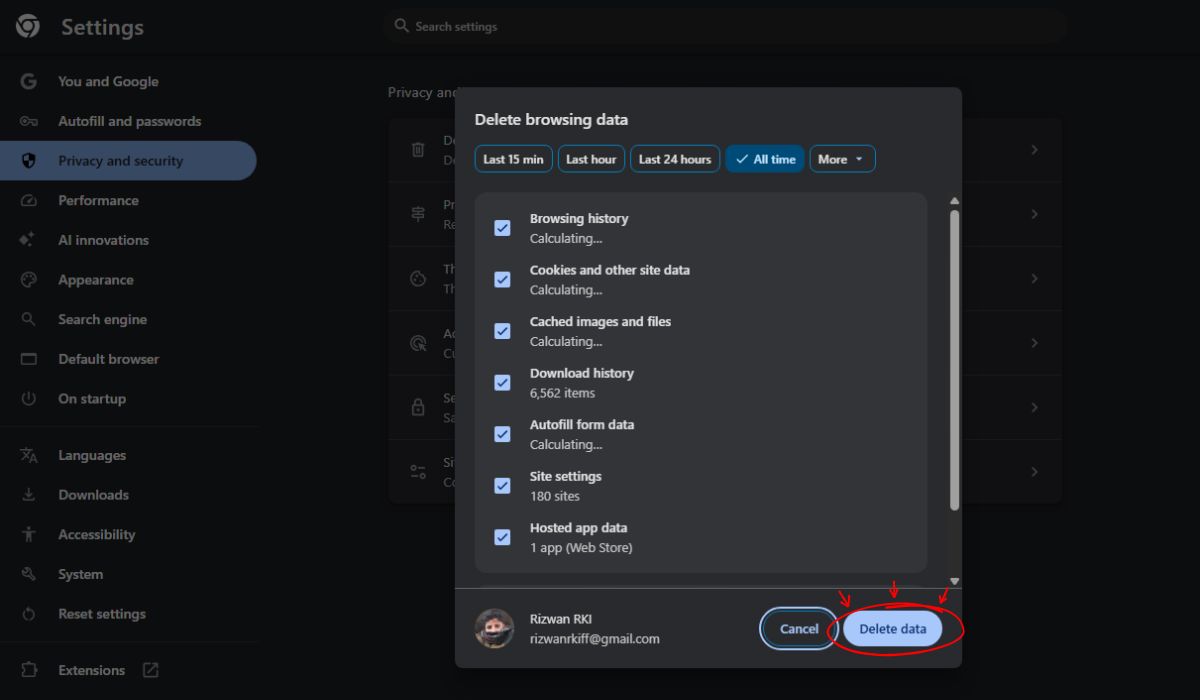
Browser cache can also cause subtitle problems. Your browser saves website files so pages load faster. That is useful most of the time. But old saved files can break the video player. A website may update its video player but your browser still loads old data. Then captions may stop showing or the subtitle menu may act strange. Cookies can also save old playback or language settings.
You can clear all browser cache and cookies. But that may log you out of many websites. A better option is to clear site data only for the website where subtitles are not working.
Open the website in Chrome or Edge and click the lock icon near the address bar. Go to site settings and clear site data. Check privacy settings and manage cookies or site data in Firefox. Look for website data settings in Safari.
Open the website again after clearing site data. Sign in if needed. Then play the video and turn on subtitles.
5. Disable Extensions Like Ad Blockers
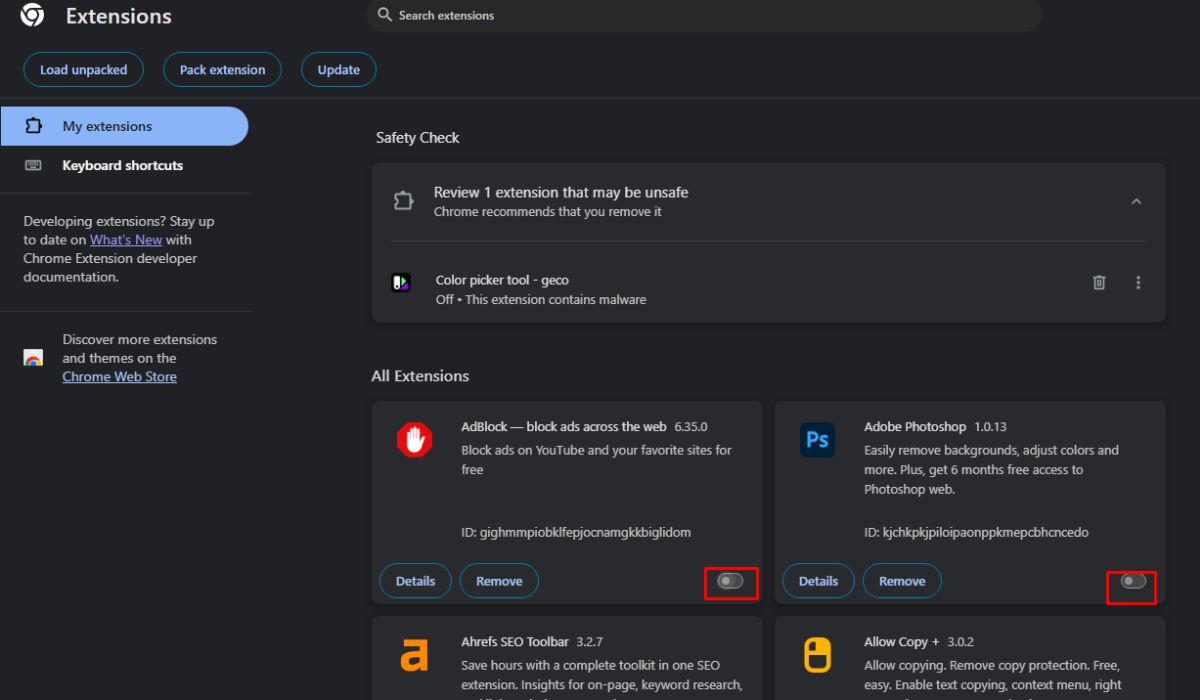
Extensions can block subtitles without you noticing. This happens mostly with ad blockers, privacy extensions, script blockers, VPN extensions and some video downloader tools. They may block a script that the player needs for captions.
You do not need to remove every extension. Turn off extensions only for that website first. Many ad blockers have an option to pause protection on one site. Refresh the page and test the subtitles again after that.
You can also open the video in private or incognito mode. Extensions are disabled there by default in many browsers. One of your extensions is probably causing the issue if subtitles work in private mode.
Try this:
- Open the video in private or incognito mode.
- Turn on subtitles.
- Return to normal mode if they work.
- Disable extensions one by one.
- Refresh the video after each change.
Keep the extension disabled for that website once you find the one causing the issue. You can also add the website to the extension allowlist if that option is available.
6. Turn Off VPN or Change Region Settings
VPN can also affect subtitles on some websites. It changes your location. Some streaming platforms show different subtitle tracks based on region. One region may have English subtitles. Another region may show fewer options.
This does not happen on every site. But it is worth checking. Turn the VPN off and reload the video if subtitles stopped working after turning it on. Then open the subtitle menu again.
Also check your account language settings. Some platforms save subtitle language inside your profile. Subtitles may show in the wrong language or not appear as expected if the profile language is different.
Test the video without a VPN once if you use one. It is a small step but it can quickly show if region is the problem.
7. Update Your Browser
An old browser can cause video player issues. Many websites use modern HTML5 video players and newer caption formats. Some video features may not work properly if the browser is outdated.
Update Chrome, Firefox, Edge or Safari to the latest version available for your device. Chrome, Edge and Firefox usually have update options inside the browser settings. Safari updates usually come with macOS or iOS updates.
Close the browser, then reopen it after updating. Do not only refresh the page. A full restart helps the update apply properly. This fix is useful when subtitles are not working on many websites and not just one video.
8. Try Another Browser
Test the same video in another browser if subtitles still do not work. Try Edge or Firefox if you normally use Chrome. Test Chrome if it is available on your device and you use Safari. This tells you whether the problem is only in one browser or not.
| Test Result | What It Means |
|---|---|
| Subtitles work in another browser | Your main browser has a setting, cache or extension issue |
| Subtitles do not work anywhere | The website, video or account settings may be the problem |
| Subtitles work on mobile but not on desktop | A desktop browser or extension may be causing it |
| Subtitles work on desktop but not on mobile | Mobile browser settings or mobile site version may be different |
You can use another browser for now if it works. Check cache, extensions, updates and hardware acceleration again if you want to fix your main browser.
9. Check Website or Account Subtitle Settings
Some websites have subtitle settings outside the video player. Netflix, YouTube, Prime Video, Crunchyroll and other streaming platforms may save captions inside your account or profile settings.
Open the website settings and look for the language, playback, accessibility, captions or subtitle preferences. Set your preferred language again. Then play the video and check the subtitle menu.
Remember that account settings and player settings can be different. Your account may save the default subtitle language. The player may still let you change subtitles for one video. Check both if captions keep showing in the wrong language. This fix is useful when subtitles work on one profile but not another.
10. Disable Hardware Acceleration
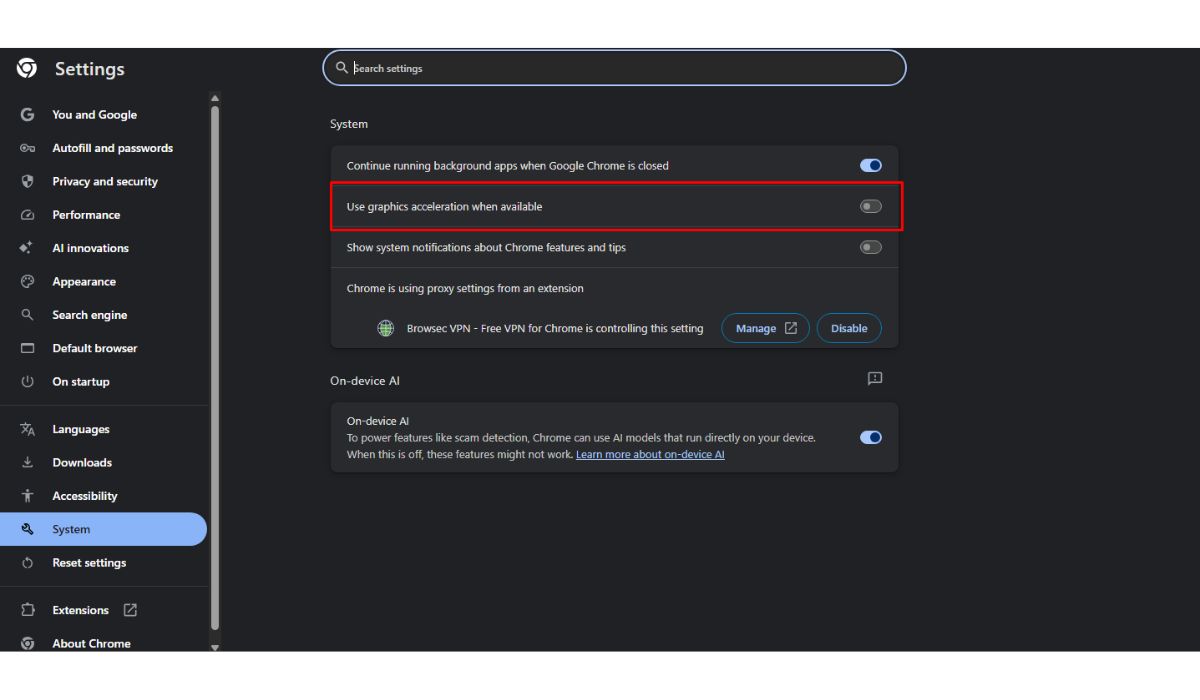
Hardware acceleration lets your browser use the graphics card for video playback. It can make videos smoother. But sometimes it causes display bugs. One of those bugs can be missing subtitles or captions that flicker.
Test this setting if captions are turned on but you cannot see them. It is more useful when the video plays fine, but the subtitles stay blank
Follow these steps:
- Open your browser settings.
- Search for hardware acceleration.
- Turn it off.
- Restart the browser.
- Play the video again.
- Turn subtitles on.
Keep hardware acceleration off for now if subtitles start working after this. You can turn it back on later if nothing changes.
11. Check If the Website Has a Subtitle File or Server Issue
Sometimes the issue is not from your browser at all. The website may have a broken subtitle file. The caption track may be missing. The subtitle server may be down for a short time.
You can check this by testing the same video on another browser and another device. The problem is most likely from the website or that video file if subtitles fail everywhere.
Do a quick check:
- Test another video on the same website.
- Open the same video in another browser.
- Try another device if possible.
- Check if other users are facing the same issue.
- Wait a while and try again.
- Contact support if it is a legal streaming platform.
Report that video or try again later if only one video has the problem. The website may have a bigger subtitle issue if every video on the site has missing captions.
What If Subtitles Are Out of Sync Instead?
Subtitles out of sync is a different issue. Captions appear on screen but they come too early or too late in this case. That usually means the subtitle track does not match the video timing.
First check if there is another subtitle track available. Choose a different one and see if it matches better. Also make sure playback speed is normal. Changed speed can sometimes make captions feel wrong.
Adjust the subtitle delay option slowly if the site has one. Do not move it too much at once. A small change can fix the timing.
The subtitle file may be wrong if only one video has bad timing. Check browser performance, extensions and playback settings if all videos are out of sync.
How to Prevent Browser Subtitle Problems
You cannot stop every subtitle problem because sometimes the issue is from the website. But you can reduce these problems by keeping your browser clean and updated.
Here are some simple tips:
- Keep your browser updated.
- Do not install too many video-related extensions.
- Clear site data when the video player starts acting strange.
- Turn off VPN if subtitles suddenly disappear.
- Use trusted streaming platforms when possible.
- Check account language settings after changing profile details.
- Restart the browser when captions or player controls act weird.
These tips also help with other video issues like black screen, missing audio, buffering and player buttons not showing.
Final Thoughts
Subtitles not working on browser usually happens because of simple things. The subtitle button may be off. The video may not have captions. Your browser cache may be old. An extension may be blocking the player. VPN and website side issues can also create the same problem.
Start with the easy fixes first. Turn on captions, test another video, refresh the page and try another browser. Clear site data, disable extensions, update the browser and check the website settings if subtitles still do not work.