
An iPhone that is not charging can be frustrating, especially when the battery is low and the device is needed for calls, messages, navigation, or work. In many cases, the problem is not caused by a major hardware failure. A loose cable, dirty charging port, software glitch, or weak power source can all prevent an iPhone from charging properly. By checking the most common causes one by one, an iPhone owner can often solve the issue without needing an immediate repair.
TLDR: An iPhone may stop charging because of a damaged cable, blocked charging port, faulty power adapter, software issue, or battery hardware problem. The safest first steps are to inspect the charger, clean the port carefully, restart the iPhone, and try a different outlet or charging accessory. If the device still will not charge after basic troubleshooting, the battery or charging hardware may need professional inspection.
1. Damaged or Incompatible Charging Cable
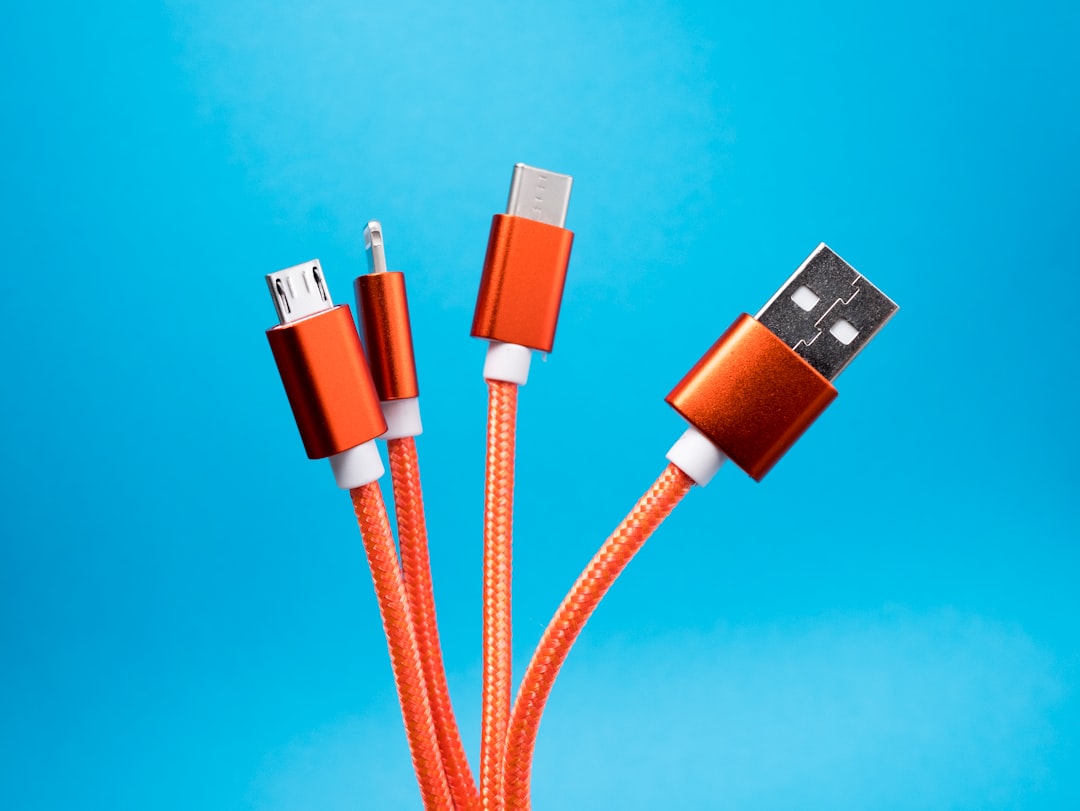
One of the most common reasons an iPhone is not charging is a faulty charging cable. Lightning and USB C cables can wear out over time, especially when they are bent, twisted, pulled from the cord instead of the connector, or used daily in cars, offices, and bedrooms. Even when the cable looks normal from the outside, the internal wires may be damaged.
A damaged cable may cause several symptoms. The iPhone may charge only when the cable is held at a certain angle, start and stop charging repeatedly, charge very slowly, or show no charging symbol at all. In some cases, the message “This accessory may not be supported” may appear on the screen.
Solution: The iPhone owner should test the device with another known working cable. Ideally, the replacement should be an Apple certified cable or a high quality cable from a trusted brand. If the second cable works, the original cable is likely the problem and should be replaced.
- Check for visible damage: Fraying, exposed wires, bent connectors, or discoloration can indicate cable failure.
- Try another device: If the same cable fails to charge another iPhone, the cable is probably defective.
- Avoid very cheap cables: Low quality accessories may charge slowly, fail quickly, or create safety risks.
2. Dirty or Blocked Charging Port
Another frequent cause is a dirty charging port. An iPhone is often carried in pockets, bags, jackets, and backpacks, where lint, dust, and small particles can collect inside the charging port. Over time, this debris can become packed tightly at the bottom of the port, preventing the cable from making a solid connection.
When the port is blocked, the charger may feel loose or may not click into place properly. The iPhone may charge for a moment and then stop, or it may not recognize the charger at all. This problem is especially common when the device is used daily and rarely cleaned.
Solution: The charging port should be inspected in a well lit area. If debris is visible, it can be removed carefully using a soft, dry, nonmetal tool. A wooden toothpick or small plastic pick may help, but the person cleaning the port should be gentle and avoid scraping aggressively.
Important: Metal objects such as paper clips, needles, or pins should not be used because they can damage the connectors inside the port. Liquids should also be avoided unless recommended by a professional technician.
- Turn the iPhone off before cleaning the port.
- Use a flashlight to inspect the inside of the charging port.
- Remove lint slowly and gently.
- Reconnect the charger and check whether it fits securely.
If the port looks corroded, wet, bent, or physically damaged, professional service is the safer option.
3. Faulty Wall Adapter, Outlet, or Power Source
Sometimes the iPhone is not the problem at all. The issue may come from the wall adapter, power outlet, USB port, power bank, or car charger. A weak or unstable power source can prevent the device from charging or make it charge at an extremely slow rate.
For example, a laptop USB port may not provide enough power, especially if the laptop is in sleep mode or running on low battery. A damaged wall adapter may also fail without obvious signs. In other situations, a power strip, extension cord, or wall outlet may be faulty.
Solution: The iPhone owner should test multiple power sources. If the iPhone does not charge from a computer, it should be connected to a wall outlet instead. If it does not charge from one wall outlet, another outlet should be tested. If wireless charging is available, that can also help identify whether the issue is related to the wired charging system.
- Try a different wall adapter: A working adapter can quickly confirm whether the original adapter has failed.
- Use a reliable outlet: Plug the charger directly into the wall instead of a power strip.
- Test wireless charging: If a compatible iPhone charges wirelessly but not with a cable, the port or cable may be the issue.
- Check the power bank: A drained or defective power bank may not deliver enough energy.
4. Software Glitch or Frozen Charging Process
An iPhone depends on software to manage charging, battery health, temperature, and power distribution. If iOS freezes, a background process fails, or the charging system does not respond correctly, the device may not show that it is charging even when it is connected to power.
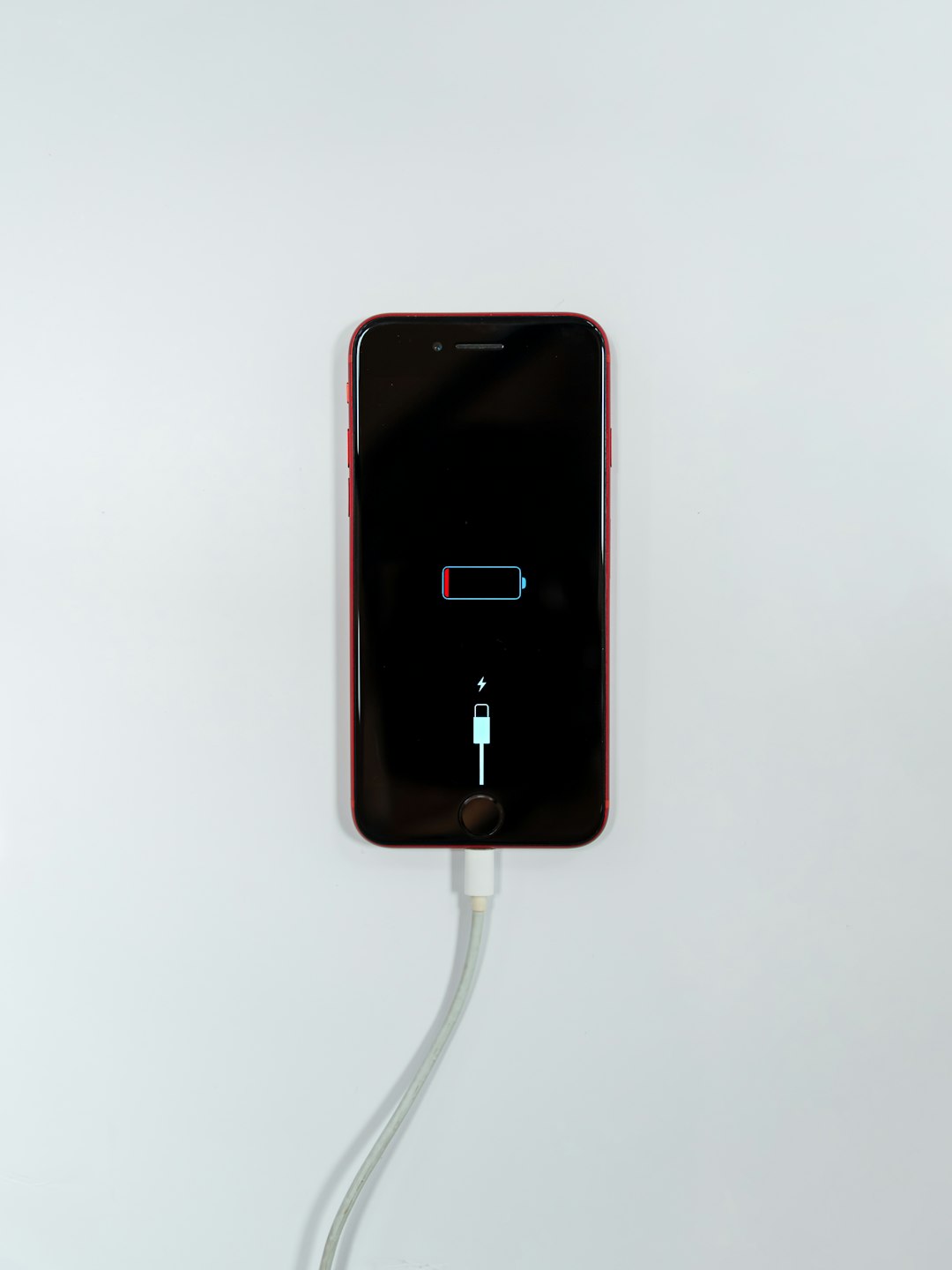
In some cases, the screen may remain black because the battery is deeply drained. When that happens, the iPhone may need to stay connected to a charger for several minutes before the charging icon appears. A user may think the phone is not charging, when it simply needs more time to recover enough power to turn on.
Solution: A restart or force restart can often resolve software related charging problems. The correct button combination depends on the iPhone model, but many newer iPhones can be force restarted by quickly pressing and releasing the volume up button, quickly pressing and releasing the volume down button, then holding the side button until the Apple logo appears.
After restarting, the device should be connected to a charger again and left for at least 30 minutes. If the battery was fully depleted, the charging screen may not appear immediately.
Keeping iOS updated is also important. Software updates often include battery management improvements and bug fixes. If the iPhone powers on but charges unpredictably, checking for an available iOS update may help.
- Restart the iPhone normally if it is still responsive.
- Perform a force restart if the screen is frozen or black.
- Leave the device plugged in for at least 30 minutes.
- Install available iOS updates once the battery is sufficiently charged.
5. Battery Health or Internal Hardware Problem
If the cable, adapter, outlet, charging port, and software have all been checked, the issue may be related to the battery or internal charging hardware. Lithium ion batteries wear out over time. After hundreds of charge cycles, an iPhone battery may lose capacity and become less reliable.
Signs of battery trouble may include sudden shutdowns, fast battery drain, slow charging, overheating, or a battery percentage that jumps unexpectedly. The iPhone may also refuse to charge beyond a certain percentage. In more serious cases, the charging port, logic board, battery connector, or power management components may be damaged.
Solution: The iPhone owner can check battery health in the Settings app by going to Settings, then Battery, then Battery Health & Charging. If the maximum capacity is significantly reduced or a service message appears, the battery may need replacement.
Professional diagnosis is recommended when the iPhone still will not charge after different cables and adapters have been tested. A qualified technician can inspect the charging port, test the battery, and check for internal damage. If the device has been dropped, exposed to liquid, or recently repaired, hardware failure becomes more likely.
Warning signs that require professional help include:
- The iPhone becomes extremely hot while charging.
- The battery is swollen or the screen is lifting.
- The charging port looks burned, bent, or corroded.
- The device does not respond to any charger or restart attempt.
- The iPhone was recently exposed to water or moisture.
Additional Tips to Prevent Charging Problems
Good charging habits can help reduce future issues. While an iPhone is designed for daily use, accessories and ports can wear out faster when they are handled roughly or exposed to dust and moisture.
- Unplug by the connector: Pulling the cable from the cord can weaken it over time.
- Keep the port clean: Regular inspection can prevent lint buildup.
- Avoid charging in extreme heat: High temperatures can affect battery health.
- Use trusted accessories: Certified chargers and cables are less likely to cause charging errors.
- Remove thick cases when needed: Some cases interfere with cable fit or wireless charging alignment.
It is also normal for an iPhone to pause charging in certain situations. Features such as Optimized Battery Charging may temporarily hold the battery at around 80 percent to reduce long term battery wear. This does not usually indicate a problem. If the device resumes charging later, it is likely working as intended.
When Should an iPhone Be Repaired?
An iPhone should be inspected by a professional if basic troubleshooting does not work. If several cables, adapters, outlets, and restart methods have been tried with no success, continuing to force the charging cable into the port may create more damage. Repair is also recommended if the device shows signs of liquid damage, overheating, swelling, or corrosion.
Before taking the phone for repair, the owner should back up important data if possible. If the iPhone still has enough battery to turn on, a backup through iCloud or a computer can help protect photos, contacts, messages, and files.
FAQ
Why is the iPhone plugged in but not charging?
The most common reasons are a damaged cable, dirty charging port, faulty adapter, weak power source, or software glitch. Testing another cable and power adapter is usually the best first step.
How long should a dead iPhone take to show it is charging?
If the battery is completely drained, the iPhone may need 10 to 30 minutes on a working charger before the charging icon appears. Older batteries may take longer.
Can lint really stop an iPhone from charging?
Yes. Packed lint inside the charging port can block the connector from seating properly. This can make the cable feel loose or prevent charging entirely.
Is wireless charging a good test?
Yes. If the iPhone charges wirelessly but not with a cable, the issue may involve the charging cable, adapter, or physical charging port.
Should the charging port be cleaned with alcohol?
In most cases, dry cleaning with a soft, nonmetal tool is safer. Liquids should be avoided unless a trained technician recommends them.
When does an iPhone battery need replacement?
A battery may need replacement when battery health is significantly reduced, a service message appears, the phone shuts down unexpectedly, or charging performance becomes unreliable despite using good accessories.