
Brave Search is a search engine you can use to find websites, images, videos, news, and quick answers online. It works much like other search engines, but many people use it for a more private search experience.
You can search on Brave Search from the Brave Browser address bar or you can open the Brave Search website in any browser. You do not need to be a technical user for this. If you know how to type a question or keyword, you can use it easily.
This article is for beginners who want to understand how to search on Brave Search Engine in a simple way. I’ll explain how to search, use filters, write better search queries, and use features like image search, news search, search operators, AI answers, and Goggles without confusing you.
What Is Brave Search?
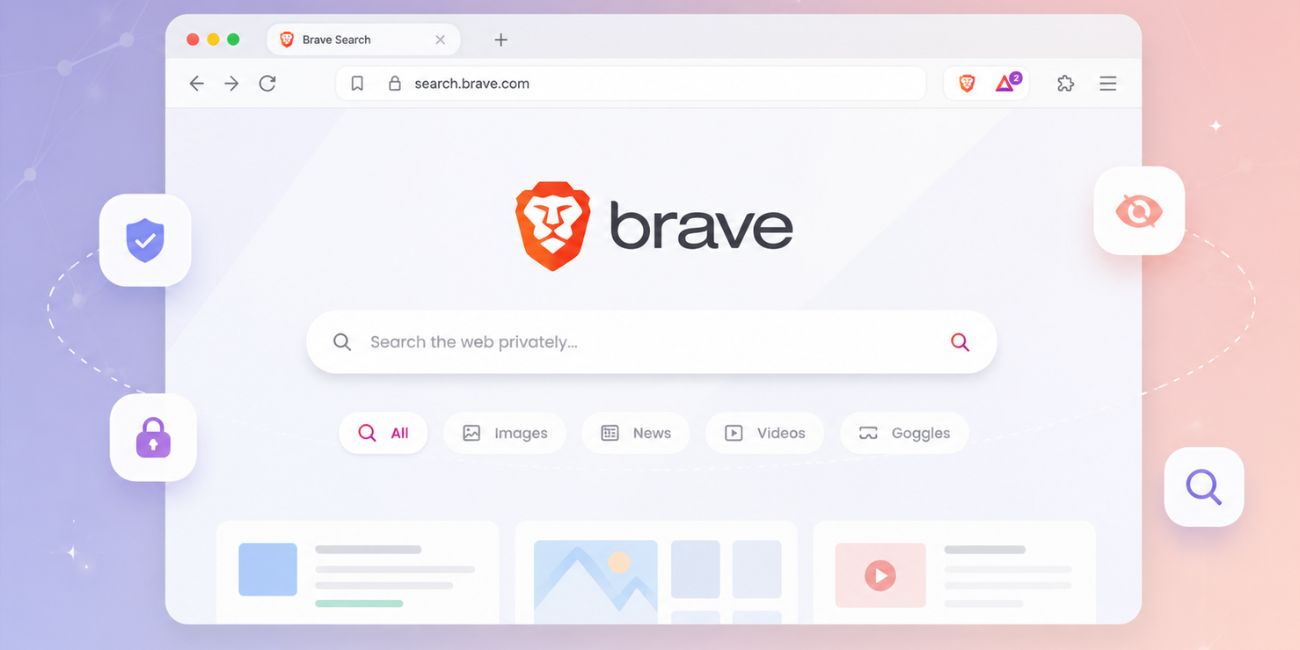
Brave Search is a search engine made by Brave. It lets you search the web for normal results like articles, websites, videos, images, and news. You can use it inside Brave Browser or open it directly from its search page.
A simple way to understand Brave Search is this: you type what you want to find, and Brave shows results that match your words. It can be a question, a product name, a website, a topic or full sentence.
Many users choose Brave Search because it is known as a privacy-focused search engine. That means it is made for people who do not want search to feel too tracked or too personal. Still, for normal daily use, it works in a familiar way.
How to Search on Brave Search Engine
The easiest way to search on Brave Search is to open Brave Search and type your topic in the search box. After that, press Enter and Brave will show you the search results page.
You can search for anything like “best budget phone,” “how to fix laptop keyboard,” “weather in London,” or “Flutter tutorial for beginners.” The search results will usually include websites, quick answers, images, videos, and other related results.
Basic steps are simple:
- Open Brave Search in your browser.
- Click the search box.
- Type your keyword, question or topic.
- Press Enter.
- Click the result that looks most useful.
Do not overthink the first search. Start with simple words, then make the search more specific if the results are not good enough.
Search From the Brave Browser Address Bar
If you use Brave Browser, you can search directly from the address bar at the top. This is the same place where you type website links. If Brave Search is set as your default search engine, your search will go through Brave automatically.
For example, you can type “best note taking apps” in the address bar and press Enter. Brave Browser will open the Brave Search results page for that query.
If your browser opens Google, Bing, or another search engine instead, then Brave Search may not be your default search engine. You can change that in the browser settings. Look for search engine settings and choose Brave Search as the default option.
This is useful because you do not need to open a separate search page every time. Just type in the address bar and search from there.
How to Get Better Results on Brave Search
Better search results usually come from better search words. If you type only one broad word, the results may be too general. If you type a clearer phrase, Brave can understand your search better.
For example, searching “laptop” is too broad. Searching “best laptop for students under 500” is better because it tells Brave what you really want. The more clear your search is, the better the results can be.
Try to include the main thing you want, plus one or two helpful details. If you want a guide, use words like “how to,” “setup,” “fix,” or step by step. If you want recent information than add the year or words like “latest” or “new.”
Here are a few examples:
| Weak Search | Better Search |
|---|---|
| laptop | best laptop for students 2026 |
| Flutter | Flutter login screen tutorial |
| Brave | How to use Brave Search |
| phone issue | Android phone not charging fix |
| invitation | What does RSVP mean on invitation |
A small change in wording can significantly improve the results. This is true for Brave Search and most other search engines too.
Use Brave Search Tabs and Filters
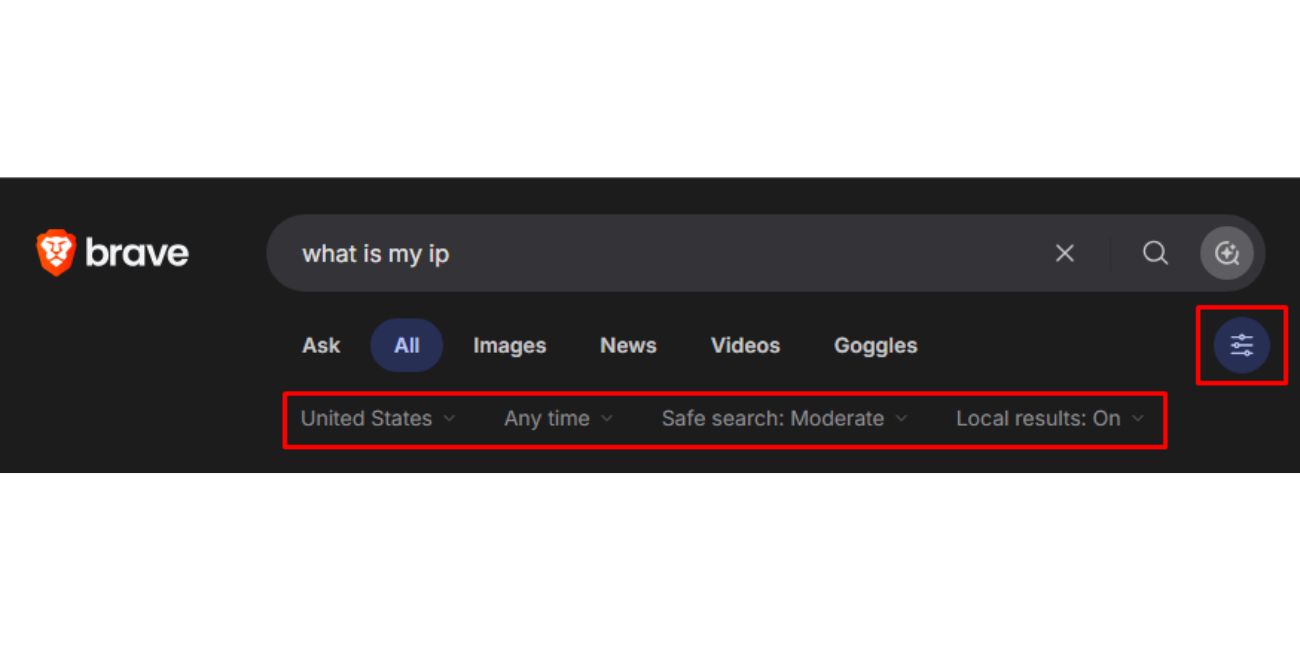
After you search on Brave, you may see different tabs like Web, Images, Videos, News or other result types. These tabs help you narrow down what kind of result you want.
If you want normal websites and blog posts, use Web. If you want pictures, use Images. Or If you want YouTube-style results or video pages, use Videos. If your topic is about recent updates, News can be more useful.
| Tab | Use It For |
|---|---|
| Web | Normal websites, guides and articles |
| Images | Pictures, screenshots and visual results |
| Videos | Video results and tutorials |
| News | Recent stories and updates |
| Local / Maps | Places, businesses and nearby searches |
This matters because not every search needs normal web results. If you are looking for a logo, use Images. If you are learning a repair process, Videos may be easier. Or if you are checking current events, News is better.
Use Search Operators on Brave
Search operators are small commands that help you search more clearly. They are useful when normal searching gives too many results or the wrong kind of results.
You do not need to learn many operators. A few simple ones are enough for most users. Quotes, minus sign, and site search can make your Brave searches much better.
| Operator | Example | What It Does |
|---|---|---|
| Quotes | “best note taking app” | Searches the exact phrase |
| Minus sign | jaguar -car | Removes results about cars |
| site: | site:example.com privacy policy | Searches inside one website |
| filetype: | flutter guide filetype:pdf | Looks for a certain file type |
| OR | macbook OR windows laptop | Searches for either word |
For example, if you search apple, you may get results about the company and the fruit. If you search apple -iphone, Brave will try to remove results related to iPhone. It is not magic, but it helps.
The site: operator is also very useful. If you want to search only one website, type site: followed by the website name and your topic. It saves time when a website’s own search is not good.
Use Brave AI Answers and Quick Results
Some searches on Brave may show a quick answer near the top. This can be helpful when you ask a simple question and do not want to open many pages right away.
For example, if you search “what does RSVP mean” or “how many ounces in a cup,” Brave may show a direct answer or summary. This is useful for quick learning, but you should still open normal results when the topic needs more detail.
AI answers can save time, especially for simple questions, summaries and general explanations. But for serious topics like health, money, law or technical setup, it is better to check more than one result.
A simple rule is this: use quick answers for fast understanding but use full articles or official pages when the answer really matters.
What Are Brave Search Goggles?
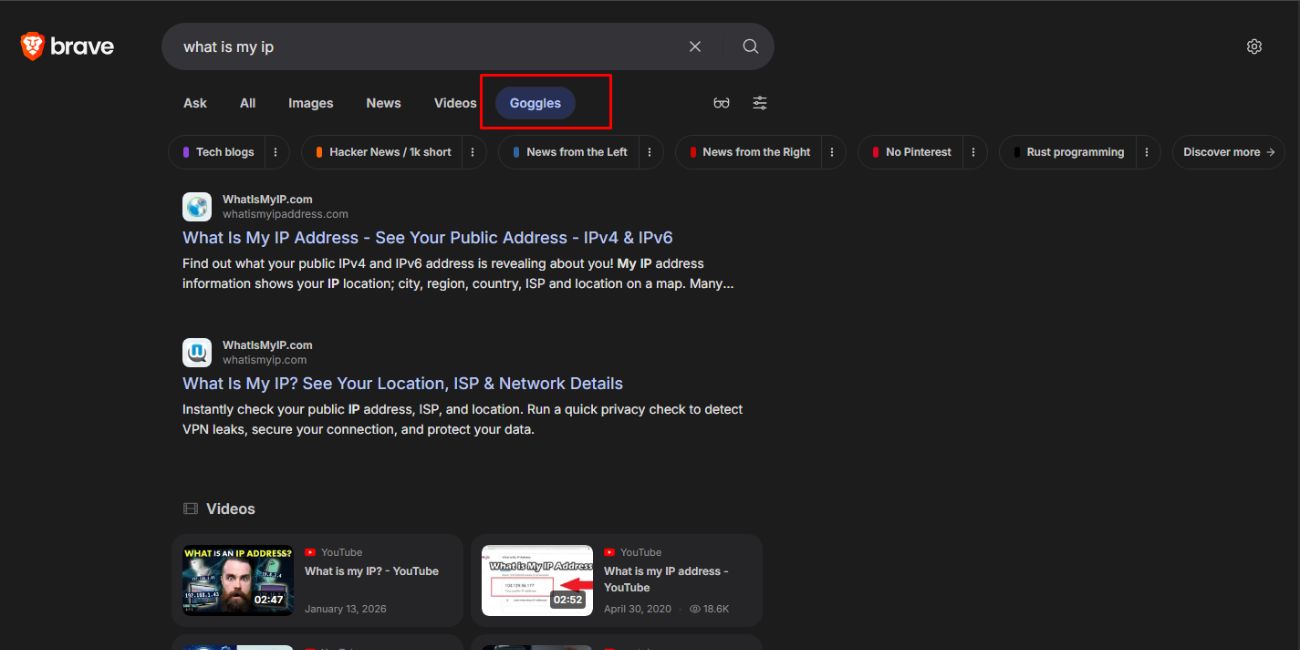
Brave Search Goggles is a feature that can change how search results are ranked or filtered. It is not something every beginner needs right away, but it is good to know it exists.
A simple way to think about Goggles is this. Normal search results show one general ranking. Goggles can let users or communities create different ranking rules, so results can be shown differently.
For example, one Goggle may focus more on blogs. Another may reduce certain types of sites. Another may highlight results from specific sources. It depends on the rules used.
If you are new to Brave Search, you can ignore Goggles at first. Learn normal searching, tabs and operators first. Later, you can try Goggles if you want more control over the kind of results you see.
How to Search on Brave From Mobile
You can use Brave Search on mobile too. If you have the Brave app on Android or iPhone, just open the app and type your search in the address bar.
And if Brave Search is your default search engine in the app, the results will open in Brave Search. If not, you can change the search engine from the app settings.
You can also open Brave Search in any mobile browser. The process is the same. Tap the search box, type your query and press search or Enter on your keyboard.
Mobile search is useful for quick things like nearby places, definitions, product checks, recipes and how-to questions. If you want better results on mobile, keep your query short but clear.
Common Brave Search Mistakes
One common mistake is typing very broad searches. If you search only “camera,” the results can go in many directions. Searching “best camera for YouTube beginners” gives the search engine a better idea.
Another mistake is not using tabs. If you want images but stay on Web results, you may waste time. If you want recent updates but do not check News, you may miss fresher results.
People also forget to use quotes for exact phrases. If you are searching for a title, error message, product name, or exact sentence, quotes can help. It tells Brave to look for that phrase as written.
A few simple mistakes to avoid:
- Using only one broad word
- Ignoring Images, Videos, or News tabs
- Not using quotes for exact phrases
- Forgetting the minus sign for unwanted results
- Trusting only one result without checking others
- Searching with too many random words at once
Search gets better with small habits. You do not need advanced tricks every time, just clearer words and the right tab.
Final Thoughts
Searching on Brave Search is simple. Open Brave Search or use the Brave Browser address bar, type what you want and press Enter. For better results, use clear keywords, result tabs, filters, and simple search operators.
If you are new to Brave, start with normal searches first. Then try Images, Videos, News, quotes, minus sign, and site: search when you need better results. Small changes in search words can make a big difference.
What do you mostly use Brave Search for: normal web search, private searching, images, news, or finding better answers?