
Playing Wii games on your PC is awesome. But there is one big problem. The Wii Remote uses motion controls. And your Xbox controller does not. Or does it?
Good news. You can emulate motion controls in Dolphin using an Xbox controller. It takes a little setup. But once it’s done, it feels natural. And fun.
TLDR: You can use Dolphin’s built-in controller settings to map Wii motion controls to your Xbox controller’s sticks and buttons. Enable “Emulated Wii Remote,” map motion to analog sticks, and fine-tune sensitivity. For games that need pointer control, map it to the right stick. With a few tweaks, most Wii games become fully playable without a real Wii Remote.
Why Emulate Motion Controls?
The Nintendo Wii was built around motion. Swing. Shake. Point. Twist.
That’s great if you own a real Wii Remote. But not everyone does. Maybe you only have an Xbox controller. Maybe you prefer its layout. Or maybe you just want to sit back and not wave your arms around.
Whatever the reason, Dolphin makes it possible.
What You Need
- Dolphin Emulator (latest version recommended)
- Xbox controller (Xbox One, Series, or 360)
- PC with Bluetooth or USB connection
- Your legally backed-up Wii game
That’s it. No extra hardware. No sensor bar required (unless you want one).
Step 1: Connect Your Xbox Controller
First, plug in your controller.
- Wired controller? Just use USB.
- Wireless? Connect via Bluetooth or Xbox adapter.
Make sure Windows detects it. You can test it in Game Controllers settings.
If the sticks move there, you’re good to go.
Step 2: Open Dolphin Controller Settings
Launch Dolphin.
At the top, click:
Controllers
You will see several sections. Focus on Wii Remotes.
Set:
- Emulate the Wii’s Bluetooth adapter
- For Wii Remote 1 → Choose Emulated Wii Remote
Then click Configure.
This is where the magic happens.
Understanding the Wii Remote Layout
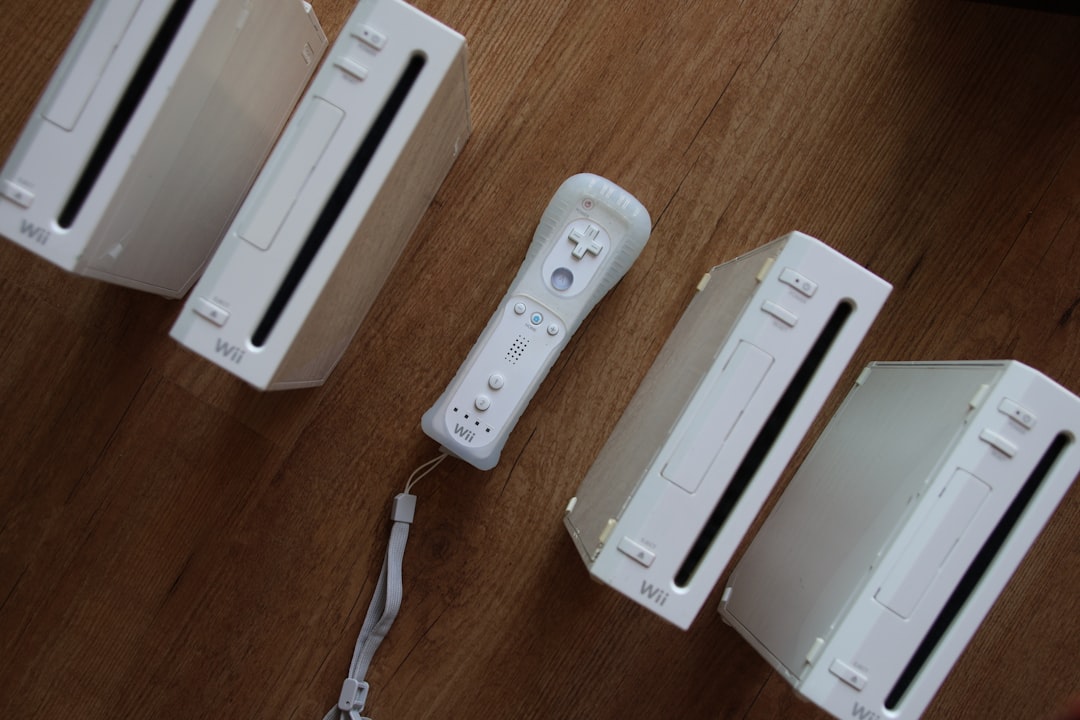
Before mapping, understand this:
- Buttons → A, B, 1, 2, Plus, Minus
- Motion controls → Swing, tilt, shake
- Pointer → Aiming at the screen
- Nunchuk (optional) → Stick + motion
Your goal is simple. Translate these motions to stick movements and buttons.
Step 3: Map Basic Buttons
This part is easy.
Under the Buttons tab:
- Map Wii A → Xbox A
- Map Wii B → Xbox RT
- Map Plus → Start
- Map Minus → Back
Click inside each field. Press the Xbox button you want. Done.
Simple. Clean. Familiar.
Step 4: Set Up Motion Controls
Now the interesting part.
Click the Motion Simulation tab.
You will see options like:
- Tilt
- Swing
- Shake
- Cursor
Mapping Tilt
Tilt replaces physical rotation.
Map:
- Tilt Left/Right → Right Stick Left/Right
- Tilt Forward/Back → Right Stick Up/Down
Now when you move the right stick, Dolphin thinks you’re tilting the Wii Remote.
Mapping Swing
Swing is used in games like:
- Wii Sports
- Super Mario Galaxy
- Zelda Skyward Sword
You can map:
- Swing Up → Y
- Swing Down → A
- Swing Left → X
- Swing Right → B
This creates “digital swings.” Press button. Instant motion.
It’s not realistic. But it works surprisingly well.
Mapping Shake
Shake is easy.
Assign Shake X, Y, Z all to one button. For example:
- Map all shake directions → LB
Now pressing LB triggers a shake action.
Perfect for spin attacks or quick interactions.
Step 5: Configure the Pointer
The pointer is used like a mouse. It’s common in menus and shooting games.
Go to the Point section.
Map:
- Cursor X → Right Stick Left/Right
- Cursor Y → Right Stick Up/Down
If you already used right stick for tilt, don’t panic. Many games don’t need tilt and pointer at the same time.
You can also:
- Use Right Stick for pointer
- Use Left Stick for tilt (if game allows)
Test and see what feels best.
Sensitivity and Dead Zones
This part matters. A lot.
If movement feels too fast:
- Lower sensitivity sliders
If pointer drifts:
- Increase dead zone slightly
Small changes make big differences.
Take five minutes. Test in-game. Adjust again.
Adding the Nunchuk (Optional)
Some games require the Nunchuk.
Enable it in the Extensions dropdown. Choose Nunchuk.
Then map:
- Stick → Xbox Left Stick
- C button → LB
- Z button → LT
Now you have full Wii + Nunchuk control on one Xbox pad.
Best Control Layout Example
Here’s a simple layout that works for many games:
- Left Stick → Movement (Nunchuk stick)
- Right Stick → Pointer
- A Button → Wii A
- Right Trigger → Wii B
- LB → Shake
- Face Buttons → Swings
It feels like a modern console game. Not a motion game.
Quick Comparison: Real Motion vs Xbox Mapping
| Feature | Real Wii Remote | Xbox Controller Mapping |
|---|---|---|
| Physical Swing | Yes | No (button press) |
| Precision Pointer | High | Medium (stick controlled) |
| Comfort | Active movement | Relaxed seated play |
| Setup Difficulty | Easy | Moderate (manual mapping) |
| Flexibility | Limited | Highly customizable |
Game-Specific Tips
Super Mario Galaxy
- Map shake to one bumper.
- Use right stick for pointer stars.
Zelda Skyward Sword
- Use right stick for sword direction (tilt).
- Assign shield bash to a trigger.
Wii Sports
- Map swings to buttons.
- Experiment with tilt for bowling spin.
Every game feels a bit different. That’s normal.
Save Your Profile
Very important.
After setting everything up:
- Click Profile
- Click Save
- Name it something like “Xbox Wii Layout”
Now you don’t have to redo the setup again.
Troubleshooting
Problem: Motion not detected.
Fix: Make sure you’re editing “Emulated Wii Remote,” not GameCube controller.
Problem: Pointer too jumpy.
Fix: Lower sensitivity. Increase smoothing.
Problem: Game feels impossible to control.
Fix: Try remapping tilt and pointer to different sticks.
Sometimes small layout changes make a huge difference.
Is It Perfect?
No.
You won’t get true 1:1 motion. Some games designed around precise movement may feel different.
But here’s the truth.
For most Wii games, Xbox mapping works great. It turns motion-heavy titles into standard controller experiences.
And for many players, that’s actually better.
Final Thoughts
Emulating motion controls in Dolphin with an Xbox controller is easier than it sounds.
You:
- Enable Emulated Wii Remote
- Map buttons
- Assign motion to sticks
- Adjust sensitivity
- Save your profile
That’s it.
No arm waving. No sensor bar. No extra devices.
Just you. Your controller. And your favorite Wii games.
Now go play. And maybe bowl a perfect 300 without ever leaving your chair.