
When you open File Explorer on Windows or Finder on macOS, you see small pictures that represent storage. One of the most common is the hard drive icon. Many users see it daily but still feel unsure about what it shows or why it looks the way it does.
A hard drive icon is a visual sign for storage space. It points to where your files live. This can be an internal disk, an external USB drive, or even a system volume that runs the operating system. The icon itself does not store data. It only helps the system show the drive in a clear way.
Why Hard Drive Icons Look Different on Each System?
Windows and macOS use different design rules. Each system shows storage in its own style, even when the drive does the same job.
On Windows, the system links icons to drive type and file system. On macOS, the icon often reflects the volume role and permissions. The same external drive can look different when you plug it into another computer.
Here are common reasons icons vary:
- The drive type, such as Hard Disk Drive or Solid State Drive
- The file system, like NTFS, APFS, or exFAT
- Whether the drive is internal, external, or removable
- System themes and display settings
Each system reads metadata from the disk and then picks an icon that fits its rules.
Hard Drive Icons in Windows and What They Represent
Windows groups drives by letters and roles. Each icon gives a small hint about how the system sees that storage.
Internal and External Drives in Windows
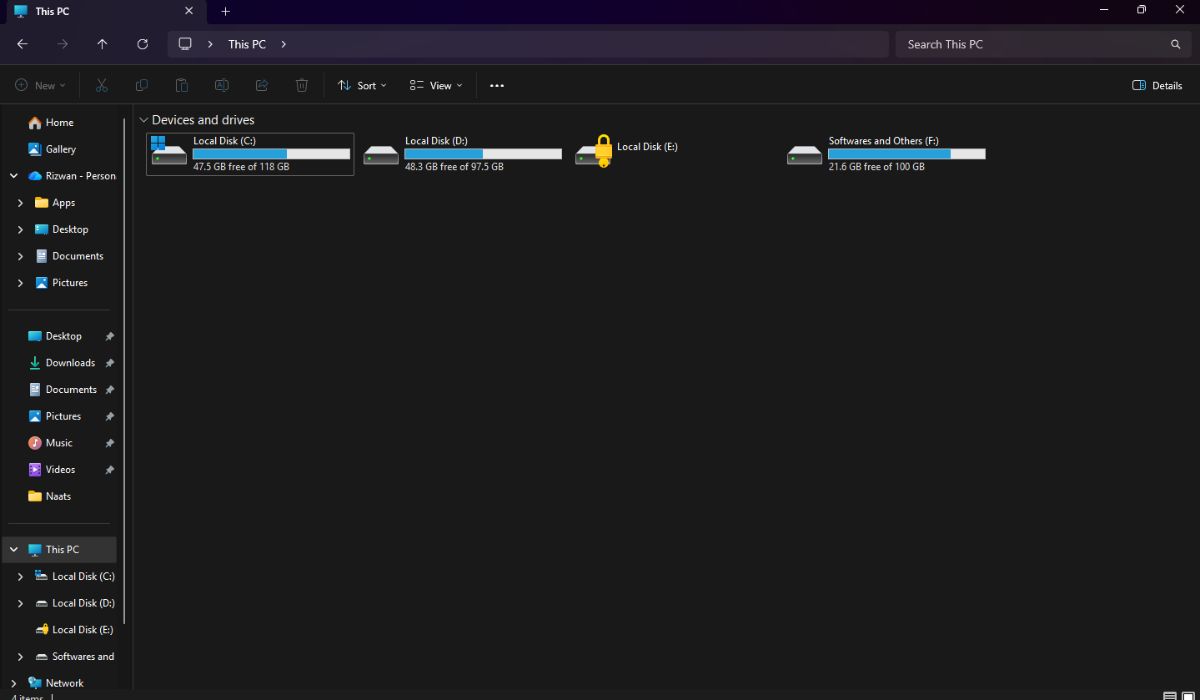
The main system drive usually appears as Local Disk (C:). It often uses a plain hard drive image. External storage shows a similar icon but may include a USB sign.
You may see:
- Local Disk (C:) for the main system volume
- Other letters like D: or E: for extra partitions
- USB drive icons for removable storage
- Network drive icons if storage comes from another computer
Windows reads this data through File Explorer and updates the icon when the drive state changes.
Symbols That Appear on Windows Drive Icons
Sometimes a small symbol appears on a drive icon in Windows, and it can feel worrying at first. These symbols act as quick status hints.
A lock icon usually shows that the drive uses encryption such as BitLocker, which protects data from unauthorized access. A warning sign may appear when the system detects file system issues or needs a scan, while a question mark can show up if the drive fails to mount or respond correctly.
These symbols do not always point to a serious problem. In most cases, they reflect real-time status details that Windows reads from the file system to help users understand the condition of the drive.
Hard Drive Icons on macOS and Finder Behavior
macOS handles storage through Finder and system services. The icon style feels cleaner but still follows rules.
Macintosh HD and External Volumes
The main drive often shows as Macintosh HD. This icon points to the system volume that runs macOS. External drives appear on the desktop or in Finder’s sidebar, depending on settings.
macOS checks the disk using Disk Utility and assigns icons based on volume type.
Why Some Drives Do Not Appear on the Desktop
Sometimes the drive works but stays hidden. This usually comes from Finder preferences.
Check these points:
- Finder settings for showing external disks
- Drive mount status in Disk Utility
- Permission issues on the volume
The icon exists, but Finder may not display it until settings allow it.
Can You Change a Hard Drive Icon?
Yes, both Windows and macOS allow icon changes. Still, each system sets limits. Some methods work only for external drives. Others need system access.
Before changing anything, know this: icons change only their appearance. They do not change how storage works or how data stays safe.
How to Change a Drive Icon in Windows
Windows allows icon changes, but the method depends on the drive type.
Method 1. Using an Icon File for External Drives
External drives work best with custom icons. Windows looks for an autorun configuration.
You need:
- An ICO file
- A small text file named autorun.inf
- Both files saved on the root of the drive
Windows reads this file and applies the icon when the drive connects.
Method 2. Changing Drive Icons Through System Settings
Advanced users can change icons through the Registry Editor. This method works for internal drives, too.
Be careful here. Wrong changes can affect how Windows loads drive data. Always back up settings first.
How to Change a Drive Icon on macOS
macOS makes icon changes simpler but limits system volumes.
To change a drive icon:
- Prepare an ICNS file or image
- Open the drive info window in Finder
- Paste the icon into the info panel
Finder applies the icon instantly. The change stays unless the system resets the volume or permissions block it.
Common Hard Drive Icon Problems and Fixes
Users often report issues after updates or system changes.
Here are frequent cases:
- Icon resets after a system update
- External drive shows a plain white icon
- Drive icon changes between Windows and macOS
These issues usually link to file system compatibility or system refresh. Reapplying the icon often solves the problem.
When You Should Not Change a Drive Icon?
Some drives should stay exactly as they are. System-level storage plays a direct role in how Windows and macOS start, recover, and protect data. Changing icons on these drives does not add value and can create confusion later, especially during troubleshooting or recovery. These drives rely on strict rules set by the operating system, not visual customization.
Avoid changing icons on drives like system recovery partitions, encrypted volumes protected by disk security features, and storage managed by enterprise or workplace policies. On macOS, the built-in system protection blocks changes to icons on core volumes to prevent accidental system damage. This restriction helps keep the operating system stable and ensures that essential storage remains easy to identify during updates, repairs, or emergency boot situations.
Final Thoughts on Hard Drive Icons
Hard drive icons help users understand storage at a glance. Windows and macOS show them differently, but the goal stays the same. Clear access to data.
Changing icons can help with organization, especially when using many external drives. Still, it is best to keep system drives simple and unchanged.
If you found this helpful, share it with others who struggle with storage icons. Feel free to comment with your setup or questions. Your experience may help another reader.