
When an internet connection keeps dropping without warning, many users immediately blame their service provider or router hardware. However, one often-overlooked culprit is a feature called Green Ethernet. Designed to conserve power, this energy-efficient setting can sometimes interfere with network stability, especially on certain devices, routers, or network adapters. Understanding how it works — and how to adjust it — can make the difference between constant disconnects and a smooth online experience.
TLDR: Green Ethernet is a power-saving feature that can unintentionally cause internet disconnections by reducing network performance during low activity. It may throttle speeds or disable ports to conserve energy, disrupting sensitive connections. Disabling or reconfiguring this feature in device settings, router firmware, or network adapters often resolves instability. Simple adjustments can quickly restore a reliable and consistent connection.
What Is Green Ethernet and Why Does It Cause Disconnections?
Green Ethernet, sometimes labeled as Energy Efficient Ethernet (EEE), is designed to lower power consumption by detecting network inactivity and reducing energy usage accordingly. It does this by:
- Placing Ethernet ports into low-power states when idle
- Adjusting signal strength based on cable length
- Reducing link speed during periods of minimal traffic
While this sounds beneficial in theory, problems arise when the feature misinterprets brief pauses in data transmission as inactivity. The result can include:
- Sudden internet drops
- Lag spikes during gaming
- Interrupted video calls
- Slow reconnection times
Green Ethernet is especially problematic in environments that rely on real-time data transfer, such as online gaming setups, VoIP systems, smart home devices, and remote workstations.

Common Symptoms of Green Ethernet Interference
Before applying fixes, it helps to confirm whether Green Ethernet may be causing the instability. Common indicators include:
- Internet disconnects only on wired connections, not Wi-Fi
- Connection drops during low activity periods
- Network reconnects automatically after several seconds
- Issues began after a driver or firmware update
If these symptoms are present, adjusting Green Ethernet settings is a logical first step.
5 Fixes to Stabilize Your Connection
1. Disable Green Ethernet in Network Adapter Settings
The most direct solution is turning off the feature within the device’s network adapter settings. On many systems:
- Open Device Manager.
- Locate Network Adapters.
- Right-click the Ethernet adapter and select Properties.
- Navigate to the Advanced tab.
- Look for options such as Energy Efficient Ethernet, Green Ethernet, or Power Saving Mode.
- Set them to Disabled.
After applying changes, restarting the system ensures the settings take full effect. Many users report immediate improvements in connection stability.
2. Update or Roll Back Network Drivers
Driver updates sometimes modify how Green Ethernet behaves. If disconnections started after a recent update, rolling back may help. Conversely, outdated drivers may contain bugs that mishandle power-saving transitions.
Steps to address this include:
- Checking the manufacturer’s website for the latest Ethernet drivers
- Installing official updates
- Rolling back to a previous version if instability began recently
Driver stability plays a critical role in managing how low-power states are triggered.
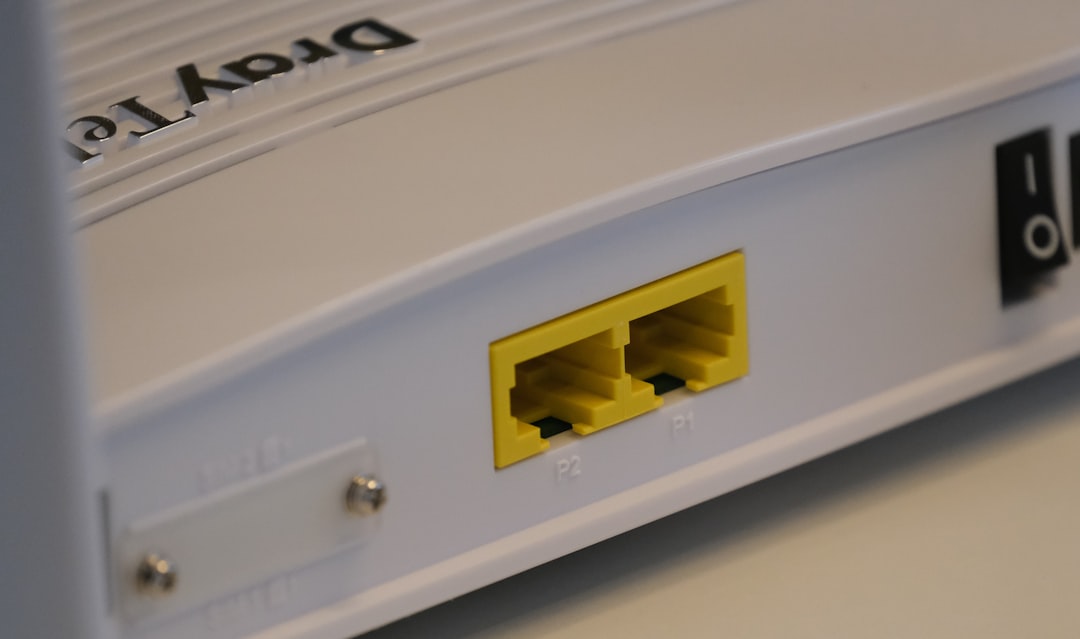
3. Adjust Router Green Ethernet Settings
Some routers also feature built-in Green Ethernet modes. These settings can usually be accessed through the router’s web interface:
- Enter the router’s IP address into a browser.
- Log in to the admin panel.
- Check sections like Advanced Settings, Power Management, or LAN Settings.
- Disable any energy-efficient Ethernet options.
Different router brands label this feature differently, so reviewing documentation may help. Disabling the setting at the router level often stabilizes multiple connected devices at once.
4. Change Power Management Settings
Operating systems also allow devices to turn off network adapters to save power. Even if Green Ethernet is disabled, power plans can still cause disruptions.
To prevent this:
- Open the network adapter’s Properties.
- Select the Power Management tab.
- Uncheck Allow the computer to turn off this device to save power.
Additionally, switching to a High Performance power plan ensures the system prioritizes connectivity over energy savings.
5. Replace Ethernet Cables or Switch Ports
Green Ethernet’s cable-length detection can miscalculate power requirements if the Ethernet cable is damaged or low quality. This may lead to improper power scaling and disconnections.
Testing with a new cable — preferably Cat5e, Cat6, or higher — can eliminate this variable. Switching to another router port also helps determine whether the issue is port-specific.
Although this fix may seem basic, faulty cables frequently amplify Green Ethernet instability.
When Should Green Ethernet Stay Enabled?
Despite its drawbacks, Green Ethernet is not inherently harmful. In low-demand environments, such as:
- Basic web browsing setups
- Office environments with stable infrastructure
- Devices rarely used for real-time communication
the feature can reduce power consumption without noticeable side effects. For critical applications, however, performance should take priority over minimal energy savings.
Does Disabling Green Ethernet Increase Power Consumption?
Yes — but typically only slightly. The energy difference per device is minimal, especially compared to the cost of:
- Interrupted business calls
- Lost online game sessions
- Corrupted file transfers
- Reduced productivity
For most households and businesses, the reliability gained far outweighs the modest increase in energy usage.
Advanced Troubleshooting Tips
If instability continues after applying the five fixes, deeper troubleshooting may be necessary:
- Update router firmware to the latest stable version
- Disable auto-negotiation and manually set link speed (e.g., 1 Gbps Full Duplex)
- Test the connection on another device
- Reset router settings to factory defaults
Enterprise-level setups may also benefit from managed switches that offer more granular Ethernet control.
Conclusion
Green Ethernet aims to improve efficiency by lowering power consumption during low network activity. However, in certain configurations, it can introduce frustrating connection drops and inconsistent performance. By disabling the feature in network adapters and routers, adjusting power settings, updating drivers, or replacing Ethernet cables, users can significantly stabilize their connections.
While energy efficiency is important, a reliable internet connection is often far more valuable — especially in today’s remote work and streaming-focused world. Fortunately, resolving Green Ethernet-related disconnections usually requires just a few simple adjustments.
Frequently Asked Questions (FAQ)
1. What is the difference between Green Ethernet and Energy Efficient Ethernet?
They are often used interchangeably. Both refer to power-saving technologies that reduce Ethernet energy consumption during low traffic periods.
2. Why does my wired connection drop but Wi-Fi works fine?
This commonly indicates a Green Ethernet or power management issue affecting the wired Ethernet adapter rather than the wireless network.
3. Is it safe to disable Green Ethernet?
Yes. Disabling it does not harm hardware. It simply prevents the network port from entering low-power states.
4. Will disabling Green Ethernet improve gaming performance?
It can. Stable, uninterrupted data flow is essential for gaming, and preventing power-saving interruptions may reduce lag spikes and disconnects.
5. Does every router support Green Ethernet?
No. Some routers include energy-saving LAN settings, while others do not. The option’s availability depends on the manufacturer and firmware version.
6. Can Green Ethernet affect Gigabit speeds?
In some cases, yes. Improper negotiation of link speeds during low-power transitions may reduce throughput or cause brief disconnects.
7. How do I know if Green Ethernet is enabled?
Check your network adapter’s Advanced settings in Device Manager or review your router’s LAN configuration page for energy-efficient options.