
You are using your computer normally, and suddenly a pop-up appears saying werfault.exe application error. Sometimes an app closes right after. Other times the system slows down or freezes for a moment. This error matters because it can interrupt your work, crash programs, or keep showing up again and again. When this happens, it feels worrying, especially if you are not sure what the file is.
This guide explains what werfault.exe means, why the error happens, what usually causes it, and how you can reduce the chances of seeing it again.
What Is werfault.exe?
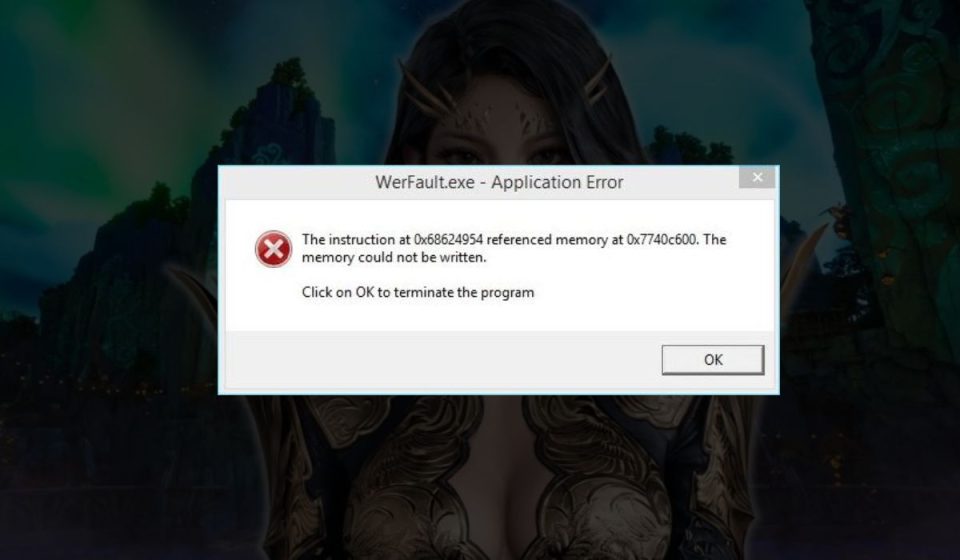
werfault.exe is part of Windows Error Reporting. Windows uses this process to collect information when an application crashes. When a program stops working, werfault.exe helps Windows record the error and decide what to do next. Under normal conditions, this file runs quietly in the background and does not cause problems. It is a built-in Windows system process, not something you installed yourself.
Most users notice werfault.exe when an application crashes or when Windows shows an error message. The error can appear as a pop-up, during app startup, or while closing a program. Sometimes it also shows up in system logs like Event Viewer. At this stage, the message only means something failed. It does not yet explain why.
Common Causes of werfault.exe Application Error
This error does not appear without a reason. It usually means Windows is struggling to handle a crash correctly. Sometimes the problem comes from system files. Other times, a faulty app or driver triggers it. Knowing the common causes helps you avoid panic and avoid deleting important files by mistake.
Common causes include:
- Corrupted or missing Windows system files
- Faulty or incompatible device drivers
- A crashing application repeatedly triggering error reports
- Malware pretending to be a system file
- Low system memory or disk errors
- Broken or incomplete Windows updates
- Damaged or misconfigured background services
Is werfault.exe a Virus?
In normal cases, werfault.exe is not a virus. The real file usually lives inside the Windows system folders. If the file runs from a strange location or keeps using a lot of system resources, that is a warning sign. Another red flag is when antivirus software detects threats linked to similarly named files. You should never delete werfault.exe without checking first. Removing real system files can break Windows.
How to Fix werfault.exe Application Error?
This error usually appears when Windows struggles to handle a program crash. Sometimes system files are damaged. Other times, drivers, apps, or malware trigger the issue.
Go through the fixes below in order. After each fix, use your system for a while and check if the error returns.
Fix #1: Restart Windows and Close Background Apps
Temporary system glitches can trigger werfault.exe errors. Restarting clears memory and stops stuck background processes. After rebooting, avoid opening many apps at once. If the error does not return, a temporary system conflict caused it.
Fix #2: Run System File Checker (SFC Scan)
Corrupted Windows system files are a common cause of this error. The System File Checker scans and repairs damaged files automatically.
Follow these steps:
- Open Command Prompt as administrator
- Type
sfc /scannow - Press Enter
- Wait for the scan to complete
- Restart your computer
If the scan fixes files, the error often stops.
Fix #3: Check for Malware or Suspicious Files
Malware sometimes disguises itself as system processes. This can trigger werfault.exe errors repeatedly. Running a full system scan helps rule this out.
Use a trusted antivirus tool, run a full scan, and remove any detected threats. Restart your system after the scan finishes.
Fix #4: Update or Roll Back Device Drivers
Faulty or incompatible drivers can crash apps and trigger error reporting loops. Updating drivers fixes many stability problems.
Open Device Manager, check for devices with warnings, and update their drivers. If the error started after a recent driver update, rolling back that driver may help instead.
Fix #5: Check Disk for Errors
Disk problems can corrupt system files and cause repeated errors.
Follow these steps:
- Open Command Prompt as administrator
- Type
chkdsk /f - Press Enter
- Restart your computer when prompted
Windows will scan and fix disk errors during startup.
Fix #6: Install Pending Windows Updates
Missing or broken updates can cause system services to behave incorrectly. Installing updates often restores stability.
Open Windows Update settings, check for updates, install everything available, then restart your system. Many werfault.exe errors stop after updates complete.
Fix #7: Repair Windows Using Built-In Tools
If the error keeps appearing, Windows itself may need repair. Built-in repair tools can fix deeper system issues without deleting files.
Use Windows recovery options like Startup Repair or system repair tools. This step should only be used after trying the other fixes.
Prevention Tips to Avoid werfault.exe Errors in the Future
Preventing this error saves time and keeps the system stable. Small habits reduce the chance of repeated crashes and error pop-ups. You do not need advanced tools to stay safe. Simple care makes a difference.
Here are easy prevention tips you can follow:
- Keep Windows updates installed
- Avoid forced shutdowns or power cuts
- Use trusted software only
- Scan for malware regularly
- Monitor disk health and free space
- Update drivers carefully and only when needed
Conclusion
In short, the werfault.exe application error means Windows is having trouble handling a program crash. The issue often links to damaged system files, faulty drivers, or unstable software. Most of the time, it does not mean your system is broken or infected.
If the error keeps appearing, take things step by step and avoid rushed actions. Focus on stability and prevention first. If problems continue, professional system repair tools or expert help may be needed. If this article helped you, share it with others and leave a comment about your experience.