
Tradovate internal server error can show up at the worst time. Maybe you are trying to log in. Maybe charts are loading slowly. Or worse, maybe you were trying to manage an order and suddenly the platform gives a server message.
That feels stressful, and honestly, it should be treated carefully because this is a trading platform, not a normal social app.
The error can come from different places. It may be a Tradovate server issue, a broken login session, browser cache, VPN, weak internet, app bug, or even an account-side problem. So the smart move is not to keep clicking buttons again and again. First check whether the platform is working, then move through the fixes one by one.
Quick Answer: To fix Tradovate’s internal server error, refresh once, sign in again, check Tradovate’s system status, try another browser or private window, clear cache and cookies, turn off VPN, and test another network. If the error affects open positions, pending orders, or account access, contact Tradovate support quickly.
What Does Tradovate Internal Server Error Mean?
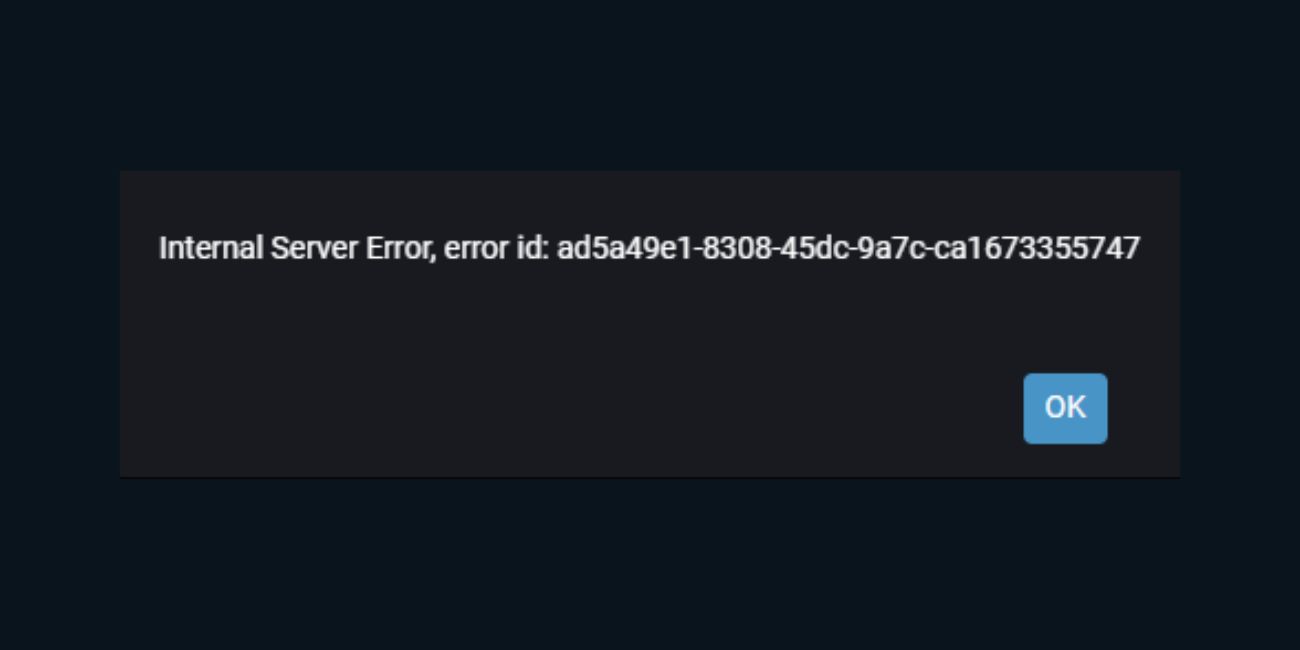
A Tradovate internal server error means the platform could not complete a request properly. That request could be login, chart loading, account data, order panel loading, market data, or another platform action. It does not always mean your account is broken. It also does not always mean your device is the problem.
Sometimes the error is from Tradovate’s side. Sometimes it is from your browser or app session. Other times, your internet, VPN, firewall, or old cookies can block the request and make the platform fail. This is why you need to check both sides, not just one.
Common Causes of Tradovate Internal Server Error
Tradovate internal server error can happen because of a platform-side issue or a local setup issue on your device. The hard part is that the message may look the same in both cases. A real outage and a bad browser session can both feel like “Tradovate is not working.”
Common causes include:
- Temporary Tradovate service issue
- Platform maintenance or server load
- Expired login session
- Browser cache or cookies problem
- VPN, proxy, or private DNS conflict
- Weak Wi-Fi or unstable internet
- Browser extension blocking platform scripts
- Old Tradovate app version
- Desktop app glitch
- Mobile app cache issue
- Firewall or antivirus blocking the app
- Wrong device date and time
- Account access or permission issue
Tradovate has an official system status page where users can check services like frontend access, execution, risk and routing, market data, reporting, subscriptions, and other platform parts. It is worth checking when the error appears, especially if the platform fails on more than one device.
Before You Fix It: Check If Trading Actions Are Pending
Before clearing cache or refreshing too many times, stop and think about what you were doing when the error appeared. If you were only logging in, that is one thing. If you were placing, modifying, or closing an order, be more careful.
Do not keep clicking buy, sell, flatten, cancel, or modify buttons if the screen is frozen or showing a server error. You do not want to create duplicate actions or misunderstand your real order status. This is not trading advice, it is just basic platform safety.
Check these things if possible:
- Are there any open positions?
- Are any orders still pending?
- Did you receive an order confirmation?
- Can you check from another device or browser?
- Is the same issue happening on web and mobile?
- Do you need to contact support before trying again?
If active trades are involved and you cannot confirm your order status, support should be your next step. Tradovate says in-app live chat is available to customers, and its support page also points users to customer forum and help resources.
How to Fix Tradovate Internal Server Error
Start simple. Refresh once, sign in again, and check whether Tradovate itself is having a service issue. Then move to browser, cache, network, VPN, app updates, and firewall checks.
Test after each fix. Don’t change five things at the same time. It makes the real cause harder to find.
Fix #01. Refresh Tradovate and Sign In Again
A broken or expired session can cause a Tradovate internal server error. This can happen if the platform was open for a long time, your internet dropped for a moment, or your browser kept an old login state. Refresh the page once and wait for it to load properly.
If that does not help, sign out and sign back in if the platform lets you. If the page is frozen, close the browser tab and open Tradovate again in a fresh tab. Just be careful if you were on an order screen. Don’t keep clicking trade actions during refresh, because you may not know what already went through.
Fix #02. Check Tradovate Server Status or Platform Updates
If Tradovate gives an internal server error on web, desktop, and mobile at the same time, the issue may not be your device. It could be a temporary platform problem, maintenance, market data issue, frontend issue, or another service-side problem.
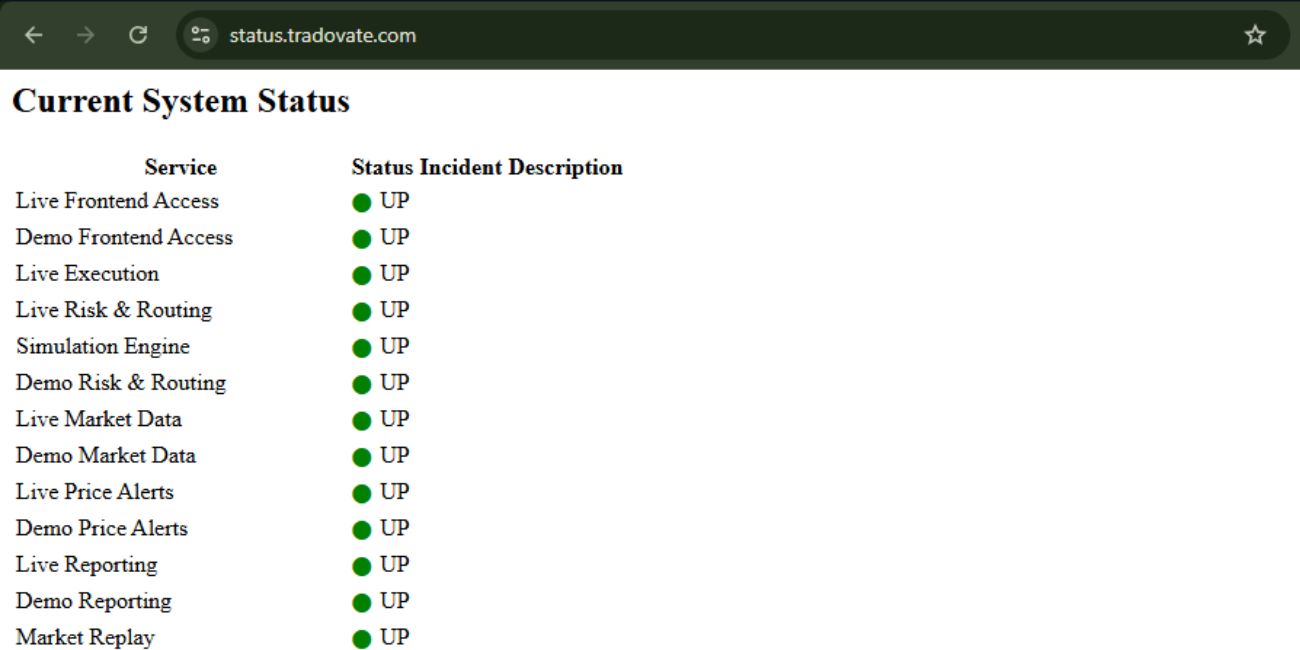
Open Tradovate’s system status page and check whether important services are working. Look at frontend access, execution, risk and routing, market data, and reporting. If the status page shows a problem, the safest thing may be to wait and avoid repeated login or order attempts until things are stable.
If status looks normal but many users are reporting the same issue, it may still be a temporary platform problem. User reports are not official proof, but they can give a clue. Official status and support updates should still be treated as the main source.
Fix #03. Try Another Browser or Private Window
If you use Tradovate in a browser, the issue may be inside the browser session. Old cookies, extensions, cached files, or a stuck login token can make the platform act strange. A private or incognito window gives you a cleaner test without changing your whole browser setup.
Try this:
- Close your current Tradovate tab.
- Open a private or incognito window.
- Go to the Tradovate login page.
- Sign in normally.
- Check if the internal server error appears again.
If it works in private mode, your normal browser data or extension setup is probably the issue. You can then clear site data or disable extensions one by one. Also try a different browser like Chrome, Edge, Safari, or Firefox if you have one installed.
Fix #04. Clear Browser Cache and Cookies for Tradovate
Browser cache and cookies help websites load faster and keep you signed in. But when those saved files become outdated or broken, they can cause login loops, server errors, and blank loading screens. This is common with web apps, not just Tradovate.
Instead of clearing your entire browser history, clear only the site data for Tradovate if your browser allows it. After clearing cookies, you will need to sign in again. That is normal.
General steps:
- Open your browser settings.
- Go to privacy or site data settings.
- Search for Tradovate.
- Clear cookies and site data for Tradovate.
- Close and reopen the browser.
- Sign in again and test the platform.
If the error was caused by a stuck session, this can fix it. If the error still appears after clearing site data, move to browser extensions and network checks.
Fix #05. Disable Browser Extensions
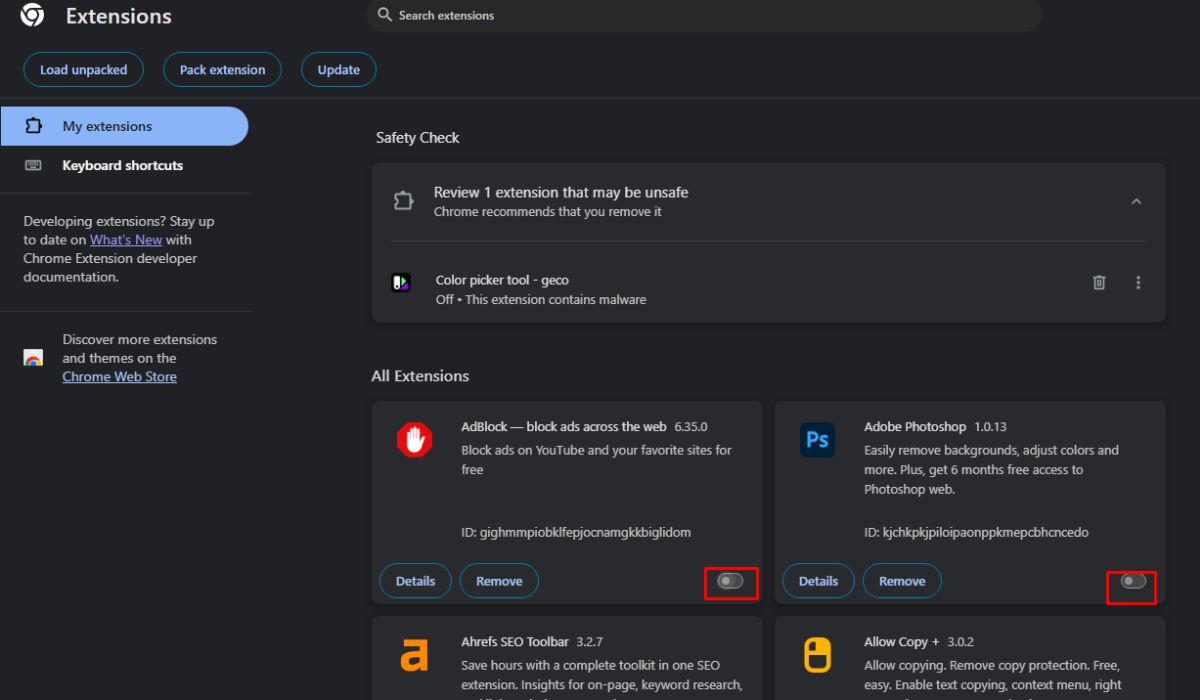
Some browser extensions can block scripts, popups, tracking requests, or page features that a trading platform needs to work. Privacy tools, ad blockers, script blockers, and strict security extensions can sometimes break web apps.
For a quick test, disable these types of extensions:
- Ad blockers
- Script blockers
- Privacy extensions
- Pop-up blockers
- VPN browser extensions
- Security extensions that filter web traffic
Do not remove them permanently right away. Just turn them off for a test, reload Tradovate, and see if the error clears. If Tradovate works after disabling extensions, turn them back on one by one until you find the one causing trouble.
Fix #06. Restart the Tradovate App or Desktop Platform
If you use the Tradovate desktop app or mobile app, close it fully and reopen it. Minimizing the app is not enough. On desktop, make sure it is not still running in the background. On mobile, swipe it away from recent apps and open it again.
A full restart can clear a stuck app process, frozen login session, or temporary loading error. If your internet dropped while the app was open, restarting the app may help it reconnect cleanly.
After reopening, do not jump straight into trading actions. Let the dashboard load, check account data, and make sure charts and order panels are responding normally.
Fix #07. Update the Tradovate App
An outdated app can have bugs with login, account loading, or server communication. This is more common after platform updates or system updates on your phone or computer. If your app version is old, update it before trying deeper fixes.
On mobile, open the App Store or Google Play Store and check for a Tradovate update. On desktop, check the update option inside the app or download the latest installer from the official source. After updating, restart the app and test again.
If the error started after a new update, it may be a bug that needs support help. Still, using the latest available version is usually better than staying on an old one.
Fix #08. Switch Network or Restart Your Router
A weak or unstable internet connection can make Tradovate fail to complete requests. Your internet may work for browsing normal websites but still be unstable for a real-time trading platform. Trading apps need a steady connection, not just “some internet.”
Try these checks:
- Switch from Wi-Fi to Ethernet if possible.
- Restart your router.
- Try mobile hotspot for a short test.
- Switch from mobile data to Wi-Fi if you are on phone.
- Avoid public Wi-Fi for trading platform access.
- Pause heavy downloads or uploads.
- Test if other real-time apps are also lagging.
Tradovate’s own login issue support article says intermittent connection failures between a home network and Tradovate servers are one common cause of login issues. So yes, network stability matters here.
Fix #09. Turn Off VPN, Proxy, or Private DNS
VPN, proxy, and private DNS tools can change how your connection reaches Tradovate. Sometimes this creates routing problems. Sometimes it makes a login request look unusual. A trading platform may fail or reject a request if the connection path is unstable.
Turn off VPN and try a normal trusted connection. If you are using a browser VPN extension, disable that too. On Android, also check if Private DNS is enabled. On office or school networks, some trading-related traffic may be restricted, so testing from home internet or mobile data can help.
This does not mean VPN is always the cause. But it is easy to test, and it is worth checking if the error started after you changed location, network, or VPN server.
Fix #10. Check Firewall or Antivirus Blocking Tradovate
Firewall or antivirus software can block a desktop trading app from connecting properly. This is more likely if the error happens only in the desktop app, while the web version works fine. Windows Defender or another security tool may be blocking part of the app connection.
Check whether Tradovate is allowed through your firewall. On Windows, open firewall settings and look for the option to allow an app through the firewall. If Tradovate is listed, make sure it is allowed on your normal network type. If it is not listed, you may need to add it manually.
Do not fully disable your security software for a long time. If you test with antivirus off, do it briefly and only with trusted apps. A better option is allowing Tradovate specifically instead of turning off protection for everything.
Fix #11. Sync Your Device Date and Time
An incorrect date, time, or time zone can cause problems with secure login and session validation. Many platforms depend on correct device time for secure requests. If your clock is off, some login or session checks may fail in weird ways.
Turn on automatic date and time on your device. Also enable automatic time zone if available. Then close Tradovate, reopen it, and test again. This fix is simple, but it is easy to miss, especially after travel, dual boot setups, or manual time changes.
Fix #12. Reinstall Tradovate App If It Still Fails
Reinstalling should come after easier fixes. If the real issue is Tradovate server status, VPN, or browser cache, reinstalling the app will not help much. But if the desktop or mobile app files are damaged, a fresh install can fix stubborn local issues.
Before reinstalling, make sure you know your login details and can access your 2FA method. Then uninstall the app, restart your device, and install it again from the official source or app store. After reinstalling, log in and test the platform before making any trade actions.
If the error returns right away after a clean install, the cause is probably not the app files. It may be on the account side, network side, or platform side.
Fix #13. Contact Tradovate Support
Contact support if the error keeps appearing on multiple devices, affects account access, or happens while you have open positions or pending orders. This is not the time to guess. If trading activity is involved and you cannot confirm your status, support is the safer path.
Prepare these details before contacting support:
- Exact error message
- Where it appears: login, chart, order panel, account page
- Device type: Windows, Mac, iPhone, Android
- Browser name and version if using web
- App version if using desktop or mobile
- Whether VPN is on or off
- Whether the issue happens on another network
- Whether you have open positions or pending orders
Do not share your password or full security codes with anyone. Tradovate lists in-app live chat for customers and has support/contact pages for help, so use official support routes only.
What Not to Do During a Tradovate Internal Server Error
When a trading platform is unstable, rushing can create more problems. Even if you are worried, slow down and confirm what is happening before repeating actions.
Avoid these mistakes:
- Do not keep clicking buy or sell if the order screen is frozen.
- Do not place the same order again without checking order status.
- Do not share your password or 2FA code with anyone.
- Do not trust random “support” links from social media.
- Do not use public Wi-Fi for account recovery if you can avoid it.
- Do not clear everything while an order status is still unknown.
- Do not assume your account is broken just because one server error appears.
This is not about trading strategy. It is just about protecting your account and avoiding confusion during a platform error.
How to Prevent Tradovate Internal Server Errors Later
You cannot prevent every internal server error. If Tradovate has a platform-side issue, you have to wait for the service to recover. But you can reduce user-side problems by keeping your browser, app, internet, and login setup clean.
Try these habits:
- Keep the Tradovate app updated.
- Use a stable internet connection.
- Avoid VPN during trading if it causes issues.
- Use a trusted browser for the web platform.
- Clear site data if login sessions keep breaking.
- Keep your device time set to automatic.
- Avoid public Wi-Fi for trading.
- Test the platform before high-volatility times.
- Keep a backup device ready if you trade actively.
- Know how to contact support before you need it.
Small preparation helps a lot. Especially with trading platforms, you do not want to learn support steps during a stressful moment.
Final Thoughts
Tradovate internal server error can be platform-side, browser-side, app-side, network-side, or account-side. Start with simple checks like refresh, sign in again, server status, private browser window, and cache clearing. Then test VPN, network, app update, firewall, and reinstall only if needed.
If the error appears while you have active trades or pending orders, be extra careful. Do not repeat order clicks blindly. Check order status from another method if possible, and contact Tradovate support if you cannot confirm what happened.
Where are you seeing the Tradovate internal server error – login page, charts, order panel, mobile app, desktop app, or web platform? Share that detail in the comments because the right fix depends on where it appears.