
TPM-WMI is a Windows event source where you can see security related messages, Trusted Platform Module activity, and Secure Boot related events inside Event Viewer on your computer. But, sometimes you see TPM-WMI Event ID 1801 for many reasons e.g., Secure Boot certificate update issue, firmware not applying the new certificates, BIOS or UEFI update problem, or due to Windows update and firmware not matching properly.
This easy guide will help you to fix this event by providing an easy step-by-step guide and also tell you what happened when this event appears and after clear your concept that why TPM-WMI Event ID 1801 is showing in Event Viewer. Current Microsoft and Dell guidance links this event with updated Secure Boot certificates that are available in Windows but not yet applied to device firmware.
What Is TPM-WMI Event ID 1801?
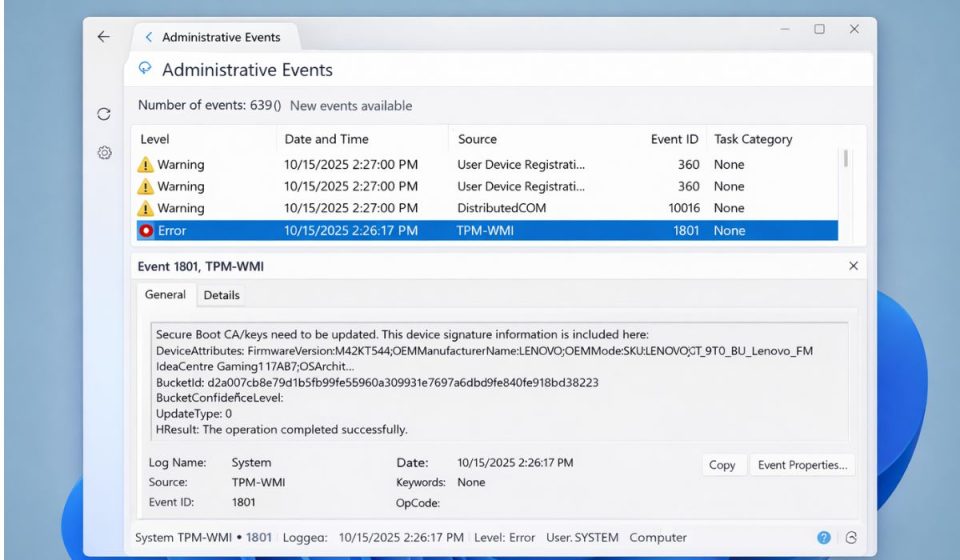
TPM-WMI Event ID 1801 is an event message which appears when Windows detects that updated Secure Boot certificates are present or available, but they have not yet been applied to the device firmware. In simple words, Windows has part of the Secure Boot update on the OS side, but the firmware side has not completed the same update process yet. This event is connected with Secure Boot certificate transition and firmware synchronization, and it does not automatically mean that your TPM chip is broken or failing.
You can see this event in Event Viewer under TPM-WMI on Windows 10 or Windows 11 systems, especially after security updates, certificate updates, or firmware related changes. Dell guidance also says Event 1801 can appear when Windows thinks Secure Boot certificates are not applied because the Secure Boot databases are unsynchronized.
Common Causes of TPM-WMI Event ID 1801
This event can happen for several reasons, depending on your Secure Boot state, firmware version, and update status. Below are the most common causes you should be aware of.
- Updated Secure Boot certificates are present in Windows
- Firmware has not applied the new certificates yet
- BIOS or UEFI firmware is outdated
- Secure Boot databases are unsynchronized
- A reboot or update cycle did not complete
- OEM firmware support is still needed
- Windows update and firmware timing do not match yet
How to Fix TPM-WMI Event ID 1801?
Fixing TPM-WMI Event ID 1801 is a simple step in many cases but difficult for beginners, low-educated people, or to those who never know the complex setting of Event Viewer, Secure Boot, BIOS, or firmware update. If you follow my given steps then you can easily check the problem and solve it. Here are the fixes you need to perform for removing TPM-WMI Event ID 1801. Microsoft guidance says you should make sure Windows Update is fully up to date and reboot the device after installing pending updates, and if the event still stays then contact the device manufacturer for firmware or UEFI help.
Fix #1 – Restart your PC
This event can appear because the reboot cycle needed for the Secure Boot update has not completed properly. Restarting the PC helps Windows and firmware continue the pending Secure Boot certificate process. Once you restart it, the firmware may apply part of the update and the TPM-WMI event may stop appearing again. Microsoft guidance specifically says to reboot the device after installing pending updates.
Here are the following steps which help you to restart your PC.
- Save your work on the computer.
- Close all open apps.
- Click the Start menu.
- Choose the Restart option.
- Wait for Windows to load again.
- Check Event Viewer after the restart.
Fix #2 – Install all pending Windows updates
Sometimes the main problem is that Windows has not finished installing the Secure Boot related update files. If Windows Update is pending then the Secure Boot certificate process may stay incomplete and TPM-WMI Event ID 1801 can continue to appear. Installing all pending Windows updates can help the OS side complete the update properly. Microsoft guidance recommends keeping Windows fully up to date for this issue.
Follow the steps below to easily install all pending Windows updates.
- Open Settings on your computer.
- Go to Windows Update.
- Click Check for updates.
- Download and install all available updates.
- Restart the computer after installation.
- Check if the event still appears in Event Viewer.
Fix #3 – Check for BIOS or UEFI firmware updates
This event can also happen because the firmware side is old and cannot apply the updated Secure Boot certificates correctly. If the BIOS or UEFI firmware is outdated then the Secure Boot databases may stay unsynchronized. Updating BIOS or UEFI from your OEM support page can help the firmware accept and store the newer Secure Boot keys. Dell and Microsoft guidance both point users toward OEM firmware or UEFI updates when the event persists.
You can perform the following steps to check for BIOS or UEFI firmware updates.
- Find your computer model name.
- Open your OEM support website.
- Search for BIOS or UEFI updates for your device.
- Download the latest supported firmware update.
- Follow the OEM instructions carefully.
- Restart the computer and check Event Viewer again.
Fix #4 – Review your OEM support page for Secure Boot certificate guidance
Sometimes the general Windows update is not enough because the device manufacturer may have special steps for the Secure Boot certificate transition. OEM support pages can explain if your motherboard, BIOS, or firmware has a special update path for the newer Secure Boot certificates. This helps because some devices need vendor specific guidance before the new certificates are fully applied. Dell has published guidance around Secure Boot certificate transition and related firmware behavior.
Try these simple steps to quickly review your OEM support page.
- Open your device manufacturer support site.
- Search your exact model number.
- Look for Secure Boot certificate guidance.
- Read BIOS or firmware notes carefully.
- Follow only the steps made for your device.
- Restart the system after any approved change.
Fix #5 – Confirm Secure Boot is enabled and supported correctly
Secure Boot status can also affect how the certificate update behaves on the device. If Secure Boot is disabled or not configured properly then the update path may not work the expected way. Checking that Secure Boot is enabled and supported correctly can help you confirm that the system is ready for the certificate transition. Microsoft and OEM discussions around Event ID 1801 keep connecting the event to Secure Boot certificate application and firmware state.
Below are the steps that will guide you to confirm Secure Boot is enabled and supported correctly.
- Restart the computer and enter BIOS or UEFI.
- Find the Secure Boot setting.
- Check if Secure Boot is enabled.
- Save changes only if your OEM recommends them.
- Exit BIOS and boot into Windows.
- Open Event Viewer and check the TPM-WMI log again.
Fix #6 – Wait for the firmware synchronization to complete after updates
Sometimes the event does not disappear immediately after one update or one reboot. The firmware synchronization may need extra time, another reboot, or a later update cycle before the new Secure Boot certificates are fully applied. In that case the best step is to wait for the synchronization to complete instead of making random changes. Microsoft guidance and Dell guidance both describe the event as a sync issue between Windows and firmware.
Here’s how you can wait for the firmware synchronization in just a simple way.
- Keep Windows fully updated
- Restart the computer after updates
- Check Event Viewer after the next boot
- Watch for BIOS or firmware updates from the OEM
- Avoid unnecessary Secure Boot changes while the update path is still in progress
Fix #7 – Contact your device manufacturer if the event keeps returning
If TPM-WMI Event ID 1801 still keeps coming back after Windows updates, BIOS updates, and reboots then the issue may need OEM support help. In that case the device firmware may need a vendor side fix, supported BIOS release, or more specific UEFI guidance. Microsoft support discussions say that if Event ID 1795 or 1801 continues then users should contact the device manufacturer to check for a firmware or UEFI update.
These are the exact steps you need to follow to contact your device manufacturer successfully.
- Find your device serial number or model number.
- Open the OEM support website.
- Search for firmware or Secure Boot help.
- Contact support through the available option.
- Explain that Event Viewer shows TPM-WMI Event ID 1801.
- Ask whether your device needs a BIOS or UEFI update.
Fix #8 – Check related TPM-WMI events and system behavior
Sometimes Event ID 1801 appears together with related TPM-WMI or Secure Boot events, and that gives more context about what the system is doing. Checking Event Viewer for related events and also watching whether BitLocker, boot behavior, or Secure Boot functions are normal can help you understand if the system has only a certificate sync issue or something more. Microsoft discussions also mention related TPM-WMI events like 1795 and 1796 in similar Secure Boot update situations.
The following steps will show you how to check related TPM-WMI events and system behavior properly.
- Open Event Viewer.
- Go to the TPM-WMI source logs.
- Look for Event ID 1795, 1796, or repeated 1801 entries.
- Check if BitLocker or boot behavior shows any warning.
- Note the event message text.
- Share this information with OEM support if needed.
Prevention Tips to Avoid Errors in the Future
This event can come again if your Windows updates, firmware updates, or Secure Boot setup stay incomplete or outdated. Here are some easy-to-follow tips that can help you avoid TPM-WMI Event ID 1801 in future.
- Keep Windows fully updated
- Keep BIOS and firmware updated
- Use OEM approved firmware only
- Restart after major security updates
- Monitor Secure Boot update guidance
- Avoid changing Secure Boot settings without reason
- Contact OEM support early if related events continue
Conclusion
TPM-WMI Event ID 1801 is a common security related event which usually happens because updated Secure Boot certificates are available in Windows but not yet applied to the device firmware. It can happen because of outdated BIOS or UEFI firmware, unsynchronized Secure Boot databases, incomplete reboot cycle, or missing OEM firmware support. In many cases this event can be handled by restarting the PC, installing Windows updates, checking BIOS updates, and following OEM guidance for Secure Boot certificate transition.
Also, if you follow our steps and faced some difficulties while fixing TPM-WMI Event ID 1801 then seek help from your device manufacturer support or drop a comment in the comment section of our blog.