
If you’re trying to open a page on Steam and suddenly see “An error occurred while processing your request,” it can feel annoying. You just want to browse games or check your profile, but it won’t load. When this happens, something is blocking the request between your device and Steam.
But sometimes it’s simple to fix. In this guide, you’ll learn what this error means, why it happens, how to fix it step by step, and how to stop it from coming back.
What Is Steam “An Error Occurred While Processing Your Request”?
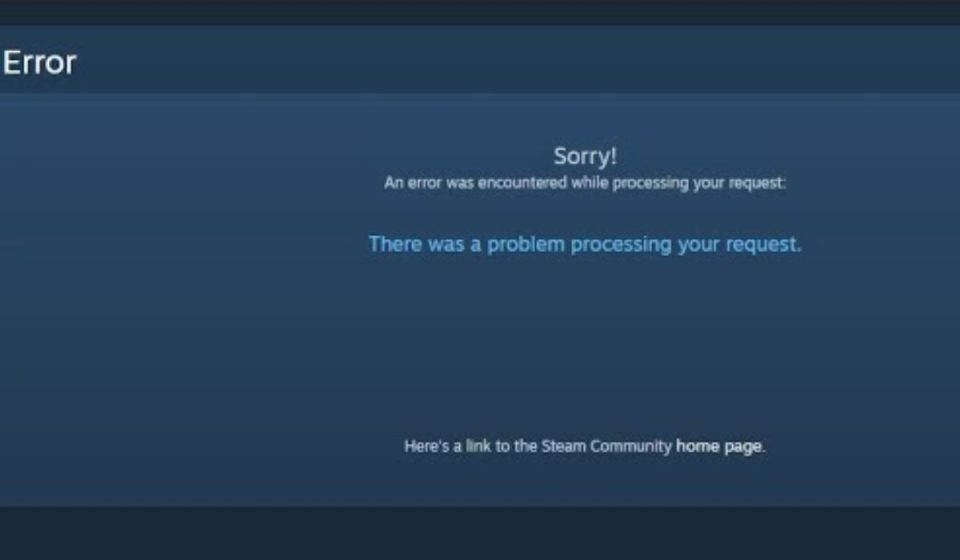
This error means Steam could not complete your request. Your system tried to load a page, but the connection between your device and Steam servers failed. This can happen due to a temporary issue like Server Downtime or a problem with how your request is handled.
You will usually see this error on the Steam store, community pages, or even your profile. It can appear in a web browser or inside the Steam Client. When it shows up, the page may not load at all, or it may display a blank screen with the error message.
Common Causes of Steam Request Error
This error can happen for several reasons, depending on your system, network, or Steam settings. Below are the most common causes you should be aware of.
- Steam server overload or temporary outage from Valve Corporation
- Corrupted Cache in your browser or Steam client
- Conflicts caused by VPN or proxy services
- Incorrect DNS configuration
- Expired session or blocked Cookies
- Firewall or antivirus blocking Steam connection
- Weak or unstable internet connection
How to Fix Steam “An Error Occurred While Processing Your Request”
To resolve this issue efficiently, try the fixes below one by one. Some problems come from your network, while others are linked to Steam settings or temporary data.
Fix #1: Check Steam Server Status
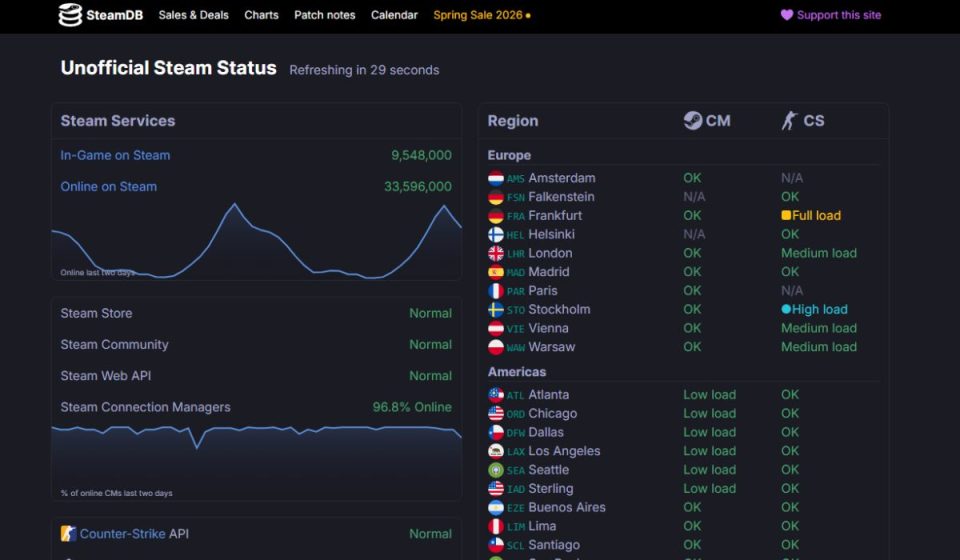
Sometimes the problem is not on your side. Steam servers managed by Valve Corporation can go down or become overloaded. When that happens, your request cannot be processed. You can check Steam status websites or community forums to confirm. If servers are down, you just need to wait until they are back online.
Fix #2: Restart Steam Client
This error can also happen due to a temporary glitch in the Steam Client. When you restart the app, it refreshes your session and reloads connection settings. Close Steam fully, wait a few seconds, then open it again. Sometimes this alone fixes the issue quickly.
Fix #3: Clear Browser Cache and Cookies
Corrupted Cache or blocked Cookies can stop pages from loading correctly in a Web Browser. Clearing them helps your browser load fresh data from Steam servers.
Follow the steps below to easily clear cache and cookies:
- Open your browser settings
- Go to the Privacy or History section
- Click on Clear browsing data
- Select cache and cookies
- Confirm and clear data
- Restart your browser
Now try opening Steam again.
Fix #4: Flush DNS
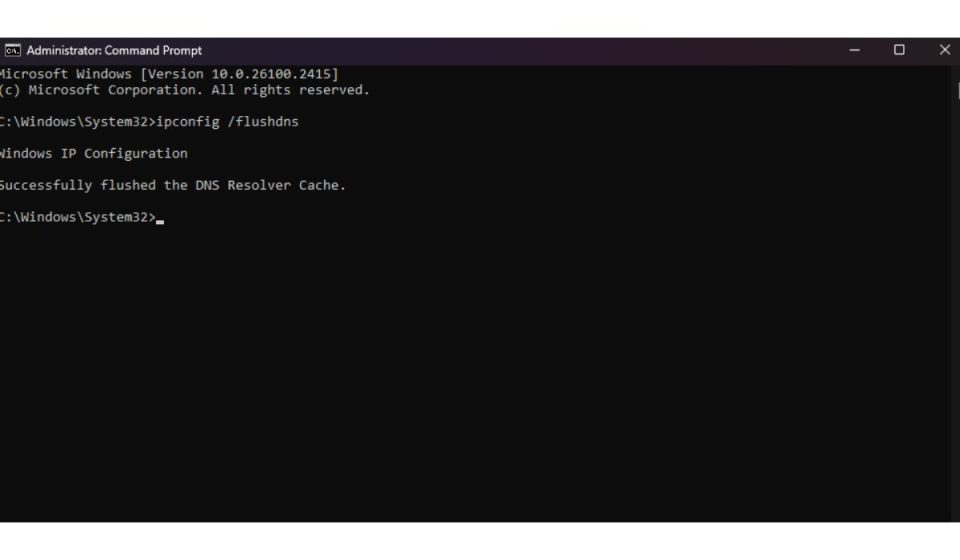
If your system is using outdated or incorrect DNS data, it may fail to connect to Steam servers. Flushing DNS refreshes network routing and helps fix request errors.
Here are the following steps that help you to flush DNS:
- Press Windows + S and search Command Prompt
- Open it as administrator
- Type
ipconfig /flushdns - Press Enter
- Wait for the confirmation message and than restart your computer
After that, try loading Steam again.
Fix #5: Disable VPN or Proxy
Sometimes VPN or proxy services change your IP Address and cause conflicts with Steam servers. Because of this mismatch, your request may fail. Temporarily turn off your VPN or proxy, then reload Steam. If it works, your VPN was likely the cause.
Fix #6: Try a Different Network
If your internet connection is unstable, it can interrupt Data Transmission and stop Steam from processing requests. Try switching to another Wi-Fi network or use mobile data. This helps rule out network-level problems.
Fix #7: Log Out and Back Into Steam
Session problems can also trigger this error. Logging out resets your account session and clears temporary issues.
Follow these easy instructions to log out and back in:
- Open Steam
- Click on your profile name
- Select Log out
- Close Steam completely
- Reopen Steam
- Log back into your account
Once done, try accessing the page again.
Prevention Tips to Avoid Steam Error in Future
Preventing this error saves time and frustration later. A few simple habits can help keep things running smoothly.
- Keep your Steam Client updated
- Clear browser cache regularly
- Avoid unstable VPN connections
- Use a reliable internet connection
- Check Steam server status before troubleshooting
- Keep your browser updated
- Avoid logging into Steam from multiple devices at once
Conclusion
In short, this Steam error appears when your request cannot be processed due to server issues, network problems, or corrupted cache data. It is usually temporary and often linked to connection or session errors.
Try the fixes step by step, and most of the time, the issue will be resolved quickly. But if it keeps happening, you may need to contact Steam support for further help. If this guide helped you, share it or leave a comment with your issue so others can learn too.