
Roblox is a platform where you can play games of different creators, create your own games, join your friends, chat with players and customize your avatar. But, sometimes you want to open Roblox or join a game and it shows Error Code 280 for many reasons e.g., outdated Roblox version, failed update, corrupted cache, weak internet, or due to device setting problem.
This easy guide will help you to fix Roblox Error Code 280 by providing an easy step-by-step guide and also tell you what happened when this error appears and after clear your concept that can your account be banned due to this error or not.
What Does Roblox Error Code 280 Mean?
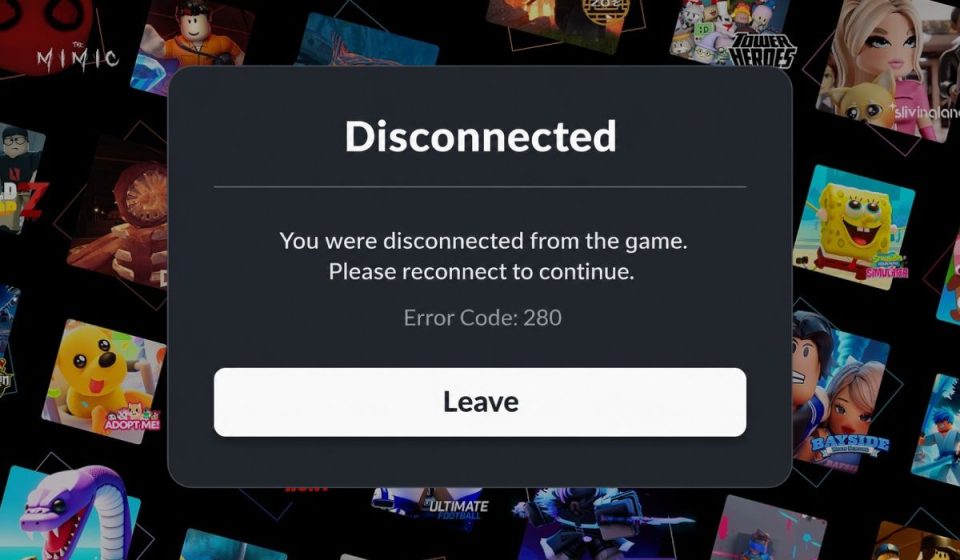
Roblox Error Code 280 is an update error which appears when your Roblox app or Roblox Player is not updated properly. In simple words, Roblox wants latest version on your device but your installed version is old or update files are not working correctly.
You can see this error with a message like “Your version of Roblox may be out of date. Please update Roblox and try again.” It mostly appears when you click on Play button, open Roblox Player, or try to join any Roblox experience.
Common Causes of Roblox Error Code 280
Roblox Error Code 280 can happen for many reasons. Here are some common and possible reasons behind this error.
- Outdated Roblox version: Your Roblox app is old so, it cannot match with the latest Roblox server version.
- Failed Roblox update: Roblox update is not installed properly because internet stopped, app closed, or installer failed.
- Corrupted cache files: Roblox cache files are damaged so, Roblox cannot update or open properly.
- Broken Roblox installation: Some Roblox Player files are missing or damaged and due to this Roblox shows Error Code 280.
- Weak internet connection: Your Wi-Fi, router, DNS, or network is slow so, Roblox cannot check update files.
- Wrong date and time: Your device date or time is wrong so, Roblox may face connection issue with its servers.
- App store problem: Microsoft Store, App Store, Google Play Store, or Amazon Appstore is not updating Roblox correctly.
How to Fix Roblox Error Code 280?
Fixing Roblox Error Code 280 is a simple process but difficult for beginners, low-technical users, or to those who never know the complex setting of Roblox, app store, or device update system.
If you follow my given steps then you can easily update Roblox and open your game again. Here are the fixes you need to perform for fixing Roblox Error Code 280.
Fix #1: Restart Roblox and Your Device
Restarting Roblox is the first and simple fix because sometimes Roblox gets stuck while checking update. Due to this, Roblox can show Error Code 280 even when the problem is temporary.
Close Roblox completely from your device. If you are using Windows then open Task Manager and close Roblox from there also. After this restart your PC, Mac, phone, or tablet.
After restart, open Roblox again and try to join the same game. If Roblox opens after restarting then the error was temporary and you do not need to perform other fixes.
Fix #2: Update Roblox from Official Source
Updating Roblox is the main fix because Error Code 280 mostly appears when Roblox version is old. If your Roblox app is not updated then it cannot match with Roblox server version.
Here are the steps you need to perform:
- Close Roblox completely.
- Open official Roblox website or app store.
- Search Roblox.
- Click on Update if update option is showing.
- If update option is not showing then uninstall Roblox.
- Install Roblox again from official source.
- Open Roblox and try to join the game again.
Always download Roblox from official Roblox website, Microsoft Store, App Store, Google Play Store, or Amazon Appstore. Do not download Roblox from unknown websites because they can provide unsafe files.
Fix #3: Reinstall Roblox
Reinstalling Roblox is useful when Roblox update is broken or some app files are missing. It removes old damaged files and installs a fresh Roblox version on your device.
Here are the steps you need to perform:
- Close Roblox.
- Open Settings or Control Panel on your device.
- Find Roblox in installed apps.
- Uninstall Roblox.
- Restart your device.
- Download Roblox again from official website or app store.
- Install Roblox.
- Login to your account and join a game.
Reinstalling Roblox does not delete your Roblox account. Your Robux, friends, avatar items, created games, and account data are saved with your Roblox account.
Fix #4: Clear Roblox Cache or App Data
Roblox cache helps the app to load faster but sometimes these files become damaged. When cache files are damaged then Roblox may fail to update and show Error Code 280.
For Windows, follow these steps:
- Close Roblox completely.
- Press Windows + R.
- Type %localappdata% and press Enter.
- Find Roblox folder.
- Delete the Roblox folder.
- Restart your PC.
- Install Roblox again if needed.
For Android, follow these steps:
- Open Settings.
- Go to Apps.
- Select Roblox.
- Open Storage.
- Tap on Clear Cache.
- Tap on Clear Data if needed.
- Open Roblox again.
Do not worry because clearing cache does not delete your Roblox account. It only removes temporary files from your device.
Fix #5: Check Your Internet Connection
Roblox needs internet to check updates and connect with Roblox servers. If your internet is weak then Roblox may not check latest version and due to this it shows Error Code 280.
Open any website in your browser and check if it loads fast or slow. If website is slow then restart your router. You can also try another Wi-Fi connection or mobile hotspot.
If Roblox works on another internet connection then your first internet has the problem. It can be router issue, DNS problem, ISP issue, school network, office network, or any network restriction.
Fix #6: Check Date and Time Settings
Wrong date and time can create connection issue in Roblox. Online apps like Roblox need correct time to connect with servers and verify update properly.
Here are the steps you need to perform:
- Open Settings on your device.
- Go to Date and Time.
- Turn on Set time automatically.
- Turn on Set time zone automatically if this option is available.
- Restart Roblox.
- Try to open the game again.
This fix looks small but sometimes it works. If your device time is wrong then Roblox can fail to connect with update servers.
Fix #7: Turn Off VPN, Proxy, or Firewall Block
VPN, proxy, firewall, or antivirus can stop Roblox from connecting with update servers. If Roblox cannot connect with server then it may show the out of date version error.
Here are the steps you need to perform:
- Turn off VPN if you are using it.
- Disable proxy from network settings.
- Check if firewall is blocking Roblox.
- Allow Roblox through firewall or antivirus.
- Restart Roblox.
- Try to join the game again.
If Roblox works after turning off VPN then your VPN was creating the problem. Use normal internet while updating Roblox.
Fix #8: Update Your Device System
Sometimes Roblox does not update because your device system is old. Updating Windows, Mac, Android, iPhone, or tablet can help Roblox work properly.
Here are the steps:
- Open Settings on your device.
- Go to Windows Update or Software Update.
- Check for updates.
- Install available update.
- Restart your device.
- Open Roblox again.
If your device is very old then also check if Roblox still supports your device. Some old devices may not run the latest Roblox version properly.
How to Avoid Roblox Error Code 280 in Future?
You cannot stop every Roblox update error but you can reduce this issue by following some simple tips.
- Keep Roblox updated from official website or app store.
- Do not close Roblox while it is updating.
- Keep your device system updated.
- Use stable Wi-Fi while opening Roblox.
- Avoid modified Roblox clients.
- Do not install Roblox from unknown APK websites.
- Clear Roblox cache when app becomes slow.
- Keep correct date and time on your device.
Conclusion
Roblox Error Code 280 is a simple update related error but it can stop you from joining any Roblox game. This error can happen due to outdated Roblox version, failed update, corrupted cache, broken installation, weak internet, wrong date and time, or app store problem.
Start with simple fixes first. Restart Roblox, update Roblox, reinstall Roblox, and clear cache. If these methods do not work then check internet, date and time, VPN, firewall, and device update.
Also, if you follow our steps and still face Error Code 280 then seek help from Roblox support or drop a comment in the comment section of our blog.