
You open Netflix, pick a show, and expect it to start. Instead, playback stops and an error pops up. Netflix error code E100 can ruin that moment fast. The app looks fine, the menu loads, but the video won’t play. That makes it confusing.
This article explains what this error means, why it shows up, and how you can avoid running into it again. If you’re stuck staring at a loading screen, let’s slow things down and understand what’s happening.
What Is Netflix Error Code E100?
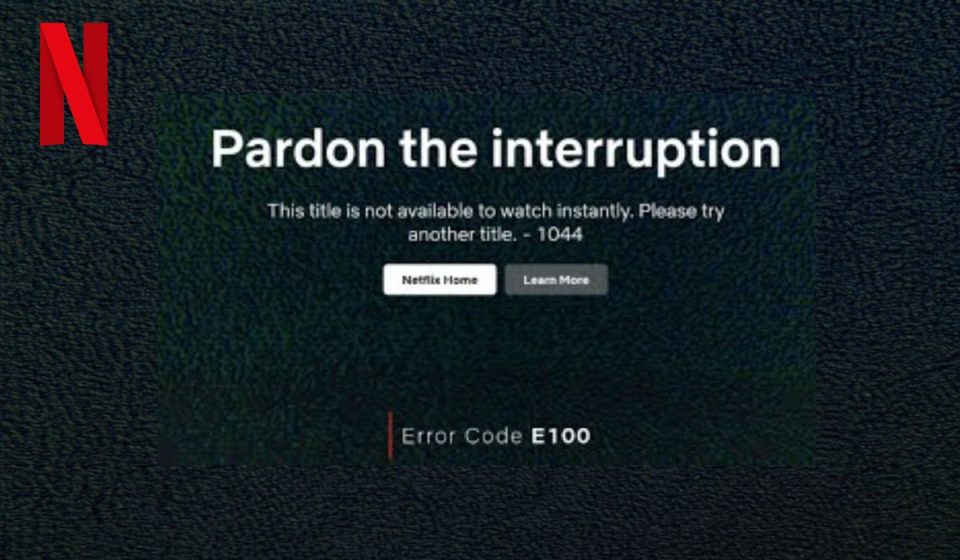
Netflix error code E100 is a playback initialization error. It usually appears when the app cannot load required data to start streaming a video. In simple terms, the app opens, but it fails at the step where video playback begins. This often points to a problem with stored app data, device memory, or how the app syncs with Netflix systems. It does not mean your account is blocked or your subscription has ended.
You’ll mostly see this error on Smart TVs, Android TV devices, Fire TV, Roku, or other streaming boxes. Many users report it when opening a title or right after pressing play. Sometimes it appears after the app has been open for a long time without restarting.
Common Causes of Netflix Error Code E100
This error usually comes from how the app and device handle stored data. Sometimes the issue is local. Other times, it’s temporary and clears on its own. Knowing the common causes helps you avoid repeating the same problem later.
Here are the most common reasons linked to error code E100:
- Corrupted Netflix app data or cache
- Temporary app sync failure
- Outdated Netflix app version
- Device firmware compatibility issues
- Unstable internet connection
- Low system memory on the device
- Temporary issues with Netflix servers
Each of these affects how the app prepares video playback. When that preparation fails, the error appears.
How to Fix Netflix Error Code E100?
This error usually clears once the app or device refreshes its stored data properly. Sometimes it’s just a memory issue. Other times, the app fails to sync after running for too long. Because the error message gives little detail, it’s best to try these fixes in order. Apply one fix, then test playback. If it still fails, move on.
Fix #1: Restart the Netflix App
The app may look fine but still hold broken playback data. When that happens, videos fail to start.
Close the Netflix app fully. Make sure it’s not running in the background. Open it again and try playing a title. On Smart TVs and streaming devices, this often fixes the error right away.
Fix #2: Restart Your Streaming Device
Devices that stay on for days can build up memory conflicts. These conflicts can block video playback.
Here’s how you can restart your streaming device in just a few seconds:
- Turn off the device completely
- Unplug it from the power source
- Wait 30 to 60 seconds
- Plug it back in
- Turn the device on
- Open the Netflix app and try again
This clears system memory and refreshes background processes.
Fix #3: Sign Out of Netflix and Sign Back In
Sometimes account data fails to sync correctly. Signing out forces the app to reload account settings.
Follow the steps below to sign out safely:
- Open the Netflix app
- Go to Settings or Get Help
- Select Sign Out
- Confirm the action
- Close the app
- Open it again and sign in
This refreshes account authentication data.
Fix #4: Clear Netflix App Cache or Data
Temporary app files help with speed, but they can become corrupted. When that happens, playback setup fails.
Follow these steps to clear Netflix app cache:
- Open device settings
- Go to Apps or Application Manager
- Select Netflix
- Open Storage
- Tap Clear cache
- Restart the app
- Try playing a video
On some devices, clearing data may sign you out. That’s normal.
Fix #5: Check Internet Connection Stability
Streaming needs a steady connection, not just internet access. Short drops during loading can trigger this error.
Here are the following steps which help you to check your internet connection:
- Restart your router and modem
- Wait at least 30 seconds
- Reconnect your device to Wi-Fi
- Avoid background downloads
- Try playing a video again on Netflix
If it works on another network, your original connection may be unstable.
Fix #6: Update the Netflix App
Outdated app versions may not work well with current streaming systems. Updates often fix playback and sync issues.
You can perform the following steps to update the app:
- Open your device’s app store
- Search for Netflix
- Check if an update is available
- Install the update
- Restart your device
- Open the app and test playback
Keeping the app updated reduces repeat errors.
Fix #7: Update Device Firmware or Operating System
Older firmware can cause compatibility problems with streaming apps. This is common on Smart TVs and streaming boxes.
Check your device settings for system updates. Install any available updates. After updating, restart the device and try Netflix again.
Fix #8: Check Netflix Server Status
Sometimes the issue is not on your side. Streaming services can face outages or maintenance.
If Netflix servers are having trouble, local fixes won’t work. Waiting is the only option. Once service returns to normal, videos usually play again without changes on your device.
How to Prevent Netflix Error Code E100 in the Future?
Prevention won’t stop every error, but it reduces how often this one shows up. Most prevention steps focus on keeping the app and device clean and stable.
- Restart your streaming device regularly
- Keep the Netflix app updated
- Avoid running too many apps at the same time
- Use a stable internet connection
- Keep device firmware up to date
- Use supported streaming devices only
- Power off the TV fully instead of standby
These habits help the app start fresh each time.
Conclusion
To summarize, Netflix error code E100 is a playback setup issue linked to app data, device memory, or temporary sync problems. It often looks serious, but in most cases, it’s not permanent. Understanding why it happens makes it easier to deal with when it appears.
If this article helped you, share it with someone else facing the same Netflix error. You can also leave a comment below and mention your device type. That small detail can help others find the right solution faster.