
You set your iPhone alarm because you need to wake up on time. Then morning comes and nothing happens. Maybe the alarm didn’t ring. Maybe it was too quiet. Maybe it showed on the screen but made no sound. This article explains why your iPhone alarm is not going off and how to fix it with simple checks.
What Does It Mean When an iPhone Alarm Is Not Going Off?
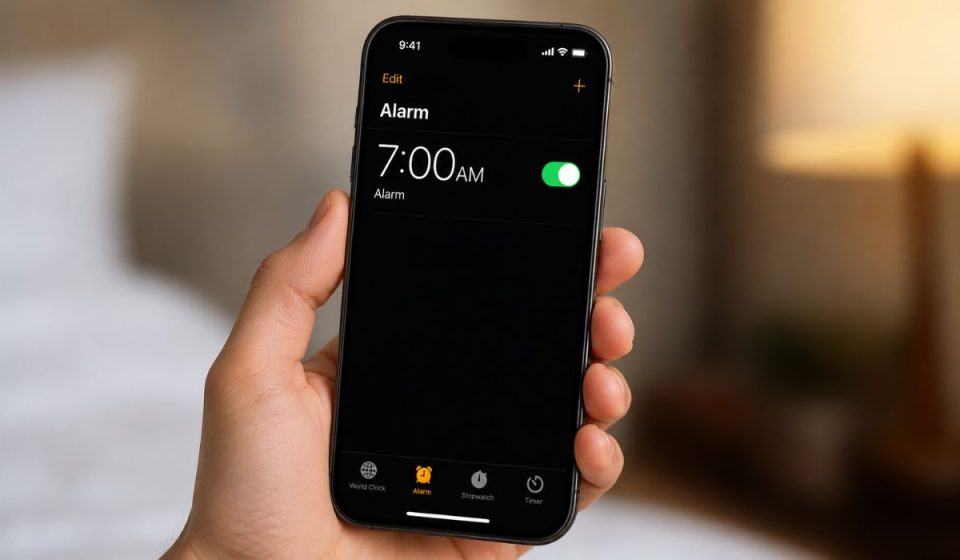
When your iPhone alarm is not going off, it does not always mean the alarm failed fully. Sometimes the alarm rings too quietly. Sometimes it only vibrates. Sometimes it is set for the wrong time or wrong day.
Your iPhone alarm depends on the Clock app, alarm sound, alarm volume, Repeat setting, Sleep Schedule, speaker, Bluetooth, and iOS. If one setting is wrong, the alarm may not wake you up.
Common Reasons Why Your iPhone Alarm Is Not Going Off
Your iPhone alarm usually fails because of a sound setting, volume issue, schedule mistake, connected device, or iOS problem.
- Alarm volume is too low in Ringtone and Alerts
- Alarm sound is set to None
- The alarm is set for the wrong AM or PM time
- Repeat days are not selected correctly
- Sleep Schedule or Wake Up alarm is turned off
- Attention Aware Features lower the alert sound
- Bluetooth, AirPods, headphones, or Apple Watch affect how you hear the alarm
- The iPhone has a temporary iOS bug or needs a restart
- The speaker is blocked, dirty, or not working well
How to Fix iPhone Alarm Not Going Off?
If you are facing this issue, try these fixes one by one. Start with alarm sound and volume. Then check the alarm time, Sleep Schedule, Bluetooth devices, and iOS updates.
1. Check the Alarm Volume
Your iPhone alarm uses the Ringtone and Alerts volume. It is not the same as media volume. So your music volume can be high, but your alarm volume can still be low.
Follow these steps:
- Open Settings.
- Tap Sounds & Haptics.
- Find Ringtone and Alerts.
- Move the slider to the right.
- Turn off Change with Buttons if your volume changes by mistake.
After that, set a test alarm for one or two minutes later. If it rings loudly, the volume setting was likely the issue.
2. Make Sure the Alarm Sound Is Not Set to None
If your alarm sound is set to None, the alarm may show on the screen but make no sound. This one is easy to miss.
Follow these steps:
- Open the Clock app.
- Tap Alarm.
- Tap the alarm you want to check.
- Tap Sound.
- Choose a loud alarm tone.
- Tap Back.
- Tap Save.
Pick a sound you can hear clearly. A soft tone may not wake you up, even if the alarm works.
3. Check AM, PM, and Repeat Days
A wrong time setting can make your iPhone alarm look broken. But really, it is set for the wrong part of the day.
For example, you may want 7:00 AM but set 7:00 PM. Or you may set an alarm for weekdays only, then expect it to ring on Saturday.
Open the Clock app and check the alarm time. Then check Repeat. Make sure the right days are selected. If you need the alarm daily, select every day.
4. Check Sleep Schedule in the Health App
The Sleep Schedule alarm is different from a normal Clock app alarm. It works through the Health app and Wake Up alarm settings.
If your Wake Up alarm is off, your iPhone may not ring in the morning, even if your sleep time looks correct.
Follow these steps:
- Open the Health app.
- Tap Browse or Search.
- Tap Sleep.
- Open Full Schedule & Options.
- Check if Alarm is turned on.
- Review the next Wake Up time.
- Change the schedule if needed.
Also check Sleep Focus. It should not stop normal alarms, but your Sleep Schedule settings can still affect your wake-up alarm.
5. Turn Off Attention Aware Features
On Face ID iPhones, Attention Aware Features can lower alert sounds when the iPhone thinks you are looking at the screen. That can make your alarm sound too quiet.
This setting does not always cause alarm issues. But if your alarm rings softly, it is worth checking.
Follow these steps:
- Open Settings.
- Tap Face ID & Passcode.
- Enter your passcode.
- Find Attention Aware Features.
- Turn it off.
- Test your alarm again.
If the alarm sounds louder after this, keep the setting off. If nothing changes, turn it back on if you like using it.
6. Disconnect Bluetooth, AirPods, or Headphones
Bluetooth devices can change how you notice alarm sounds. If your iPhone connects to AirPods, headphones, a speaker, or Apple Watch, you may miss the sound from the phone.
Before sleeping, turn off Bluetooth if you don’t need it. Also remove wired headphones if you use them.
If you wear an Apple Watch overnight, check whether the alarm is alerting your watch instead of waking you through the iPhone speaker. Some people feel the watch tap. Some sleep right through it.
7. Restart and Update Your iPhone
Sometimes the Clock app or iOS has a small glitch. A restart can clear it. An iOS update can also fix known alarm bugs or sound problems.
Follow these steps:
- Restart your iPhone.
- Open Settings.
- Tap General.
- Tap Software Update.
- Install any available iOS update.
- Set a test alarm after the update.
Don’t skip the test alarm. It tells you if the fix worked before you trust the alarm again.
8. Delete and Recreate the Alarm
A saved alarm can have the wrong sound, time, repeat day, or label. If nothing else works, delete the alarm and create a fresh one.
Open the Clock app. Delete the old alarm. Then add a new alarm with the right time, loud sound, and correct repeat days.
It sounds simple. But yes, it often fixes small setup mistakes.
Tips to Prevent iPhone Alarm Problems
A few small habits can help your iPhone alarm work more reliably. Check these before sleeping or before an important meeting, flight, class, or work shift.
Use these simple tips to avoid alarm problems later:
- Keep Ringtone and Alerts volume high enough.
- Use a loud alarm tone and avoid the None option.
- Check AM, PM, and Repeat before saving an alarm.
- Keep iOS updated and restart your iPhone when it acts strange.
- Test important alarms before relying on them.
Conclusion
Your iPhone alarm may not go off because the volume is low, the sound is set to None, the time is wrong, or the Repeat setting skips that day. It can also happen because of Sleep Schedule, Attention Aware Features, Bluetooth devices, Apple Watch alerts, speaker issues, or a small iOS bug.
Start with the easy checks first. Check alarm volume, sound, AM or PM, repeat days, and Sleep Schedule. Then restart your iPhone, update iOS, and test the alarm again. If this helped, share it with someone who keeps missing alarms or leave a comment with the fix that worked for you.