
You open Fortnite, click launch, and instead of the lobby, you see an iostore.signature error. The game refuses to start. It feels confusing, especially after a fresh update. Don’t panic. This guide explains what the iostore.signature error means in Fortnite and shows you 8 working fixes to get the game running again.
What is iostore?signature Error in Fortnite?
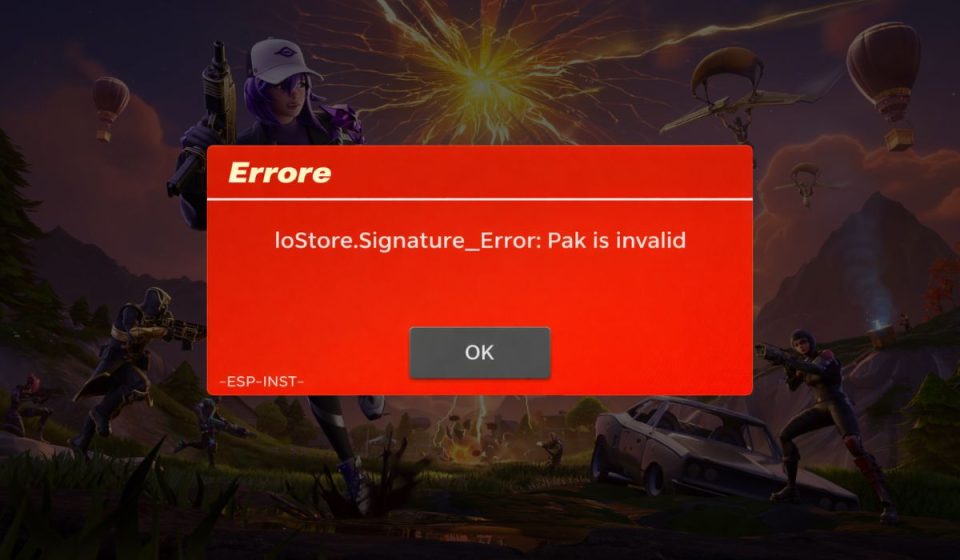
The iostore.signature error in Fortnite usually means the game failed a file integrity check. Fortnite runs on Unreal Engine, which uses an IO Store system to manage large packaged game files. These files, often stored as .utoc and .ucas containers, include digital signatures. When the Epic Games Launcher starts Fortnite, it checks these signatures to confirm the files are valid and unchanged.
If the system detects a mismatch, missing file, or corrupted container, it blocks the launch and shows the iostore.signature error. This protects the game from damaged data or unauthorized changes. In most cases, this is not a ban or account issue. It is simply a validation failure inside the game directory.
You usually see this error after a Fortnite update, during launch, or if the download process was interrupted. It can happen on Windows 10 or Windows 11 systems using the Epic Games Launcher.
Common Causes of iostore.signature Error
This error appears when Fortnite cannot verify its IO Store container files correctly. Updates, antivirus software, disk issues, or permission problems may interfere with the signature validation process. Because Unreal Engine relies on secure file hashing, even a small interruption can trigger this error. Below are the most common causes.
- Interrupted Fortnite update or patch
- Corrupted .utoc or .ucas container files
- Antivirus blocking or quarantining game files
- Easy Anti-Cheat validation conflict
- Damaged SSD or HDD sectors
- Missing administrator permissions
- Disk write error during installation
- Incomplete Epic Games Launcher update
How to Fix iostore.signature Error in Fortnite?
File signature errors usually relate to corrupted or blocked files. Start with simple fixes before attempting a full reinstall. Test the game after each step to see if the issue is resolved.
Fix #1: Verify Fortnite Files in Epic Games Launcher
Corrupted files are the most common cause. The Epic Games Launcher includes a built-in verification tool.
Follow these steps:
- Open Epic Games Launcher.
- Go to your Library.
- Click the three dots next to Fortnite.
- Select Verify.
- Wait for the scan to complete.
The launcher will automatically replace damaged files.
Fix #2: Run Epic Games Launcher as Administrator
Sometimes Windows blocks file access without proper permissions. Running the launcher as administrator gives full access to the game directory.
Here’s how:
- Close Epic Games Launcher.
- Right-click its shortcut.
- Select Run as administrator.
- Launch Fortnite again.
This can resolve permission-based signature issues.
Fix #3: Disable Antivirus Temporarily
Antivirus software like Windows Defender or third-party security tools may flag Unreal Engine container files. When antivirus quarantines or blocks IO Store files, signature checks fail. Temporarily disable your antivirus and try launching Fortnite. If it works, add Fortnite to your antivirus exclusion list before enabling protection again.
Fix #4: Repair Easy Anti-Cheat
Easy Anti-Cheat verifies game integrity. If it fails validation, Fortnite may show signature errors.
Follow these steps:
- Open your Fortnite installation folder.
- Navigate to the Easy Anti-Cheat directory.
- Run the EasyAntiCheat setup file.
- Select Repair Service.
- Restart your PC.
After repair, launch Fortnite again.
Fix #5: Delete Corrupted IO Store Files and Re-Verify
Sometimes container files remain partially damaged.
Follow these steps:
- Open the Fortnite installation folder.
- Go to the Content or Paks directory.
- Locate suspicious or recently updated files.
- Delete only damaged container files if clearly corrupted.
- Run Verify again in Epic Games Launcher.
Verification will redownload missing files safely.
Fix #6: Check Disk for Errors
Hard drive or SSD errors can corrupt Fortnite files.
Follow these steps on Windows:
- Press Windows + R.
- Type cmd and press Enter.
- Run: chkdsk C: /f
- Restart your PC when prompted.
This scans and repairs disk file system errors.
Fix #7: Update Windows and GPU Drivers
Outdated Windows updates or graphics drivers can interfere with Unreal Engine file handling. Open Windows Update and install any pending updates. Then visit NVIDIA, AMD, or Intel official websites to download the latest GPU drivers. Restart your system after updating.
Fix #8: Reinstall Fortnite Cleanly
If none of the above works, a clean reinstall may fix deep corruption.
Follow these steps:
- Uninstall Fortnite from Epic Games Launcher.
- Restart your PC.
- Delete leftover Fortnite folders if they remain.
- Reinstall the game fresh.
A clean installation ensures all IO Store files are rebuilt properly.
Prevention Tips to Avoid iostore.signature Error in Fortnite
Preventing this error helps avoid launch problems in the future. Keep your system stable and avoid interrupting updates.
- Do not close the launcher during updates
- Avoid forced shutdown during patch installation
- Add Fortnite to antivirus exclusions
- Keep Windows updated
- Maintain SSD or HDD health
- Use stable internet during downloads
- Run Epic Games Launcher properly
Conclusion
The iostore.signature error in Fortnite usually means the game failed a file integrity or digital signature check. It often happens after updates, corrupted downloads, antivirus interference, or disk errors. Verifying game files through the Epic Games Launcher solves most cases. Running as administrator, repairing Easy Anti-Cheat, or updating drivers can also fix the problem.
If the error continues after trying all 8 fixes, contact Epic Games support for further assistance. If one of these solutions worked for you, share your experience with others. It might help someone else fix their game faster.