
You open your phone and notice the Google Messages icon looks wrong. Maybe it’s blank, duplicated, or not matching the usual design. The app still opens, but the icon feels broken, and that can be confusing. This issue often appears after a beta update or system change.
This article explains what the Google Messages beta app icons bug is, why it happens, how to fix it with clear steps, and how to avoid it later.
What Is the Google Messages Beta App Icons Bug?
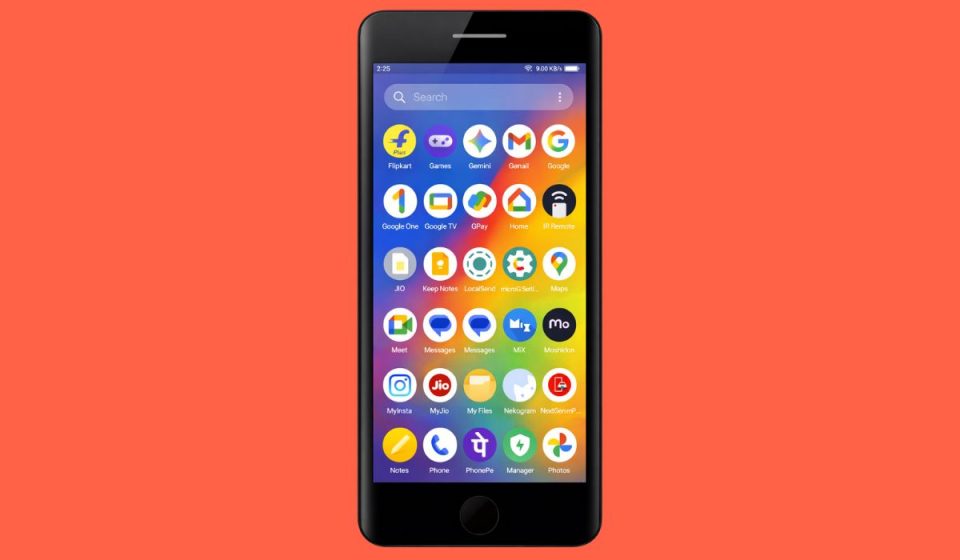
The Google Messages beta app icons bug is a visual issue where the app icon does not display correctly on Android. The icon may appear blank, transparent, duplicated, or stuck with an old design. Even though the icon looks broken, the Google Messages app itself usually works fine for texting and RCS chats.
Most users notice the problem on the home screen, in the app drawer, or when switching apps. The issue affects appearance only, not message sending or receiving.
Common Causes of Google Messages Beta Icon Issues
This icon bug can happen due to beta updates, system UI changes, or launcher conflicts.
- Google Messages beta update glitch
- Android launcher cache corruption
- Material You dynamic theming mismatch
- Adaptive icon rendering issue
- Third-party icon pack conflict
- Android system update not fully synced
- Duplicate shortcut data in launcher
- Beta feature flags not loading correctly
How to Fix Google Messages Beta App Icons Bug on Android?
Most fixes focus on refreshing visual data, clearing cached UI files, or syncing the app with the launcher again. Start with simple fixes before trying advanced ones.
Fix #1: Restart Your Phone
A restart clears temporary system UI glitches that affect app icons. Android reloads launcher data during boot, which often restores missing or broken icons.
After restarting, check the home screen and app drawer to see if the Google Messages icon looks normal again.
Fix #2: Clear Google Messages App Cache
App cache can store outdated icon resources after beta updates. Clearing cache does not delete messages.
Follow the steps below to clear app cache safely.
- Open Android Settings.
- Go to Apps.
- Select Google Messages.
- Tap Storage.
- Choose Clear cache.
- Return to the home screen and check the icon.
Fix #3: Clear Launcher Cache and Data
Your Android launcher controls how icons appear. When launcher cache breaks, icons may disappear or duplicate.
Try these steps to refresh your launcher icons.
- Open Settings.
- Go to Apps.
- Select your launcher app.
- Tap Storage.
- Clear cache.
- Clear data if needed.
- Restart your phone.
Fix #4: Remove and Re-add the App Icon
Sometimes the shortcut itself is broken, not the app. Removing and adding it again forces a refresh.
Remove the Google Messages icon from the home screen, then open the app drawer and drag it back to the home screen.
Fix #5: Disable Icon Packs or Custom Themes
Icon packs and themes can conflict with adaptive icons used by Google Messages beta. This is common on third-party launchers.
Here’s how you can disable icon packs temporarily.
- Open launcher settings.
- Find icon or theme options.
- Switch back to default icons.
- Apply changes.
- Restart the launcher or phone.
Fix #6: Update Google Messages and Android System
Outdated app or system versions can cause icon mismatches. Beta builds change often, so updates matter.
Open the Google Play Store and update Google Messages. Also check for Android system updates in Settings, then restart your device.
Fix #7: Leave the Google Messages Beta Program
Beta versions can contain visual bugs. Leaving beta switches you back to the stable release.
Perform the following steps carefully to leave the beta.
- Open the Google Play Store.
- Search for Google Messages.
- Scroll to the beta section.
- Tap Leave.
- Update the app when prompted.
Fix #8: Report the Bug to Google
Beta feedback helps Google fix UI issues faster. Reporting gives developers device and version data.
These are the exact steps to send a proper bug report.
- Open Google Messages.
- Go to Settings.
- Tap Help and feedback.
- Select Send feedback.
- Describe the icon issue clearly.
- Submit the report.
Prevention Tips to Avoid App Icon Bugs in the Future
Prevention helps reduce visual issues after updates.
- Avoid beta apps on your main phone
- Restart your phone after beta updates
- Keep your launcher updated
- Limit use of icon packs
- Clear cache after major updates
- Read beta release notes
- Use stable apps for daily use
Conclusion
In short, the Google Messages beta app icons bug is a visual issue caused by beta updates, launcher cache problems, or theming conflicts. The app itself usually works fine, even when the icon looks broken. Most users fix it by restarting, clearing cache, or refreshing the launcher.
Try each fix slowly and give the system time to update. If the issue keeps happening, report it to Google so it can be fixed in future updates. If this article helped you, share it and leave a comment explaining which fix worked for you.