
You’re working inside Canva and everything feels smooth. You move text, adjust images, maybe add a few elements. Then suddenly a message shows up saying your design could not be saved.
That moment feels off. You pause for a second, thinking something serious just happened, or maybe your work is gone.
But in most cases, nothing is lost. This error usually comes from a small break between your browser, your internet, and Canva servers. It looks bigger than it really is.
So instead of guessing, let’s understand it clearly, then fix it step by step.
What Does This Saving Error Mean in Canva?
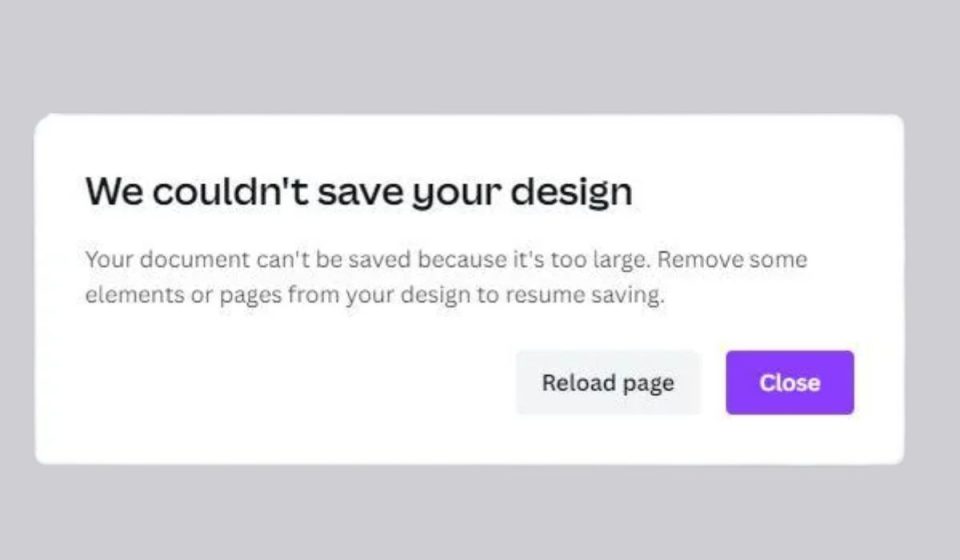
When this message appears, it means Canva could not store your recent changes on its cloud system. Canva saves everything online, not on your device like Photoshop.
Every change you make is sent to Canva servers in real time. If that flow slows down, or stops even for a moment, the saving process fails. The design still stays visible on your screen, but it is not fully synced.
That’s why the error sometimes appears after a short delay. Canva tried to save, but could not complete the request.
Why Canva Fails to Save Your Design
This problem usually comes from a mix of small issues, not one big failure. Different parts are working together when you use Canva, and if one slows down, saving breaks.
Here are the most common reasons:
- unstable or slow internet connection
- browser cache or cookies causing conflicts
- large or heavy designs with many elements
- browser extensions blocking scripts
- session timing out after long use
- temporary issues on Canva servers
Sometimes the issue is on your side, sometimes it comes from Canva. That’s why checking step by step works best.
How to Fix “An Error Occurred While Saving Your Design” in Canva
If you are facing this error in Canva, follow these fixes one by one. Don’t rush, try one properly, then move to the next.
1. Refresh the Page and Try Again
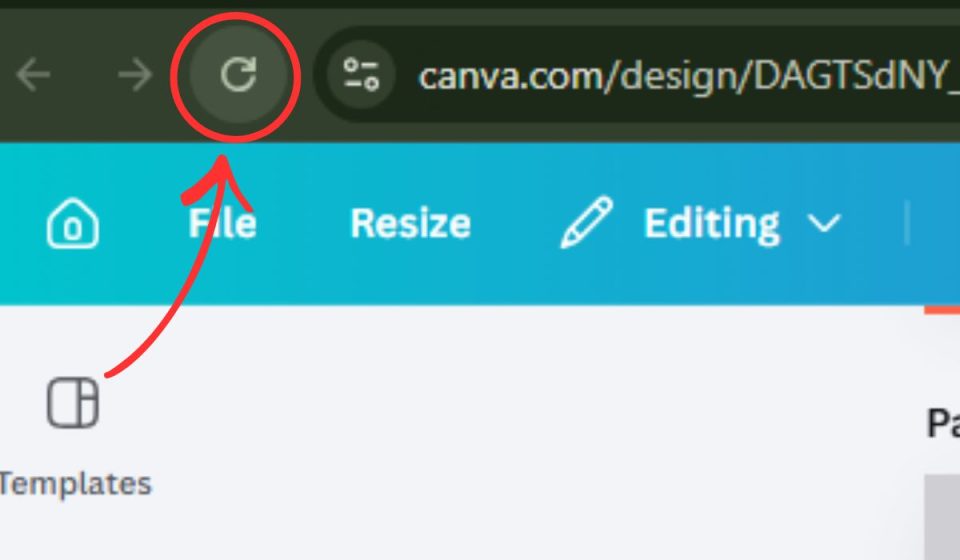
Start with this, because it solves many temporary glitches. Browsers sometimes lose sync with background processes, and Canva stops saving without showing it immediately.
Refreshing reloads everything and reconnects your session. After refresh, give it a few seconds, then make a small change and see if saving works again.
2. Check Your Internet Connection
Canva depends fully on a stable connection. Even if your WiFi shows connected, it may not be consistent.
If the connection drops for even a second, Canva cannot complete the save request. Try switching networks, or restart your router. You can also open other websites and see if they load smoothly.
If things feel slow, Canva will behave the same way.
3. Clear Browser Cache and Cookies
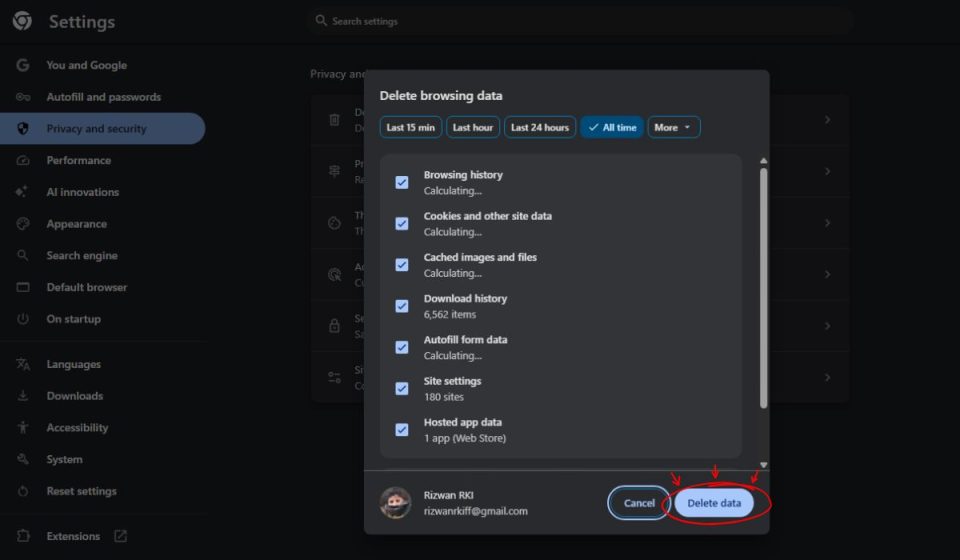
Over time, your browser collects temporary data. This data helps with speed, but it can also break how websites behave.
With Canva, this may affect saving, loading, and editing. Clearing cache gives your browser a fresh start.
Follow these steps:
- Open browser settings
- Go to privacy or security
- Click Clear browsing data
- Select cache and cookies
- Confirm and restart the browser
Now open Canva again, and test saving.
4. Switch to Another Browser
Sometimes the issue is limited to one browser. Chrome, Edge, Safari, they all handle scripts a bit differently.
If Canva is not working well in one browser, try another. This quickly tells you if the problem is browser-related.
5. Disable Browser Extensions
Extensions can silently interfere with how Canva works. Tools like ad blockers or privacy filters may block the scripts Canva needs to save your design.
You don’t need to remove them completely, just disable them for a moment and test again.
Follow these steps:
- open your browser extensions menu
- turn off active extensions
- reload Canva
- try saving your design again
If it works, then one of the extensions was causing the issue.
6. Reduce Design Size or Complexity
Now think about your design itself. If it has many high resolution images, videos, or animations, Canva has to process a lot at once.
When the design becomes too heavy, the system struggles to keep everything synced. You may notice slow performance before the error appears.
Try simplifying your design a bit. Remove elements you don’t need, or split a large project into smaller parts. This reduces the load and helps Canva save your work more smoothly.
7. Log Out and Log Back In
Sometimes your session expires quietly in the background. The page still looks active, but Canva is no longer connected properly.
Logging out resets your session, and logging back in creates a fresh connection with Canva servers.
After logging in again, open your design and test saving.
8. Use Incognito Mode
Incognito mode runs your browser without stored cache or active extensions. It gives you a clean setup.
Open a private window, log into Canva, and try saving again. If it works here, then your normal browser has some conflict causing the issue.
9. Check Canva Server Status
Sometimes the issue is not from your side. Canva servers may slow down or go under maintenance.
When this happens, many users face saving errors at the same time. You can search online for Canva status updates.
If servers are down, then waiting is the only solution.
10. Try Canva Mobile App or Desktop Version
If the error continues, try switching your device. Some issues appear only on specific platforms.
If you are using Canva in a browser, try the mobile app. If you are on mobile, switch to desktop. This simple change can help you continue your work without interruption.
Does This Canva Saving Error Happen More on Mobile or Desktop
This error can appear on both, but the reasons are slightly different.
On desktop, it is often related to browser problems like cache, extensions, or too many open tabs. On mobile, it may come from app performance, storage limits, or background restrictions.
Understanding this helps you choose the right fix faster, instead of trying everything randomly.
How to Prevent Canva Saving Errors in the Future
You cannot avoid every issue, but you can reduce the chances by keeping things simple.
- use a stable internet connection
- avoid adding too many heavy elements in one design
- keep your browser updated
- do not run too many tabs at once
- save copies of important designs
These small habits help keep your workflow smooth.
Final Thoughts
This error feels frustrating when it appears, but in most cases, it is temporary and easy to fix. Once you understand that the issue comes from connection or processing, it becomes easier to handle.
Go step by step, test each fix properly, and you’ll likely solve it quickly.
If this helped you, share it with others. And if you are still stuck, tell me your situation, I’ll help you figure it out.