
Yes, you can develop Flutter apps in Cursor. Cursor works like a VS Code-style code editor, so Flutter development is possible if your Flutter SDK, Dart support, Flutter extension and device setup are ready.
But Cursor alone is not enough. This is the part many beginners miss. You still need Flutter installed on your computer and you will still need Android or iOS tools if you want to run the app on the emulator, simulator or on the real phone.
This article is for beginners, students, mobile app developers and VS Code users who want to use Cursor for Flutter development. I’ll explain what you need, how to set up, what works well and what problems you may face while running Flutter in Cursor.
What You Need Before Using Flutter in Cursor
Before you open Cursor and start writing Flutter code, make sure Flutter is installed on your system. Flutter is the main SDK used to build and run your app. The cursor is only in the editor where you write and manage the code.
You also need Dart support because Flutter apps are written in Dart. The Flutter extension for VS Code-style editors adds help for editing, refactoring, running, and reloading Flutter apps and it depends on the Dart extension for Dart language support.
For Android apps, you need Android Studio or at least the Android SDK, emulator tools, and platform tools. For iOS apps, you need macOS with Xcode. If you only want to test on the web, then Chrome and Flutter web support may be enough.
Basic things you should have ready:
- Flutter SDK installed
- Flutter has been added to your system PATH
- Dart and Flutter extensions in Cursor
- Android SDK or Xcode, depending on your target
- Emulator, simulator, real device or browser
- Working with terminal commands like flutter doctor
If Flutter is not installed properly, Cursor will not magically fix that. The editor can help you write code, but Flutter itself must be ready first.
How to Set Up Flutter in Cursor
The setup is almost like setting up Flutter in VS Code. Since Cursor supports VS Code-style extensions through Open VSX, many popular extensions are available, but not every extension may be the same version or behave exactly like VS Code Marketplace.
Start by installing Flutter on your computer. After that, open your terminal and run flutter doctor. This command checks whether Flutter can find the tools it needs, like Android SDK, Xcode, Chrome, and connected devices.
Then open Cursor and go to the Extensions area. Search for Flutter and Dart extensions. If the Flutter extension is available, install it. The Flutter extension on Open VSX is made for editing, refactoring, running, and reloading Flutter apps.
After installing the extensions, open your Flutter project folder in Cursor. A typical Flutter project usually includes files such as pubspec.yaml and lib/main.dart. If you see those, you are probably in the right folder.
You can also create a new Flutter project from the terminal with:
flutter create my_app
cd my_app
cursor .
If the cursor. The command does not work on your system, just open Cursor manually and choose the project folder.
Can Cursor Run Flutter Apps?
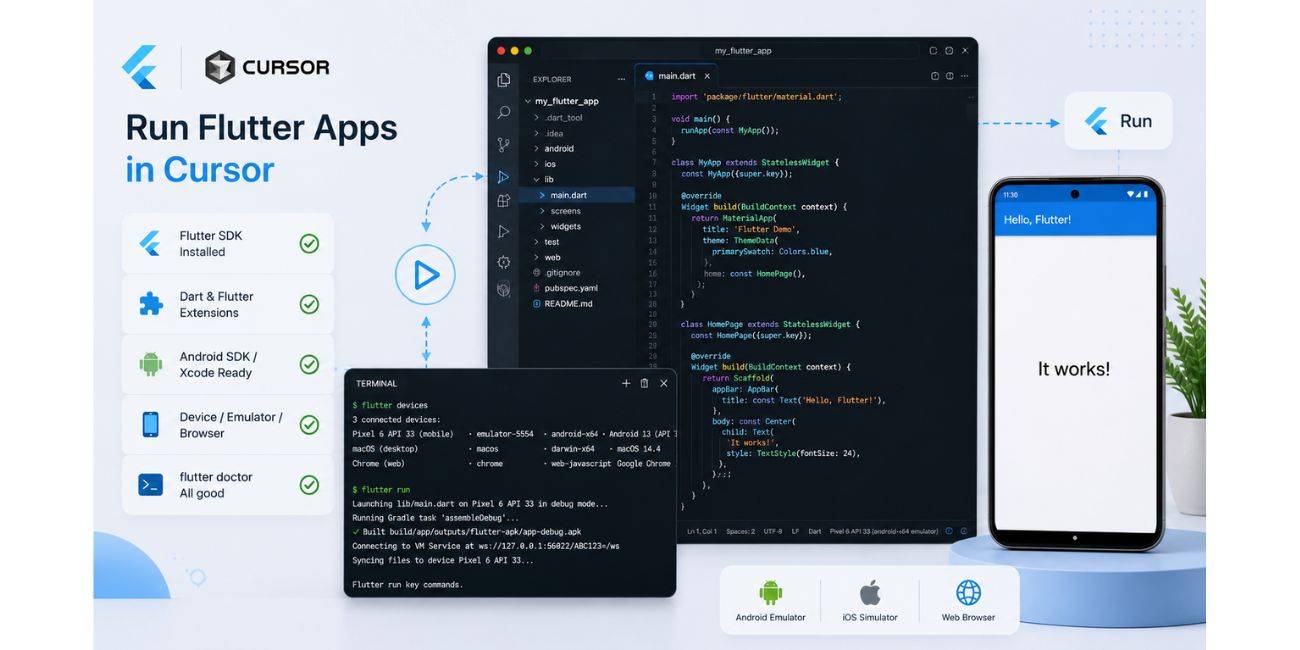
Yes, Cursor can run Flutter apps if the Flutter SDK and extensions are set up correctly. You can run the app from the editor if the Flutter extension works, or you can use the built-in terminal and run flutter run.
For many users, the terminal method is the easiest to understand. Open the project folder in Cursor, open the terminal, check that a device is available, then run the app. If Flutter finds your emulator, phone or browser, it should start the app.
You can run:
flutter devices
flutter run
The first command shows available devices. The second command runs your Flutter app. If no device appears, the issue is usually with the emulator, USB debugging, simulator or SDK setup, not with Cursor itself.
Flutter’s VS Code setup supports compiling, deploying, and debugging Flutter apps when the Flutter extension is installed. Cursor is not the official Flutter editor, but the workflow can be similar when the needed extensions and tools are working.
Does Hot Reload Work in Cursor?
Hot reload can work in Cursor if your Flutter setup is working properly. If you run the app through Flutter tools, you can usually trigger hot reload from the editor or from the terminal.
If you are running the app through terminal, press r in the terminal to hot reload. If you are using the Flutter extension’s run and debug features, you may get hot reload buttons or commands inside the editor.
If hot reload is not working, do not blame Cursor first. Check if the app is running in debug mode. Also check if the Flutter and Dart extensions are active and make sure your project opened from the correct folder.
Sometimes people open only the lib folder instead of the full Flutter project. That can confuse the editor. Open the main project folder where pubspec.yaml exists.
How Cursor AI Helps With Flutter Development
The main reason many developers want Cursor for Flutter is not just normal editing. They want the AI features. Cursor can help you write Dart code, build Flutter widgets, explain errors, refactor files, and understand parts of your project.
For example, you can ask Cursor to create a login screen, fix a layout overflow, explain a setState problem or convert a widget into a reusable component. This can save time, especially when you are still learning Flutter.
Cursor can also help with state management code. You can ask about Provider, Riverpod, Bloc, GetX, or simple setState patterns. Just remember, AI can give wrong code too. You still need to run the app and check errors.
A simple way to use Cursor AI for Flutter is:
- Ask it to explain an error message
- Ask it to refactor a long widget
- Ask it to create a simple screen layout
- Ask it to improve pubspec.yaml setup
- Ask it to find why a widget is not updating
- Ask it to help write tests or clean code
It is helpful, yes. But do not copy everything blindly. Flutter UI can break easily if small details are wrong, so always run and test the app.
Cursor vs VS Code for Flutter
Cursor and VS Code feel similar in many ways, but they are not exactly the same. VS Code is the more standard editor for Flutter setup, while Cursor gives you a VS Code-style editor with built-in AI features.
If you want the most normal Flutter setup, VS Code is still the safer option. Flutter’s own editor guide is written around VS Code and its Flutter extension support.
If you want AI help while building Flutter apps, Cursor can be a better daily editor. It can help with code writing, quick explanations, and project edits. But extension availability may differ because Cursor uses Open VSX for extensions.
| Feature | Cursor | VS Code |
|---|---|---|
| Flutter development | Yes, with setup | Yes, standard setup |
| AI coding help | Built in | Needs Copilot or other tools |
| Flutter extension support | Usually possible through extension registry | Officially common workflow |
| Debugging | Works if setup is correct | More standard and documented |
| Best for | AI-assisted Flutter coding | Stable Flutter development setup |
| Beginner comfort | Good if you like AI help | Good if you want standard tutorials |
So the choice depends on what you want. If you want a normal Flutter learning path, VS Code may feel easier. If you want AI help while coding, Cursor is worth trying.
Common Problems When Using Flutter in Cursor
Most Flutter problems in Cursor are not really Cursor problems. They usually come from Flutter SDK setup, missing extensions, device setup, or wrong project folder.
| Problem | Possible Fix |
|---|---|
| Flutter command not found | Install Flutter SDK and add it to PATH |
| Dart or Flutter extension missing | Search for Cursor extensions and install them |
| Device not detected | Start the emulator, connect the phone or check USB debugging |
| Hot reload not working | Run the app in debug mode and open full project folder |
| Flutter SDK not found | Set the correct Flutter SDK path |
| Cursor AI gives wrong code | Run the app and check Flutter errors |
| Extensions not showing | Check Open VSX availability or try another install method |
If the extension is missing or outdated, that can happen because Cursor’s extension system is not always the same as VS Code Marketplace. For many users it works fine, but if something is missing, you may need a workaround or use VS Code for that part.
The most important command here is still:
flutter doctor
Run it and read the output. If Flutter doctor shows a problem, fix that first. Cursor will work much better after your Flutter setup is clean.
Do You Still Need Android Studio?
You may still need Android Studio for Android setup, even if you write code in Cursor. This surprises some beginners. Android Studio is often needed for Android SDK, emulator, device tools, and Android licenses.
You do not have to write your Flutter code inside Android Studio if you do not want to. You can write the code in Cursor and still use Android Studio only for emulator and Android SDK tools.
For iOS development, you need Xcode on macOS. Cursor cannot replace Xcode for iOS build tools. It can help you edit Flutter code, but the iOS toolchain still comes from Xcode.
So yes Cursor can be your editor. But for mobile app development, the platform tools still matter.
Should You Use Cursor for Flutter Development?
You should use Cursor for Flutter if you want AI help while writing Dart and Flutter code. It is useful for building screens, fixing small errors, refactoring widgets, and understanding project files.
If you are a beginner and following Flutter tutorials, VS Code may be easier because most guides show VS Code or Android Studio. But you can still follow many of the same steps in Cursor because the editor style is similar.
If the Flutter setup is already working in VS Code, moving to Cursor is not too hard. Install the same type of extensions, open the same project folder and test the same flutter run command.
The main thing is this. Cursor can help you code faster, but it does not replace Flutter SDK, Android SDK, Xcode, emulator setup or testing. Those things are still required.
FAQs About Developing Flutter in Cursor
Can I develop Flutter apps in Cursor?
Yes, you can develop Flutter apps in Cursor if Flutter SDK, Dart support, Flutter extension and device setup are ready. Cursor can work as your Flutter code editor.
Does Cursor support Flutter extensions?
Cursor supports VS Code-style extensions through Open VSX. Many popular extensions are available, but some extensions may not always be the same as VS Code Marketplace.
Can Cursor run Flutter hot reload?
Yes, hot reload can work if Flutter is running correctly. You can use the editor tools if extensions work, or press r in the terminal while flutter run is active.
Do I need Android Studio for Flutter in Cursor?
For Android development, you usually need Android SDK and emulator tools, which often come through Android Studio. You can still write your code in Cursor.
Is Cursor better than VS Code for Flutter?
Cursor is better if you want built-in AI help while coding. VS Code is better if you want the most standard Flutter setup and the most common tutorial path.
Why is Flutter not working in Cursor?
Flutter may not work if the SDK is not installed, PATH is wrong, extensions are missing, no device is detected or the wrong project folder is opened. Run flutter doctor first.
Final Thoughts
You can develop Flutter in Cursor, but you need the normal Flutter setup first. Install Flutter SDK, add Dart and Flutter support, set up Android or iOS tools and make sure your device or emulator is detected.
Cursor is a good option if you want AI help while building Flutter apps. VS Code or Android Studio may still feel safer if you want the most standard setup. Both choices are fine, it depends on how you like to work.
Are you trying to run Flutter in Cursor right now? Share the exact problem you are facing, like Flutter SDK not found, device not detected or hot reload not working.