
You open Proton VPN, tap connect, and then it just keeps spinning. Annoying, especially when your normal internet works but the VPN does not. Proton VPN not connecting can block browsing, streaming, apps, games, or private internet use on Windows, Mac, Android, iPhone, Linux, Android TV, or a browser extension.
Most of the time, the issue is not huge. It is usually one server, one network setting, one protocol, or one security tool getting in the way.
What Does Proton VPN Not Connecting Mean?
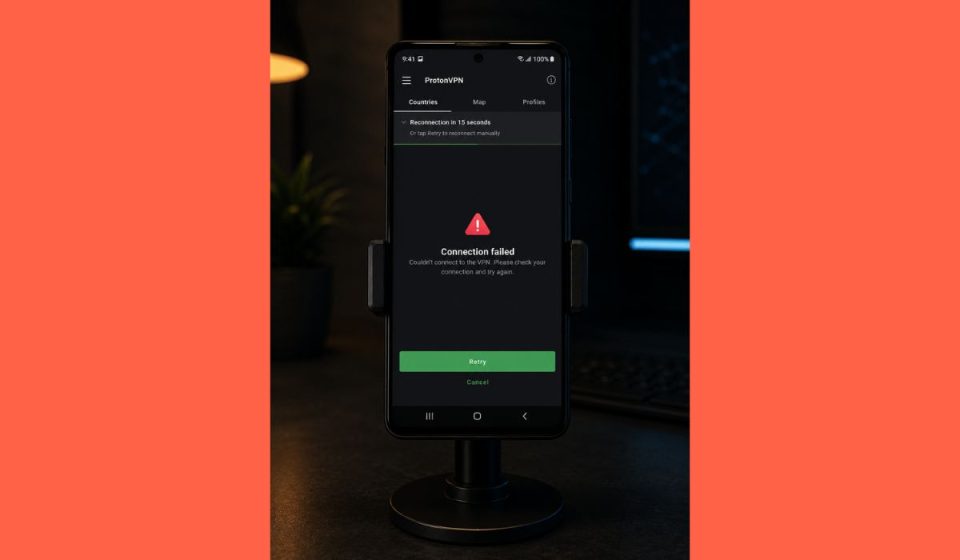
Proton VPN not connecting means the Proton VPN app cannot create a working VPN tunnel between your device and a Proton VPN server. The app may get stuck on connecting, fail with an error, connect for a few seconds, or connect but leave you with no internet. This can happen when the network blocks the VPN protocol, the selected server has trouble, the Kill Switch blocks traffic, or your firewall and antivirus get in the way. Proton VPN lets users change protocols inside the app settings, which matters because different networks can treat WireGuard, OpenVPN TCP, OpenVPN UDP, and Stealth in different ways.
You may see this issue on Windows, macOS, Android, iOS, iPadOS, Linux, Android TV, public Wi-Fi, school Wi-Fi, office Wi-Fi, or mobile data. Sometimes Quick Connect fails, but another server works fine.
Common Causes of Proton VPN Not Connecting
This issue can happen because of your internet connection, Proton VPN settings, device security tools, or the server you picked. And yes, sometimes the app looks fine but one small setting is doing weird stuff behind the scenes.
- Weak Wi-Fi or unstable mobile data can stop Proton VPN from making a stable VPN tunnel.
- A busy or unreachable Proton VPN server can make the app fail or stay stuck connecting.
- The selected VPN protocol may be blocked by your network, router, ISP, school, or office firewall.
- Kill Switch or Advanced Kill Switch can block internet access when Proton VPN is not connected.
- Firewall, antivirus, proxy, or security software may interfere with the Proton VPN app.
- An outdated Proton VPN app can cause connection bugs or server connection problems.
- DNS settings, network adapter issues, or old VPN profiles can stop the device from connecting properly.
How to Fix Proton VPN Not Connecting Error?
Start with the simple stuff first. Many Proton VPN connection problems come from a weak network, one bad server, or a blocked protocol. But don’t change every setting at once. Test Proton VPN after each fix so you know what worked.
Fix #1: Restart Proton VPN and Your Device
Proton VPN can get stuck because of an old app session, sleep mode, network switching, or a temporary device issue. Disconnect Proton VPN, close the app fully, restart your device, open Proton VPN again, and try Quick Connect. This sounds basic, I know, but VPN apps do get a bit weird after Wi-Fi changes or long standby time.
Fix #2: Try a Different Proton VPN Server
One Proton VPN server can be busy, slow, blocked, or having trouble while other servers still work. Try a nearby server with lower load, or choose another country if you need a certain location. If Quick Connect keeps failing, pick a server manually and test again. This is a decent first move because it does not change your full VPN setup.
Fix #3: Check Your Normal Internet Connection
Proton VPN cannot connect well if your normal internet is already weak. If websites do not load without the VPN, the real issue is probably your Wi-Fi, mobile data, router, modem, or ISP. It’s boring to check, but you need a working base connection before the VPN can do its thing.
Follow the steps below to check your internet before changing Proton VPN settings.
- Disconnect Proton VPN.
- Open a normal website in your browser.
- Test another app that uses the internet.
- Restart your router and modem if pages load slowly.
- Switch from Wi-Fi to mobile data or Ethernet if possible.
- Open Proton VPN again.
- Try Quick Connect.
If the internet fails without Proton VPN, fix the network first. If the internet works normally but Proton VPN fails, move to the next fixes.
Fix #4: Change the VPN Protocol
Some networks block or slow certain VPN protocols. Proton VPN says you can change protocols from the app settings, and its apps support options like WireGuard, OpenVPN, and Stealth depending on the platform. Proton also notes that OpenVPN UDP is usually faster, while TCP can be more reliable and may help on blocked networks.
Try these simple steps to change the Proton VPN protocol.
- Open Proton VPN.
- Go to Settings.
- Find Connection or Protocol.
- Change from Smart Protocol to another option.
- Try WireGuard if it is available.
- Try OpenVPN TCP if Wi-Fi or office internet blocks VPN traffic.
- Save the setting.
- Connect again.
If you are on a restricted network, Stealth may also help when it is available on your device. Proton lists Stealth as one of the protocol options on supported apps.
Fix #5: Turn Off Kill Switch for Testing
Kill Switch protects your IP address if the VPN connection drops. That is good for privacy. But sometimes, if Proton VPN cannot connect, Kill Switch can make it look like your whole internet is broken. Proton says Advanced Kill Switch can stop the device from connecting to the internet unless it is connected to a Proton VPN server.
The following steps will show you how to test if Kill Switch is blocking your connection.
- Open Proton VPN.
- Go to Settings.
- Find Kill Switch or Advanced Kill Switch.
- Turn it off for testing.
- Disconnect and reconnect Proton VPN.
- Open a website.
- Turn Kill Switch back on later if the VPN works normally.
Don’t leave privacy settings off forever if you need them. This is just a test to see if Kill Switch is the thing blocking internet access.
Fix #6: Check Firewall, Antivirus, Proxy, or Restricted Network
Firewall, antivirus, proxy settings, and restricted networks can block VPN traffic. This can happen on school Wi-Fi, office Wi-Fi, hotel Wi-Fi, public networks, and some work laptops. Proton’s macOS help page also mentions that proxy or firewall settings can interfere with the VPN connection.
You can perform the following steps to check if something is blocking Proton VPN.
- Turn off any proxy setting you do not need.
- Temporarily pause third-party antivirus for testing.
- Allow Proton VPN through Windows Firewall or macOS security settings.
- Try a different network like a mobile hotspot.
- Switch VPN protocol to OpenVPN TCP or Stealth if available.
- Avoid changing office or school network rules without permission.
- Open Proton VPN and connect again.
If Proton VPN works on mobile data but not on your school or office Wi-Fi, that network may be blocking VPN traffic. In that case, protocol change is usually the way to go.
Fix #7: Update or Reinstall Proton VPN
An old Proton VPN app can have bugs, broken drivers, or outdated server data. Updating the app can fix connection problems. Reinstalling can also reset damaged app files if the app has been acting weird for a while.
Perform the following steps carefully to update or reinstall Proton VPN.
- Open Proton VPN.
- Check for app updates in settings if the option is there.
- Install the latest version from the official Proton VPN website or app store.
- Restart your device after updating.
- If it still fails, uninstall Proton VPN.
- Restart the device again.
- Reinstall Proton VPN.
- Sign in and try Quick Connect.
On Windows, a reinstall can also refresh VPN drivers. On mobile, it can clear app-level problems. Not always needed, but it helps when the app keeps failing for no clear reason.
Fix #8: Reset Network Settings or Clear App Data
Damaged network settings, old VPN profiles, or broken app data can stop Proton VPN from connecting. Proton says clearing app data on macOS resets the app to default settings, which can help when the app has bad saved settings.
These are the exact steps you need to follow if Proton VPN still refuses to connect.
- Remove old VPN profiles you no longer use.
- Restart your router and device.
- Clear Proton VPN app data if your device supports it.
- Reset network settings only if other fixes fail.
- Sign in to Proton VPN again.
- Choose Smart Protocol or another stable protocol.
- Try connecting to a nearby server.
Resetting network settings can remove saved Wi-Fi and VPN settings, so do this near the end, not first. It is useful, but yeah, it can be a little annoying.
Prevention Tips to Avoid Proton VPN Not Connecting Errors
Preventing Proton VPN connection problems is mostly about keeping the app, network, and protocol settings in decent shape. You don’t need to touch settings every day. Just keep the simple things clean so the VPN has less trouble connecting. I know that sounds like boring tech hygiene, but it works.
- Keep Proton VPN updated on your device.
- Use Quick Connect when you do not need a specific server.
- Try nearby servers with lower server load.
- Keep Smart Protocol enabled unless you need manual protocol control.
- Avoid using unknown proxy settings with Proton VPN.
- Restart your router if VPN issues happen often on the same Wi-Fi.
- Save one working protocol setting for restricted networks like school or office Wi-Fi.
Conclusion
In short, Proton VPN not connecting means the app cannot create a stable VPN tunnel to a Proton VPN server. The issue may come from weak Wi-Fi, a busy server, blocked VPN protocol, Kill Switch, firewall, antivirus, proxy, outdated app, DNS settings, or network adapter problems. Most of the time, the fix is simple if you test one thing at a time. Annoying, sure, but not usually a big disaster.
Start with restart, server change, internet check, and protocol change. If Proton VPN still does not connect, check Kill Switch, firewall settings, app updates, or contact Proton VPN support. If this helped, share it with someone who keeps getting stuck on the connecting screen, or leave a comment with your device and exact Proton VPN error.