
A red line on your monitor can be distracting, worrying, and sometimes genuinely difficult to diagnose. It may appear as a thin vertical stripe, a horizontal band, a flickering red streak, or even a permanent row of reddish pixels. The good news is that many red line display issues are caused by simple connection problems, incorrect settings, outdated drivers, or temporary graphics glitches rather than a completely broken screen.
TLDR: A red line on your monitor is usually caused by a loose cable, faulty port, graphics driver problem, incorrect refresh rate, overheating GPU, or physical panel damage. Start by checking cables, restarting your system, testing another monitor, and updating graphics drivers. If the line appears in the monitor menu or on multiple devices, the monitor itself may need repair or replacement.
What Does a Red Line on a Monitor Usually Mean?
A red line on a display is a visual symptom, not a diagnosis. It tells you that something in the video chain is not behaving correctly. That chain includes your computer or console, graphics card, video cable, port, monitor electronics, and the LCD or OLED panel itself.
The line may be:
- Vertical: Often linked to panel issues, damaged ribbon cables, or signal problems.
- Horizontal: Sometimes caused by refresh rate issues, GPU problems, or internal monitor faults.
- Flickering: More likely to involve loose connections, interference, refresh rate mismatch, or driver instability.
- Permanent and unmoving: Could indicate a stuck pixel column, panel defect, or damaged internal connection.
Before assuming the monitor is dead, it is worth working through a structured troubleshooting process. A few minutes of testing can save you from replacing hardware unnecessarily.
Step 1: Restart Everything First
It sounds basic, but restarting your devices can clear temporary graphics errors. Turn off your computer, monitor, and any connected dock or adapter. Unplug the monitor from power for at least 30 seconds, then reconnect it and boot everything again.
This resets the monitor’s internal electronics and forces the computer to reinitialize the display signal. If the red line disappears after a restart, the problem may have been a temporary software or signal glitch. If it returns often, continue troubleshooting.
Step 2: Check the Video Cable Carefully
A loose or damaged cable is one of the most common causes of strange lines on a monitor. HDMI, DisplayPort, USB C, DVI, and VGA cables can all create display artifacts when the signal is weak or interrupted.
Turn off the monitor and computer, then remove and reconnect the cable at both ends. Make sure it is firmly seated. If your cable has screws, such as VGA or DVI, tighten them gently. Avoid forcing anything, especially with DisplayPort and HDMI connectors.
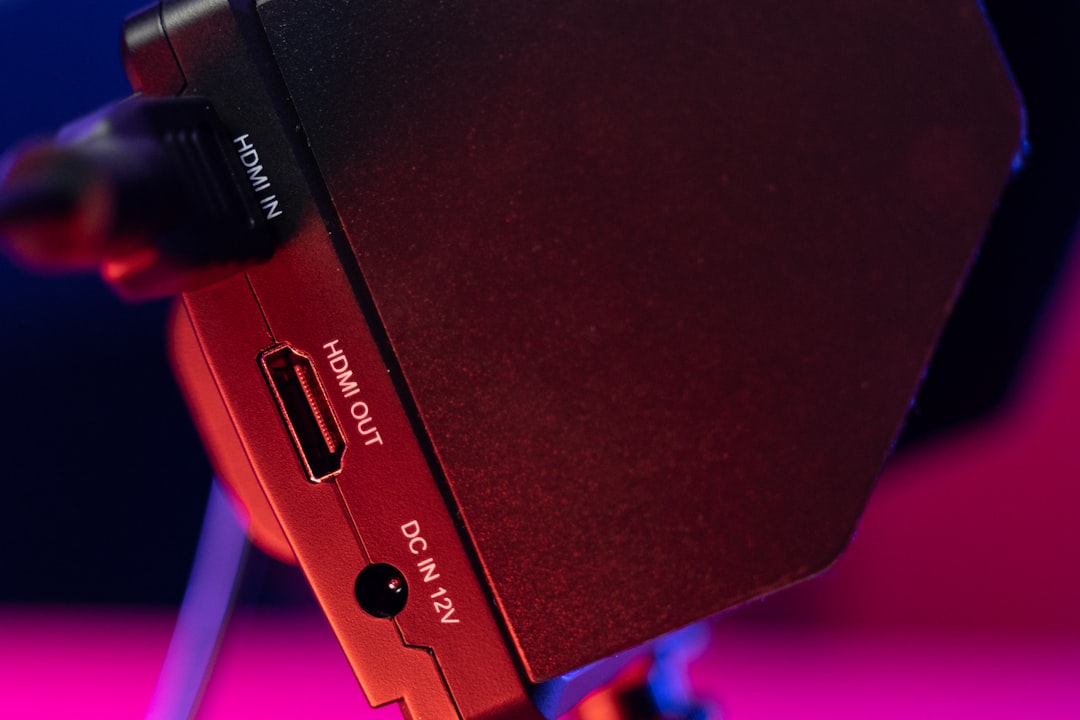
Also inspect the cable for:
- Bent connector pins
- Frayed shielding
- Kinks or crushed sections
- Loose connector housings
- Damage near the ends of the cable
If possible, test with a different cable. A new, certified cable is especially important for high resolutions and refresh rates, such as 1440p at 144 Hz or 4K at 120 Hz. Cheap or older cables may work sometimes but fail under higher bandwidth demands.
Step 3: Try a Different Port
If your computer and monitor have multiple ports, switch to another one. For example, move from HDMI 1 to HDMI 2 on the monitor, or try DisplayPort instead of HDMI. You should also try a different output on the graphics card if available.
This helps identify whether the issue is caused by a damaged port. Ports can wear out over time, especially if cables are often plugged and unplugged. Dust, oxidation, or physical stress can also interfere with signal quality.
If the red line disappears when using a different port, the original port may be faulty. You can continue using the working port, but if the device is under warranty, consider contacting support.
Step 4: Check Whether the Line Appears in the Monitor Menu
This is one of the most useful tests. Open your monitor’s built in menu using the physical buttons or joystick on the monitor. Look closely: does the red line appear over the menu as well?
If the red line is visible in the monitor menu, the problem is likely inside the monitor itself. It may be an issue with the panel, internal controller board, or ribbon cable. If the line does not appear in the menu, the problem is more likely related to the signal coming from your computer, cable, adapter, or graphics card.
This single test can quickly separate monitor hardware problems from external video source problems.
Step 5: Test the Monitor with Another Device
Connect the monitor to another computer, laptop, game console, or media device. Use a different cable if possible. If the red line appears on the second device too, the monitor is probably the source of the issue.
If the red line disappears on the second device, your original computer or graphics output is likely responsible. That could mean a driver problem, GPU issue, incorrect display setting, or faulty output port.
You can also do the opposite test: connect your computer to a different monitor or TV. If the red line follows the computer to another display, the issue is most likely with your computer or graphics hardware.
Step 6: Update or Reinstall Graphics Drivers
Graphics drivers tell your operating system how to communicate with your GPU and monitor. Outdated, corrupted, or buggy drivers can result in color distortion, flickering lines, resolution problems, and display artifacts.
On Windows, open Device Manager, expand Display adapters, right click your graphics device, and choose Update driver. For best results, download the latest driver directly from the GPU manufacturer, such as NVIDIA, AMD, or Intel.
If the issue began after a recent driver update, try rolling back to a previous version. In Device Manager, open the GPU properties, go to the Driver tab, and select Roll Back Driver if the option is available.
For stubborn display issues, a clean driver installation can help. Some users use a display driver removal tool before reinstalling, but only do this if you are comfortable with the process. Always create a restore point before making deeper system changes.
Step 7: Adjust Resolution and Refresh Rate
A monitor may show lines or flicker if it is running at a resolution or refresh rate it does not handle well. This is especially true when using adapters, docking stations, long cables, or older monitors.
On Windows, go to Settings, then System, then Display, and select Advanced display. Check that your monitor is using its recommended resolution and a supported refresh rate.
Try temporarily lowering the refresh rate. For example, if you are running at 144 Hz, test 120 Hz or 60 Hz. If the red line disappears at a lower refresh rate, the issue may be related to cable bandwidth, a weak port, or monitor instability at high refresh settings.
Also disable experimental display features while testing, such as custom resolutions, GPU scaling, overclocked refresh rates, or variable refresh rate settings. Once the display is stable, you can re enable features one by one.
Step 8: Look for GPU Overheating or Failure
A red line can sometimes be a sign of graphics card trouble, especially if it appears alongside other symptoms such as random crashes, screen tearing, colored blocks, freezing, or sudden black screens.
Check your GPU temperature using a hardware monitoring tool. If temperatures are very high under load, clean dust from your computer case, GPU fans, and vents. Make sure airflow is not blocked and that all fans are spinning normally.
Artifacts caused by a failing GPU often appear on multiple monitors and may worsen while gaming, rendering video, or running graphically demanding software. If your computer has both integrated graphics and a dedicated graphics card, try connecting the monitor to the other graphics output for comparison.
Step 9: Inspect for Physical Damage
If the monitor was dropped, pressed, twisted, or transported without protection, the red line may be caused by physical panel damage. LCD panels contain delicate internal layers and tiny connections. Even if the glass looks fine, internal damage can produce persistent lines.
Gently inspect the screen under good lighting. Look for pressure marks, cracks, discoloration, or areas where the line begins near an impact point. Do not press the screen to “massage” the line away. Pressing can make the problem worse and may create dead pixels or spread damage.
In laptops, red vertical lines are sometimes caused by a loose or damaged display ribbon cable, especially if the line changes when the lid is moved. Repairing that usually requires opening the device, so it is best handled by a technician unless you have experience with laptop repairs.
Step 10: Reset the Monitor Settings
Many monitors include settings for color temperature, sharpness, response time, adaptive sync, overdrive, and custom presets. Occasionally, a corrupted setting or aggressive display mode can create unusual visual behavior.
Open the monitor’s on screen display menu and look for Factory Reset, Reset All, or Restore Defaults. This returns the monitor to its original configuration. After resetting, test the display before changing settings again.
If the line disappears, reapply your preferred settings gradually. Pay special attention to overdrive, low latency modes, HDR settings, and adaptive sync options, as these can occasionally cause visual artifacts on certain monitor and GPU combinations.
Step 11: Check Adapters, Docks, and Hubs
If your monitor is connected through a USB C hub, docking station, HDMI adapter, KVM switch, or DisplayPort converter, remove it from the setup temporarily. Connect the monitor directly to the computer.
Adapters and docks are convenient, but they add another point of failure. Some cannot reliably handle high resolutions, high refresh rates, HDR, or multi monitor setups. Firmware bugs in docking stations can also cause odd display symptoms.
If a direct connection fixes the red line, update the dock firmware or replace the adapter with a higher quality model that officially supports your monitor’s resolution and refresh rate.
When Is the Monitor Itself the Problem?
The monitor is likely faulty if:
- The red line appears even with no computer connected.
- The line is visible in the monitor’s built in menu.
- The line appears when using multiple devices and cables.
- The line stays in the exact same place at all times.
- The screen recently suffered impact, pressure, or liquid exposure.
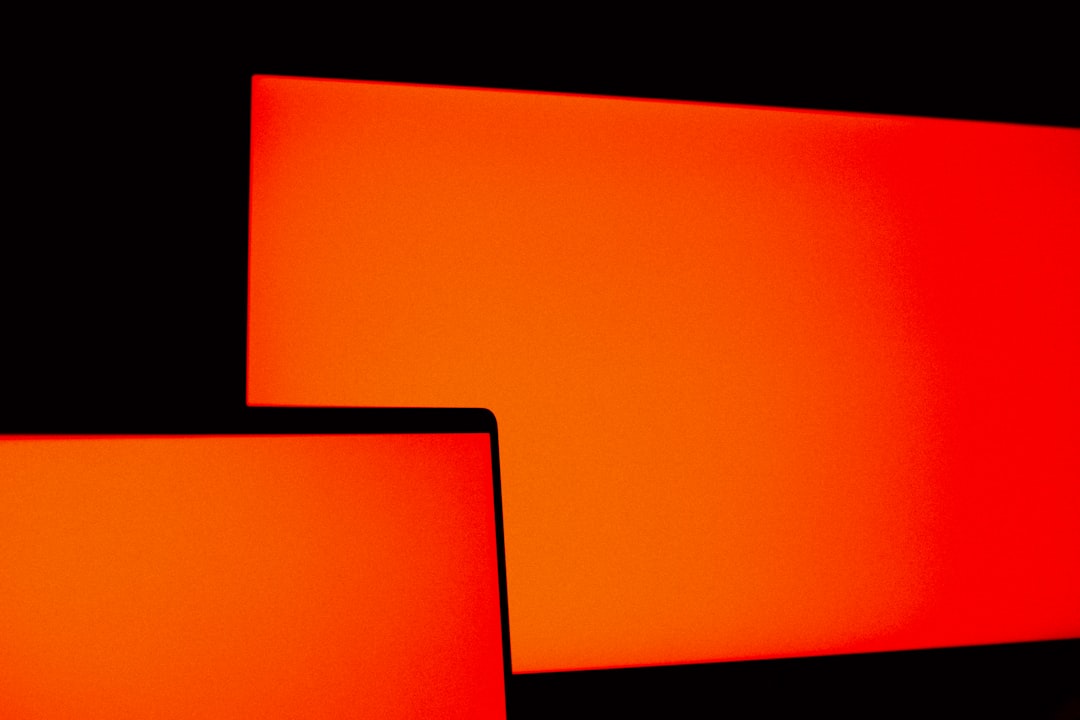
In these cases, the issue may involve the panel, internal ribbon connector, timing controller board, or display electronics. If the monitor is under warranty, contact the manufacturer before attempting any repair. Opening the monitor yourself may void the warranty and can be dangerous because some internal components may hold electrical charge.
Can You Fix Stuck Red Pixels?
Sometimes what looks like a red line is actually a row or cluster of stuck pixels. A stuck pixel remains one color, while a dead pixel is usually black. Pixel fixing videos or software rapidly cycle colors in an attempt to unstick pixels, and they occasionally help with minor stuck pixel issues.
However, if the line extends from one edge of the screen to the other, it is probably not just a few stuck pixels. A full length line usually points to a panel connection or electronics problem.
Preventing Red Line Problems in the Future
While not every display failure can be prevented, good habits can reduce the risk:
- Use quality cables rated for your resolution and refresh rate.
- Avoid bending cables sharply near the connector.
- Keep your graphics drivers updated.
- Do not push, press, or clean the screen aggressively.
- Use a surge protector to guard against power spikes.
- Keep desktops and laptops well ventilated to reduce heat stress.
- Transport monitors in padded packaging whenever possible.
Final Thoughts
A red line on your monitor can look like a serious failure, but it is often caused by something simple: a loose cable, a bad port, an unstable refresh rate, or a driver issue. Start with the easy fixes, then move toward deeper testing. The most important step is to determine whether the line comes from the monitor itself or from the device sending the video signal.
If the red line appears across different devices, cables, and settings, the monitor likely needs professional repair or replacement. But if it disappears after changing cables, updating drivers, or adjusting refresh rate, you have solved the problem without spending money on a new display. A careful, step by step approach is the fastest way to turn an annoying red line back into a clean, reliable screen.