
You send an email and expect it to reach the inbox. But it lands in the spam folder. Annoying, right? This article explains why emails go to spam, what spam email means, and how you can fix the issue with simple steps. It also covers sender reputation, SPF, DKIM, DMARC, email content, email lists, Gmail, Outlook, Yahoo Mail, and spam filters in a clear way.
What Does Spamming Email Mean?
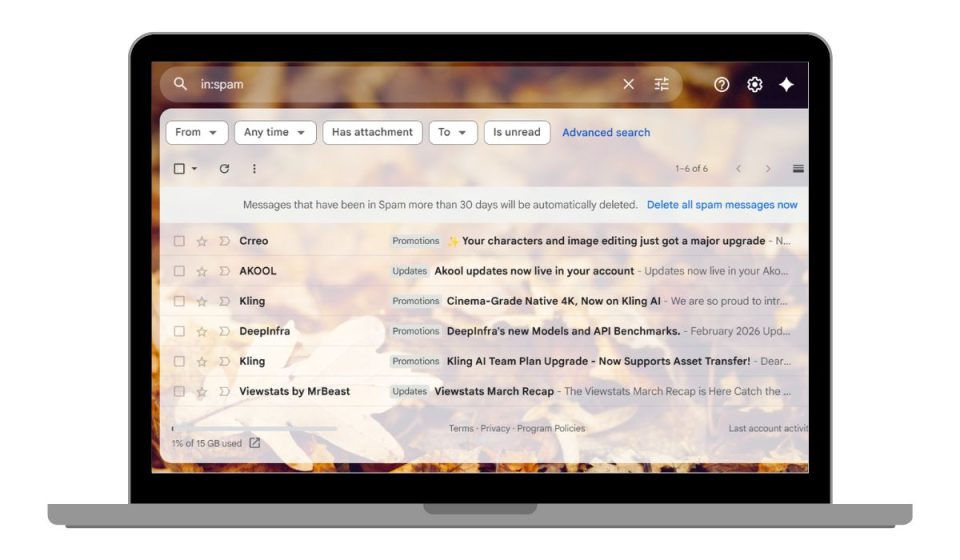
Spam email means an unwanted or suspicious email. It can be a fake offer, a phishing message, a bulk promotion, or even a real business email that looks risky to a spam filter.
Mailbox providers like Gmail, Outlook, Yahoo Mail, Apple Mail, and Microsoft 365 use spam filters to protect users. These filters check the sender, domain, IP address, subject line, links, email body, and user behavior.
So your email may be real. Still, it can go to spam.
Why? Because the filter sees a warning sign. Maybe your SPF record is missing. Maybe your DKIM signature fails. Maybe people don’t open your emails. Or maybe your email list has too many invalid addresses.
Spam filters don’t guess like humans. They read signals.
Common Reasons Why Emails Go to Spam
Emails usually go to spam because the mailbox provider does not fully trust the sender, email setup, content, or audience behavior.
- Missing or wrong SPF, DKIM, or DMARC records
- Low sender reputation or poor domain reputation
- Weak IP reputation from past sending activity
- Sending emails to purchased or unverified email lists
- High bounce rate from invalid email addresses
- Too many spam complaints from recipients
- Misleading subject lines or spam-like email copy
- Too many links, URL shorteners, or image-only emails
- Sudden high sending volume from a new domain
- Low open rate, low reply rate, or poor user engagement
How to Stop Emails From Going to Spam?
If you are facing this issue, try these fixes one by one. Start with your email setup first. Then check your email list, content, sending volume, and user engagement.
1. Set Up SPF, DKIM, and DMARC
SPF, DKIM, and DMARC help mailbox providers verify your sending domain. Gmail, Outlook, Yahoo Mail, and other providers use these records to check if your email is real.
SPF shows which mail servers can send email for your domain. DKIM adds a trusted signature to your email. DMARC tells mailbox providers what to do when SPF or DKIM fails.
Follow these steps:
- Open your DNS settings.
- Check your SPF record.
- Make sure your email service provider is included in SPF.
- Turn on DKIM inside your email platform.
- Add a DMARC record for your domain.
- Send a test email.
- Check the email headers for SPF, DKIM, and DMARC pass results.
If these records fail, your email can look like spoofing or phishing. Fix this before changing anything else.
2. Clean Your Email List
A bad email list can hurt email deliverability fast. If you send to fake addresses, old contacts, spam traps, or people who never gave consent, your sender reputation can drop.
Remove hard bounces, invalid emails, unsubscribed users, and inactive subscribers. Don’t use purchased email lists. Don’t scrape emails from websites. A smaller clean list is better than a large list full of people who don’t want your emails.
Clean lists help Gmail and Outlook see better user engagement. They also lower bounce rate and spam complaint rate.
3. Improve Sender Reputation
Sender reputation is the trust score of your sending domain and IP address. Mailbox providers check how people react to your emails.
If people open, click, reply, and save your emails, that helps. If people delete, ignore, unsubscribe, or mark them as spam, that hurts.
Send emails to people who expect them. Use the same sender name and sending domain. Keep your bounce rate low. Avoid spam complaints. If your domain is new, warm it up slowly.
Don’t send a large campaign from a new domain on day one. That can look risky.
4. Rewrite Spam-Like Email Content
Spam filters read your subject line, preview text, body copy, links, and formatting. They also use natural language processing to understand the meaning of your message.
Keep your email clear. Use one topic. Match the subject line with the email body. Avoid fake urgency, all caps text, strange claims, and too many links.
For example, don’t use this subject line:
- “Important Account Alert”
Then write a sales offer inside the email. That feels misleading.
A better subject line would be:
- “New offer for your email plan”
It matches the email topic. Simple. Clear. Safer.
5. Reduce Sending Volume
Sending too many emails too fast can trigger spam filters. This often happens with new domains, cold email accounts, new IP addresses, and bulk campaigns.
Start small. Send to engaged contacts first. Watch your open rate, reply rate, bounce rate, unsubscribe rate, and spam complaints.
If results look healthy, increase volume slowly. If complaints rise, slow down.
Mailbox providers like steady sending patterns. Sudden spikes can look like spam activity.
6. Add a Clear Unsubscribe Link
A clear unsubscribe link helps protect your sender reputation. If people can’t find a way to opt out, they may mark your email as spam.
That hurts more than an unsubscribe.
Add an easy opt-out link in every marketing email. Make it visible. Remove unsubscribed users quickly. Also add real sender details where required by email laws like CAN-SPAM, GDPR, or CASL.
A clean opt-out process tells users and mailbox providers that your email is honest.
7. Test Emails Before Sending
Testing helps you find problems before your full campaign goes out. This step matters when you send newsletters, cold emails, product updates, or transactional emails.
Follow these steps:
- Send a test email to Gmail.
- Send another test to Outlook.
- Test Yahoo Mail and Apple Mail if possible.
- Check if the email lands in inbox, promotions, junk, or spam.
- Open the email on mobile and desktop.
- Click all links.
- Review the email headers.
- Fix any SPF, DKIM, DMARC, link, or formatting issue.
If your email goes to spam in Outlook but not Gmail, don’t panic. Each mailbox provider uses different filtering rules. Check the problem by provider.
Tips to Prevent Emails From Going to Spam
Fixing one spam issue is good. But you also need good sending habits. These habits help your emails stay trusted over time.
Use these tips before each email campaign, newsletter, cold email sequence, or business email.
- Use permission-based email lists. Send emails to people who expect them.
- Keep SPF, DKIM, and DMARC active. Check them when you change email tools.
- Write useful emails. Match the subject line, preview text, body, and link topic.
- Keep email design simple. Use clear text, trusted links, and a clean layout.
- Track open rate, bounce rate, spam complaints, unsubscribe rate, and reply rate.
Conclusion
Emails go to spam when Gmail, Outlook, Yahoo Mail, or another mailbox provider sees risk. That risk can come from weak email authentication, poor sender reputation, bad email content, sudden sending volume, or a low-quality email list.
Start with the basics. Set up SPF, DKIM, and DMARC. Clean your list. Write clear emails. Send at a safe pace. Test before sending. Good email deliverability comes from trust, clean data, and messages people want to read.
If this helped you, share it with someone who sends emails for business, sales, newsletters, or customer updates. You can also comment with your issue, like Gmail spam placement, Outlook junk folder problems, DMARC failure, or low open rates.