
Your PC is supposed to be a power tool—fast, reliable, and ready to handle everything from gaming marathons to heavy workloads. But when it starts overheating, performance drops, fans roar like jet engines, and unexpected shutdowns become common. Overheating isn’t just annoying; it can shorten your computer’s lifespan and permanently damage internal components if ignored. The good news? Most overheating problems are surprisingly fixable.
TL;DR: PCs overheat mainly due to dust buildup, poor airflow, failing cooling components, or demanding software. When temperatures get too high, your system slows down or shuts off to prevent damage. Cleaning your PC, improving airflow, updating thermal paste, and monitoring system loads can solve most problems. Acting early can protect your hardware and save you money.
Why Overheating Is a Serious Problem
Every computer generates heat. The CPU, GPU, and power supply all produce heat as they process data. Your cooling system is designed to manage it. However, once internal temperatures consistently exceed safe limits (typically 80–90°C for CPUs and GPUs under load), issues start to appear.
Overheating can cause:
- Thermal throttling – Your PC slows down automatically to reduce heat
- Random shutdowns – A built-in safety response to prevent damage
- Shortened component lifespan
- Permanent hardware failure
Understanding what causes overheating is the first step toward fixing it.
1. Dust Buildup: The Silent Heat Trap
Dust is one of the most common—and underestimated—causes of overheating. Over time, dust collects on fans, vents, and heat sinks, forming an insulating layer that traps heat inside your system.
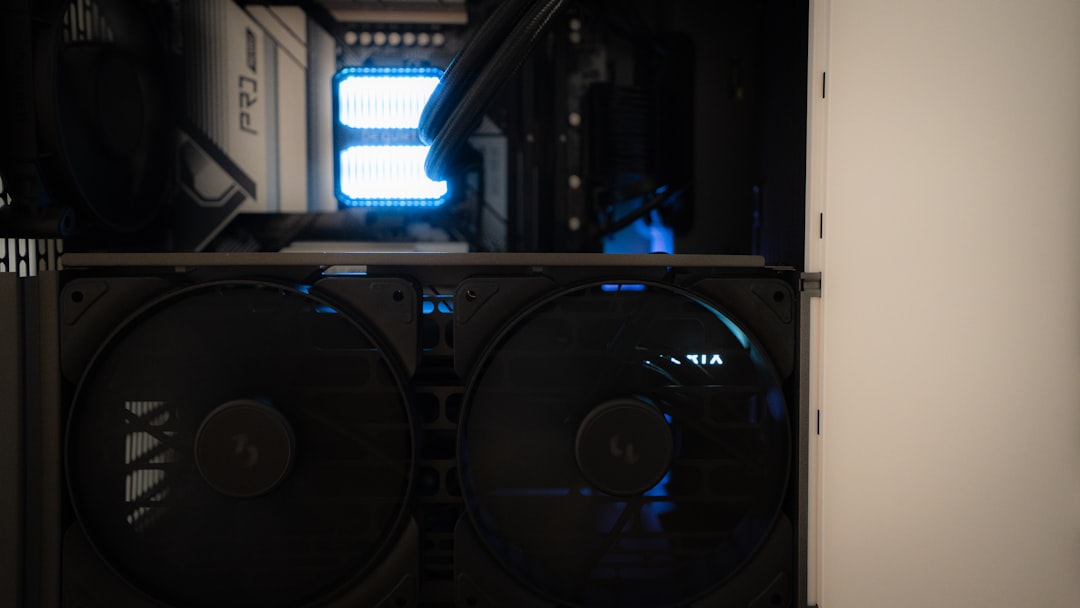
When airflow becomes restricted, cool air can’t circulate properly. As a result, hot air stays trapped around critical components.
Signs dust is your issue:
- Loud or constantly running fans
- Visible dust around vents
- Your PC hasn’t been cleaned in over 6–12 months
How to fix it:
- Turn off and unplug your PC.
- Use compressed air to blow dust out of fans, vents, and heat sinks.
- Hold fan blades still while cleaning to prevent damage.
- Clean your PC every 3–6 months (more often in dusty environments).
Tip: Never use a vacuum directly on internal components because static buildup can cause damage.
2. Poor Airflow Inside the Case
Your computer case isn’t just a protective shell—it’s part of your cooling system. If airflow inside the case is restricted, heat builds up rapidly.
Airflow problems often happen because:
- Cables block internal air movement
- Fans are installed incorrectly
- There aren’t enough intake or exhaust fans
- The PC sits in a cramped space
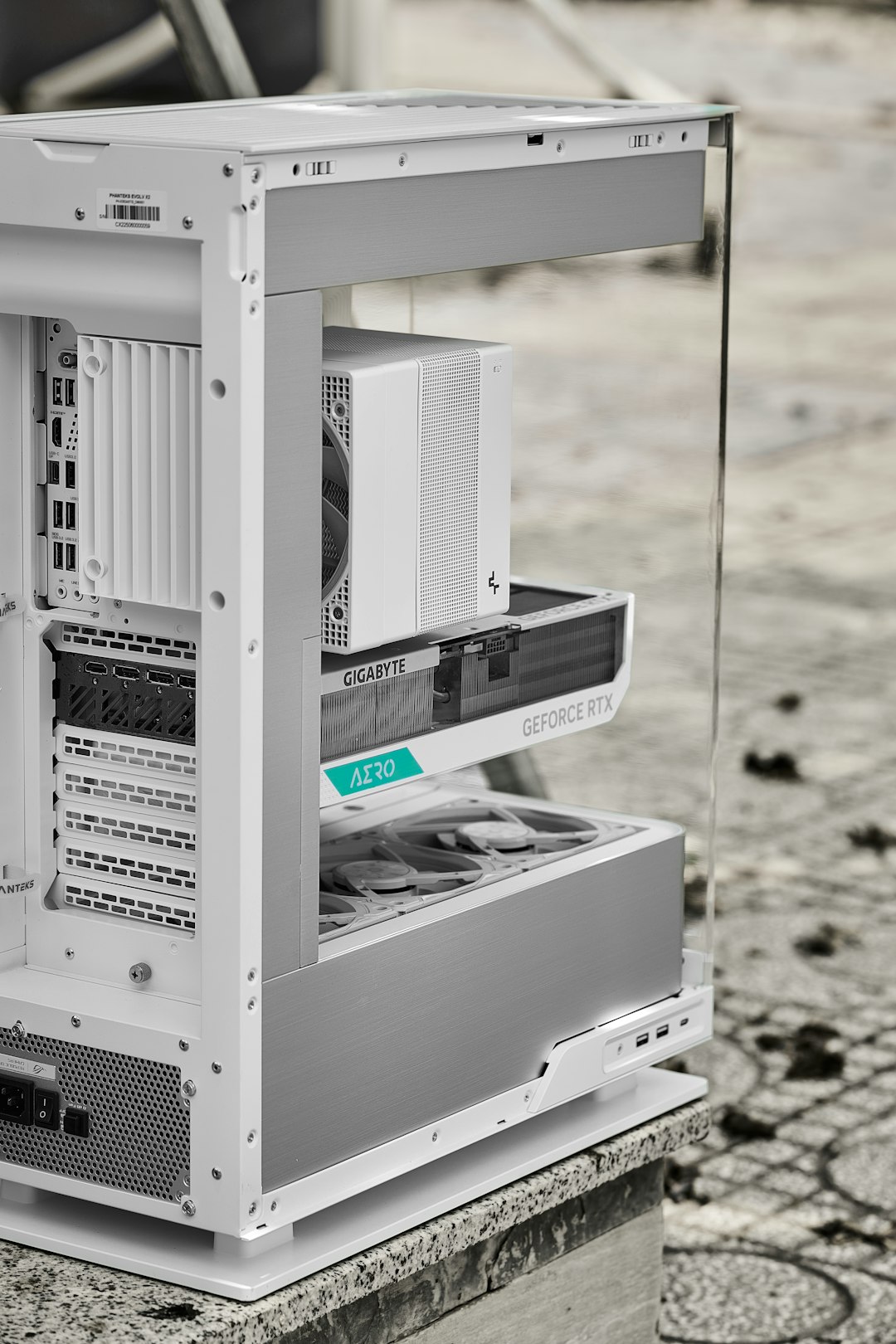
How to improve airflow:
- Organize cables using zip ties or cable management channels.
- Ensure front or bottom fans pull cool air in.
- Ensure rear and top fans push hot air out.
- Keep your PC a few inches away from walls or enclosures.
Balanced airflow—with equal intake and exhaust—is ideal. Too much of one without the other can disrupt cooling efficiency.
3. Failing or Insufficient Cooling Components
Your cooling system relies on mechanical parts that wear out over time. Fans can slow down, bearings can fail, and liquid cooling pumps can stop working.
Warning signs of cooling system failure:
- Grinding or rattling noises
- One fan not spinning
- Suddenly higher temperatures under normal workloads
If you’re using the stock cooler that came with your CPU, it might struggle under heavy gaming, video editing, or 3D rendering tasks.
Solutions:
- Replace malfunctioning fans immediately.
- Upgrade to a high-performance air cooler.
- Consider liquid cooling for demanding setups.
Modern aftermarket coolers can reduce CPU temperatures dramatically compared to entry-level stock solutions.
4. Old or Improper Thermal Paste Application
Between your CPU (or GPU) and its heat sink is a small but crucial layer of thermal paste. It improves heat transfer by filling microscopic gaps between metal surfaces.
Over time, thermal paste can dry out or crack, reducing its effectiveness.
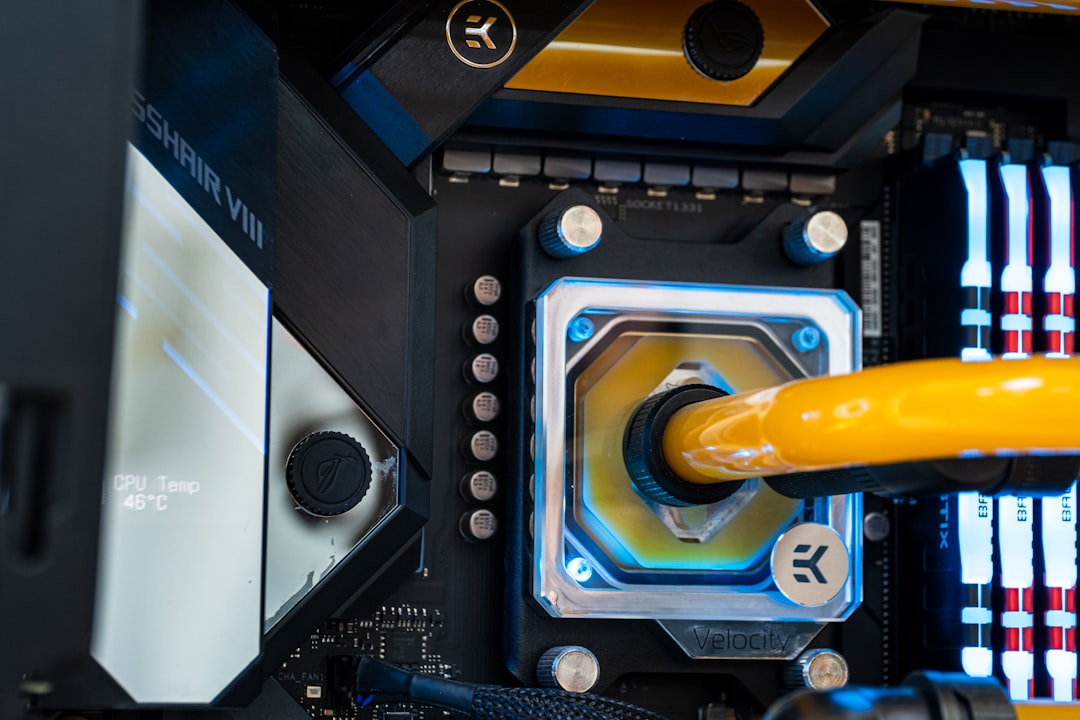
Symptoms of bad thermal paste:
- High CPU temperatures even at low workloads
- Overheating despite clean fans and good airflow
- Your system is 3–5+ years old and never had paste replaced
How to fix it:
- Remove the cooler carefully.
- Clean old paste with isopropyl alcohol (90% or higher).
- Apply a pea-sized amount of new thermal paste.
- Reattach the cooler evenly and securely.
Proper thermal paste application alone can reduce temperatures by 5–15°C.
5. High Ambient Room Temperature
Your PC can’t cool itself below the temperature of the room it’s in. If you’re gaming in a hot, poorly ventilated room, your cooling system has to work far harder.
Steps to manage room temperature:
- Use air conditioning or fans
- Avoid placing your PC near heaters or direct sunlight
- Keep curtains closed during hot days
Even lowering room temperature by a few degrees can significantly reduce internal PC temps.
6. Demanding Software and Background Processes
Sometimes your hardware is fine—the problem lies in what your system is doing.
High CPU or GPU usage from:
- Modern games
- Video editing software
- Cryptomining malware
- Too many background programs
can push your components to their thermal limits.
What to do:
- Open Task Manager (or Activity Monitor equivalent).
- Identify programs using excessive CPU or GPU resources.
- Close unnecessary background applications.
- Run antivirus scans to rule out malware.
If your workload permanently demands high performance, upgrading your cooling system—or your hardware—may be necessary.
7. Incorrect BIOS or Fan Settings
Modern motherboards allow you to control fan curves—the speed at which fans spin relative to temperature. If your fan curve is too conservative, fans may not ramp up quickly enough to cool rising temperatures.
Solution:
- Enter BIOS during startup.
- Adjust fan curves for more aggressive cooling.
- Or use manufacturer software to control fan behavior.
A slightly more aggressive fan curve can dramatically reduce peak temperatures without creating constant noise.
How to Monitor Your PC’s Temperature
If you suspect overheating, don’t guess—measure.
Use monitoring tools to check:
- CPU temperature
- GPU temperature
- Fan speeds
- System load percentages
Typical safe ranges:
- Idle CPU: 30–50°C
- Load CPU: 65–85°C
- Idle GPU: 30–50°C
- Load GPU: 65–85°C
Short spikes above these aren’t always dangerous—but sustained temperatures above 90°C are red flags.
Laptops: A Special Case
Laptops overheat more easily than desktops because of their compact design.
Common laptop fixes:
- Use a cooling pad
- Avoid using it on soft surfaces like beds
- Clean internal fans (if accessible)
- Undervolt the CPU to reduce heat output
Laptops require extra care because airflow is far more restricted.
When to Consider Hardware Upgrades
If your PC overheats despite cleaning and airflow improvements, your system may simply be underpowered for modern tasks.
Consider upgrading:
- CPU cooler
- Case with better ventilation
- Additional case fans
- GPU with improved cooling design
Sometimes airflow-optimized cases alone can reduce system-wide temperatures significantly.
Prevention Is Easier Than Repair
The best way to deal with overheating is to stop it before it starts.
Preventative checklist:
- Clean your PC every 3–6 months
- Monitor temperatures monthly
- Replace thermal paste every few years
- Keep your PC in a cool, ventilated space
- Listen for unusual sounds from fans
Small maintenance habits can extend your PC’s lifespan by years.
Final Thoughts
Overheating is one of the most common PC problems—but also one of the most manageable. Whether it’s dust clogging your fans, outdated thermal paste, poor airflow, or high workloads, there’s almost always a clear solution.
The key takeaway: Heat is inevitable. Damage is not. With regular maintenance, smart airflow management, and temperature monitoring, you can keep your PC running cool, quiet, and reliable for years to come.
Your computer works hard for you—make sure it can keep its cool while doing it.