
The Apple Watch is designed to make life easier—tracking workouts, delivering notifications, monitoring heart rate, and even helping users navigate their day. However, when the battery starts draining faster than expected, it can quickly turn from a helpful companion into a daily frustration. Whether the battery barely makes it through the afternoon or drops several percentage points per hour, excessive drain is a common issue many users face.
TL;DR: If an Apple Watch battery is draining fast, the issue is often related to background apps, display settings, outdated software, or excessive notifications. Simple adjustments like reducing screen brightness, disabling unnecessary features, and updating watchOS can significantly improve battery life. Turning off Always-On Display and limiting background refresh are especially impactful. Most battery issues can be resolved instantly without replacing the device.
Below are 10 effective fixes that can instantly improve Apple Watch battery life and help it last throughout the day.
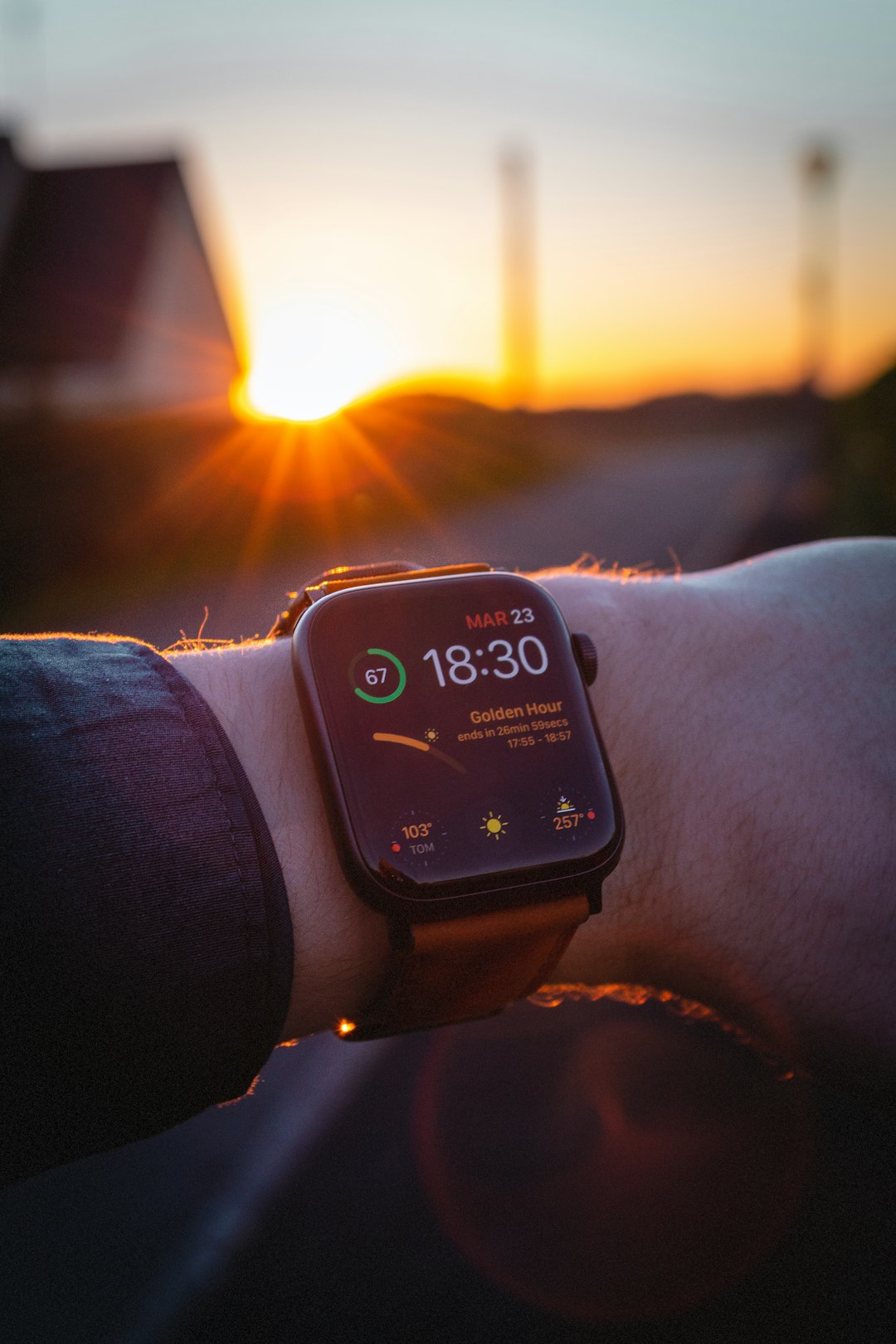
1. Turn Off Always-On Display
The Always-On Display feature keeps the screen visible at all times, which naturally consumes more power. While convenient, it can significantly impact battery performance.
To disable it:
- Open Settings on the Apple Watch
- Tap Display & Brightness
- Select Always On
- Toggle it off
This single change can noticeably extend battery life, especially on newer models that emphasize display clarity.
2. Reduce Screen Brightness
A bright display drains power much faster. Many users unknowingly keep brightness at high levels when lower settings are perfectly usable indoors.
To adjust brightness:
- Go to Settings
- Tap Display & Brightness
- Lower the brightness level
Even reducing brightness by one level can make a meaningful difference over a full day.
3. Disable Background App Refresh
Background App Refresh allows apps to update content even when not actively in use. While helpful for real-time updates, it consumes extra battery.
To manage it:
- Open the Watch app on iPhone
- Tap General
- Select Background App Refresh
- Turn it off entirely or disable it for specific apps
Limiting this feature to only essential apps preserves energy and reduces unnecessary processing.
4. Reduce Notifications
Each notification activates the screen, vibration motor, and wireless connection. Frequent alerts throughout the day significantly affect battery life.
Users can:
- Open the Watch app on iPhone
- Select Notifications
- Disable notifications for non-essential apps
Fewer alerts mean fewer wake-ups for the display and processor.
5. Turn Off Raise to Wake
The Raise to Wake feature activates the screen whenever the wrist is lifted. While intuitive, it can mistakenly trigger throughout the day.
To disable it:
- Go to Settings
- Tap Display & Brightness
- Toggle off Wake on Wrist Raise
This is particularly useful for users who move their arms frequently at work or during workouts.
6. Update watchOS
Outdated software can cause battery inefficiencies due to bugs or unoptimized features. Apple routinely releases updates that improve battery performance.
To check for updates:
- Open the Watch app on iPhone
- Tap General
- Select Software Update
Keeping watchOS current ensures the device benefits from the latest power management improvements.
7. Turn Off Unnecessary Health Tracking
Continuous heart rate monitoring, blood oxygen tracking, and noise monitoring are useful—but power-intensive.
Users can adjust these features in:
- Watch app > Privacy
- Health settings
Disabling features not actively needed can extend battery life considerably, especially for users who do not rely heavily on health metrics.
8. Limit Cellular and Wi-Fi Usage
For Apple Watch models with cellular capability, maintaining a mobile connection consumes additional power. Weak signal areas worsen the drain as the device searches for connectivity.
To conserve battery:
- Disable Cellular when not needed
- Turn off Wi-Fi in low-signal areas
- Enable Airplane Mode when appropriate
This is especially helpful during travel or long workdays.
9. Remove Unused Watch Faces and Complications
Complications—small widgets on watch faces—pull live data such as weather, activity, and stocks. The more active complications present, the more power required.
Users should:
- Choose simpler watch faces
- Remove unnecessary complications
- Avoid highly animated designs
Minimalistic faces not only look clean but also conserve battery life.
10. Restart or Reset the Apple Watch
Sometimes rapid battery drain is caused by a temporary software glitch. Restarting the device can recalibrate processes running in the background.
To restart:
- Press and hold the side button
- Slide to power off
- Turn it back on after a few seconds
If problems persist, unpairing and re-pairing the watch may resolve deeper software conflicts.

Quick Comparison Chart of Battery-Saving Fixes
| Fix | Difficulty Level | Impact on Battery | Instant Improvement |
|---|---|---|---|
| Turn Off Always-On Display | Easy | High | Yes |
| Reduce Screen Brightness | Easy | Moderate | Yes |
| Disable Background App Refresh | Easy | High | Yes |
| Reduce Notifications | Moderate | Moderate | Yes |
| Disable Raise to Wake | Easy | Moderate | Yes |
| Update watchOS | Moderate | Moderate to High | Varies |
| Adjust Health Tracking | Moderate | High | Yes |
| Limit Cellular Use | Moderate | High | Yes |
| Simplify Watch Face | Easy | Low to Moderate | Yes |
| Restart Device | Easy | Varies | Often |
When to Consider Battery Replacement
If the Apple Watch is more than two to three years old and battery health has significantly degraded, even optimizing settings may not fully solve the issue. Lithium-ion batteries naturally wear over time. Users can check battery health in newer models by going to:
- Settings > Battery > Battery Health
If maximum capacity is below 80%, professional battery service may be worth considering.
Frequently Asked Questions (FAQ)
1. Why is the Apple Watch battery draining so fast all of a sudden?
Sudden battery drain is often caused by a recent software update, a rogue app running in the background, increased notifications, or newly enabled features like Always-On Display or health tracking.
2. Does closing apps save battery on Apple Watch?
Not necessarily. watchOS manages background apps efficiently. However, disabling Background App Refresh is more effective than manually closing apps.
3. How long should an Apple Watch battery last?
Most models are designed to last around 18 hours on a full charge. Usage patterns, cellular activity, and display settings can significantly influence that number.
4. Is it bad to charge the Apple Watch overnight?
No. The device includes optimized charging features that prevent overcharging and reduce battery wear over time.
5. Does resetting the Apple Watch improve battery life?
In cases where battery drain is caused by software bugs or corrupted settings, resetting and re-pairing the device can restore normal performance.
6. Which setting drains the most battery?
Always-On Display, cellular connectivity, continuous health monitoring, and frequent notifications are typically the biggest battery consumers.
Fast battery drain does not automatically mean the Apple Watch is defective. In most cases, simple adjustments can dramatically improve daily performance. By optimizing display settings, limiting background activity, and keeping the system updated, users can enjoy longer battery life without sacrificing essential functionality.