
If you want to cancel your Canva subscription, the steps depend on where you started the plan. Some users subscribed on the Canva website. Others signed up through Apple or Google Play. That is where most confusion starts. The good news is this – once you find the billing source, the cancellation part is usually quick.
This guide explains how to cancel Canva Pro or Canva Teams, what happens after cancellation, and what to check so you do not get charged again.
What Does It Mean to Cancel a Canva Subscription?
When you cancel a Canva subscription, you usually stop the next renewal. That means Canva should not charge you again for the next billing cycle. In most cases, your current access does not end on the same day. You keep using Canva Pro or Canva Teams until the current monthly plan, yearly plan, or free trial ends.
After that, the account usually moves back to Canva Free. Your account stays active. Your saved designs usually stay in place too. So canceling a Canva subscription is not the same as deleting your Canva account.
That difference matters. Some people want to stop auto-renew only. Others want to remove the full account. Those are two different actions.
What Causes Confusion When Canceling Canva?
Many users struggle to cancel Canva because the subscription may be billed through a different platform than expected.
Common reasons include:
- The plan was purchased through the Canva website
- The subscription is billed through the Apple App Store
- The subscription is billed through the Google Play Store
- The user is logged into the wrong Canva account
- The plan is part of Canva Teams
- The user is a team member and not the owner or admin
- The free trial is still active and close to renewal
- The cancellation was not confirmed fully
How to Cancel Canva Subscription
If you want to stop future Canva charges, use the correct method below based on where the subscription started. After each method, check for confirmation so you know the renewal is off.
1. Cancel Canva subscription from the Canva website
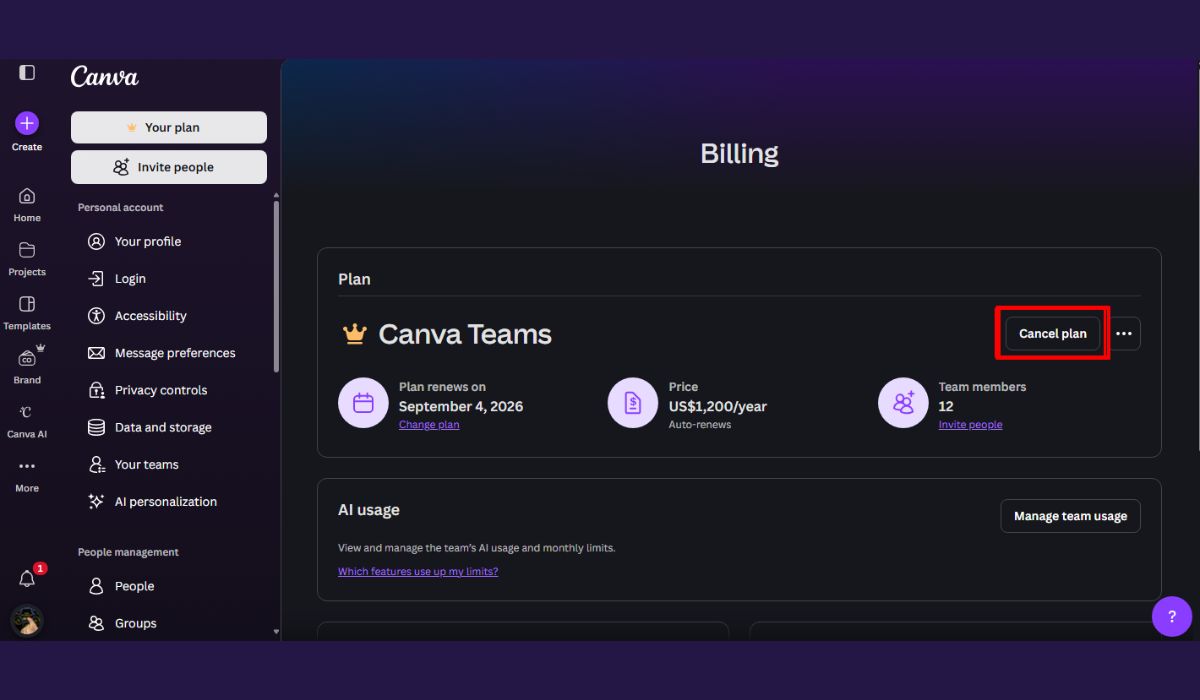
Use this method if you signed up for Canva Pro or Canva Teams directly on the Canva website in a browser. This is the most common option for desktop users.
Follow these steps:
- Sign in to your Canva account
- Open Settings or Billing and plans
- Find your active subscription
- Select Cancel subscription or turn off auto-renew
- Follow the prompts until the cancellation is confirmed
- Check your billing page or email for confirmation
If the cancel option does not appear, you may be in the wrong account or the plan may be billed through Apple or Google instead.
2. Cancel Canva subscription on iPhone or iPad
If you subscribed through Apple, you need to cancel through Apple subscriptions. You usually cannot fully cancel that plan inside Canva itself.
Use these steps on iPhone or iPad:
- Open the Settings app
- Tap your Apple ID name at the top
- Tap Subscriptions
- Find Canva in the list
- Tap Cancel Subscription
- Confirm the cancellation
After that, check your Apple subscriptions page again to make sure Canva shows an end date instead of the next renewal charge.
3. Cancel Canva subscription on Android
If your Canva plan is billed through Google Play, cancel it from the Play Store. Like Apple billing, this type of subscription is controlled by the store and not only by the Canva app.
Follow these steps:
- Open the Google Play Store
- Tap your profile icon
- Tap Payments and subscriptions
- Tap Subscriptions
- Select Canva
- Tap Cancel subscription
- Follow the prompts to finish
It helps to review the subscription screen once more after canceling. That way you can confirm that the plan will end instead of renewing again.
4. Cancel Canva Teams subscription
Canva Teams works a bit differently because billing is usually controlled by the team owner or an admin with billing access. If you are only a team member, you may not be able to stop the subscription yourself.
First, check your role inside the team. If you are the owner or admin, go to the billing section and review the team plan there. Look at active seats, billing details, and renewal status before canceling.
A few checks help here:
- Make sure you are the team owner or an admin with billing access
- Open Billing and plans
- Review the active team subscription
- Cancel the plan from the billing area
- Confirm that the team renewal is turned off
If you are not the owner, you may need to ask the account owner to handle the cancellation.
5. Check that the cancellation is complete
This step matters more than people think. Some users begin the cancellation but do not finish the last prompt, so the subscription stays active.
After canceling, look for one clear sign that renewal is off. That may be a confirmation email, a visible end date, a message that the plan will downgrade to Canva Free, or a billing page that no longer shows the next charge.
Do not rely on memory here. Check the account. If there is no confirmation, keep looking until you find it.
What Happens After You Cancel Canva?
In most cases, you keep access to Canva Pro or Canva Teams until the current billing cycle ends. That means if you paid for a monthly plan yesterday and cancel today, you usually still keep premium access until the end of that paid period.
After the plan ends, Canva usually moves the account back to Canva Free. Your saved designs are generally still there, which is important. You do not lose the account just because you stopped the subscription.
Still, some premium features will no longer work the same way. That can include:
- premium templates
- brand kit
- Magic Resize
- background remover
- premium elements
- some export options
- team-only features
If a design uses premium fonts, premium graphics, or Pro-only elements, you may run into restrictions later when editing, downloading, or reusing that design without an active paid plan.
Can You Get a Refund After Canceling Canva?
Refunds depend on where the subscription was billed. That part is important. If the plan was billed through Apple, refund requests may need to go through Apple. Also If it was billed through Google Play, the same idea applies there. If you paid Canva directly, then Canva support is the place to check.
Do not assume that canceling a subscription automatically creates a refund. Those are different actions. Cancellation usually stops future billing. A refund request is a separate process and may depend on billing rules, timing, and the payment platform.
If you are unsure, check the billing source first. That tells you where to go next.
What to Do If You Cannot Cancel Canva Subscription
If the cancel option is missing or the plan does not show up, the issue is usually tied to billing source, account access, or team permissions.
Check if you are logged into the right Canva account
This is a common problem. Many users have more than one Canva login, especially if they use one email for personal work and another for business. If you do not see your active Canva Pro plan, you may be signed into the wrong account.
Check whether the subscription is billed by Apple or Google
If the plan started through the App Store or Google Play, the subscription may not appear in the Canva billing area the way you expect. In that case, check Apple subscriptions or Google Play subscriptions instead of the Canva website.
Make sure you are the team owner or admin
For Canva Teams, only the owner or an admin with billing access can usually cancel the plan. A regular team member can use the workspace, but may not be able to manage payments or seats.
Contact Canva support if billing details still do not appear
If you checked the account, billing source, and permissions and still cannot find the subscription, contact Canva support. That is the best next step when the billing details are missing or the cancellation path does not match the account.
Final Check Before the Renewal Date
Before the next billing date arrives, check the renewal section one last time. Look at the billing page, the subscription status, and your confirmation email. You want clear proof that the next charge is off.
That last check can save you from an unwanted renewal. It takes a minute and is worth doing.
Conclusion
Canceling a Canva subscription is usually simple once you know where the billing started. The main thing is to cancel it in the right place, then confirm that renewal is off. After that, your account usually stays active until the current plan ends, and then it moves back to Canva Free.
If this guide helped, share it with someone else trying to cancel Canva Pro or Canva Teams. You can also leave a comment with the method that worked for you. That may help another user avoid extra charges.