
When an HP laptop gets stuck on the loading screen, it can be frustrating and even alarming—especially if important files or work are on the device. This issue is fairly common and can happen after a Windows update, software installation, driver conflict, or unexpected shutdown. Fortunately, in most cases, it can be resolved with a few practical troubleshooting steps. This guide explains easy and effective fixes to help restore an HP laptop to normal operation.
TL;DR: An HP laptop stuck on the loading screen is usually caused by software conflicts, corrupted system files, or startup errors. Start with simple fixes like a hard reset or disconnecting external devices. If that doesn’t work, try Safe Mode, Startup Repair, or System Restore. In rare cases, resetting Windows or checking the hardware may be necessary.
Why an HP Laptop Gets Stuck on the Loading Screen
Before applying fixes, it helps to understand the possible causes. Common reasons include:
- Corrupted Windows updates
- Damaged system files
- Faulty drivers
- Malware infections
- Failing hard drive or SSD
- Conflicts with external devices
In many cases, the issue is software-related and can be fixed without replacing hardware.
1. Perform a Hard Reset
A hard reset is often the simplest and most effective solution. It clears residual electrical charge and can resolve minor system glitches.
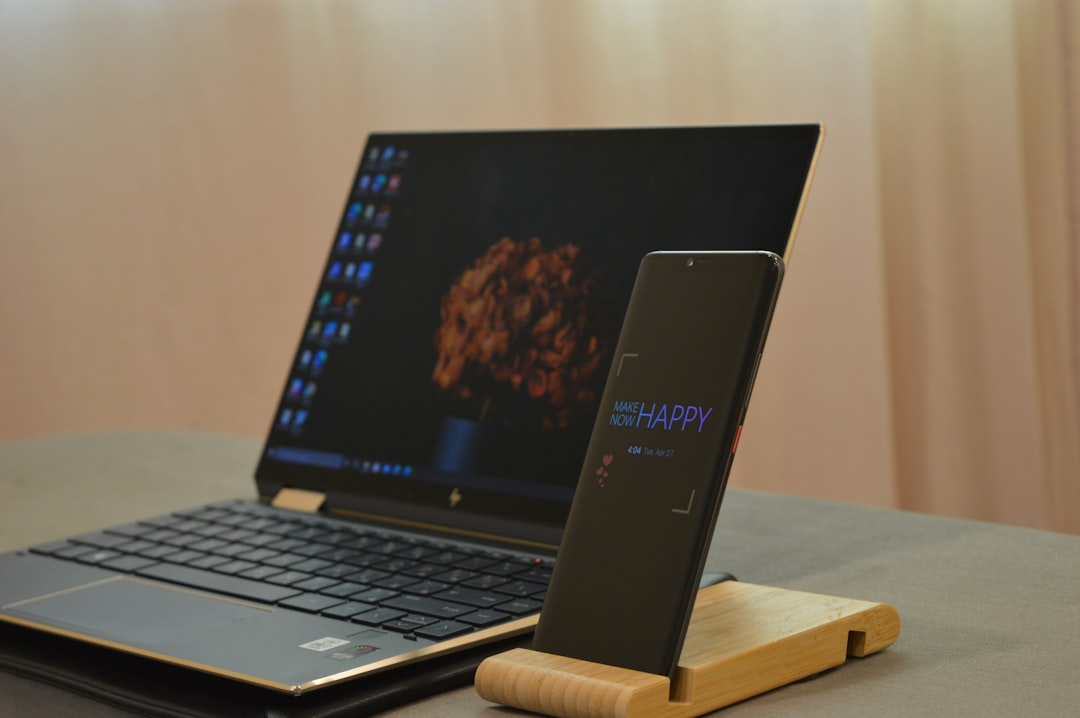
Steps to Perform a Hard Reset:
- Turn off the laptop completely.
- Disconnect the power adapter.
- Remove the battery (if removable).
- Press and hold the Power button for 15–20 seconds.
- Reconnect the battery and charger.
- Turn the laptop back on.
If the system boots normally, the issue was likely temporary. If it remains stuck, proceed to the next solution.
2. Disconnect All External Devices
External peripherals can sometimes interfere with startup. Devices such as USB drives, printers, and external hard drives may cause Windows to hang during boot.
What to Do:
- Remove all USB devices.
- Disconnect external monitors.
- Remove memory cards and external storage drives.
- Restart the laptop.
If the laptop boots successfully after removing these devices, reconnect them one by one to identify the culprit.
3. Boot into Safe Mode
Safe Mode starts Windows with minimal drivers and services. This helps determine whether the problem is caused by software or drivers.
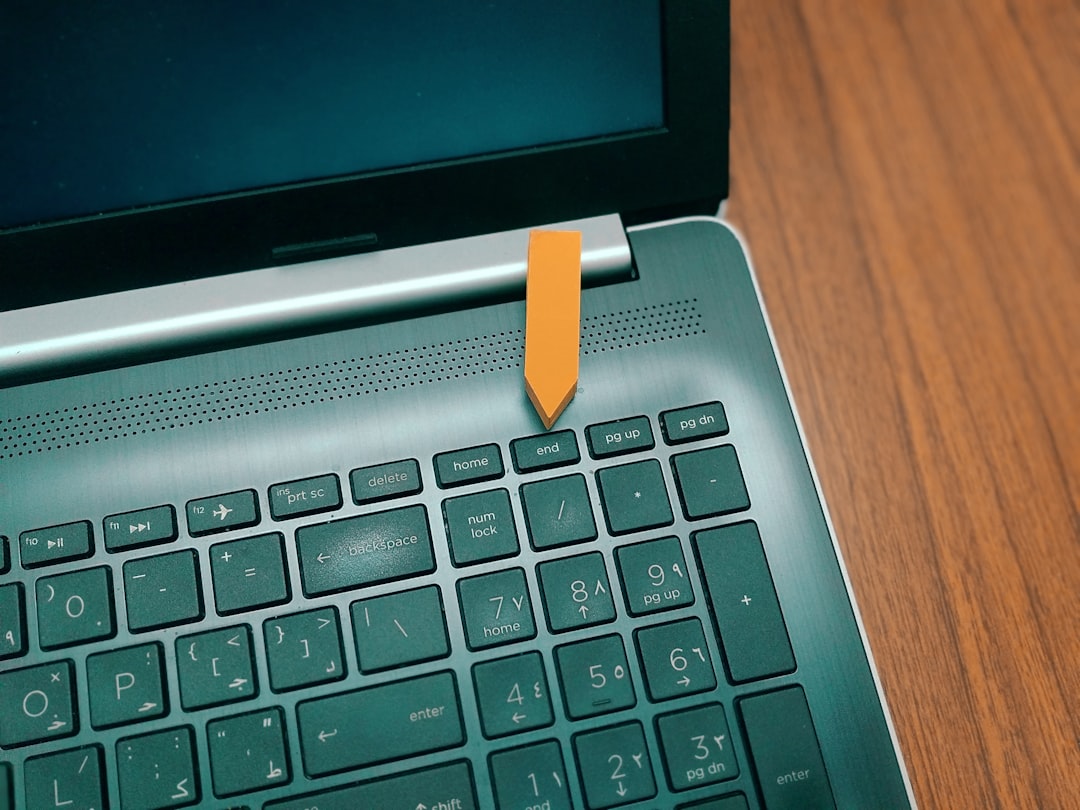
How to Enter Safe Mode:
- Turn the laptop on and force shut it down when the HP logo appears. Repeat this 2–3 times.
- Windows should enter Automatic Repair.
- Select Advanced options.
- Click Troubleshoot > Advanced Options > Startup Settings.
- Click Restart.
- Press 4 to enable Safe Mode.
If the laptop starts in Safe Mode:
- Uninstall recent updates.
- Remove recently installed programs.
- Update or roll back drivers.
4. Run Startup Repair
Startup Repair is a built-in Windows tool designed to fix boot-related problems automatically.
Steps:
- Enter the Windows Recovery Environment.
- Select Troubleshoot.
- Click Advanced Options.
- Choose Startup Repair.
- Select the user account and enter the password if prompted.
This tool scans for missing or corrupted system files and attempts to repair them automatically.
5. Use System Restore
If the issue began after a recent update or software installation, a System Restore can revert the laptop to a previous working state.
How to Perform It:
- Go to Advanced Options in Recovery.
- Click System Restore.
- Select a restore point dated before the problem started.
- Follow on-screen instructions.
This process does not delete personal files but may remove recently installed applications.
6. Check the Hard Drive
A failing hard drive can prevent Windows from booting properly. Running a disk check can detect and fix file system errors.
Using Command Prompt:
- Access Advanced Options.
- Select Command Prompt.
- Type: chkdsk c: /f /r
- Press Enter and wait for the scan to finish.
If the hard drive shows multiple bad sectors or errors, replacement may be necessary.
7. Repair Corrupted System Files
Corrupted system files can also cause loading screen freezes. The System File Checker (SFC) tool can repair them.
Steps:
- Open Command Prompt from Advanced Options.
- Type: sfc /scannow
- Press Enter.
If corruption is detected and repaired, restart the laptop to see if the issue is resolved.
8. Reset Windows
If none of the above solutions work, resetting Windows may be the final software fix.
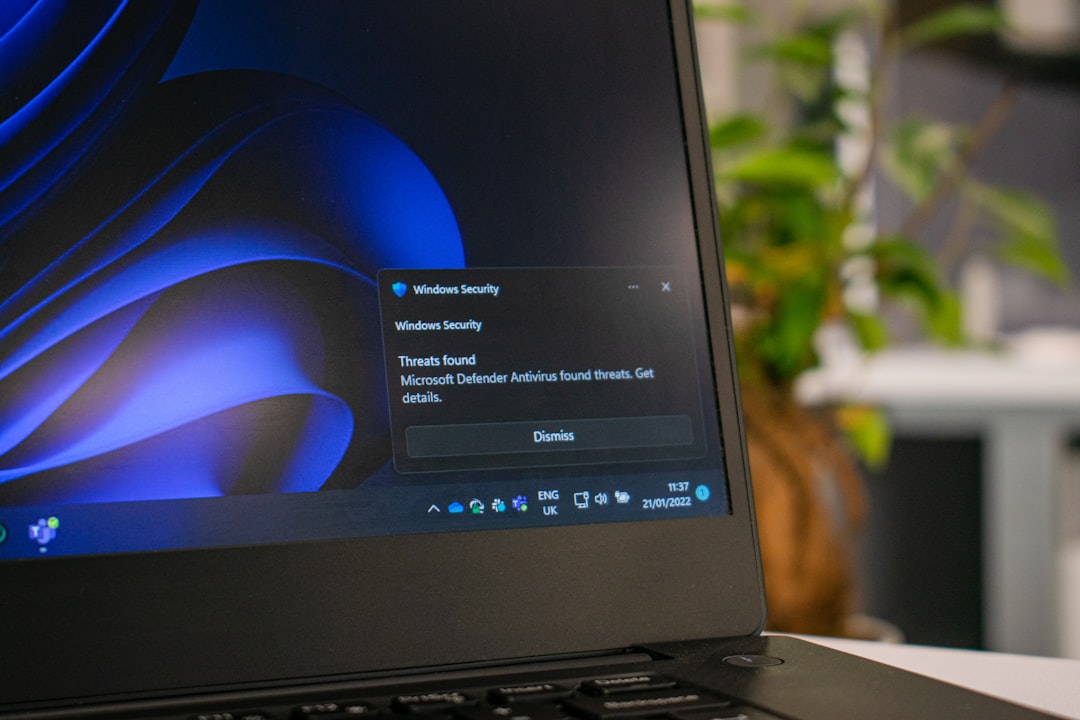
How to Reset:
- Go to Troubleshoot in Recovery.
- Select Reset this PC.
- Choose either:
- Keep my files
- Remove everything
- Follow on-screen instructions.
Choosing “Keep my files” preserves personal data but removes installed applications.
Comparison of Repair Tools and When to Use Them
| Tool | Best For | Data Loss Risk | Difficulty Level |
|---|---|---|---|
| Hard Reset | Minor software glitches | None | Very Easy |
| Safe Mode | Driver or update conflicts | None | Easy |
| Startup Repair | Boot file corruption | Low | Easy |
| System Restore | Recent software issues | Low | Moderate |
| CHKDSK | Disk errors | None | Moderate |
| Reset This PC | Severe system corruption | Medium to High | Moderate |
When Hardware Might Be the Problem
If software fixes fail, the issue may be hardware-related. Possible signs include:
- Clicking noises from the hard drive
- Frequent blue screens before the issue started
- Laptop overheating
- Random shutdowns
In such cases, professional diagnosis or part replacement may be required.
Preventing Future Startup Issues
While not all problems are avoidable, these steps can reduce the risk:
- Keep Windows updated regularly.
- Install drivers only from official HP sources.
- Use reliable antivirus software.
- Avoid interrupting Windows updates.
- Create restore points periodically.
- Back up important data routinely.
Preventive maintenance can save significant time and effort in the long run.
Frequently Asked Questions (FAQ)
1. Why is my HP laptop stuck on the HP logo screen?
This is typically caused by corrupted boot files, failed updates, or driver conflicts. Running Startup Repair or entering Safe Mode often resolves the issue.
2. Will a hard reset delete my files?
No, a hard reset does not remove personal data. It only clears residual electrical charge and resets hardware components.
3. How long should I wait on the loading screen?
If the laptop remains stuck for more than 10–15 minutes without progress, it is likely frozen and requires troubleshooting.
4. Can a virus cause my laptop to get stuck while loading?
Yes, malware can corrupt system files or startup processes. Booting into Safe Mode and running a virus scan can help.
5. What if I can’t access Advanced Startup?
Try interrupting the boot process three consecutive times. If that fails, you may need a Windows installation USB drive to access recovery tools.
6. Is replacing the hard drive expensive?
Costs vary depending on the model and storage type. SSD replacements are generally affordable and can improve overall performance significantly.
By following these easy and systematic steps, most users can fix an HP laptop stuck on the loading screen without professional assistance. Starting with simple solutions and gradually moving toward advanced repairs ensures the safest and most effective recovery process.