
When you use Windows 11, you might open Event Viewer and notice a message that says autopilot.dll WIL error was reported. That line can look worrying. Many people think their computer is broken. Most of the time the system still works, yet the log keeps showing the error.
This guide explains what autopilot.dll is and why the Windows Internal Library (WIL) records this message. You will also learn why it happens during Windows Autopilot, system services, or deployment tasks. After that, the article walks through simple fixes and a few habits that help stop the error from showing again on your Windows PC.
What Is autopilot.dll WIL Error?
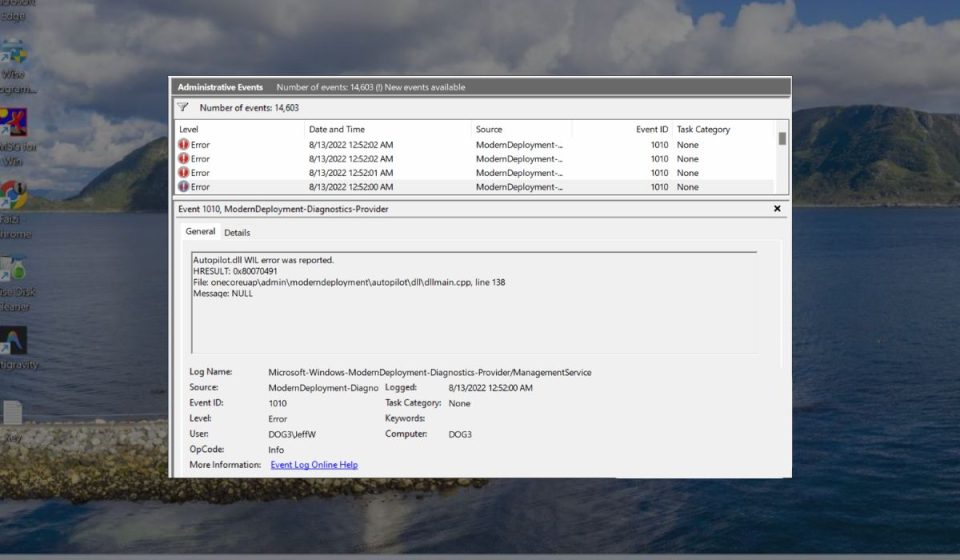
The autopilot.dll WIL error is a diagnostic record created by the Windows Internal Library, often shortened to WIL. Microsoft uses this library inside many Windows components to log problems during background operations. The file autopilot.dll is a system library stored in the System32 folder of Windows. It works with Windows Autopilot, a deployment feature used by companies and IT teams to prepare devices automatically.
When Windows performs tasks such as device provisioning, enrollment, or configuration through services connected to Microsoft Intune or Azure Active Directory, the system may log events through WIL. If a small internal step fails, Windows writes an entry about it.
The computer might continue running normally, but the event still appears because Windows records system behavior for troubleshooting and diagnostics.
Common Causes of autopilot.dll WIL Error
This error can appear for several reasons. Sometimes the cause is simple, such as temporary logging behavior. In other cases it relates to Windows system health or deployment settings.
Common triggers include:
- Corrupted Windows system files stored in the System32 directory
- Interrupted or incomplete Windows Update installation
- Misconfigured Windows Autopilot deployment profile in Microsoft Intune
- Damaged DLL files related to provisioning services
- Incorrect Azure Active Directory device enrollment policy
- Conflicts inside Windows provisioning service or device management policies
- Temporary faults reported by the Windows Internal Library logging framework
These causes relate to Windows system services, update components, and enterprise device management tools used in modern Windows environments.
How to Fix autopilot.dll WIL Error in Windows 11?
Different things can trigger this message. Sometimes it is harmless. Other times a system repair helps. The fixes below focus on Windows repair tools, system services, and deployment checks.
Fix #1 – Restart the Windows Computer
A restart sounds simple, yet it often clears temporary errors inside Windows services and background processes. When Windows starts again, the system reloads core libraries such as autopilot.dll.
Here’s how you can restart the computer safely.
- Open the Start menu
- Click the Power icon
- Choose Restart
- Wait for Windows to reboot
- After login, check Event Viewer again
Sometimes the error disappears after a clean restart.
Fix #2 – Run the System File Checker Scan
The System File Checker, also called SFC, checks the integrity of Windows system files. If the autopilot.dll library or another system component is damaged, SFC repairs it automatically.
Follow the steps below to run the SFC scan.
- Press Windows + S
- Type Command Prompt
- Right click it and select Run as Administrator
- Type the command
sfc /scannow - Press Enter and wait for the scan to finish
- Restart the computer
This tool checks core Windows files and restores them from the system cache.
Fix #3 – Repair the Windows Image Using DISM
If the Windows image becomes corrupted, system services may behave strangely. The Deployment Image Servicing and Management tool, known as DISM, repairs the system image used by Windows Update and other services.
The following steps show how to run the repair command.
- Open Command Prompt as Administrator
- Type
DISM /Online /Cleanup-Image /RestoreHealth - Press Enter
- Let the repair process complete
- Restart Windows after the scan
DISM often fixes deeper system issues that SFC cannot repair.
Fix #4 – Install the Latest Windows Updates
Microsoft releases regular patches for Windows 11. These updates repair bugs inside system libraries, device services, and deployment components.
Try these steps to check for updates.
- Open Settings
- Select Windows Update
- Click Check for Updates
- Install all available updates
- Restart the computer
After installing updates, many system log errors stop appearing.
Fix #5 – Review Event Viewer Logs
Event Viewer helps identify the service or component that triggered the log entry. Follow these steps to review the logs.
- Press Windows + X
- Select Event Viewer
- Expand Windows Logs
- Open Application
- Search for entries mentioning autopilot.dll
- Check the timestamp and related services
Sometimes the log shows which Windows component caused the message.
Fix #6 – Check Windows Autopilot Configuration
This fix mostly applies to business devices managed through Microsoft Intune or Endpoint Manager.
Administrators should verify:
- The Autopilot deployment profile assigned to the device
- The device registration inside Azure Active Directory
- Device configuration policies inside Microsoft Endpoint Manager
If configuration policies are incorrect, Windows may log provisioning errors.
Fix #7 – Reconnect Work or School Account
Managed devices often connect to a company account for policies and device management. Reconnecting the account can refresh provisioning settings.
You can perform the following steps.
- Open Settings
- Go to Accounts
- Click Access Work or School
- Select the connected account
- Disconnect it
- Reconnect the account again
Windows then downloads policies again from the management server.
Fix #8 – Reset or Repair Windows
If none of the earlier fixes help, repairing Windows may resolve deeper system problems. A repair reinstall rebuilds Windows system components while keeping personal files.
You can start the repair from Windows Recovery Environment or through Reset this PC inside Settings.
Steps usually involve:
- Open Settings
- Select System
- Choose Recovery
- Click Reset this PC
- Follow the instructions
This step reinstalls Windows services and replaces damaged system libraries.
Prevention Tips to Avoid autopilot.dll Errors
Fixing an error once is good. Preventing it helps even more. A few small habits keep Windows stable.
Here are simple practices that reduce system log issues.
- Install Windows updates regularly
- Run SFC scans every few months
- Check Event Viewer logs if unusual system behavior appears
- Maintain correct Autopilot deployment profiles for managed devices
- Avoid interrupting Windows updates during installation
- Confirm Azure Active Directory enrollment policies for enterprise devices
- Restart the computer occasionally to refresh system services
Conclusion
In short, the autopilot.dll WIL error is usually a diagnostic entry recorded by Windows when a background task reports a problem. The message often appears in Event Viewer logs during provisioning operations, system checks, or device configuration tasks connected to Windows Autopilot, Microsoft Intune, or other Windows services. In many cases the system continues running normally because the error only reports an internal event.
Try the fixes listed above. Restart the system. Run SFC and DISM. Install updates. Review deployment settings if the device is managed by an organization. Most users solve the issue with these steps. If the error keeps returning, contact Microsoft Support or your organization’s IT administrator for deeper troubleshooting.
If this guide helped you understand the problem, feel free to share it with others who face the same Windows error. You can also leave a comment and describe what worked for your computer.