
So you launched your favorite game… and boom. A scary little message pops up:
“discord_game_sdk.dll was not found.”
Annoying? Yes. The end of the world? Definitely not.
This guide will walk you through fixing the error step by step. No tech degree required. Just a bit of patience and maybe a snack.
TLDR: The “discord_game_sdk.dll was not found” error usually happens because the file is missing, deleted, blocked by antivirus, or your game installation is corrupted. You can fix it by reinstalling the game, repairing files through Steam or Epic, reinstalling Discord, updating Windows, or restoring the DLL from antivirus quarantine. Do not download random DLL files from shady websites. Stick to trusted fixes and you’ll be back in the game fast.
First Things First: What Is discord_game_sdk.dll?
Let’s keep this simple.
A DLL file is like a small helper file. Programs use it to do specific tasks. The discord_game_sdk.dll file helps games connect to Discord features. Things like:
- Rich Presence (showing what game you’re playing)
- Invites through Discord
- Voice chat integration
- Game activity tracking
If the file goes missing or gets corrupted, your game may refuse to start.
And Windows will complain loudly.
Why This Error Happens
Before we fix the issue, let’s understand it.
Common causes include:
- The file was accidentally deleted
- Antivirus removed it
- The game installation is corrupted
- Discord installation is broken
- Outdated Windows system files
Now let’s fix it.
Solution 1: Restart Your Computer (Yes, Really)
It sounds basic. But it works surprisingly often.
Sometimes a file just fails to load correctly. A restart gives Windows a fresh start.
Steps:
- Close all programs.
- Restart your PC.
- Launch the game again.
If it works. Great.
If not, don’t worry. We go deeper.
Solution 2: Verify Game Files (Steam, Epic, etc.)
This is one of the most effective fixes.
Your game launcher can automatically check for missing or damaged files.
On Steam:
- Open Steam.
- Go to your Library.
- Right-click the game.
- Select Properties.
- Click Installed Files.
- Choose Verify integrity of game files.
Wait for the scan to finish. Steam will replace missing DLL files automatically.
On Epic Games:
- Open Epic Games Launcher.
- Go to your Library.
- Click the three dots next to the game.
- Select Manage.
- Click Verify.
Then try launching the game again.
Solution 3: Reinstall Discord
Since the file belongs to Discord’s system, reinstalling Discord often fixes the issue.
Here’s how:
- Press Windows + R.
- Type appwiz.cpl and press Enter.
- Find Discord in the list.
- Click Uninstall.
After uninstalling:
- Restart your computer.
- Download the latest version from the official Discord website.
- Install it fresh.
This replaces any missing SDK files.
Solution 4: Check Your Antivirus
Antivirus software sometimes gets… overexcited.
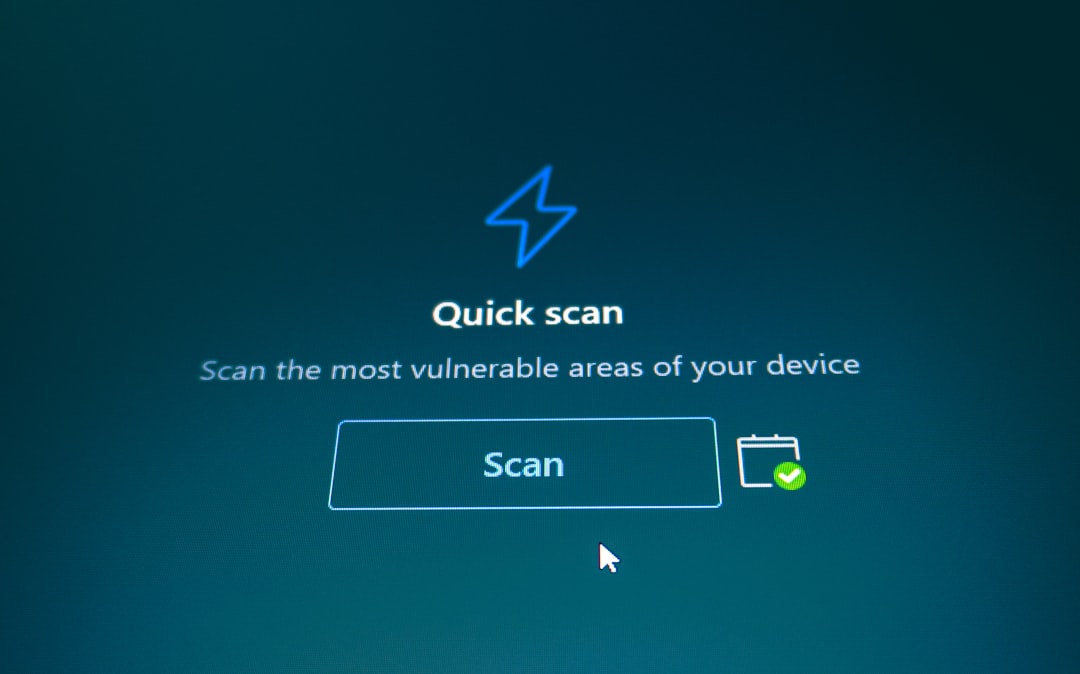
It may flag discord_game_sdk.dll as suspicious and quarantine it.
What to do:
- Open your antivirus software.
- Go to Quarantine or Threat History.
- Look for discord_game_sdk.dll.
- If found, restore it.
Then add the game folder to your antivirus exclusion list.
This prevents it from happening again.
Important: Only restore the file if it belongs to a legitimate game or Discord installation.
Solution 5: Reinstall the Game Completely
If verifying files didn’t work, go full reset.
Uninstall the game. Then reinstall it.
Yes, it takes time. But it fixes deep file corruption.
Steps:
- Uninstall from Steam/Epic.
- Restart your PC.
- Reinstall the game.
Make sure the installation finishes without interruption.
Solution 6: Update Windows
Outdated system files can cause DLL problems.
Updating Windows can quietly fix compatibility issues.
Do this:
- Press Windows + I.
- Click Windows Update.
- Select Check for Updates.
- Install everything available.
Restart your computer afterward.
Solution 7: Install Visual C++ Redistributables
Many DLL errors are tied to missing Microsoft Visual C++ packages.
Games rely on them.
Fix:
- Download the latest Microsoft Visual C++ Redistributables from Microsoft’s official site.
- Install both x64 and x86 versions.
- Restart your PC.
This often solves stubborn DLL issues.
What NOT To Do
This part is important.
Do not:
- Download random DLL files from unknown websites.
- Copy DLL files from other people’s computers.
- Disable antivirus permanently.
Random DLL download sites are risky.
They may contain malware.
Always restore files using official installations.
Advanced Fix: Run System File Checker
If you’re comfortable using Command Prompt, try this.
Windows has a built-in repair tool.
Steps:
- Click Start.
- Type cmd.
- Right-click Command Prompt.
- Select Run as administrator.
- Type: sfc /scannow
- Press Enter.
Let Windows scan and repair system files.
This may take 10–20 minutes.
Restart once it finishes.
Still Not Fixed?
If nothing worked, consider:
- Updating your graphics drivers
- Reinstalling your game launcher (Steam/Epic)
- Checking the game’s support forum for known issues
Some games ship with buggy builds at launch.
Sometimes the fix comes in a patch.
How To Prevent This Error in the Future
Let’s avoid seeing that message again.
Here’s how:
- Keep Windows updated.
- Keep Discord updated.
- Keep your game launcher updated.
- Don’t manually delete files inside game folders.
- Add game folders to antivirus exclusions.
Simple habits. Fewer headaches.
Quick Recap
When you see “discord_game_sdk.dll was not found”:
- Restart your PC.
- Verify game files.
- Reinstall Discord.
- Check antivirus quarantine.
- Reinstall the game if needed.
- Update Windows and Visual C++.
One of these steps almost always fixes the issue.
Final Thoughts
DLL errors look scary.
They feel technical and complicated.
But most of the time, they’re just missing files or simple corruption.
No need to panic.
Follow the steps. Stay calm. Avoid shady downloads.
You’ll be back to gaming. With Discord happily showing your status.
And the only error message you’ll see… is when you lose the match.
Good luck. 🎮