
Microsoft Remote Desktop error 0x204 usually appears when you try to connect to another computer and the connection fails. This can stop work right away, especially if you rely on remote access for your job or support tasks. The message does not explain much, so it feels confusing.
This guide explains what error 0x204 means, why it happens, how to fix it step by step, and how to avoid it in the future.
What Is Microsoft Remote Desktop Error 0x204?
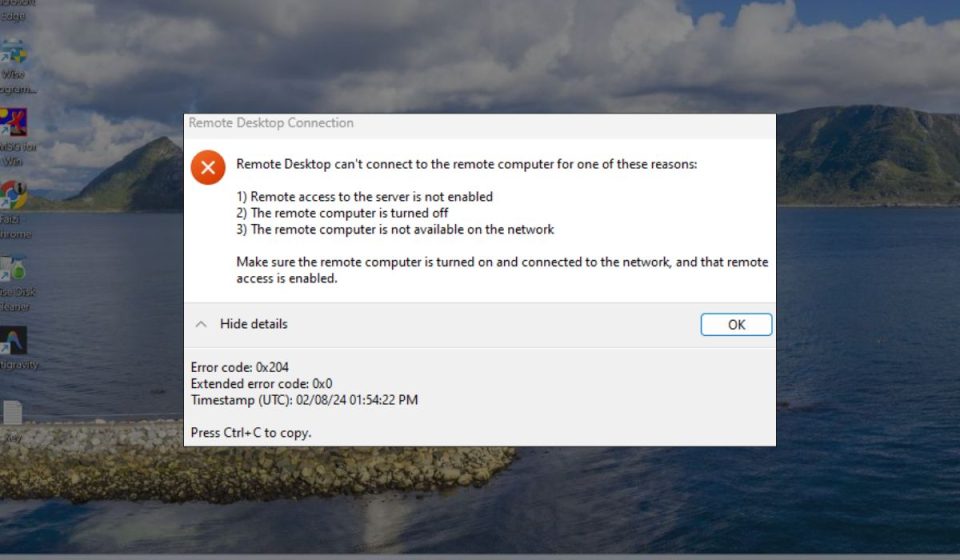
Microsoft Remote Desktop error 0x204 means the Remote Desktop client cannot reach or connect to the remote computer. The connection attempt fails before login completes. This often happens when the remote system is unreachable, blocked by network settings, or not ready to accept connections. The error is linked to Microsoft Remote Desktop, which uses Remote Desktop Protocol to communicate between devices running Windows.
Most users see this error on the connection screen when entering the PC name or IP address. It can appear on Windows, macOS, or mobile Remote Desktop apps. In many cases, the remote computer is still running, but something blocks the connection.
Common Causes of Remote Desktop Error 0x204
This error can come from network problems, system settings, or access restrictions. Below are the most common causes.
- Remote computer is turned off or asleep
- Remote Desktop is disabled on the target PC
- Incorrect IP address or computer name
- Windows Firewall blocking Remote Desktop
- TCP port 3389 blocked on the network
- Remote Desktop Services not running
- User account not allowed for remote access
- VPN or proxy interfering with the connection
How to Fix Microsoft Remote Desktop Error 0x204?
Fixing error 0x204 works best when you start with basic checks and move forward step by step. Many fixes are quick and do not change system files. Try one fix at a time and test the connection after each step.
Fix #1: Confirm the Remote PC Is Online
This error often happens when the remote computer is offline or sleeping. Remote Desktop cannot connect if the target system is not active.
Here are the following steps which help you check this:
- Make sure the remote PC is powered on
- Wake it from sleep if needed
- Check that it is connected to the network
- Ask someone on-site to confirm if possible
- Retry the Remote Desktop connection
If the PC is offline, the error will continue.
Fix #2: Enable Remote Desktop on the Target PC
Remote Desktop must be enabled on the computer you want to access. If it is disabled, connections will fail.
Follow the steps below to easily enable it:
- Open Settings on the remote PC
- Go to System and Remote Desktop
- Turn on Remote Desktop
- Confirm the change
- Restart the remote PC
This allows incoming RDP connections.
Fix #3: Verify IP Address or Computer Name
Using the wrong address is a common cause of error 0x204. Even a small typo can break the connection.
You can perform the following steps to verify details:
- Check the remote PC IP address
- Confirm the computer name
- Use the local network IP if on the same network
- Avoid old or cached addresses
- Try connecting again
Correct addressing is required for RDP.
Fix #4: Allow Remote Desktop Through Windows Firewall
The firewall may block Remote Desktop traffic by default or after updates.
Below are the steps that will guide you to allow it:
- Open Windows Security
- Go to Firewall settings
- Allow Remote Desktop through firewall
- Enable private network access
- Save changes and retry connection
This allows RDP traffic through Windows Firewall.
Fix #5: Check TCP Port 3389 Availability
Remote Desktop uses TCP port 3389. If the port is blocked, the connection will fail.
Try these steps to confirm:
- Check router or network firewall rules
- Ensure port 3389 is open
- Avoid restricted public networks
- Test from a different network if possible
Blocked ports often cause error 0x204.
Fix #6: Restart Remote Desktop Services
Sometimes the Remote Desktop service stops responding on the remote PC.
Follow these easy instructions to restart it:
- Open Services on the remote PC
- Find Remote Desktop Services
- Restart the service
- Wait for it to start fully
- Retry the connection
This refreshes the RDP service.
Fix #7: Check User Permissions and Login Method
Not all user accounts can connect using Remote Desktop. Access must be allowed.
Here’s how you can check this:
- Open Remote Desktop settings
- Review allowed users
- Add your account if missing
- Use correct username and password
- Try connecting again
Permission issues often trigger this error.
Fix #8: Disable VPN or Proxy and Retry
VPNs and proxies can reroute traffic and block Remote Desktop connections. This fix does not need steps. Simply disconnect from the VPN or proxy, then retry the connection. If the connection works, adjust VPN settings or avoid using it for Remote Desktop.
Prevention Tips to Avoid Remote Desktop Error 0x204
Prevention helps keep remote access stable and reliable.
- Keep Remote Desktop enabled on trusted PCs
- Use known IP addresses or hostnames
- Allow RDP in firewall settings
- Avoid unnecessary VPN connections
- Keep Windows updated
- Add users to Remote Desktop access list
- Test connections before urgent tasks
Conclusion
In short, Microsoft Remote Desktop error 0x204 means the client cannot reach or connect to the remote computer. The issue usually comes from network blocks, disabled settings, or permission problems. Most cases can be fixed with simple checks and basic configuration changes.
Go through the fixes one by one and stop once the connection works. If the error continues, contact your IT team or system administrator for network-level checks.
If this article helped you, share it and leave a comment about which fix worked for you.