
DaVinci Resolve has evolved from a high-end color grading application into a fully integrated post-production powerhouse used by YouTubers, indie filmmakers, and Hollywood studios alike. What makes it especially exciting is that the same software supports absolute beginners and seasoned professionals—without forcing you to switch platforms as your skills grow. Whether you’re cutting your first vlog or finishing a cinematic short film, understanding the right workflow can dramatically improve both your efficiency and your results.
TL;DR: This guide walks through three practical DaVinci Resolve workflows, progressing from beginner-friendly editing to advanced professional post-production. You’ll learn how to organize media, edit efficiently, enhance color, refine audio, and deliver polished projects. Each workflow builds on the previous one, helping you grow from simple timelines to full cinematic pipelines. Follow these structured steps to transform your creative process and produce professional results.
1. Beginner Workflow: Fast and Clean Edits for Simple Projects
If you’re just getting started with DaVinci Resolve, your primary goal should be clarity and efficiency. Don’t worry about advanced color nodes or Fusion effects yet. Focus on mastering the basics of organizing, editing, and exporting.
Step 1: Project Setup
- Open a new project and set the timeline resolution (usually 1920×1080 for beginners).
- Set frame rate before importing media (24fps, 30fps, etc.).
- Check playback settings for smoother performance.
Step 2: Organize Your Media
Create bins inside the Media Pool:
- Footage
- Audio
- Music
- Graphics
Proper organization early on prevents chaos later—especially as projects get larger.
Step 3: Basic Editing in the Cut or Edit Page
For beginners, the Cut Page is fast and intuitive. The Edit Page offers deeper control.
- Trim clips using the Blade (B) tool.
- Remove mistakes and silence.
- Add simple transitions (cross dissolve).
- Adjust audio levels in the inspector.
Step 4: Minimal Color Correction
Jump to the Color Page and make basic corrections:
- Adjust Lift, Gamma, Gain.
- Correct white balance.
- Add subtle contrast.
Step 5: Export
Go to the Deliver Page, choose YouTube preset, and render.
Pro Tip: Keep it simple. Clean cuts, good audio, balanced color—that’s enough for polished beginner content.
2. Intermediate Workflow: Structured Edits and Creative Enhancement
Once you’re comfortable with basic editing, the next step is to think like a storyteller. Intermediate projects require tighter pacing, better sound design, and creative grading.
Step 1: Advanced Project Organization
- Use Smart Bins for automatic sorting.
- Label clips with metadata.
- Color-code your footage.
- Create timelines for different sequences.
This layered organization mirrors professional editing environments.
Step 2: Rough Cut to Fine Cut
Intermediate editing typically follows two stages:
Rough Cut:
- Place clips in order.
- Trim obvious mistakes.
- Ignore fine details for now.
Fine Cut:
- Refine timing frame-by-frame.
- Add B-roll and cutaways.
- Insert titles and motion graphics.
- Smooth transitions carefully.
Step 3: Structured Color Grading
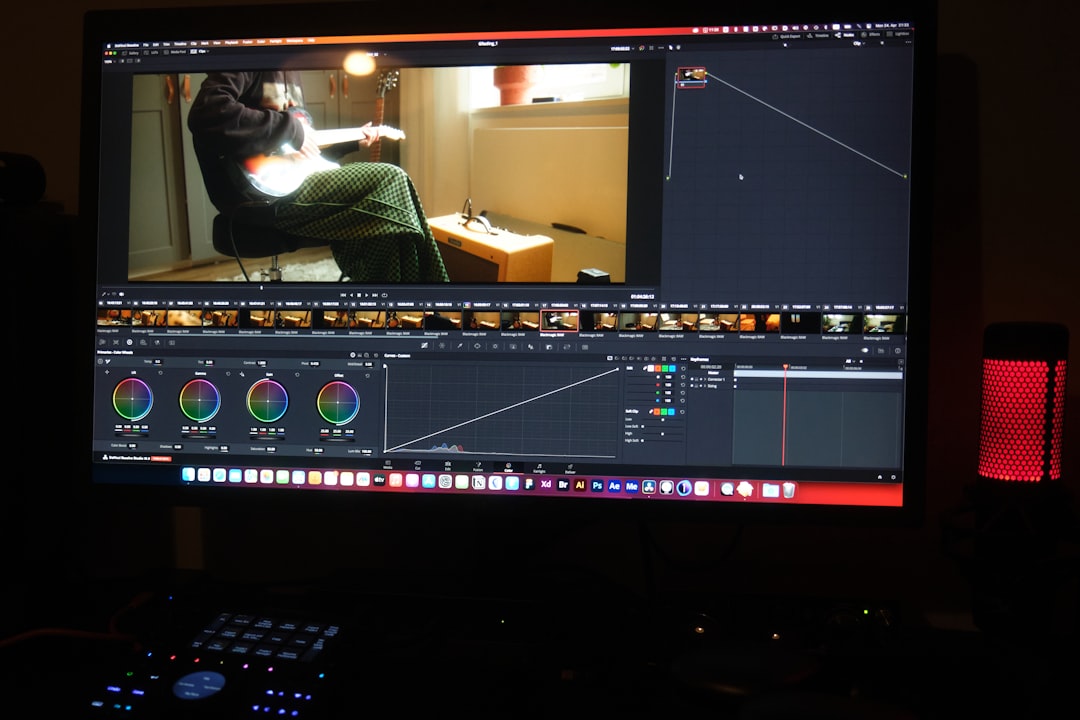
This is where Resolve truly shines. Instead of one correction, use nodes:
- Node 1: Primary correction.
- Node 2: Contrast adjustment.
- Node 3: Skin tone refinement.
- Node 4: Creative LUT or stylistic grade.
Using multiple nodes keeps your workflow flexible and non-destructive.
Step 4: Basic Audio Polishing in Fairlight
- Normalize dialogue levels.
- Remove background noise.
- Add compression for clarity.
- Include subtle ambient sound.
Audio often separates amateur from semi-professional content more than visuals do.
Step 5: Versioned Exports
Instead of exporting once, create optimized versions:
- High-quality master file.
- Web-optimized version.
- Social media vertical cut.
3. Professional Workflow: Cinematic Projects from Start to Finish
Professional work demands a structured post-production pipeline. This applies to short films, commercials, documentaries, and client projects.
Step 1: Pre-Production Integration
Professionals think about post before filming begins:
- Shoot in log format for maximum dynamic range.
- Maintain consistent white balance.
- Record high-quality external audio.
- Use timecode for multi-camera shoots.
Step 2: Proxy Workflow
For large files (4K, 6K, RAW):
- Generate proxies.
- Edit with optimized media.
- Relink full-resolution media before final grade.
This keeps editing smooth even on less powerful systems.
Step 3: Scene-Based Editing
Create separate timelines for each scene. Later:
- Combine into a master timeline.
- Lock picture before heavy grading.
- Ensure consistent pacing.
Step 4: Professional Color Node Tree
Advanced graders use structured node trees:
- Noise Reduction Node
- Primary Correction Node
- Balance Node
- Look Creation Node
- Secondary Corrections
- Film Grain Node
- Output Transform Node
This ensures maximum control and repeatability across shots.
Step 5: Fairlight Professional Audio Mix
- Dialogue editing and ADR alignment.
- Music automation with keyframes.
- Surround sound mixing (if required).
- Final limiter on master bus.
Step 6: Fusion Effects (When Needed)
Professional projects may require:
- Motion tracking.
- Green screen compositing.
- Custom animated titles.
Use Fusion strategically. Overuse quickly becomes distracting.
Step 7: Delivery Standards
Professionals export based on distribution format:
- DCI 4K for cinema.
- ProRes or DNxHR masters.
- Broadcast-safe levels.
Workflow Comparison Chart
| Feature | Beginner Workflow | Intermediate Workflow | Professional Workflow |
|---|---|---|---|
| Project Organization | Basic bins | Smart bins and metadata | Full structured folder hierarchy |
| Editing Approach | Simple timeline cuts | Rough and fine cut stages | Scene timelines and picture lock |
| Color Grading | Basic correction | Multi-node creative grades | Complex node trees with transforms |
| Audio | Volume adjustments | Compression and noise reduction | Full professional mix and mastering |
| Performance Workflow | Direct editing | Optimized media | Proxy-based workflow |
| Output | YouTube preset | Multiple online versions | Broadcast and cinema standards |
Final Thoughts: Growing with DaVinci Resolve
The beauty of DaVinci Resolve lies in its scalability. You don’t “graduate” from it—you grow within it. The same interface you use for your first YouTube video is capable of finishing Oscar-winning films.
If you’re just beginning:
- Focus on clean edits and organization.
- Keep grading simple.
- Practice consistent exports.
If you’re leveling up:
- Study node-based color correction.
- Improve your audio workflow.
- Optimize performance with proxies.
If you’re going professional:
- Structure every step from ingest to delivery.
- Create repeatable grading pipelines.
- Prioritize storytelling over technical complexity.
Ultimately, workflow is not about adding more effects—it’s about removing friction from your creative process. When your workflow becomes second nature, you spend less time troubleshooting and more time crafting compelling stories.
Start simple. Build consistency. Refine deliberately. And with each project, your DaVinci Resolve workflow will evolve from beginner efficiency to professional mastery.