


Many Instagram users notice their follower number dropping, but don’t know who unfollowed them. Instagram does not have a built-in unfollower list, so users must look for simple ways to find out who unfollowed them. This can feel confusing, but there are safe, easy methods to help you track changes. Whether you use a personal, creator, or business account, these steps work on the Instagram app and Instagram Web.
Causes of Losing Instagram Followers


Here are common reasons you may see fewer followers on Instagram:
- People unfollow you manually
- Instagram removes fake or bot accounts
- Followers lose interest in your content
- You change your posting style suddenly
- You do not engage with your audience
- Inactive accounts get removed
- Some followers block you
- Temporary Instagram glitches
Simple Methods to Find Who Unfollowed You on Instagram
If you want to know who unfollowed you, try these methods one at a time.
1. Check Followers and Following Lists Manually
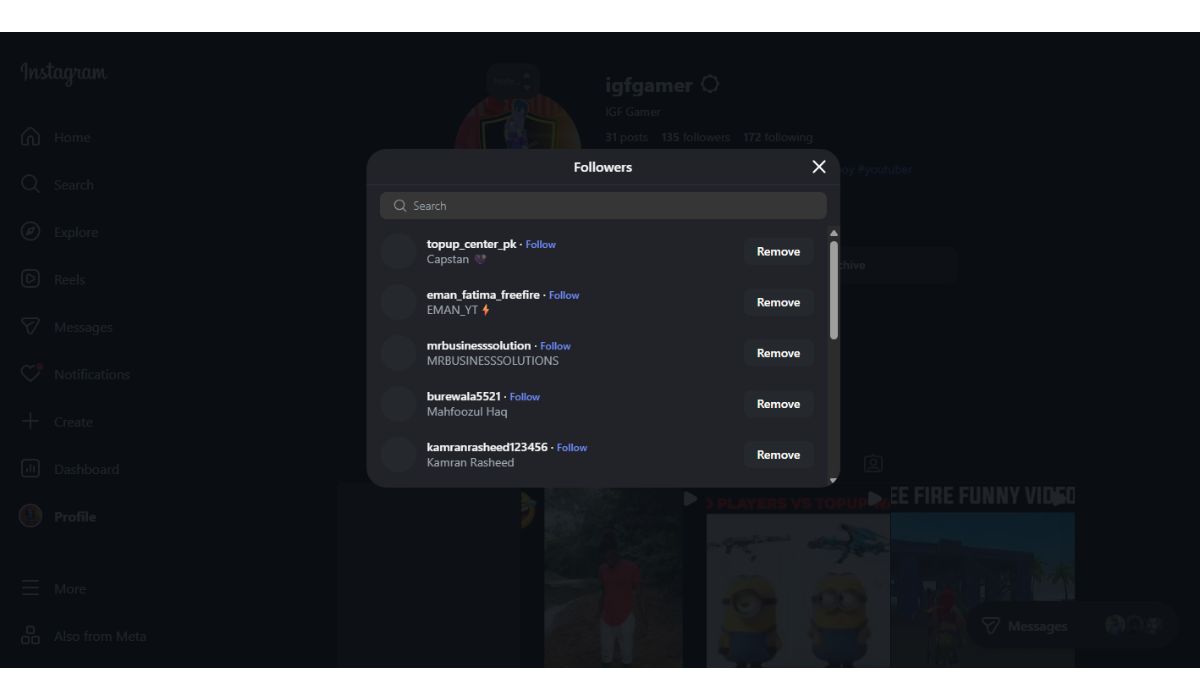
This is the simplest and safest method, and it works for every Instagram account, even without extra tools. The idea is to compare who you follow with who follows you back.
Open your Instagram profile and tap your Followers list. Use the search bar to type the username you think unfollowed you. If their name does not appear, they have removed you. You can also check your Following list. If their account still shows but they aren’t following you back, they might have unfollowed.
This method takes time, but it is the most accurate.
2. Use Instagram Insights (Creator or Business Accounts)
A creator or business account gives you access to Instagram Insights, a built-in analytics tool from Meta. Insights show how many people follow and unfollow you each day. You won’t see exact usernames, but you will know when you gained or lost followers.
To use this feature, switch your account to a creator or business type in Settings. Then open Insights and check the Accounts You Reached and Follower Growth sections. These numbers help you understand when unfollows happen, so you can compare changes with your content activity.
3. Use Instagram Web for Easier Checking
Instagram.com on a desktop browser makes manual checking easier than on a phone. The bigger screen helps you scroll through follower lists faster and compare accounts side by side. This is helpful for users who need to track many profiles or manage a brand.
Simply log into Instagram on Chrome, Safari, Firefox, or Edge. Open your profile, and use the search boxes in your Followers and Following lists. The web layout is cleaner, making it much easier to spot unfollowers.
4. Use Trusted Third-Party Unfollower Tools
Many users prefer apps or web tools that automatically track follows and unfollows. These tools compare your follower list over time and show who unfollowed you. Some tools also send alerts, track growth trends, and show inactive followers.
However, you must be careful. Only use tools that do not ask for your Instagram password directly. Look for apps that use safe login methods and have good privacy policies. Never give your password to apps you do not trust. If you choose this method, treat it as a convenience, not a requirement.
5. Track Follower Changes Over Time
If you don’t want apps or complicated tools, simple tracking helps. Many users keep a small weekly list of their top followers or accounts they care about. By checking these names regularly, you can see who stays and who leaves.
This works well for creators, bloggers and small business owners who want a quick way to watch their audience.
Tips to Avoid Losing Followers in the Future
Here are simple habits that help keep your Instagram audience steady:
- Post on a consistent schedule
- Reply to comments and messages
- Use Stories and Reels often
- Stay active with likes and comments on other profiles
- Avoid spam-like behavior or rapid following/unfollowing
- Keep your content style steady
- Understand what type of posts your followers enjoy
- Avoid long breaks without posting
Conclusion
Instagram does not show who unfollowed you, but you can still find out using simple methods like manual checking, Insights, desktop browsing and safe unfollower tools. Each method helps you understand your audience better and track changes without stress. With steady posting and real engagement, you can keep your follower count growing in a healthy way. If this guide helped you, feel free to share it or leave your thoughts.