


So, you just bought an HP laptop. Or maybe you’ve had one for years. And now you’re staring at it thinking, “Where is the power button?” Don’t worry. You’re not alone. HP laptops come in many shapes and sizes. The power button likes to play hide and seek. But once you know where to look, it’s easy.
TL;DR: The power button on most HP laptops is usually above the keyboard, near the top right or left corner. On some newer models, it’s built into the keyboard as a special key. In 2-in-1 or touchscreen models, it might be on the side of the device. If you don’t see it right away, look for a small button with a power symbol (a circle with a line).
First, What Does the Power Button Look Like?
Before we hunt for it, let’s talk about what you’re looking for.
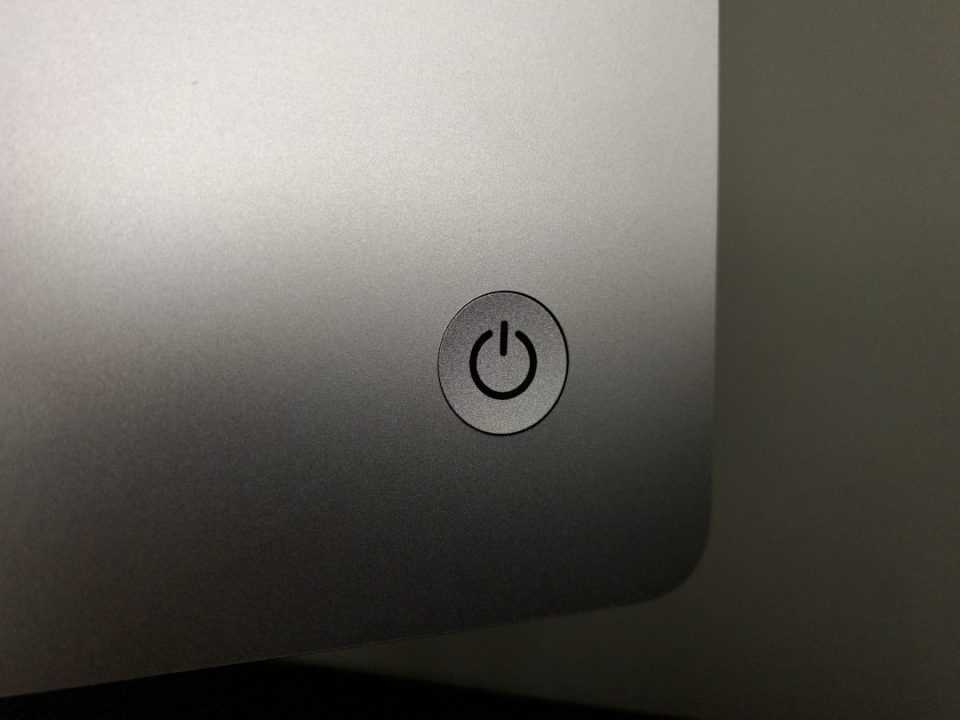
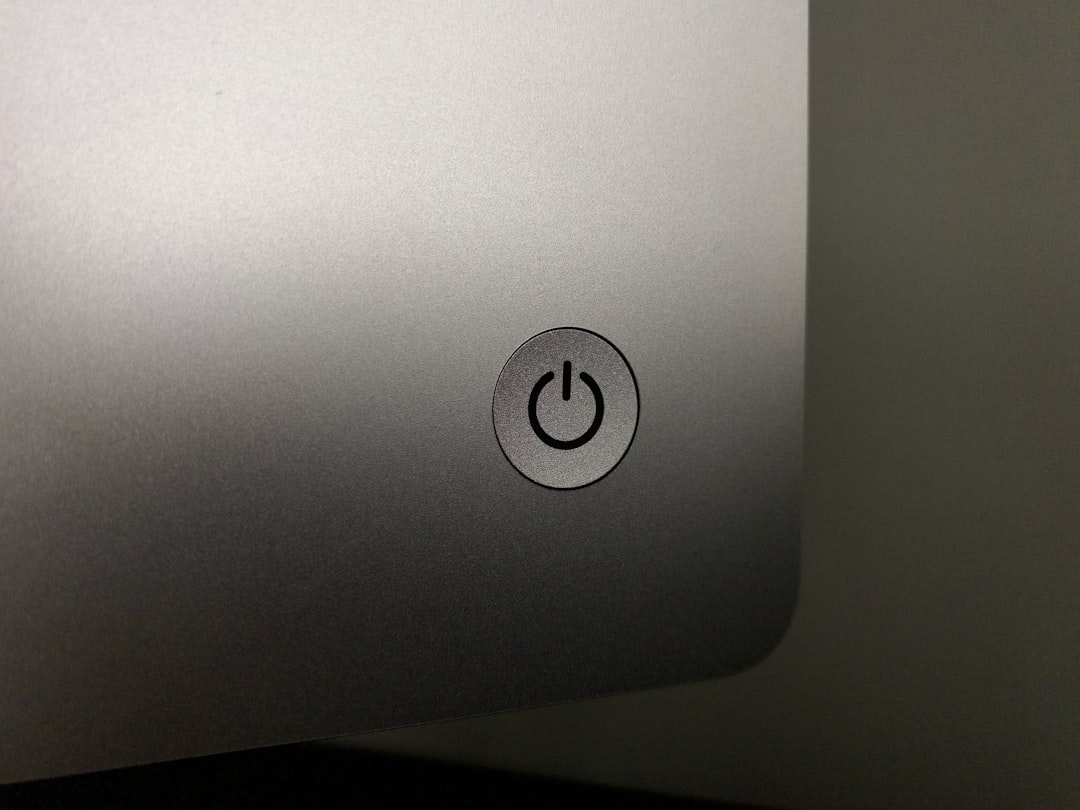
The power button usually has a small icon. It looks like this:
- A circle with a vertical line at the top
- A simple small round or oval button
- A keyboard key labeled “Power”
Sometimes, it does not even look like a button. It might look just like another key. Sneaky, right?

Most Common Place: Above the Keyboard
Let’s start with the most common location.
On many HP laptops, the power button sits above the keyboard. It is often:
- In the top left corner
- In the top right corner
- Centered above the function keys
Look just above the Esc key or above the Delete key. That’s where it likes to be.
On older HP Pavilion models, the button is often separate from the keyboard. It may be slightly raised. It might even light up when the laptop is on.
If your laptop is already open, this is the first place to check.
Newer HP Models: The “Hidden” Keyboard Key
Newer HP laptops are more stylish. They like clean designs. So what did HP do? They blended the power button into the keyboard.
Yes. Sometimes it looks just like a normal key.
On models like:
- HP Envy
- HP Spectre
- Some HP Pavilion versions
The power button may be:
- The top right key on the keyboard
- A key with a small power symbol
- Slightly separated from other keys
It may sit where the Delete key usually goes. So if you are tapping Delete and nothing happens, double-check. You may be pressing the power button instead.
Don’t push it too hard. A gentle press is enough.

2-in-1 and Touchscreen HP Laptops
If you have a 2-in-1 HP laptop, things get a little different.
These are laptops that:
- Flip into tablet mode
- Detach from the keyboard
- Have touchscreens
In these models, the power button is often not inside the keyboard area at all.
Instead, look at the sides of the device.
Common spots include:
- The right edge
- The left edge
- Near the volume buttons
It may look like a small, thin button. Very similar to a phone power button.
This design makes sense. When you flip the screen into tablet mode, you can still reach the power button easily.
What About Older HP Laptops?
If your HP laptop is a few years old, you might have it easier.
Older models usually have:
- A large, clearly marked power button
- A button above the keyboard
- A glowing LED light in the button
Some even have a silver or black rectangular button right in the center above the keyboard.
If your laptop has a thick body and a DVD drive, chances are the power button is easy to spot.
HP Chromebook Power Button Location
HP Chromebooks can be a little different.
On many HP Chromebooks, the power button is:
- On the keyboard
- On the top right corner
- Marked with a power icon
But here’s something interesting.
Some Chromebooks use the power button as a key instead of a raised button. It looks completely flat. Almost like the Escape key.
So look closely. If one key has a power symbol, that’s it.
Can’t Find It? Try These Simple Steps
If you are still stuck, do this:
- Open the laptop fully. Some buttons are hidden when closed.
- Check the top row of keys. Look carefully at icons.
- Run your finger along the sides. Feel for a small bump.
- Look for a tiny LED light. It might glow when plugged in.
- Check your model online. Search the exact model number.
Sometimes the button blends in with the design. Take your time.
What If the Laptop Won’t Turn On?
You found the button. You pressed it. Nothing happens.
Now what?
Try these quick fixes:
- Make sure the charger is plugged in.
- Check that the charging light turns on.
- Hold the power button for 10 to 15 seconds.
- Try a different power outlet.
Sometimes the battery is just empty. Sometimes it needs a reset.
If the button feels loose or stuck, it may need repair.
What Does the Power Button Actually Do?
It may seem obvious. But the power button does more than just turn your laptop on.
A quick press usually:
- Turns the laptop on
- Puts it to sleep
A long press usually:
- Forces a shutdown
- Restarts a frozen laptop
Be careful with long presses. Use them only if your laptop is not responding.
Fun Fact: Why the Power Symbol Looks Like That
Ever wonder why the power symbol is a circle with a line?
It comes from old binary code.
The line represents 1.
The circle represents 0.
Together, they mean power on and off.
Pretty cool, right?
Still Confused? Here’s a Quick Cheat Sheet
Here’s a simple summary based on laptop type:
- Standard HP laptop: Above the keyboard, top left or right.
- New slim models: Built into keyboard, top right key.
- 2 in 1 models: On the side edge of the laptop.
- Chromebooks: Keyboard key with power symbol.
- Older models: Big button above keyboard, often lights up.

Why HP Moves the Power Button Around
You may be wondering why HP does not just keep it in one place.
The answer is design.
Thinner laptops need smart layouts. 2-in-1 devices need side buttons. Modern keyboards aim for a clean look.
So the power button moves to match the style.
But no matter where it hides, it is always marked with the same universal symbol.
Final Thoughts
Finding the power button on an HP laptop is usually simple. You just need to know where to look.
Start above the keyboard. Then check the top right keys. If you have a 2-in-1 device, check the sides.
Look for the circle with a line. That little icon is your best friend.
Once you find it, you will never forget its location again.
And next time someone asks, “Where is the power button on an HP laptop?”
You’ll smile and say, “I’ve got this.”