



Minecraft’s multiplayer mode depends on a stable network connection and properly configured server communication protocols. When players encounter the error message “Server Unreachable – ICE Failed”, it can be both confusing and frustrating. This error typically appears when attempting to join multiplayer worlds, Realms, or peer-to-peer sessions, and it indicates a breakdown in the connection negotiation process. Understanding what causes this issue—and how to fix it—can help you regain access quickly and reliably.
TLDR: The “Server Unreachable – ICE Failed” error in Minecraft usually stems from network configuration problems, firewall restrictions, DNS issues, or NAT compatibility. Fixing it often involves restarting your router, checking firewall settings, updating Minecraft, or adjusting your DNS. In more complex cases, port forwarding or VPN adjustments may be required. The seven solutions below address both common and advanced causes systematically.
What Does “ICE Failed” Mean in Minecraft?
ICE stands for Interactive Connectivity Establishment, a protocol used to establish connections between devices over the internet. It is commonly used in peer-to-peer communication and real-time services. In Minecraft (especially in Bedrock Edition), ICE helps negotiate direct connections between players or between a user and a Realm server.
When ICE fails, it means that:
- A secure connection could not be established.
- One or both devices are behind incompatible NAT types.
- Firewall or router settings are blocking required ports.
- DNS or network routing issues are preventing server resolution.


Because the issue sits at the network negotiation layer, simple in-game troubleshooting is often not enough. Below are seven proven methods to resolve the problem.
1. Restart Your Router and Modem
This may sound basic, but it resolves a surprising percentage of ICE-related errors.
Why it works: Restarting your networking hardware refreshes your public IP lease, clears temporary routing table errors, and resets NAT sessions that may be stuck in a failed state.
Steps:
- Turn off Minecraft completely.
- Unplug your modem and router.
- Wait at least 60 seconds.
- Plug the modem back in first and wait for full connectivity.
- Plug in the router and wait until the network stabilizes.
- Launch Minecraft and try again.
If your ISP uses dynamic IP addressing, this simple reset may resolve certificate or route mismatches instantly.
2. Check Your NAT Type
NAT (Network Address Translation) controls how devices behind your router communicate with external servers. Strict or symmetric NAT configurations are common causes of ICE failure.
How NAT affects Minecraft:
- Open NAT: Best connectivity.
- Moderate NAT: May work but can restrict peer connections.
- Strict NAT: Frequently causes ICE failure.
On consoles (Xbox, PlayStation), NAT type can be found in network settings. On Windows:
Settings → Gaming → Xbox Networking
If your NAT type is strict, consider:
- Enabling UPnP in router settings.
- Setting up manual port forwarding.
- Contacting your ISP if you are behind Carrier-Grade NAT.

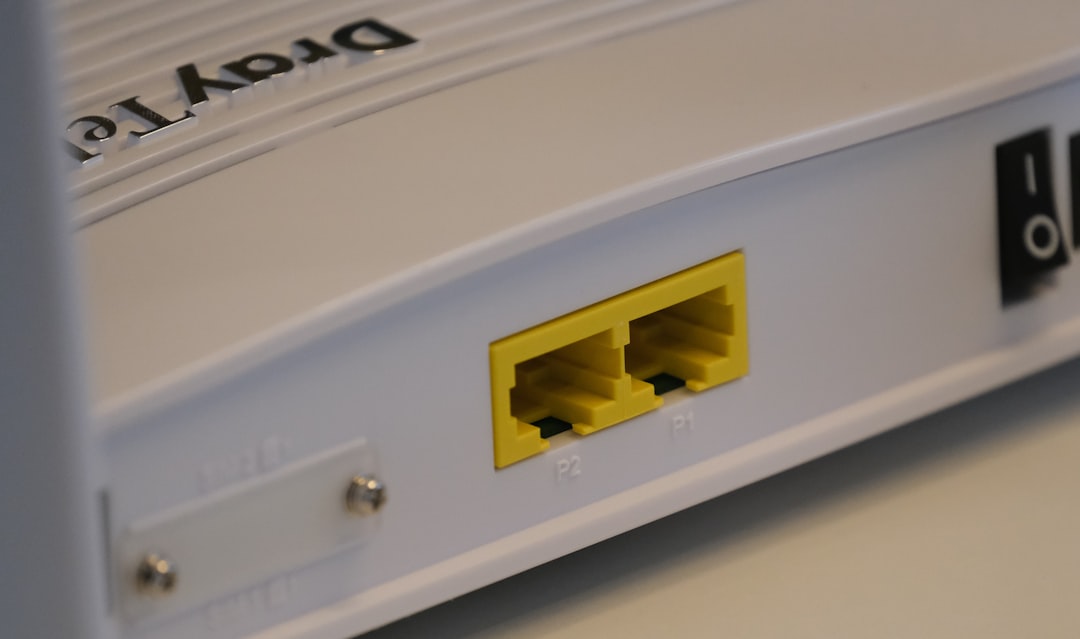
3. Configure Port Forwarding (If Hosting or Direct Connecting)
If you are hosting a Minecraft world or connecting to a friend directly, required ports must be open.
Common Minecraft Ports:
- TCP: 25565 (Java Edition default)
- UDP: 19132–19133 (Bedrock Edition)
How to configure:
- Access your router’s admin panel (usually 192.168.1.1).
- Navigate to Port Forwarding or Virtual Server.
- Add the necessary port range.
- Assign it to your device’s local IP address.
- Save and reboot the router.
Improper port forwarding is a leading cause of multiplayer negotiation failure, especially in home-hosted environments.
4. Review Firewall and Antivirus Settings
Windows Defender or third-party antivirus programs may block Minecraft or its networking components.
Fix:
- Open Windows Security.
- Go to Firewall & Network Protection.
- Click Allow an App Through Firewall.
- Ensure Minecraft (both private and public networks) is checked.
If you use third-party antivirus software:
- Temporarily disable it for testing.
- Add Minecraft to trusted applications.
- Check for advanced HTTPS inspection features that may block outgoing connections.
Be cautious when disabling protection—only do so temporarily to confirm whether it is the root cause.
5. Change Your DNS Server
DNS issues can prevent proper server resolution during connection negotiation. Switching to a reliable public DNS often resolves unstable routes.
Recommended DNS Providers
| Provider | Primary DNS | Secondary DNS | Stability |
|---|---|---|---|
| Google DNS | 8.8.8.8 | 8.8.4.4 | Very High |
| Cloudflare DNS | 1.1.1.1 | 1.0.0.1 | Very High |
| OpenDNS | 208.67.222.222 | 208.67.220.220 | High |
To change DNS on Windows:
- Go to Control Panel → Network and Internet.
- Click Network and Sharing Center.
- Select Change Adapter Settings.
- Right-click your connection → Properties.
- Select Internet Protocol Version 4 (TCP/IPv4).
- Enter manual DNS addresses.
Restart your system after applying changes.
6. Update Minecraft and Network Drivers
Outdated software can lead to compatibility failures during secure session negotiation.
What to update:
- Minecraft client (Microsoft Store or Launcher).
- Graphics drivers (NVIDIA, AMD, Intel).
- Network adapter drivers.
- Console firmware updates (if applicable).
On Windows:
Device Manager → Network Adapters → Update Driver
Even minor version mismatches between players can interrupt ICE negotiation. Ensure all players are running identical game versions.
7. Disable or Reconfigure VPN and Proxy Services
VPNs frequently interfere with peer-to-peer protocol negotiation.
Why: VPN tunnels often assign symmetric NAT configurations, which block the direct communication ICE requires.
What to test:
- Disable VPN temporarily.
- Switch to split tunneling mode.
- Choose a different VPN region.
- Disable system-wide proxies.

If disabling the VPN resolves the issue, consider contacting your VPN provider to ask whether they support peer-to-peer ICE negotiation.
Additional Advanced Diagnostics
If the issue persists after all seven fixes, consider deeper diagnostics:
- Run ipconfig /flushdns in Command Prompt.
- Run netsh int ip reset.
- Test connectivity using ping and tracert commands.
- Try an alternate network (mobile hotspot test).
If the game works on another network, the problem is almost certainly router or ISP configuration-related.
When to Contact Your ISP
You may need ISP assistance if:
- You are behind Carrier-Grade NAT.
- Ports cannot be opened.
- Your public IP is shared.
- There are routing issues outside your home network.
Ask specifically about:
- Obtaining a public IPv4 address.
- Bridge mode configuration.
- Removing restrictive firewall layers.
Preventing Future ICE Failures
To maintain stable multiplayer performance:
- Keep firmware updated.
- Avoid double-router setups.
- Use wired Ethernet when possible.
- Monitor NAT type regularly.
- Avoid frequent IP switching through unstable VPNs.
Consistency in network configuration significantly reduces multiplayer disruptions.
Final Thoughts
The “Server Unreachable – ICE Failed” error in Minecraft is not random—it is a technical signal that your device cannot complete a secure connection handshake. While it may appear severe, it is usually resolvable with systematic network troubleshooting. From simple router resets to DNS optimization and NAT configuration adjustments, these seven fixes address the most common causes.
Approach each step methodically rather than changing multiple settings at once. In most cases, you will restore multiplayer access without specialized tools or professional intervention. With a properly configured network environment, Minecraft’s multiplayer experience remains stable, responsive, and fully accessible.