


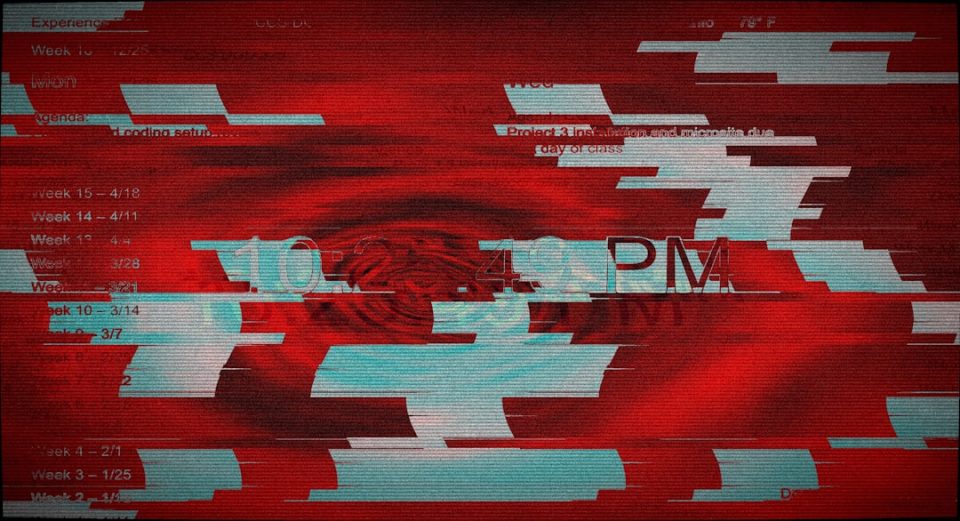
You sit down at your computer. You turn it on. And there it is. A thin red line running down your screen. Or maybe several red lines. Annoying. Distracting. A little scary. Is your PC dying? Is your monitor broken? Relax. In most cases, red lines on a PC screen are fixable. You just need to know what’s causing them.
TLDR: Red lines on your PC screen are usually caused by loose cables, outdated drivers, graphics card issues, or a failing monitor. Start with simple fixes like checking connections and restarting your PC. Then update graphics drivers and test with another monitor. If the lines stay, the screen or GPU may need repair or replacement.
What Do Red Lines on a Screen Mean?
Red lines are display glitches. They can appear in different ways:
- One thin vertical red line.
- Several horizontal red lines.
- Flickering red streaks.
- Red lines that move.
- Red lines that stay in one spot.
Each pattern gives you clues. Some issues are small. Some are serious. But don’t panic yet.

Common Causes of Red Lines on a PC Screen
1. Loose or Damaged Cables
This is the easiest fix. And the most common one.
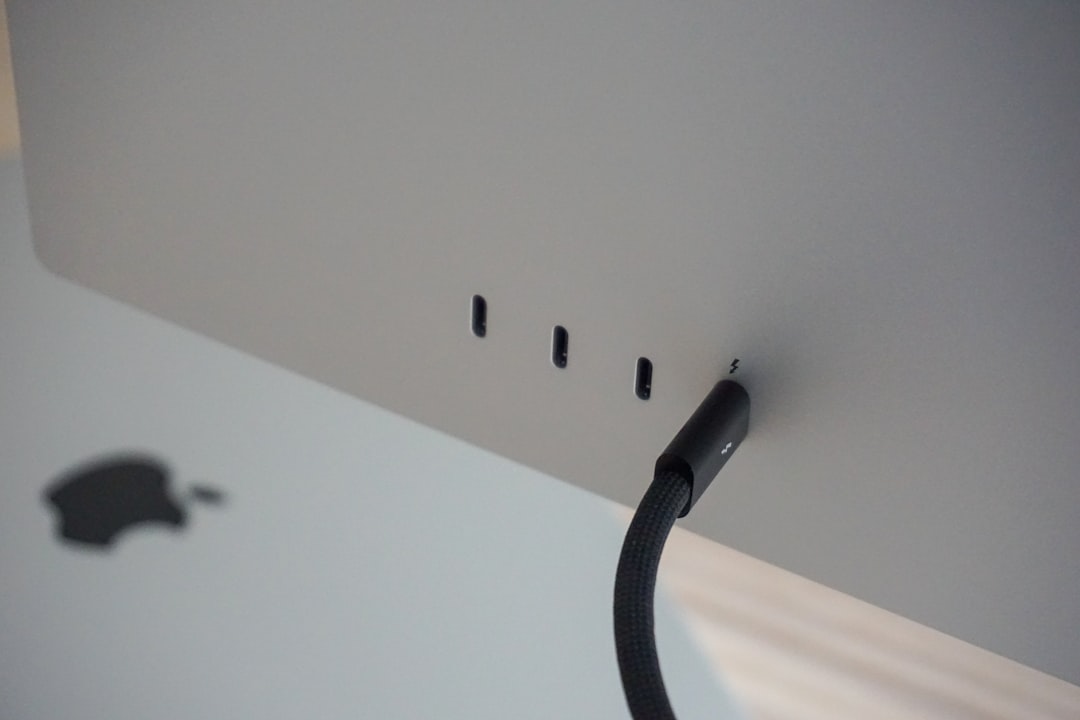
Your monitor connects to your PC using:
- HDMI
- DisplayPort
- VGA
- DVI
If the cable is loose, bent, or damaged, the signal gets messy. That messy signal can show up as red lines.
Quick check: Wiggle the cable gently. If the lines change or disappear, that’s your problem.
2. Faulty Monitor
Sometimes the screen itself is the issue.
Monitors are made of tiny pixels. If a column of pixels gets stuck, you may see a single straight red line from top to bottom.
This usually means:
- Panel damage.
- Internal hardware failure.
- Manufacturing defect.
If the red line stays in the exact same place all the time, even during startup, the monitor may be failing.
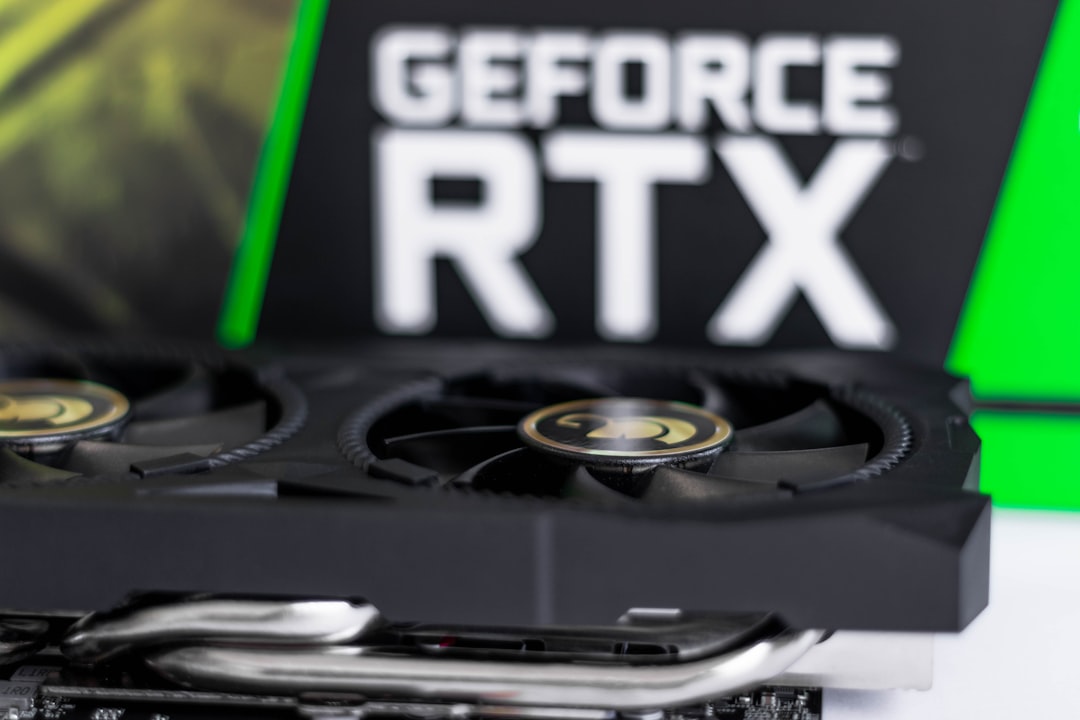
3. Graphics Card Problems
Your graphics card (GPU) creates the image. If it struggles, weird things happen.
Red lines can appear because of:
- Overheating.
- Old or corrupted drivers.
- Physical GPU damage.
- Too much overclocking.
When a GPU starts failing, artifacts appear. These include colored lines, blocks, or flickering shapes.
4. Outdated or Corrupted Drivers
Drivers are small programs. They tell your system how to use the graphics card.
If your drivers are:
- Outdated
- Buggy
- Installed incorrectly
You might see display issues. Including red lines.
This is good news. Software problems are easier to fix than hardware ones.
5. Screen Resolution or Refresh Rate Issues
Wrong settings can confuse your display.
If the resolution or refresh rate does not match your monitor’s specs, it can cause visual glitches.
This is more common after:
- Driver updates.
- Connecting a new monitor.
- Gaming in fullscreen mode.
6. Physical Damage
Did the monitor fall? Did something press against the screen?
LCD panels are fragile. Even slight pressure can damage internal layers.
Physical damage often causes:
- Permanent vertical lines.
- Multiple colored streaks.
- Black spots near the line.
In this case, repairs are difficult. Replacement is often the only fix.
Step-by-Step Fixes You Can Try
Now let’s solve it. Start simple. Move toward more advanced fixes if needed.
Step 1: Restart Your Computer
Yes. Really.
Restarting can clear temporary glitches. It reloads the graphics driver. Sometimes the red line just vanishes.
It takes one minute. Try this first.
Step 2: Check the Cables
Turn off your PC.
- Unplug the monitor cable.
- Inspect both ends.
- Plug it back in firmly.
- Try a different cable if possible.
- Try a different port on the PC.
If the red line disappears, the problem was the connection.
Step 3: Test with Another Monitor
This is a powerful test.
Connect your PC to another monitor or TV.
- If the red lines disappear → Your original monitor is the problem.
- If the red lines stay → Your PC or GPU is likely the cause.
This one step can save you hours of guessing.
Step 4: Update Graphics Drivers
If the hardware looks fine, update the drivers.
Follow these simple steps:
- Right-click the Start button.
- Click Device Manager.
- Expand Display adapters.
- Right-click your graphics card.
- Select Update driver.
You can also download drivers directly from:
- NVIDIA
- AMD
- Intel
Install the latest version. Restart your PC afterward.
Many red line problems disappear right here.
Step 5: Change Resolution and Refresh Rate
Go to:
- Settings
- System
- Display
- Advanced display settings
Make sure:
- The resolution matches your monitor’s native resolution.
- The refresh rate matches the recommended setting.
Wrong settings can cause flickering or colored lines.
Step 6: Check for Overheating
If you suspect GPU problems, check temperature.
Signs of overheating:
- Loud fan noise.
- PC shutting down during games.
- Glitches that appear after long use.
Clean dust from:
- Fans
- Vents
- Heat sinks
Better airflow can fix strange display artifacts.
Step 7: Safe Mode Test
Boot into Safe Mode.
Safe Mode runs minimal drivers.
- If red lines disappear in Safe Mode → Driver issue.
- If red lines remain → Likely hardware problem.
This is a great way to narrow things down.
When It’s Time to Replace Something
Sometimes the problem will not go away.
Replace the Monitor If:
- Red line stays in exact position always.
- Line appears even in BIOS screen.
- Other monitors work fine.
Replace or Repair the GPU If:
- Artifacts appear everywhere.
- Games crash frequently.
- Multiple monitors show the same red lines.
GPUs can be repaired. But often replacement is easier.
Laptop vs Desktop: Is It Different?
Yes. Slightly.
With laptops, red lines may come from:
- A failing internal display.
- A loose display ribbon cable.
- A damaged GPU.
Connect your laptop to an external monitor.
- If external display looks normal → Laptop screen is bad.
- If both show red lines → Graphics chip problem.
Laptop screen repairs are possible. But they can be costly.
Can You Fix Stuck Pixels?
Sometimes the red line is just stuck pixels.
You can try:
- Pixel-fixing software.
- Gently massaging the area with a soft cloth.
- Displaying fast-changing colors.
But be gentle. Pressing too hard can make it worse.
Success is not guaranteed. Still worth trying.
How to Prevent Red Lines in the Future
You cannot prevent everything. But you can reduce risk.
- Keep drivers updated.
- Do not overclock excessively.
- Use quality cables.
- Avoid bending HDMI or DisplayPort cables sharply.
- Keep your PC dust-free.
- Use a surge protector.
Small habits make a big difference.
Final Thoughts
Red lines on a PC screen look scary. But they are often simple to fix.
Start small. Restart. Check cables. Update drivers.
Then test the monitor. Test the GPU.
Most of the time, the solution is easier than you expect.
If it’s hardware failure, don’t feel bad. Screens and graphics cards do not last forever.
The key is diagnosing properly. One step at a time.
And remember. A single red line does not mean your entire computer is doomed. It just means something needs attention.
Now you know exactly where to start.