


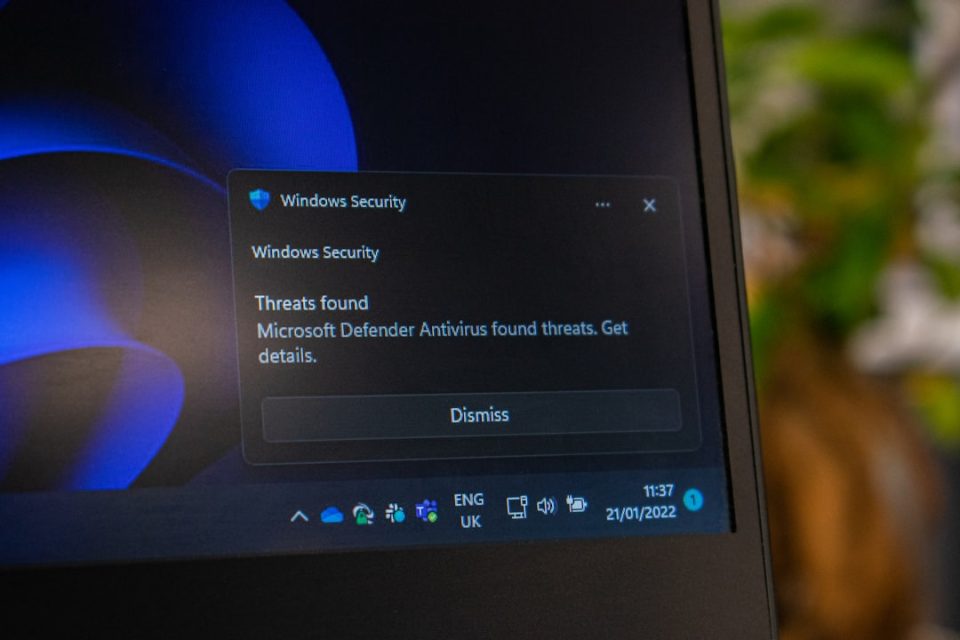
For millions of people, a Microsoft account is the gateway to essential services such as Outlook, OneDrive, Teams, Xbox, and Windows devices. When access is lost due to a forgotten password or suspicious activity, it can feel stressful and disruptive. Fortunately, Microsoft provides structured and secure recovery processes designed to protect users while helping them regain control quickly and safely.
TLDR: Recovering a Microsoft account password involves visiting the official recovery page, verifying identity through security information, and creating a new, strong password. Users can reset passwords using email, phone verification, the Microsoft Authenticator app, or recovery forms if standard methods fail. It is essential to avoid phishing scams and to strengthen account security after recovery. Following Microsoft’s official steps ensures a safe and smooth reset process.
Understanding Why Password Resets Happen
There are several common reasons why someone may need a Microsoft password reset:
- Forgotten password due to infrequent login or complex credentials.
- Suspicious account activity prompting a security lock.
- Expired password due to organizational policies.
- Compromised credentials from data breaches or phishing attacks.
Microsoft prioritizes security, which means identity verification is central to every recovery attempt. While this may make the process slightly longer, it ensures that only the rightful account owner regains access.
Step-by-Step Guide to Resetting a Microsoft Password
1. Visit the Official Microsoft Recovery Page
The first and most important step is navigating to Microsoft’s official password recovery page. Users should always check the website URL to confirm it is legitimate and secure. Look for “https” and the official Microsoft domain to avoid phishing attempts.
Once there, the user will be prompted to enter the email address, phone number, or Skype name associated with the account.


2. Choose the Reason for Reset
Microsoft typically provides three recovery options:
- I forgot my password
- I know my password, but can’t sign in
- I think someone else is using my Microsoft account
Selecting the appropriate reason helps Microsoft tailor the next steps accordingly.
3. Verify Identity
Identity verification is the core of the process. Depending on previously configured security settings, Microsoft may offer one or more of the following verification methods:
- Email verification code sent to a backup email.
- SMS code sent to a registered phone number.
- Authentication app approval via Microsoft Authenticator.
- Security question answers (in limited cases).
Users must enter the received code correctly to proceed. If none of the verification options are accessible, there is typically a link labeled I don’t have any of these that leads to a more detailed account recovery form.
4. Create a New Password
After successful verification, the user is prompted to create a new password. Microsoft encourages strong passwords that:
- Contain at least 8–12 characters.
- Include uppercase and lowercase letters.
- Incorporate numbers and symbols.
- Avoid personal information such as birthdays or names.
Once submitted, the password is updated across Microsoft services connected to that account.
Using the Account Recovery Form
If standard verification methods fail, the account recovery form becomes essential. This form requires detailed information to confirm ownership. Users may be asked to provide:
- Previous passwords they remember.
- Frequently contacted email addresses.
- Subject lines of recent emails.
- Billing information linked to the account.
- Xbox device IDs or Skype details, if applicable.
The more accurate information provided, the higher the chances of successful recovery. Microsoft’s system analyzes the data to verify authenticity, and responses are usually sent within 24 hours.


Resetting Password on Windows Devices
If the Microsoft account is linked directly to a Windows PC, there are additional reset options available from the login screen:
- Select Forgot password under the password field.
- Complete identity verification.
- Set a new password and log back in.
This process requires an internet connection to sync the changes. For local accounts (non-Microsoft accounts), password reset disks or administrative tools may be needed instead.
What to Do After Resetting the Password
Resetting the password is only part of the solution. To ensure continued security, users should immediately take additional steps:
- Enable Two-Step Verification: Adds an extra authentication layer.
- Update security information: Confirm that backup email and phone numbers are current.
- Review recent activity: Check the account activity page for suspicious logins.
- Sign out of all sessions: Force logout from unknown devices.
These actions significantly reduce the chances of future unauthorized access.
How to Avoid Password Reset Scams
Cybercriminals frequently exploit password recovery anxiety. Users should remain vigilant and follow these safety guidelines:
- Never click password reset links from unknown emails.
- Do not share verification codes with anyone.
- Avoid calling unofficial “support” numbers found in random search results.
- Access password recovery only through Microsoft’s official website.
Legitimate Microsoft representatives will never ask for a full password. Awareness and caution are key defenses against fraud.


Tips for Creating and Managing Strong Passwords
Password strength determines overall account security. Many users rely on simple or reused passwords, which increases vulnerability. Microsoft recommends:
- Using passphrases instead of short passwords.
- Avoiding password reuse across multiple platforms.
- Using a password manager for secure storage.
- Regularly reviewing security settings.
Two-factor authentication (2FA) is especially important because even if a password is compromised, unauthorized access requires additional verification.
Recovering a Hacked Microsoft Account
If a user suspects that the account has been hacked, the following steps should be taken immediately:
- Attempt password reset through the official recovery page.
- Check the account activity log for unusual sign-ins.
- Remove unfamiliar devices from the account settings.
- Scan connected devices for malware.
Time is critical in these situations. Quick action can prevent data theft, unauthorized purchases, or further identity compromise.
Common Issues During Password Reset
Users sometimes encounter complications. Some frequent obstacles include:
- Verification code not received: Check spam folders and confirm correct contact details.
- Outdated security information: Use the account recovery form.
- Too many failed attempts: Wait 24 hours before retrying.
- Locked corporate or school accounts: Contact the organization’s IT department.
Patience and careful attention to detail often resolve most problems.
Why Keeping Security Information Updated Matters
Many recovery failures occur because users changed phone numbers or email addresses without updating account settings. Microsoft strongly advises updating security information immediately after changes occur. Doing so ensures smoother recovery in emergencies and reduces dependency on manual verification forms.
A Microsoft account is more than just an email login—it often connects to documents, subscriptions, payment information, and personal files. Proper maintenance safeguards not only access but also personal data integrity.
Frequently Asked Questions (FAQ)
1. How long does a Microsoft password reset take?
If verification information is accessible, the reset can take just a few minutes. If the account recovery form is required, it may take up to 24 hours for Microsoft to review and respond.
2. What if I no longer have access to my recovery email or phone number?
Users should select the option indicating they do not have access to those methods and complete the account recovery form with as much accurate information as possible.
3. Can I reset my Microsoft password without internet access?
No. Since Microsoft accounts are cloud-based, an internet connection is required to verify identity and sync a new password.
4. Will resetting my password delete my emails or files?
No. Resetting a password only changes login credentials. Emails, files, and other account data remain intact unless separately deleted.
5. How can I make sure I never lose access again?
Enable two-step verification, keep security details updated, use a password manager, and periodically review account activity for unauthorized access.
6. Is the Microsoft Authenticator app necessary?
While not mandatory, it is highly recommended. It provides stronger protection and simplifies the login and recovery process.
Recovering a Microsoft account password can feel overwhelming, but Microsoft has established structured, secure tools to simplify the experience. By following official guidance, verifying identity carefully, and strengthening post-recovery security settings, users can regain control of their accounts safely and confidently. Proactive security habits ensure that future disruptions are far less likely to occur.