


Few things are more frustrating for Guild Wars 2 players than preparing for an exciting session only to be met with the dreaded “Unscheduled Departures” error. Whether you’re trying to jump into PvP, explore Tyria, or join a raid squad, connection issues can quickly ruin the experience. The good news? This problem is usually fixable with a few targeted troubleshooting steps.
TLDR: The GW2 “Unscheduled Departures” error is usually caused by network instability, firewall interference, ISP routing issues, or temporary server problems. Start by checking server status, then restart your router and PC. Next, verify firewall settings, repair the game client, and consider using tools like DNS changes or a VPN if routing issues persist. Most players can resolve the issue within 30 minutes by following a structured troubleshooting process.
What Does “Unscheduled Departures” Mean in GW2?
The “Unscheduled Departures” error in Guild Wars 2 typically indicates a connection interruption between your client and ArenaNet’s servers. While the servers themselves may be operational, your connection to them is unstable or blocked.
This problem can stem from:
- Unstable internet connections
- Router or modem issues
- Firewall or antivirus interference
- ISP routing problems
- Corrupted game files
Understanding the cause is the first step toward implementing the right fix.
Step 1: Check Guild Wars 2 Server Status
Before diving into complex fixes, confirm whether the issue is on ArenaNet’s side. Sometimes maintenance or outages trigger temporary disconnect errors.
Check:
- The official Guild Wars 2 Twitter/X account
- ArenaNet’s website
- Reddit communities like r/Guildwars2
- Downdetector reports
If servers are down, your only option is to wait. If they are running normally, continue troubleshooting.

Step 2: Restart Your Network Equipment
This may sound simple, but it’s one of the most effective fixes.
How to Properly Restart Your Router and Modem
- Turn off your PC.
- Unplug your router and modem.
- Wait at least 60 seconds.
- Plug the modem back in first.
- After 2 minutes, plug in the router.
- Turn your PC back on and launch GW2.
This clears cached network data and refreshes your IP address, often eliminating unstable routing paths.
Step 3: Use a Wired Connection
If you’re playing over Wi-Fi, interference may be causing packet loss. Guild Wars 2 is particularly sensitive to small connection drops.
Switching to a direct Ethernet connection can:
- Reduce latency spikes
- Prevent packet loss
- Provide stable bandwidth
Even temporary testing with a cable can confirm whether Wi-Fi instability is the culprit.
Step 4: Check Firewall and Antivirus Settings
Security software sometimes flags GW2’s network activity as suspicious. This can result in random disconnections.
Allow Guild Wars 2 Through Windows Firewall
- Open Windows Security.
- Go to Firewall & Network Protection.
- Click Allow an app through firewall.
- Ensure Gw2-64.exe is allowed on both Private and Public networks.
If you use third-party antivirus software, temporarily disable it to test. If the error disappears, create a permanent exception for GW2 instead of leaving protection off.
Step 5: Repair Guild Wars 2 Game Files
Corrupted client files can also cause connection instability.
How to Repair GW2
- Create a shortcut of Gw2-64.exe.
- Right-click and select Properties.
- In the Target field, add a space and type -repair.
- Click Apply and launch the shortcut.
The repair tool will scan and fix damaged files automatically. This process may take 10–20 minutes depending on your system.
Step 6: Change Your DNS Server
Sometimes your ISP’s DNS server struggles with routing to ArenaNet servers. Switching to a public DNS can improve stability.
Recommended DNS Options
| Provider | Primary DNS | Secondary DNS | Best For |
|---|---|---|---|
| Google DNS | 8.8.8.8 | 8.8.4.4 | General reliability |
| Cloudflare | 1.1.1.1 | 1.0.0.1 | Low latency gaming |
| OpenDNS | 208.67.222.222 | 208.67.220.220 | Extra security filtering |
Many players report that switching to Cloudflare (1.1.1.1) significantly reduces connection drops.
Step 7: Flush Your DNS and Reset Network Settings
Clearing outdated network configurations can resolve hidden conflicts.
Run These Commands
- Open Command Prompt as Administrator.
- Type:
ipconfig /flushdns
ipconfig /release
ipconfig /renew
netsh winsock reset
Restart your computer afterward. This process reinitializes key network components.
Step 8: Test for Packet Loss
If the problem persists, you may be experiencing packet loss between your ISP and ArenaNet’s servers.
Use:
- PingPlotter
- WinMTR
These tools show where packets are being dropped along the route.
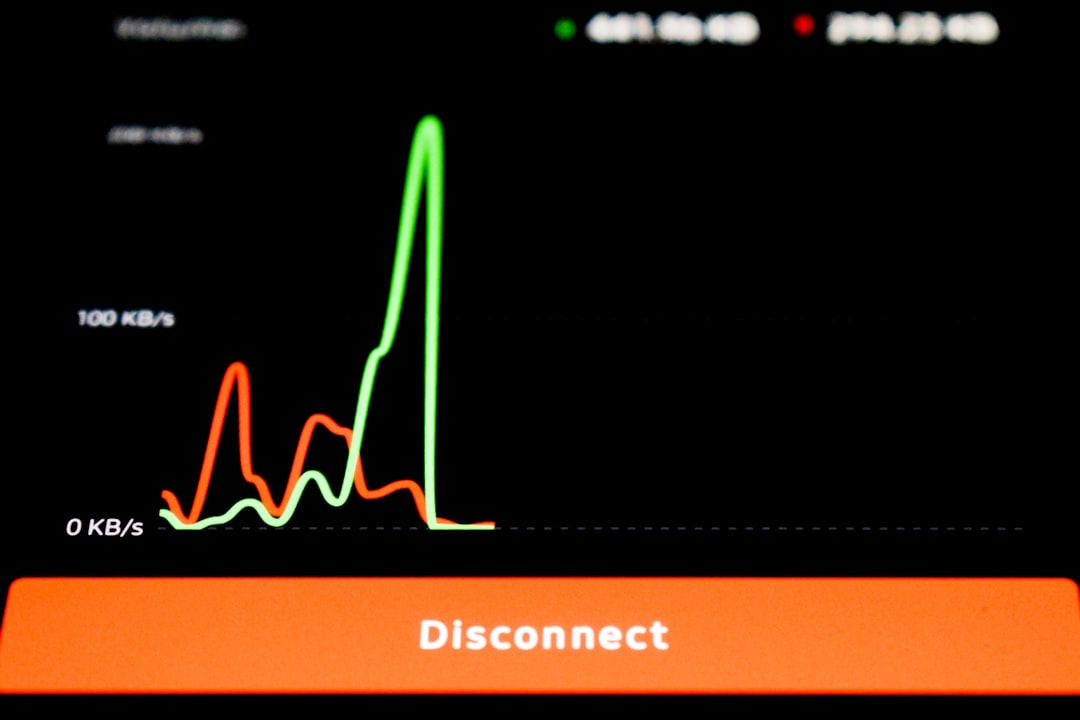
If you notice consistent packet loss outside your home network, contact your ISP with the results. They may reroute your traffic.
Step 9: Consider Using a VPN
If your ISP’s routing to GW2 servers is inefficient, a gaming-friendly VPN can provide a more stable path.
When a VPN Helps
- Your ISP has poor routing to ArenaNet servers
- You experience high latency only in GW2
- Packet loss occurs outside your home network
Choose VPNs with low latency connections. Avoid free options, as they often increase lag instead of reducing it.
VPN Comparison Chart
| VPN | Latency Impact | Gaming Optimization | Ease of Use |
|---|---|---|---|
| ExitLag | Very Low | Designed for games | Very Easy |
| NordVPN | Low | Manual server selection | Easy |
| ExpressVPN | Low | Stable routes | Very Easy |
Always test VPN performance during your usual play hours before committing long term.
Step 10: Update Network Drivers
Outdated network adapter drivers can cause instability under sustained traffic loads.
To update:
- Open Device Manager.
- Expand Network adapters.
- Right-click your adapter.
- Select Update driver.
For best results, download the latest driver directly from the manufacturer’s website.
Advanced Fix: Port Forwarding
In rare cases, strict NAT configurations interfere with smooth connections.
Guild Wars 2 uses ports including:
- TCP: 80, 443, 6112
Access your router’s settings and forward these ports to your PC’s local IP address. Only attempt this if you’re comfortable modifying router configurations.
When to Contact Support
If none of these solutions work, it’s time to contact ArenaNet Support. Provide:
- Your ISP name
- PingPlotter or WinMTR logs
- Time and frequency of disconnects
- Steps already attempted
This speeds up diagnosis and increases the chances of a personalized solution.
Preventing Future Disconnects
Once your issue is resolved, adopt these preventative measures:
- Use wired connections whenever possible
- Keep drivers updated
- Restart networking equipment monthly
- Avoid heavy downloads during gameplay
- Monitor ISP performance
Proactive maintenance dramatically reduces the chance of encountering the “Unscheduled Departures” error again.
Final Thoughts
The “GW2 Unscheduled Departures” issue can feel intimidating at first, but in most cases, it’s a solvable network problem rather than a permanent server failure. By methodically testing your connection, adjusting DNS settings, and checking for routing issues, you can quickly restore stability and get back to exploring Tyria.
Guild Wars 2 remains one of the most engaging MMORPGs available, and with the right setup, connection drops don’t have to be part of your experience. A stable network equals uninterrupted adventures — and that means more world bosses, more loot, and fewer frustrating disconnect screens.