



If you’ve spent countless hours perfecting your 3D animation or rendering in Blender, nothing is more frustrating than encountering cryptic errors that halt progress. One such error is the notorious “Error Writing Tile to File”. This issue often crops up during the rendering process and can stem from various causes, ranging from hardware limitations to file permission problems. In this guide, we’ll explore what causes this error, how to diagnose it, and most importantly, how to fix it so you can get back to creating beautiful visual content.
TL;DR (Too Long; Didn’t Read)
The “Error Writing Tile to File” in Blender usually occurs during the rendering process when the program cannot save portions of the final image. Causes include lack of disk space, permissions errors, file path issues, or memory limitations. Fixing it involves checking available storage, verifying permissions, simplifying renders, updating Blender, or tweaking render settings. This article offers a step-by-step guide to get your rendering back on track quickly.
What Does the Error Actually Mean?
Blender renders images by dividing them into smaller tiles, which are pieces of the render that the program computes separately. This modular approach speeds up processing and makes rendering more manageable, especially for complex scenes. The “Error Writing Tile to File” message indicates that Blender was unable to save one of these tiles to the designated output file or location.
This error is particularly frustrating because it’s not always clear whether it’s caused by hardware limitations, software configuration, or even external factors like anti-virus interference. Understanding the potential causes is the first step toward resolving it.
Common Causes of the “Error Writing Tile to File”
- Insufficient Disk Space: If your drive is full or near capacity, Blender won’t be able to write images or temporary files.
- File Permission Issues: Lack of access rights to the output directory can prevent Blender from saving files.
- File Path Errors: Invalid characters or overly long file paths might confuse Blender’s rendering engine.
- Render Settings: Overly high resolutions or incorrect output formats can sometimes cause tile writing failures.
- Hardware Limitations: Lack of available RAM or GPU memory can cause render operations to crash.
- Software Bugs or Corruption: Blender or plugin bugs, especially in custom builds or add-ons, may result in file write issues.
Step-by-Step Methods to Fix the Error
1. Check Available Disk Space
Start by ensuring you have adequate free space on the drive you’re writing files to—preferably several gigabytes, especially for high-resolution images or animations.
- For Windows: Open “This PC” and check remaining storage on the target drive.
- For macOS: Click the Apple menu > About This Mac > Storage.
- Clean up old projects, uninstall unused applications, or move non-essential files to an external drive.
2. Verify Write Permissions
Ensure Blender has the necessary permissions to write to the output directory.
- Try setting the output path to a location like your Documents or Desktop folder.
- Right-click the output directory and check permissions (on macOS or Linux, use
ls -lin the terminal). - If the directory is on an external drive, ensure it’s mounted correctly and not set to read-only.
3. Use a Shorter and Valid File Path
Long file paths or those containing special characters can sometimes interfere with Blender’s ability to save tiles. Simplify your directory structure and use only standard alphanumeric characters for folders and filenames.
Instead of saving to:
C:\Users\YourName\Documents\Blender\Projects\SuperComplex_Project_Version5_with_finalFIXED\RenderOutput\Final\Frame_001.png
Try:
C:\Render\output.png
4. Update Blender to the Latest Version
Like all software, Blender receives frequent updates that fix bugs and improve performance. If you’re running an outdated version, the error may already be resolved in the latest release.
Download the latest version at blender.org and verify whether the issue persists in the updated application.


5. Reduce Render Complexity
Sometimes Blender simply runs out of memory—especially when working on large scenes with high-resolution textures. Here’s what you can do:
- Lower the render resolution (try 50% scale or reduce pixel dimensions).
- Convert large textures to lower resolution, compressed formats.
- Use simpler materials or eliminate subsurface scattering.
- Use GPU rendering with limited tile sizes (e.g. 64×64 instead of 256×256).
6. Change the Output File Format
In some cases, specific file formats like OpenEXR or TIFF may fail due to codec issues or software bugs. If you’re using such formats, try switching to a more widely supported format like PNG or JPEG just for testing.
You can change the file format by going to the Output Properties tab, navigating to the Output section, and selecting another format from the dropdown menu.
7. Run Blender with Admin Rights
Running Blender as an administrator (Windows) or with sudo (Linux/macOS) can resolve permission or environment-related hiccups. To do this:
- Windows: Right-click Blender > Run as Administrator
- macOS/Linux: Launch from terminal using
sudo ./blender
8. Clear the Cache and Temp Files
Temporary files stored during rendering or simulations may become corrupted and interfere with file outputs. To resolve this:
- Clear the render cache via Render > Purge > All
- Delete the contents of your system’s temp folder manually
Also, make sure the blast radius is minimal—only clear Blender-related temp files when unsure.
9. Check for Background Processes
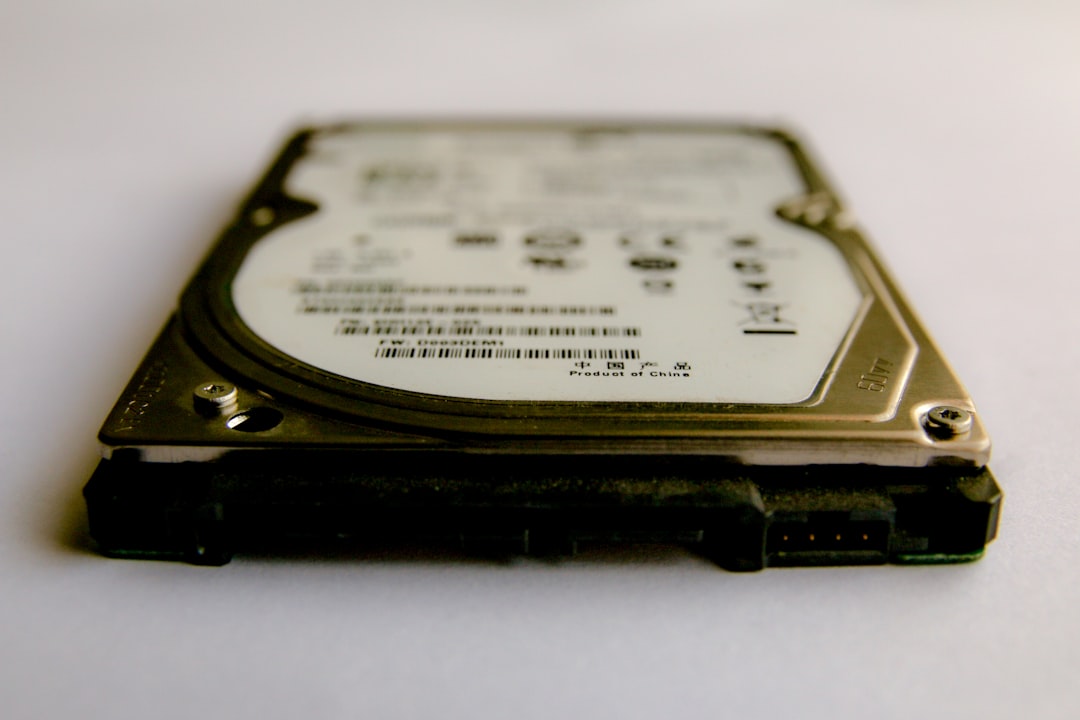
If your system is under heavy load from other applications, Blender may struggle to save rendered tiles. Open your task manager or system monitor and close any non-essential applications, especially those consuming significant RAM or disk I/O.
10. Use Command Line Rendering
If the graphical interface continues to fail, try rendering via the command line. This bypasses certain GUI behaviors and allows for better error logging.
Example command for Windows:
blender -b yourfile.blend -o //render/frame_###### -F PNG -f 1
Bonus Tip: Split the Render into Smaller Chunks
For large or high-resolution renders, consider splitting the image into multiple scenes or using the Border Render feature. This allows you to render only a specific section of the image which reduces memory and caching requirements.
Prevention Tips for Future Projects
To minimize the risk of encountering this error in the future, here are some best practices:
- Save your progress frequently and keep incremental backups.
- Test render settings with lower resolutions before final renders.
- Use trusted output directories with verified permissions.
- Monitor system resources while rendering.
Conclusion
The “Error Writing Tile to File” message in Blender can be unsettling, especially when you’re under deadline. Fortunately, by systematically checking for storage space, permissions, rendering parameters, and hardware limitations, you can resolve the issue without too much disruption. Always keep Blender updated and monitor your system during rendering sessions, and you’ll be far less likely to encounter this error in the future. Turn those halted projects into finished masterpieces!