



If your Grok history is full of old chats, or you asked something private and now want to remove it, you may be looking for how to delete Grok history properly. The confusing part is that Grok has more than one place where history can appear. You can use Grok inside X, and you can also use it directly on Grok.com.
Both places let you manage chats, but the steps are not exactly the same. On X, you can delete chats from the Grok History panel, and you can also delete conversation history from X settings. On Grok.com, you can delete one chat from the three-dot menu, and yes, you can also delete all conversations from Grok.com settings under Data Controls.
This guide is for users who want clear steps, not guessing. We will cover how to delete one Grok chat, how to delete all Grok history on Grok.com, and how to delete Grok conversation history on X.
How to Delete One Grok Chat on Grok.com
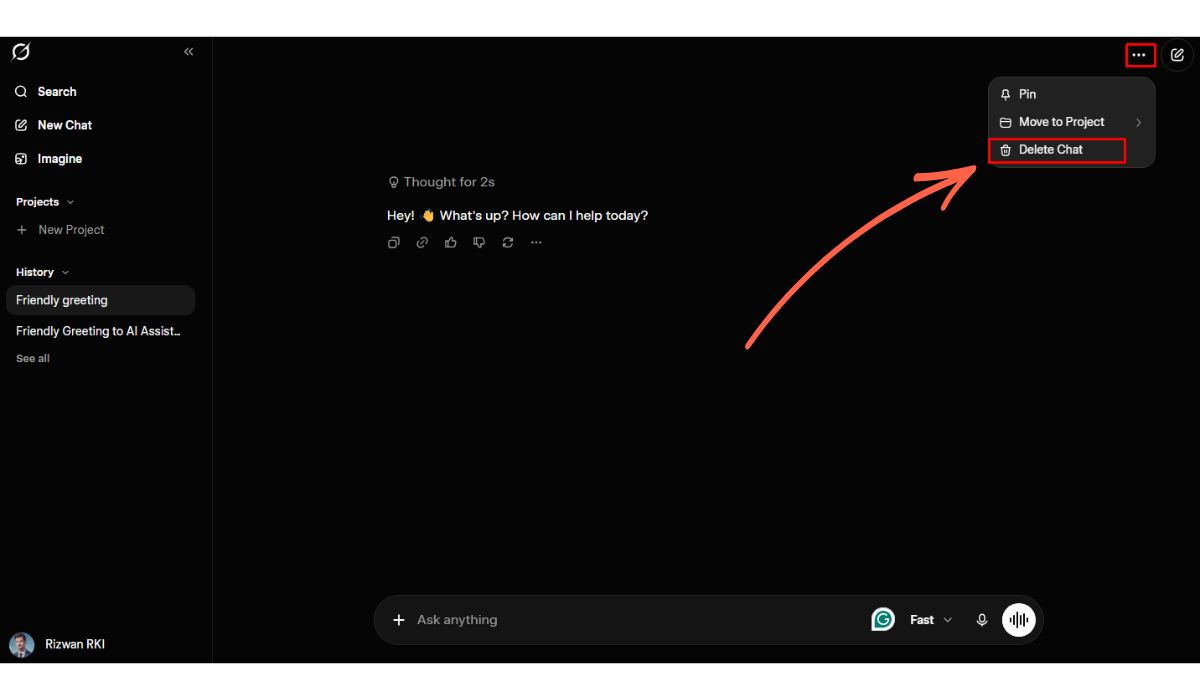

If you only want to remove one conversation on Grok.com, you do not need to delete everything. Just open that chat and use the menu inside the conversation.
Steps:
- Open Grok.com.
- Look at the left sidebar.
- Go to the History area.
- If the chat is visible, click it.
- If it is not visible, click See all.
- Open the chat you want to delete.
- Click the three-dot menu in the top-right corner.
- Select Delete Chat.
- Confirm if Grok asks.
This removes only that selected chat. It is useful when one conversation is private, old, or not needed anymore.
How to Delete All Grok Conversations on Grok.com
Yes, you can delete all chats directly on Grok.com. The option is inside the full history/settings area, not beside every chat. This is the part many users miss because Grok.com first shows only a small sidebar history.
Follow these steps:
- Open Grok.com.
- Look at the History area in the left sidebar. Click See all.
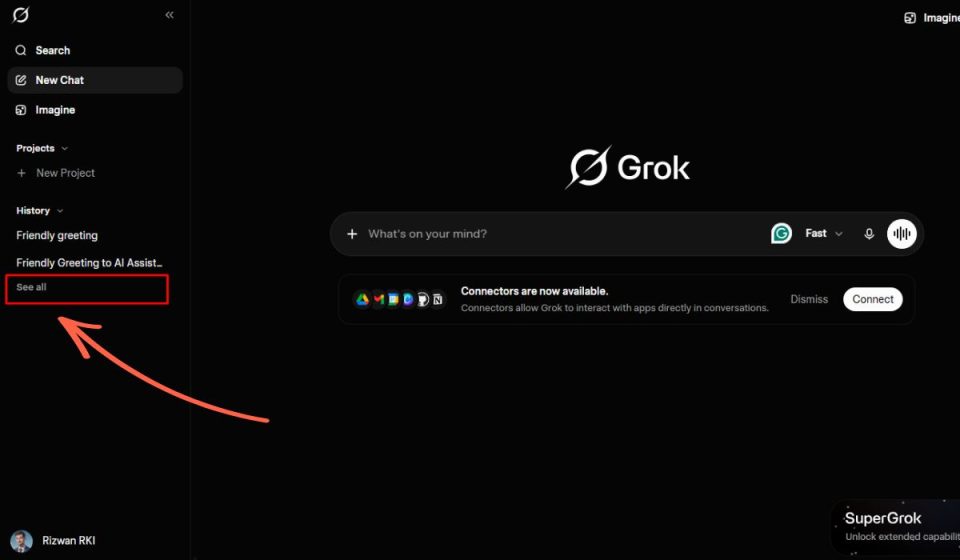
- In the full history window, click Show All if you see it.
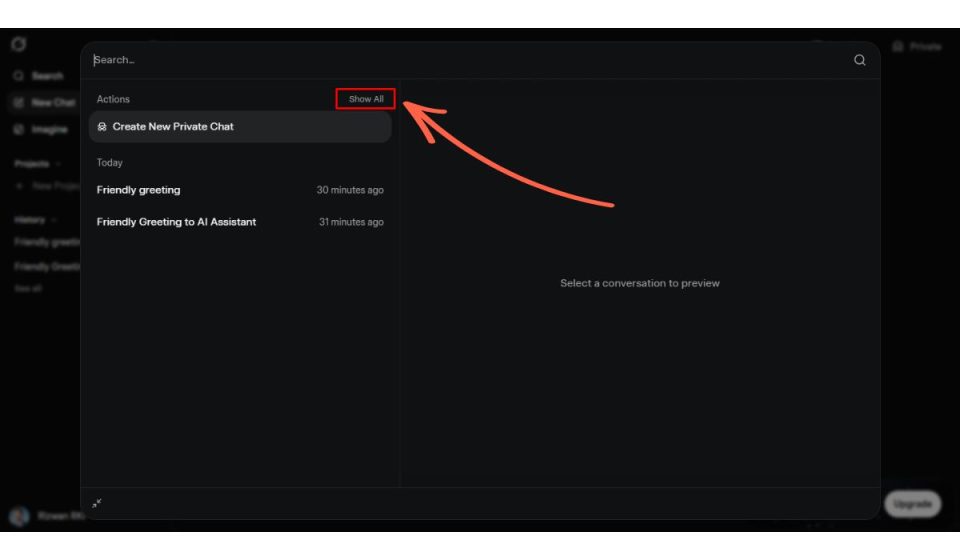
- Click Settings from the actions list.
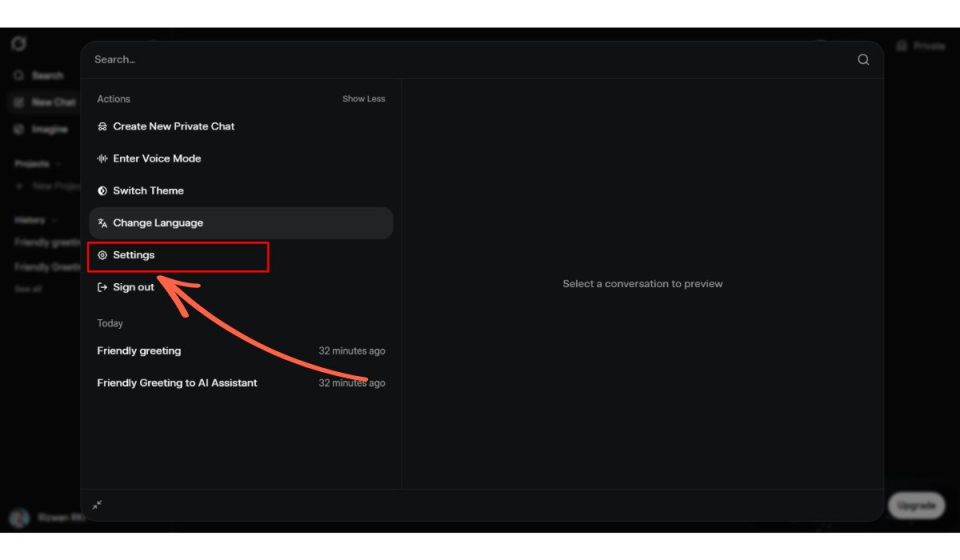
- Open Data Controls.
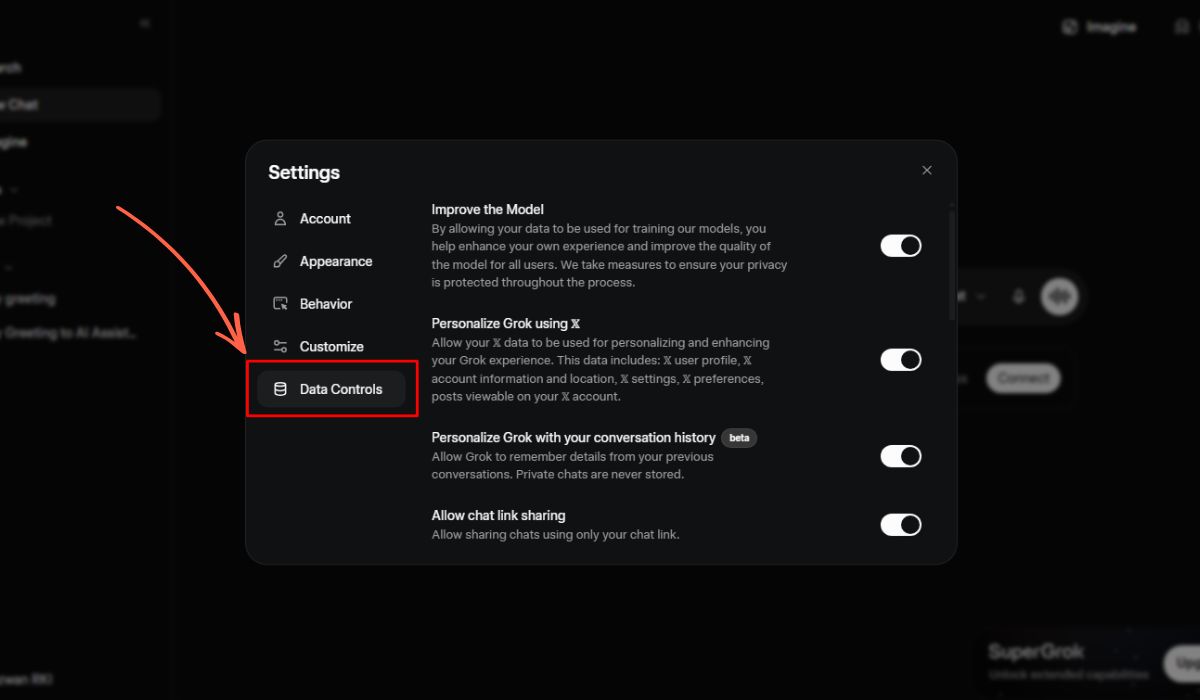
- Scroll down and find the Delete All Conversations option.
- Click Delete.
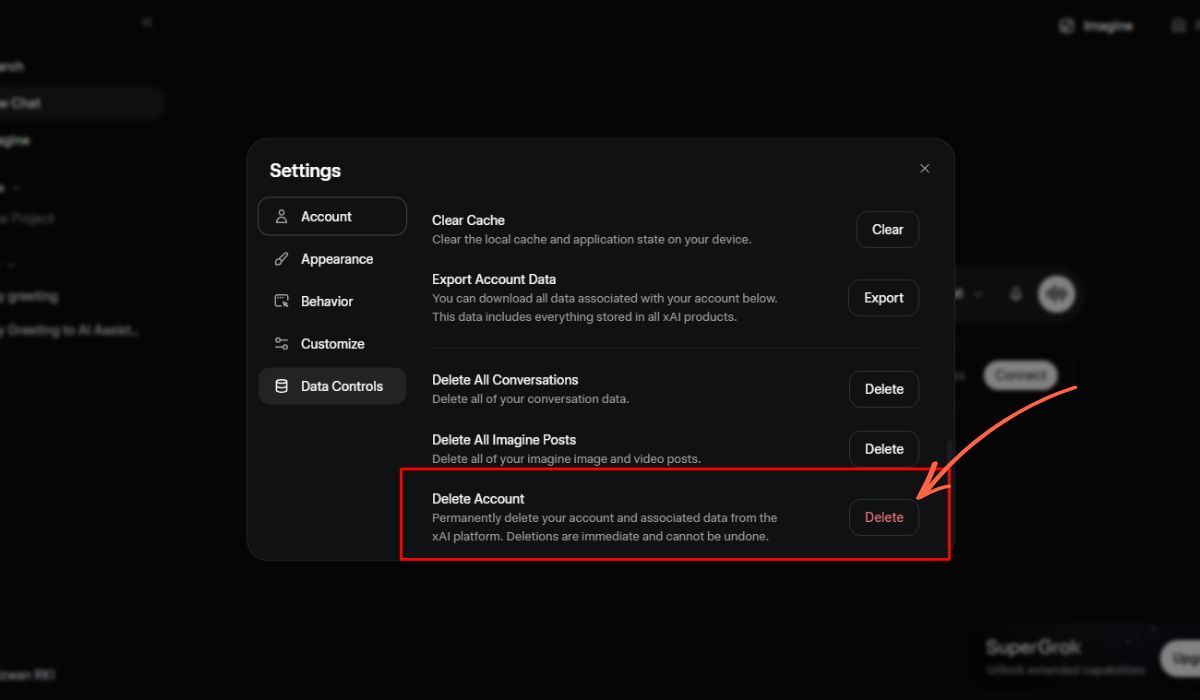
- Confirm the action if Grok asks.
This deletes all your Grok conversation data from Grok.com. In the same Data Controls area, you may also see options like Clear Cache, Export Account Data, and Delete All Imagine Posts. Make sure you click the right delete button. If your goal is chat cleanup, choose Delete All Conversations, not image posts.
How to Delete One Grok Chat on X
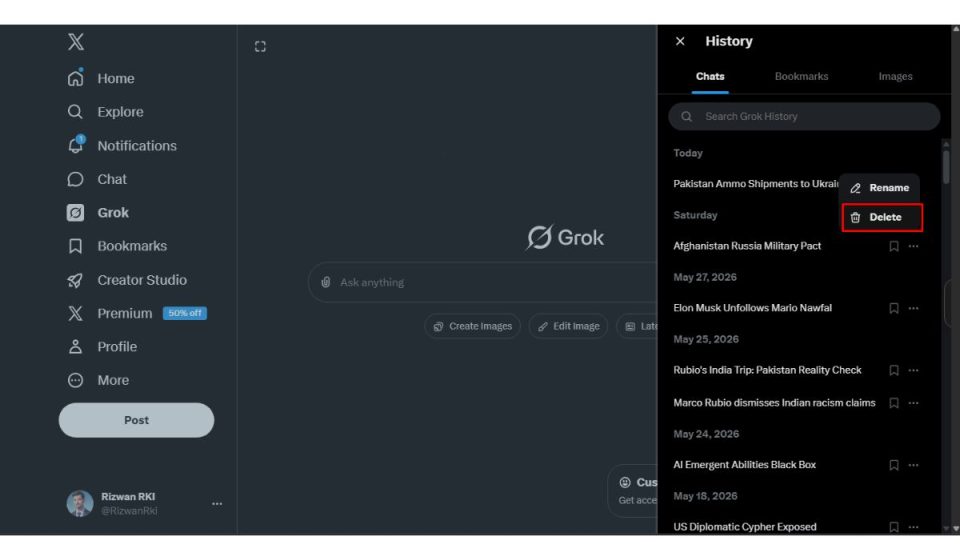
If you use Grok inside X, the chat history appears in a side panel. You can delete a single chat from there without clearing everything.
Steps:
- Open X.
- Click Grok from the left sidebar.
- Open the History panel.
- Find the chat you want to remove.
- Click the three-dot menu beside that chat.
- Select Delete.
- Confirm if X asks.
This deletes only one chat from the Grok history list on X. It does not delete your X account, and it does not clear every Grok conversation.
How to Delete Grok Conversation History on X
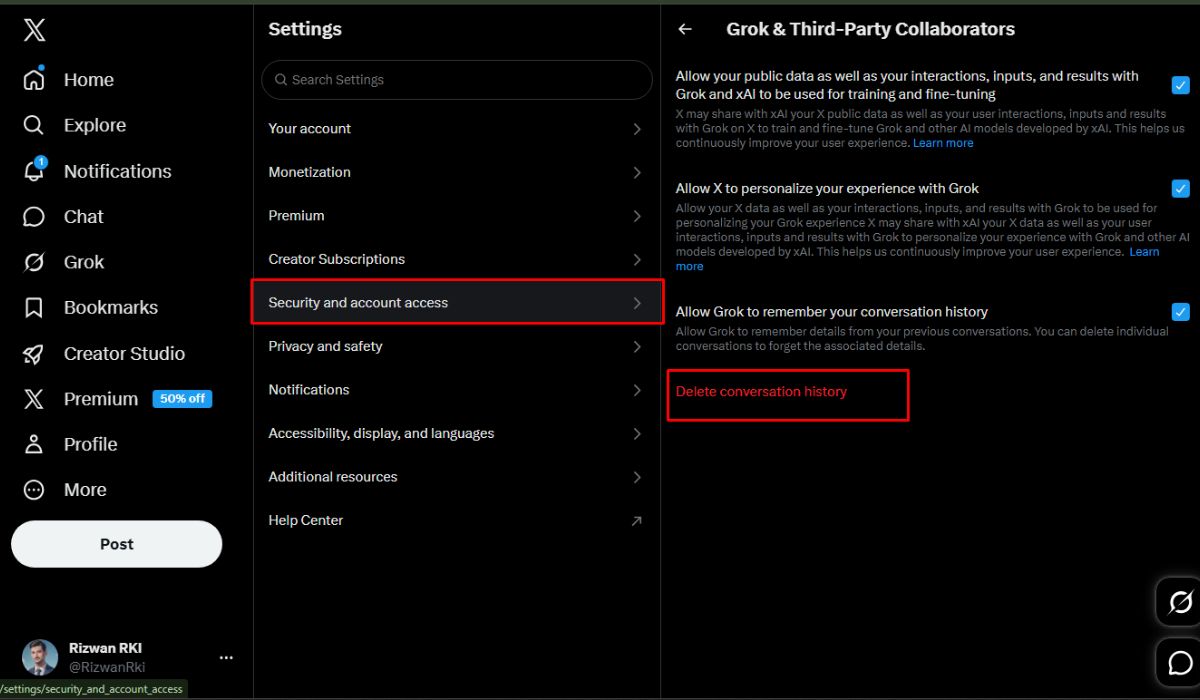
X also has a separate Grok settings page where you can delete conversation history. This is different from deleting one chat from the history panel.
Steps:
- Open X.
- Click More from the left sidebar.
- Go to Settings and Privacy.
- Click Security and account access.
- Open Grok & Third-Party Collaborators.
- Scroll down and click Delete conversation history.
- Confirm if X asks.
This page also includes Grok privacy controls. You may see options such as allowing Grok to remember your conversation history, using your interactions for personalization, or allowing public data and Grok interactions to help train or improve AI systems. If you are deleting Grok history for privacy, it makes sense to check those toggles too.
Grok.com vs X: Which Delete Option Should You Use?
Grok.com and X both give access to Grok, but the delete paths are different. If you are using Grok.com, the full cleanup option is inside See all > Show All > Settings > Data Controls > Delete All Conversations.
If you are using X, the broader history delete option is inside Settings and privacy > Security and account access > Grok & Third-Party Collaborators.
| What you want to do | Where to go |
|---|---|
| Delete one chat on Grok.com | Open chat > three-dot menu > Delete Chat |
| Delete all chats on Grok.com | History > See all > Show All > Settings > Data Controls > Delete All Conversations |
| Delete one chat on X | Grok > History > Chats > three-dot menu > Delete |
| Delete Grok history on X | Settings and privacy > Security and account access > Grok & Third-Party Collaborators > Delete conversation history |
This is the cleanest way to understand it. Use the chat menu for one conversation. Use Data Controls or X settings when you want a bigger cleanup.
Before You Delete Grok History
Before deleting anything, check if the chat has something useful. Many people use Grok for research, article ideas, coding help, school work, summaries, or prompts. If you delete the wrong chat, you may not easily get it back.
Quick check:
- Save important answers before deleting.
- Export account data first if you need a backup.
- Delete one chat if only one conversation is private.
- Use Delete All Conversations only when you want a full cleanup.
- Check Grok privacy settings if you do not want Grok to remember conversation history.
- Avoid sharing passwords, private IDs, or sensitive personal information in future chats.
Deleting Grok history helps, but better privacy starts with what you type into the chat in the first place.
Does Deleting Grok History Delete Your Account?
No, deleting Grok history does not delete your X account, Grok account, or xAI account. It only removes your conversations or conversation history from the place where you delete them.
If you want to delete your full account, that is a separate process. Chat deletion and account deletion are not the same thing.
Final Thoughts
Learning how to delete Grok history is easy once you know which version you are using. On Grok.com, you can delete one chat from the three-dot menu, or delete all conversations from History > See all > Show All > Settings > Data Controls > Delete All Conversations.
On X, you can delete one Grok chat from the History panel, or clear Grok conversation history from Settings and privacy > Security and account access > Grok & Third-Party Collaborators > Delete conversation history.
The main thing is to choose the right option. Delete one chat when only one conversation bothers you. Use Delete All Conversations when you want a full cleanup of Grok.com. Use X settings to clear Grok history on the X side.