


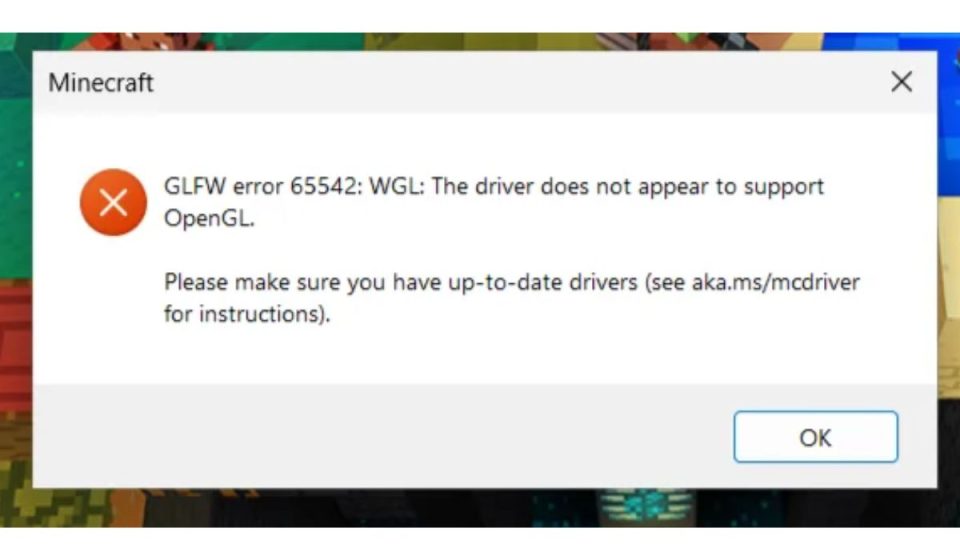
You try to open Minecraft and instead of loading, a small window appears. It says GLFW error 65542 and mentions OpenGL is not supported. At first it feels confusing. You may think your PC is too weak or something is broken.
But hold on. In most cases your system is fine. The problem is not the game itself. It comes from how your graphics system talks to the game.
This error means your system cannot provide proper OpenGL support through your graphics driver. Once that connection fails, the game stops before it even starts.
So the goal is simple. Fix the connection between your game, your driver, and your GPU.
What is GLFW Error 65542?
When Minecraft starts, it asks your system for OpenGL support. OpenGL is a graphics interface. It helps your GPU draw textures, shapes, lighting, and everything you see on screen.
Your graphics driver acts like a translator. It connects the game with your GPU such as Intel HD Graphics, NVIDIA GeForce, or AMD Radeon.
If that driver is outdated or broken, the game cannot get OpenGL access. That is when GLFW error 65542 shows up.
So the issue is not random. It is a clear signal that your graphics layer is not ready.
Why You See GLFW Error 65542
This error usually comes from a few clear causes. Nothing complicated, just system setup issues.
- graphics driver is outdated or missing
- Windows installed a basic driver instead of official one
- system is using integrated GPU instead of dedicated GPU
- OpenGL files are missing or not loading correctly
- driver installation is incomplete or corrupted
Sometimes people update Windows but forget the GPU driver. That mismatch causes problems like this.
How to Fix GLFW Error 65542 (OpenGL Problem)
If you see this error in Minecraft go step by step. Fix the base problem first instead of trying random tricks.
1. Update Your Graphics Driver Properly
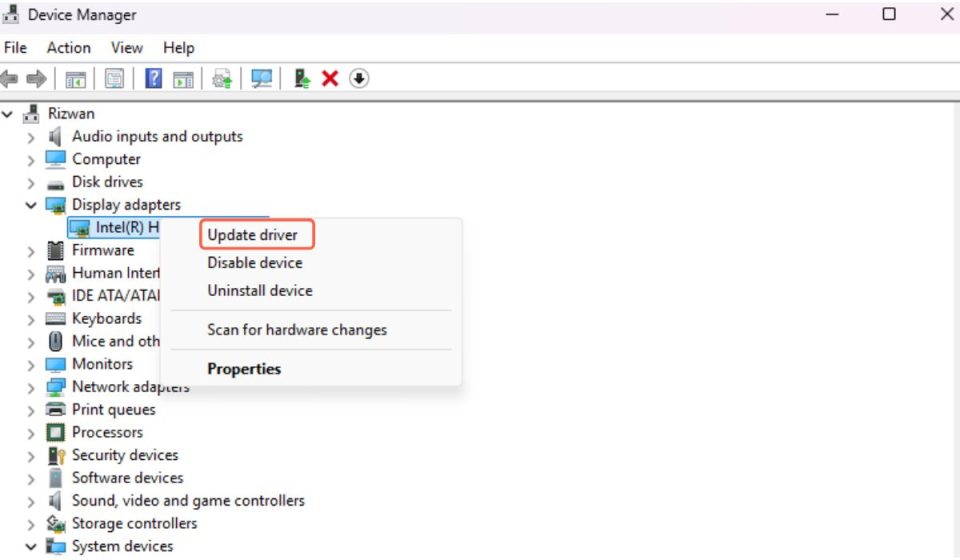
This is the main fix. Most systems fail here because they rely on Windows automatic drivers. Those drivers are basic and not built for gaming.
You need the official driver from your GPU brand. If you have Intel, NVIDIA, or AMD, go to their official website and download the latest version.
Here is a simple way:
- Open Device Manager
- Check Display Adapters
- Note your GPU name
- Go to the official site of that brand
- Download and install the latest driver
After installing restart your PC. Then open the game again. In most cases this step alone fixes the error.
2. Make Sure OpenGL Support Is Available
Even if a driver is installed, it may not support the required OpenGL version. Games need a certain level of OpenGL to run properly.
Modern drivers include updated OpenGL support. That is why installing the latest version matters. If your driver is old, the system may fail to provide the needed features.
So this step is not separate from drivers. It is part of making sure your system supports the correct graphics standard.
3. Force the Game to Use Dedicated GPU
If your system has two GPUs, one integrated and one dedicated, it may choose the weaker one by default. Integrated graphics like Intel HD can cause this error if they do not support required OpenGL features.
Switching to a dedicated GPU like NVIDIA or AMD often solves the issue.
You can do this from your GPU control panel. Set Java or the game launcher to use high performance mode. Then run the game again.
This small change can make a big difference.
4. Fix OpenGL File Issue (Quick Workaround)
Some users fix this error by adding a missing OpenGL file manually. The file is called opengl32.dll.
This is not a full solution, but it can help in some cases.
- Download opengl32.dll from a trusted source
- Open your Java or game folder
- Paste the file there
- Restart the game
If it works, good. But still update drivers later because this does not fix the root issue.
5. Reinstall Graphics Driver Cleanly
Sometimes updating is not enough. The driver may already be corrupted. In that case a clean reinstall works better.
Remove the current driver first. Then install a fresh version.
Steps:
- Open Device Manager
- Uninstall your GPU driver
- Restart your PC
- Install latest driver from official site
This clears hidden errors and resets everything.
6. Check If Your GPU Supports OpenGL
Now a real check. Not all GPUs support newer OpenGL versions. Older hardware may not meet game requirements.
If your GPU is too old, no software fix will fully solve the issue. The system simply cannot provide what the game needs.
You can check your GPU model online and see which OpenGL version it supports. If it is too low, upgrading hardware may be the only option.
7. Update Windows System
Windows updates include important system files related to graphics. If your system is outdated, it may not work well with newer drivers.
Go to Windows Update and install all pending updates. Restart your PC after that.
This step helps keep your system aligned with your drivers.
What Is OpenGL and Why It Matters
OpenGL is a graphics standard used by many games and applications. It allows software like Minecraft to communicate with your GPU.
Without OpenGL, the game cannot render visuals. No textures, no lighting, no display.
So when the system cannot provide OpenGL, the game stops immediately. That is why you see this error before anything loads.
Is This a Driver Problem or Hardware Problem
In most cases, this is a driver issue. Updating or reinstalling drivers solves it for many users.
But sometimes it is hardware related. Older GPUs cannot support newer OpenGL versions. In that case, no update will fix it.
So always try driver fixes first. If nothing works, then check hardware compatibility.
How to Prevent This Error in Future
You do not need complex steps. Just keep your system clean and updated.
- Install drivers from official sources not random tools
- Update GPU drivers regularly
- keep Windows updated
- Check system requirements before installing games
- Avoid using very old hardware for newer games
These small habits reduce most graphics errors.
Final Thoughts
GLFW error 65542 looks technical, but the reason is simple. Your system cannot provide proper OpenGL support to the game.
Fix the driver, check your GPU, and keep your setup updated. That is usually enough.
If this guide helped you, share it with others who face the same issue. And if your setup is different or still not working, tell me your GPU and system details. We will figure it out step by step.