


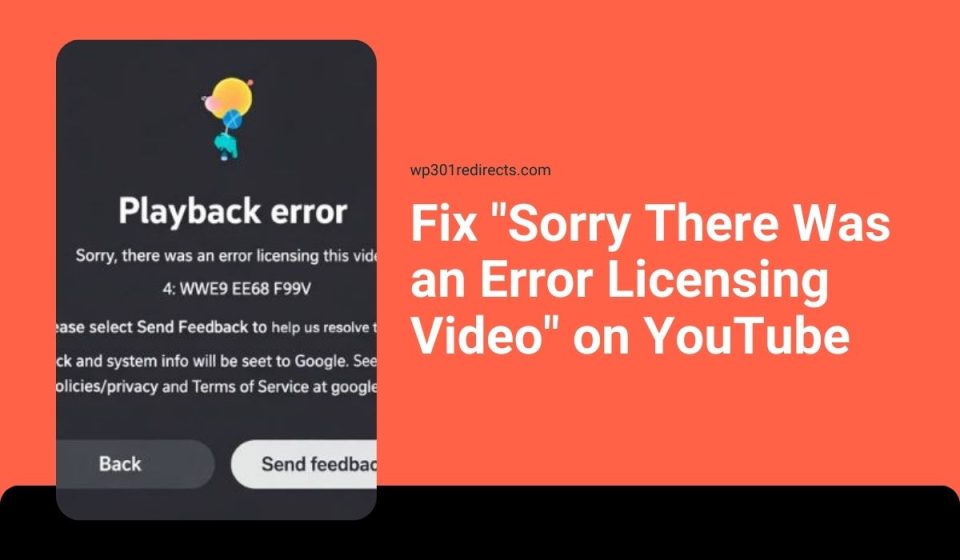
You open YouTube, press play, and instead of the video starting, you see the message: “Sorry, there was an error licensing this video.” That can feel confusing, especially when other videos work fine. This error usually relates to playback authorization or device data issues.
In this guide, you’ll learn what this YouTube licensing error means, why it happens, and how to fix it step by step.
What Does “Error Licensing This Video” Mean?
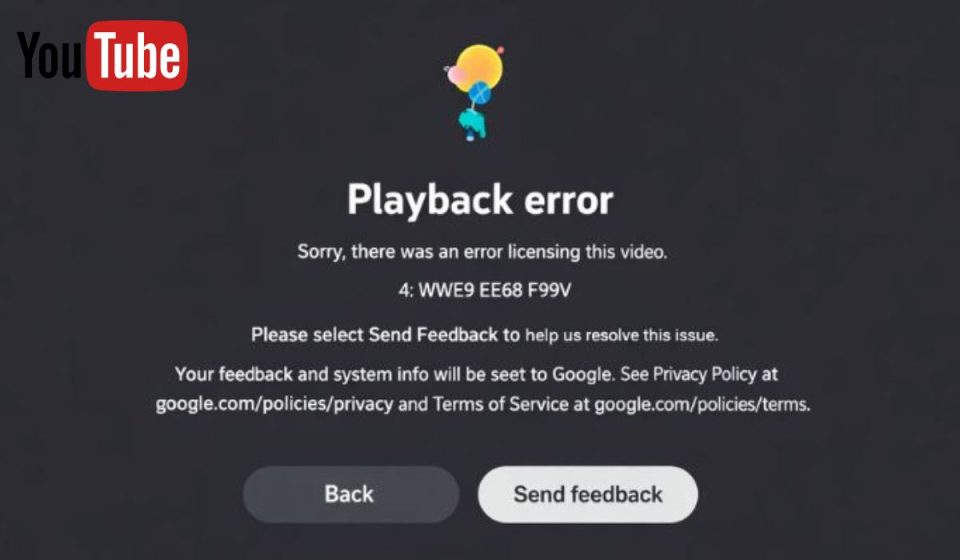
The message “Sorry, there was an error licensing this video” appears when YouTube cannot complete playback authorization for that specific video. Before a video starts, YouTube checks digital rights through its licensing server and DRM system. DRM, or Digital Rights Management, ensures the content follows copyright and regional licensing rules.
The YouTube app or web browser sends a request to confirm your Google Account, device identity, and IP location. If that validation fails, playback stops. This does not always mean your account has a problem. In many cases, the issue connects to corrupted app data, network routing, or device software.
You often see this error on Smart TV devices like Samsung or LG, streaming platforms such as Roku or Amazon Fire TV, or in browsers like Google Chrome and Mozilla Firefox. It usually appears right when the video tries to start.
Common Causes of This YouTube Licensing Error
This playback issue happens for several reasons linked to device, network, or app settings.
- Corrupted YouTube app cache or stored cookies
- Outdated YouTube app version
- Outdated Smart TV or streaming device firmware
- VPN or proxy masking your IP address
- Region-restricted video content
- Weak Wi-Fi connection or packet loss
- DNS configuration problems
- Temporary YouTube server glitch
Each of these can interrupt video license validation.
How to Fix “Error Licensing This Video”
Start with simple steps first. Most users fix this issue without resetting their device.
Fix 1: Refresh the Video or Restart the App
Temporary session errors happen. Refresh the browser page or close and reopen the YouTube app. This forces a new playback request to the licensing server.
Fix 2: Power Cycle Your Device
Clearing temporary device memory often solves DRM errors. Follow these steps to restart your device properly.
- Turn off your Smart TV or streaming device.
- Unplug it from power.
- Wait at least 60 seconds.
- Plug it back in.
- Open YouTube again.
This refreshes stored session data.
Fix 3: Clear YouTube App Cache
Corrupted app data commonly causes licensing errors. Try these simple steps to clear cache.
- Open Device Settings.
- Go to Apps or Application Manager.
- Select YouTube.
- Choose Clear Cache.
- Restart the app.
On browsers, clear cache and cookies from Privacy settings.
Fix 4: Update the YouTube App
An outdated version may conflict with current DRM requirements. Below are the steps that will guide you to update the app.
- Open your device’s App Store.
- Search for YouTube.
- Select Update if available.
- Restart the device after updating.
New versions improve compatibility and playback authorization.
Fix 5: Update Device Firmware
Smart TVs and streaming sticks rely on updated system software.
Perform the following steps carefully.
- Open Device Settings.
- Navigate to System or Software Update.
- Check for updates.
- Install any available firmware updates.
- Restart the device.
Updated firmware supports current DRM protocols.
Fix 6: Disable VPN or Proxy
VPN services can change your IP address and affect regional licensing checks. These are the exact steps you need to follow.
- Open your VPN app.
- Disconnect from the server.
- Restart YouTube.
If the video works afterward, the VPN caused the issue.
Fix 7: Set DNS to Automatic
Manual DNS settings sometimes interfere with content delivery network routing.
Follow these steps to reset DNS.
- Open Network Settings on your device.
- Locate DNS configuration.
- Select Automatic or Obtain Automatically.
- Save changes.
- Restart your router if needed.
Automatic DNS often improves video validation.
Fix 8: Try Another Device or Browser
Testing another device helps identify whether the issue is device-specific.
Open the same video on another Smart TV, phone, or browser like Microsoft Edge or Firefox. If it works there, your original device likely has a configuration problem.
Prevention Tips
Preventing licensing errors keeps streaming smooth. Restart your Smart TV or streaming device weekly to clear memory. Keep the YouTube app updated through official app stores. Update firmware whenever new versions release.
Avoid using unstable VPN services during streaming. Maintain a strong Wi-Fi signal or use Ethernet when possible. Clear browser cache occasionally to prevent cookie conflicts.
- Keep apps updated
- Update firmware regularly
- Avoid unstable VPN
- Use stable internet
- Clear cache monthly
- Restart router weekly
Conclusion
In short, “Sorry, there was an error licensing this video” on YouTube usually means the device failed to complete playback authorization. It often connects to corrupted app data, outdated software, VPN interference, or network instability. Most users fix it by restarting the device, clearing cache, or updating the app.
If the issue continues, contact YouTube Help through your Google Account or check your device manufacturer’s support page. Try the fixes one by one. If this guide helped you, share it with others and leave a comment about which solution worked for you.