


In this guide, you’ll learn what Netflix Error E100 means, why it happens, and how to solve it safely.
What Is Netflix Error Code E100?
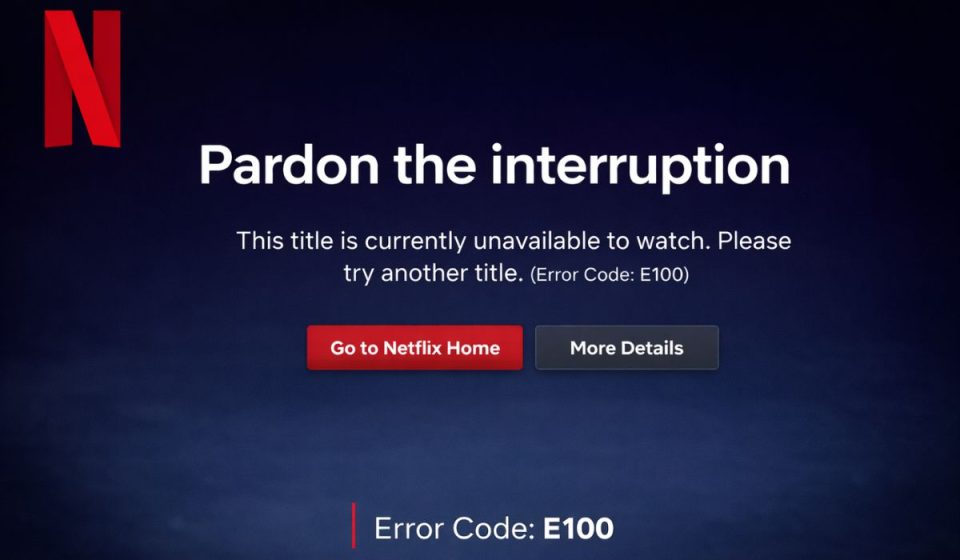
Netflix Error Code E100, often shown as tvq-pb-101 (E100), is a playback issue linked to data stored on your device. When you press play, the Netflix app checks local app data, verifies your account session, and starts a streaming session through Netflix’s content delivery network. If the stored app data becomes corrupted or outdated, the playback process fails.
The device may block the title from loading, even though your Netflix account is active. This does not usually mean your subscription expired or Netflix servers are down. Instead, it points to a problem inside the Netflix app or the device’s stored data.
You usually see this error on a Smart TV, streaming stick like Roku or Amazon Fire TV, Android TV box, PlayStation, or Xbox. The message often says the title is not available to watch instantly.
Common Causes of Netflix Error E100
This error happens for different reasons connected to app data and device settings. Below are the most common causes.
- Corrupted Netflix app cache or stored data
- Netflix app stuck in a bad session state
- Outdated Netflix app version
- Outdated Smart TV or streaming device firmware
- Weak Wi-Fi connection or unstable internet
- Active VPN or proxy interfering with streaming
- Temporary Netflix service issue
Each of these can interrupt playback authorization and trigger E100.
How to Fix Netflix Error Code E100?
Start with the simplest solutions first. Most users fix the error in minutes without resetting their device.
Fix 1: Power Cycle Your Streaming Device
Temporary system memory issues can block Netflix playback. Follow these steps to properly restart your device.
- Turn off your Smart TV or streaming device.
- Unplug it from the power source.
- Wait at least 60 seconds.
- Plug it back in.
- Turn it on and open Netflix.
This clears temporary stored memory and refreshes the app state.
Fix 2: Restart Your Router and Modem
Network instability can interrupt streaming. Try these simple steps to refresh your internet connection.
- Turn off your router and modem.
- Wait 60 seconds.
- Turn them back on.
- Reconnect your device to Wi-Fi.
- Test Netflix again.
Stable bandwidth helps Netflix verify playback properly.
Fix 3: Sign Out and Sign Back Into Netflix
Session data may be stuck or expired.
Below are the steps that will guide you to reset your Netflix session.
- Open Netflix.
- Go to Settings or Get Help.
- Select Sign Out.
- Restart the app.
- Sign back in with your account.
This refreshes your account authorization on that device.
Fix 4: Clear Netflix App Cache or Data
Corrupted stored data is the most common reason for E100.
Here’s how you can clear Netflix app data on many devices.
- Go to Device Settings.
- Open Apps or Application Manager.
- Select Netflix.
- Choose Clear Cache or Clear Data.
- Restart Netflix.
Clearing data may sign you out, so you’ll need to log in again.
Fix 5: Update the Netflix App
An outdated app version may not work properly with Netflix servers.
The following steps will show you how to update Netflix.
- Open your device’s App Store.
- Search for Netflix.
- Select Update if available.
- Restart the device.
Updated apps fix playback bugs and compatibility problems.
Fix 6: Update Device Firmware or System Software
Smart TVs and streaming devices rely on updated firmware. Perform the following steps carefully.
- Open Device Settings.
- Go to System or Software Update.
- Check for Updates.
- Install available updates.
- Restart the device.
Updated firmware improves streaming stability.
Fix 7: Disable VPN or Proxy
VPN or custom DNS settings can interfere with Netflix routing. These are the exact steps you need to follow.
- Open your VPN application.
- Disconnect from the VPN.
- Restart your streaming device.
- Test Netflix again.
Netflix may restrict playback when routing appears unusual.
Fix 8: Reinstall the Netflix App
If the problem continues, reinstalling creates a clean app environment. Follow these steps to reinstall Netflix properly.
- Uninstall the Netflix app from your device.
- Restart the device.
- Reinstall Netflix from the official app store.
- Log in and test playback.
This removes corrupted files completely.
Prevention Tips to Avoid Netflix E100
Preventing this error is simple when you maintain your device regularly. Restart your Smart TV or streaming device once a week to refresh memory. Keep the Netflix app updated through the official app store. Update your TV firmware when updates are available. Use a stable Wi-Fi connection or connect through Ethernet when possible.
Avoid VPN services while streaming. Maintain enough free storage on your device so apps can function properly.
- Restart device weekly
- Keep Netflix updated
- Update system firmware
- Use stable internet
- Avoid VPN while streaming
- Maintain free storage space
Conclusion
In short, Netflix Error Code E100 usually appears because stored app data on your device blocks playback. It often connects to corrupted cache, outdated app versions, or unstable internet. Most users fix it by restarting the device, clearing app data, or updating Netflix.
If none of these steps work, try streaming on another device to confirm whether the issue is device-specific. You can also contact Netflix Support for further help. If this guide solved your problem, share it with others and leave a comment about which fix worked for you.