



You click on a video, it loads for a second, and then you see “Video file cannot be played (Error Code: 232011).” That is frustrating, especially when other websites work fine. This error usually appears in Google Chrome or another browser while trying to stream online content. When this happens, the browser fails to load the video stream correctly. In this guide, you will learn what Error Code 232011 means, why it appears, how to fix it step by step, and how to prevent it from happening again.
What Is Error Code 232011?
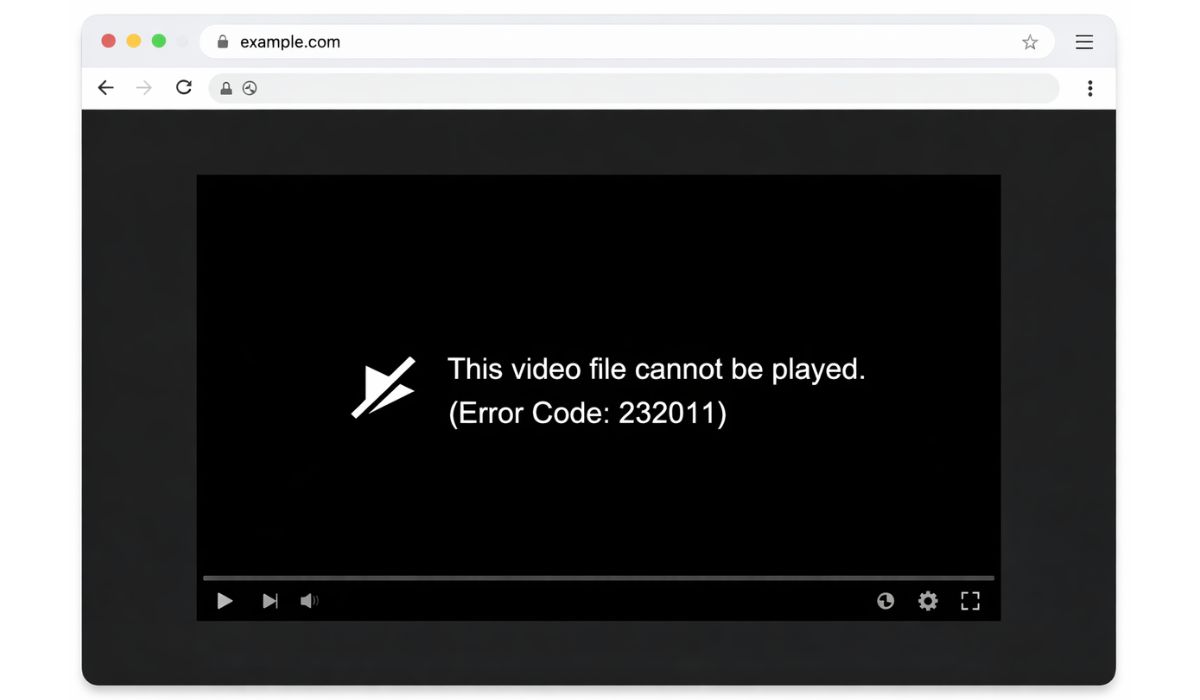

Error Code 232011 is a browser-based video playback error that occurs when the HTML5 video player cannot retrieve or play a streaming media file. This issue often appears in Google Chrome, Mozilla Firefox, Microsoft Edge, or Safari when trying to load embedded videos. The browser connects to a video server or Content Delivery Network, also known as CDN, to stream the file.
However, if that connection fails, becomes blocked, or is interrupted, the media player cannot decode the stream. Because of this failure, the browser displays the 232011 error instead of playing the video.
The issue may involve corrupted browser cache, blocked requests, expired SSL certificates, unstable internet connection, or server-side streaming problems.
You usually see this error inside embedded players like JW Player or other HTML5 video players on news websites, streaming platforms, or online courses. It appears directly inside the video frame after clicking play.
Common Causes of Error Code 232011
This error can happen for several reasons depending on your browser, network settings, or the website hosting the video. Since streaming relies on stable communication between your browser and the video server, even small issues can interrupt playback.
- Corrupted browser cache or damaged cookies
- Outdated Google Chrome, Firefox, or Edge version
- Conflicting browser extensions such as ad blockers
- VPN or proxy server interfering with video routing
- Weak or unstable internet connection causing packet loss
- Firewall or antivirus blocking streaming requests
- Website server or CDN experiencing temporary outage
How to Fix Video File Cannot Be Played Error Code 232011
Fixes depend on whether the issue is caused by your browser, your internet connection, or the video server. In most cases, clearing the cache or adjusting browser settings resolves the problem quickly. Try each solution one by one.
Fix #1: Refresh the Page and Check Internet Connection
Sometimes the issue is temporary and caused by a brief network interruption.
Follow these easy instructions to test your connection properly.
- Refresh the webpage.
- Check if other websites load normally.
- Restart your Wi-Fi router.
- Reconnect to your network.
Once your internet stabilizes, reload the video again.
Fix #2: Clear Browser Cache and Cookies
Corrupted cache files often prevent proper communication between the browser and the streaming server.
You can perform the following steps to clear cache in Google Chrome.
- Open Google Chrome.
- Click the three-dot menu in the top-right corner.
- Select Settings.
- Go to Privacy and Security.
- Click Clear browsing data.
- Choose Cached images and files and Cookies.
- Click Clear data.
After clearing cache, restart the browser and revisit the video page.
Fix #3: Disable Browser Extensions
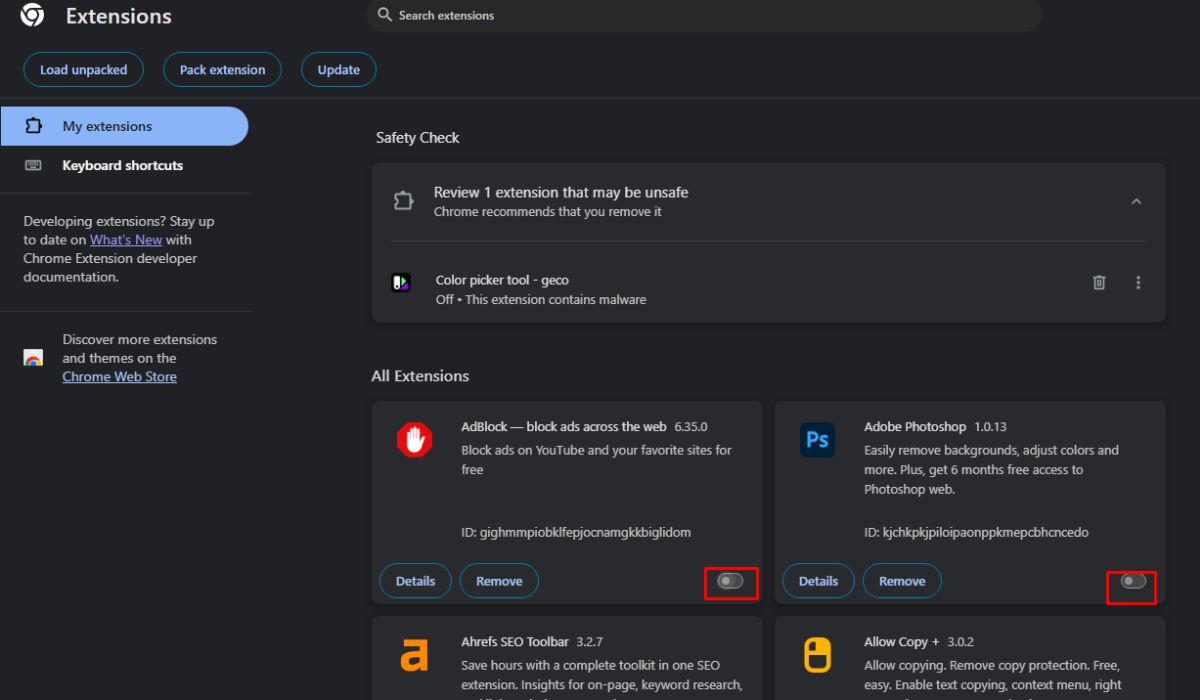
Extensions such as ad blockers, VPN plugins, or privacy tools can block video scripts and streaming requests.
Follow the steps below to easily disable extensions.
- Open Chrome and type chrome://extensions in the address bar.
- Press Enter.
- Turn off all extensions temporarily.
- Restart the browser.
- Try playing the video again.
If the video works, enable extensions one by one to find the conflicting one.
Fix #4: Turn Off VPN or Proxy
VPN services sometimes route traffic through restricted regions or unstable servers. Because of that, video streaming platforms may fail to deliver content correctly. Proxy settings can also interfere with CDN routing. Disable any active VPN or proxy, then refresh the page. Once your browser connects directly through your Internet Service Provider, streaming often resumes normally.
Fix #5: Update Your Browser
Outdated browsers may not support updated video codecs or streaming protocols.
Here’s how you can update Google Chrome quickly.
- Open Chrome.
- Click the three-dot menu.
- Select Help.
- Click About Google Chrome.
- Install any available updates.
- Restart the browser.
After updating, try loading the video again.
Fix #6: Disable Hardware Acceleration
Hardware acceleration allows the browser to use your GPU for video decoding. However, sometimes it creates playback conflicts.
The following steps will show you how to disable hardware acceleration.
- Open Chrome Settings.
- Click System.
- Find Use hardware acceleration when available.
- Turn it off.
- Restart Chrome.
After disabling it, check if the video plays normally.
Fix #7: Try Another Browser
If the problem continues, try opening the same video in Microsoft Edge, Mozilla Firefox, or Safari. If it plays in another browser, the issue is likely related to your primary browser settings. Switching browsers can help confirm whether the error is local or server-related.
When the Problem Is the Website Server
Sometimes the issue does not come from your device. The website hosting the video may have server-side problems. If the Content Delivery Network fails to deliver the video file or the SSL certificate expires, playback stops. Server overload, maintenance, or regional CDN routing issues can also trigger Error Code 232011. In such cases, multiple users may report similar problems at the same time.
If you suspect a server issue, wait and try again later. You can also contact the website support team for confirmation.
Prevention Tips to Avoid Video File Cannot Be Played Error Code 232011
Keeping your browser and network stable reduces streaming errors in the future.
- Keep your browser updated
Regular updates for Google Chrome, Mozilla Firefox, Microsoft Edge, or Safari fix security and video playback bugs. - Clear browser cache regularly
Old cached files and cookies can conflict with HTML5 video players and CDN streaming. - Avoid unstable VPN or proxy services
Some VPN servers block or reroute video traffic, which may interrupt streaming requests. - Maintain a stable internet connection
Restart your router weekly and avoid heavy downloads while streaming videos. - Limit unnecessary browser extensions
Ad blockers, script blockers, and privacy tools sometimes interfere with embedded players like JW Player. - Keep your operating system updated
Windows 10, Windows 11, and macOS updates improve compatibility with modern video codecs. - Check firewall and antivirus settings occasionally
Ensure your security software does not block streaming traffic or secure HTTPS connections.
By following these steps, you reduce playback interruptions and keep online video streaming smooth and reliable.
Conclusion
In short, Error Code 232011 means your browser cannot retrieve or play the video stream from the hosting server. The issue often relates to corrupted cache, outdated browser, extension conflicts, VPN interference, weak internet, or website server problems. Most users fix it by clearing cache, disabling extensions, or updating the browser.
If this guide helped you fix the video playback error, share it with others who face the same issue. And if the problem continues, comment below with your browser and device details so troubleshooting becomes easier.