


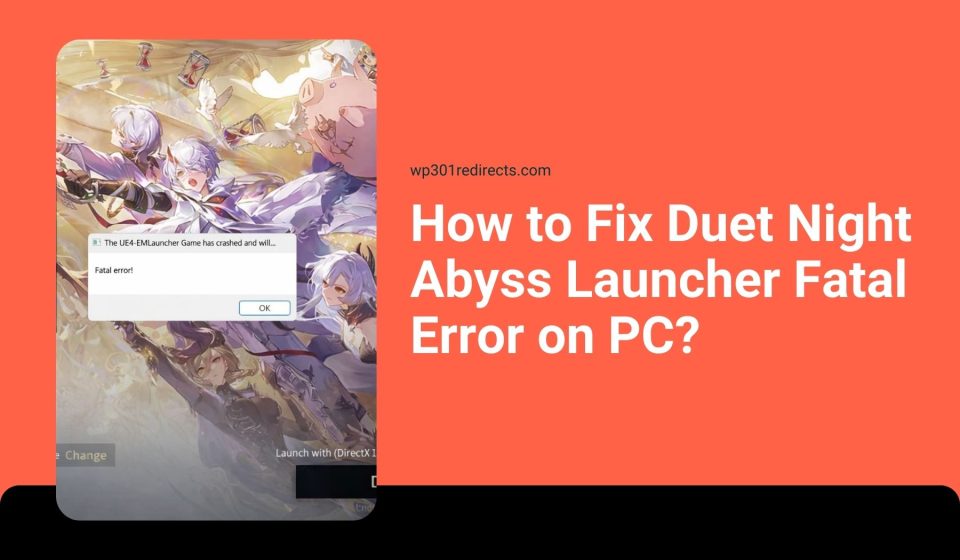
Trying to open Duet Night Abyss and seeing a launcher fatal error can ruin the mood fast. You click Play, expect the game to load, and instead the launcher crashes or shuts down without much explanation. That moment feels confusing because the game never even starts.
This guide walks you through what the launcher fatal error means, why it happens, how to fix it step by step, and what you can do to avoid it later.
What Is the Duet Night Abyss Launcher Fatal Error?
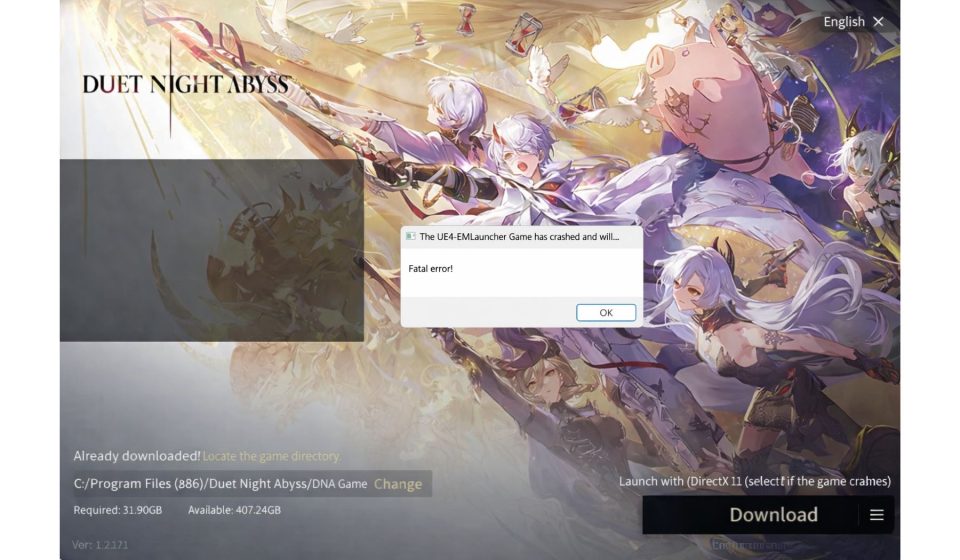
The launcher fatal error means the Duet Night Abyss launcher fails to start or crashes during its startup process. It signals that something required by the launcher did not load correctly.
You usually see this error right after opening the launcher or clicking the launch button. It may appear as a small pop-up, a crash window, or a sudden shutdown of the launcher itself. On Windows 10 or Windows 11, it often happens before the game client loads, which means the issue is tied to the launcher, system files, or required components rather than in-game settings.
Common Causes of Duet Night Abyss Launcher Fatal Error
This error can happen for several reasons, depending on your system setup and how the game was installed. Below are the most common causes players run into.
- Corrupted launcher cache files
- Incomplete or interrupted game installation
- Missing Visual C++ Redistributable packages
- Outdated or incompatible graphics drivers
- Antivirus or firewall blocking the launcher
- Lack of administrator permissions
- Unstable network connection during launcher startup
How to Fix Duet Night Abyss Launcher Fatal Error
In most cases, the launcher fatal error comes from a small system or file issue rather than a serious hardware problem. However, different systems fail for different reasons, so it’s best to try the fixes in order. Start with the quick ones first, then move on if the error still shows up.
Fix #1: Run the Launcher as Administrator
Sometimes the launcher cannot access the files it needs. Running it as administrator gives it proper permissions, which often clears the fatal error quickly.
Here’s how you can do this.
- Close the launcher completely
- Right-click the Duet Night Abyss launcher icon
- Select Run as administrator
- Click Yes if prompted
- Wait for the launcher to open
Fix #2: Clear the Launcher Cache
Corrupted cache data is a common reason for launcher crashes. Clearing the cache forces the launcher to rebuild fresh files, which often removes startup errors and improves stability.
Follow the steps below to clear the launcher cache safely.
- Close the launcher
- Open File Explorer
- Navigate to the launcher installation folder
- Locate the cache or temp folder
- Delete the contents inside it
- Restart the launcher
Fix #3: Verify or Repair Game Files
If game files are missing or broken, the launcher may fail during checks. Repairing the files replaces damaged data and restores what the launcher expects to find.
You can perform the following steps to repair the game.
- Open the launcher
- Go to settings or game options
- Select Verify or Repair files
- Wait for the process to complete
- Restart the launcher
Fix #4: Update Graphics Drivers and System Components
Outdated graphics drivers or missing system components can trigger launcher errors, especially for newer games. Keeping drivers and required libraries updated helps the launcher communicate properly with your GPU and system.
Updating your NVIDIA, AMD, or Intel graphics drivers, along with DirectX and Visual C++ Redistributable packages, often resolves crashes linked to compatibility problems.
Fix #5: Check Firewall, Antivirus, and Network Settings
Security software sometimes blocks game launchers by mistake. Firewalls, antivirus tools, or unstable network connections can stop the launcher from reaching required servers.
Try temporarily disabling antivirus protection, adding the game folder to exclusions, and checking that your internet connection is stable before launching the game again.
Fix #6: Reinstall the Launcher Only
If the launcher itself is damaged, reinstalling just the launcher can fix the fatal error without forcing a full game download. This saves time and avoids wiping game data.
Perform the following steps carefully.
- Uninstall the Duet Night Abyss launcher
- Do not delete the game data folder
- Download the latest launcher version
- Install it in the same directory
- Open the launcher and test
Prevention Tips to Avoid Launcher Fatal Errors in the Future
Prevention helps you avoid repeat crashes and wasted time. A few simple habits can keep the Duet Night Abyss launcher running smoothly.
- Keep the launcher updated
- Avoid closing the launcher during updates
- Run the launcher with proper permissions
- Keep graphics drivers up to date
- Exclude the game folder from antivirus scans
- Use a stable internet connection
- Close heavy background applications
Conclusion
In summary, the Duet Night Abyss launcher fatal error usually happens because of cache problems, missing system components, permission issues, or security software interference. These issues prevent the launcher from starting correctly, even though the game itself may be fine.
Try the fixes one by one and apply the prevention tips to reduce future errors. If the launcher still fails after all steps, contacting the official Duet Night Abyss support team and sharing crash logs is the best next move. If this article helped you, feel free to comment and share it with other players facing the same problem.