



Sometimes you try to copy a file from a hard drive, USB flash drive, or external storage device, and Windows suddenly shows a message that says data error cyclic redundancy check. It feels confusing. The file will not copy, open, or move. You might even worry that your files are lost.
This error usually appears when Windows cannot read data correctly from a storage device. It can happen while transferring files, opening a folder, or extracting a compressed archive. In this guide, you will learn what the cyclic redundancy check error means, why it happens on Windows storage devices, and how you can fix it using simple troubleshooting methods.
What Is Data Error Cyclic Redundancy Check?
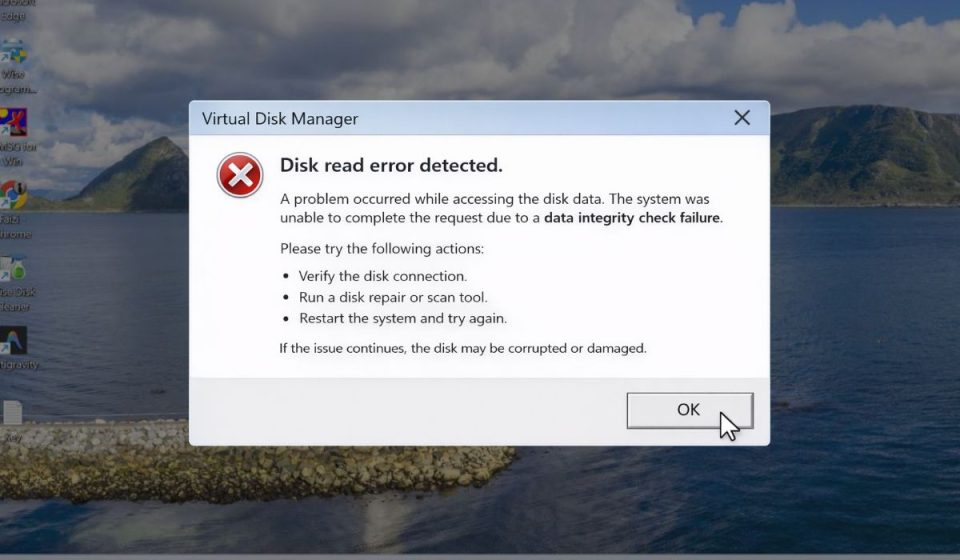
The Cyclic Redundancy Check, often called CRC, is a method used by computers to check data integrity. When Windows reads data from a hard disk, SSD, USB drive, or optical disc, it also checks a small verification value that confirms the data is correct. If the value does not match the original calculation, the operating system assumes the data became damaged or corrupted. At that moment Windows stops the operation and shows the data error cyclic redundancy check message.
This process helps prevent corrupted files from spreading through the system. CRC verification is used in many places including file systems, network communication, disk controllers, and archive tools. Because of that, a CRC error usually signals a problem with the storage medium, a corrupted file, or an interrupted transfer.
Most users see this message while working in Windows File Explorer. It often appears during file copying or when accessing an external hard drive, USB flash drive, SD card, DVD, or CD.
Common Causes of Data Error Cyclic Redundancy Check
This error normally points to a data reading problem. The storage device or the file itself may be damaged. Sometimes the issue comes from the connection between the device and the computer.
Common causes include:
- Bad sectors on a hard disk drive or solid state drive
- Corrupted files caused by interrupted downloads or transfers
- Damaged USB cable or SATA cable
- Failing external hard drive or flash drive
- File system corruption in NTFS or FAT32
- Scratched DVD or CD media
- Interrupted data transfer while copying files
A CRC error does not always mean the drive is dead. Sometimes a small file error or connection issue triggers the message.
How to Fix Data Error Cyclic Redundancy Check in Windows?
Different fixes work depending on the source of the problem. Some methods repair the file system. Others check the physical storage device.
Fix #1 – Restart the Computer
A restart clears temporary system errors and reloads Windows services that control storage devices.
Here’s how you can restart the computer quickly.
- Click the Start menu
- Select the Power button
- Choose Restart
- Wait for Windows to reload
- Try accessing the file again
Sometimes a simple restart clears temporary disk access problems.
Fix #2 – Run the CHKDSK Disk Utility
The CHKDSK utility scans a storage drive for bad sectors and file system errors. It can repair many disk problems automatically.
Follow the steps below to run the scan.
- Press Windows + S
- Search for Command Prompt
- Right click it and select Run as Administrator
- Type the command
chkdsk /f /r - Press Enter
- Allow Windows to complete the disk scan
This tool checks the disk surface and repairs logical errors in the file system.
Fix #3 – Check the Cable or Connection
Sometimes the error appears because the connection between the computer and the storage device is unstable.
Try these simple checks:
- unplug the USB cable
- reconnect the drive again
- try another USB port
- replace the cable if it looks worn
A faulty cable can interrupt data transfer and cause CRC errors.
Fix #4 – Copy Files Using Data Recovery Software
When a drive has bad sectors, normal file copying may stop. Recovery software can read usable data and skip damaged areas.
Many tools attempt this type of recovery, including:
- disk recovery utilities
- file recovery programs
- disk imaging tools
These tools help extract files before the drive becomes worse.
Fix #5 – Download the File Again
Sometimes the CRC error appears because a downloaded file is corrupted. This often happens with compressed archives such as ZIP or RAR files.
Try this:
- Delete the damaged file
- Download it again from the original source
- Verify the file size
- Extract it again using WinRAR or 7-Zip
If the download was incomplete earlier, the new copy usually works.
Fix #6 – Run Windows Error Checking
Windows includes a built-in drive error checking tool that scans for disk issues.
Follow these steps.
- Open File Explorer
- Right click the drive
- Choose Properties
- Select the Tools tab
- Click Check
Windows will scan the drive and attempt to repair detected problems.
Fix #7 – Format the Storage Drive
If the file system becomes heavily corrupted, formatting the drive can rebuild it. This removes file system errors but also deletes stored data.
Typical steps include:
- Open Disk Management
- Select the storage drive
- Right click it
- Choose Format
- Select a file system such as NTFS or exFAT
Always back up important data before formatting.
Fix #8 – Replace the Storage Device
Persistent CRC errors may signal a failing drive. Hard drives and flash storage wear out over time. Mechanical hard disks develop bad sectors, while flash storage cells degrade after many write cycles.
Signs of failing hardware include:
- slow file transfers
- repeated disk errors
- clicking sounds from a hard drive
- files disappearing
When these symptoms appear, replacing the storage device is the safest solution.
Prevention Tips to Avoid CRC Errors
Preventing disk errors saves time and protects data. A few simple habits keep storage devices healthy.
Try these practices:
- keep regular data backups
- safely eject USB drives before removing them
- avoid interrupting file transfers
- monitor disk health with SMART monitoring tools
- replace damaged cables quickly
- scan drives occasionally with CHKDSK
- keep your computer protected with updated security software
Regular maintenance reduces the risk of data corruption.
Conclusion
In short, the data error cyclic redundancy check message appears when Windows detects corrupted or unreadable data. The CRC verification system checks whether files stored on hard drives, SSDs, USB devices, or optical discs remain accurate. If the data does not match the expected value, Windows stops the operation to prevent further corruption.
Most CRC errors come from bad sectors, damaged cables, corrupted downloads, or failing storage devices. The fixes above such as running CHKDSK, reconnecting cables, re-downloading files, or scanning the drive often solve the problem. If the issue continues, the drive itself may be failing and a data recovery specialist might be needed.
If you have faced this error before, share your experience in the comments. Your solution might help someone else recover their files.