


You try to sign in to your Mi Account on a Xiaomi smartphone, but the login fails. The screen shows a message that says Couldn’t verify Mi Account ID – Invalid username or password. Many Xiaomi users see this during device setup, Mi Cloud login, or while accessing account settings.
This error usually means the Xiaomi system cannot confirm the account credentials or verify the login request with the authentication server. In this guide, you will learn what this error means, why it happens, and several simple fixes that can help restore access to your Mi Account.
What Does “Couldn’t Verify Mi Account ID Invalid Username or Password” Mean?
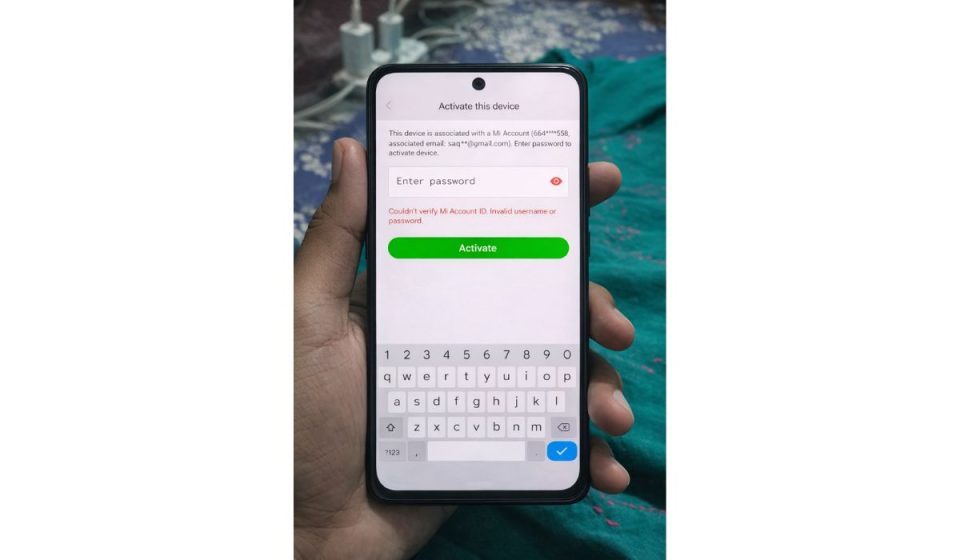
When you sign in to a Mi Account, the Xiaomi authentication system checks several things before allowing access. The login system verifies the Mi Account ID, the password, and the account status stored on Xiaomi servers. It also confirms the login session from the device running MIUI. If the verification process fails, the login request is rejected and the error message appears. This does not always mean the password is wrong.
Sometimes the Xiaomi server cannot complete authentication because of network issues, account verification problems, or device login conflicts.
Users usually see this message in the Mi Account login interface on Xiaomi phones or tablets. It can also appear when accessing Mi Cloud services, during device activation after a factory reset, or when signing into Xiaomi services through the MIUI settings menu.
Common Causes of the Mi Account Verification Error
This login problem can occur for several reasons. Most of the time it relates to credentials, internet connection, or temporary server issues.
Common causes include:
- Incorrect Mi Account username or password
- Unstable internet connection on Wi-Fi or mobile data
- Xiaomi authentication server delay or outage
- Outdated MIUI system version
- Mi Account security verification failure
- Corrupted login session or cached account data
- Temporary Mi Cloud service interruption
How to Fix “Couldn’t Verify Mi Account ID Invalid Username or Password”?
Different devices experience this error for different reasons. The fixes below help restore login access by refreshing account verification, repairing the login session, or updating system software.
Fix 1 – Reset Mi Account Password
Sometimes the password saved on the device does not match the password stored on Xiaomi servers. Resetting the password refreshes the account authentication process.
Follow the steps below to reset your Mi Account password.
- Open a web browser on your phone or computer.
- Visit the Mi Account website.
- Select Forgot password.
- Enter your Mi Account email or phone number.
- Verify the account using the code sent to your phone or email.
- Create a new password and save the changes.
After resetting the password, try signing in again on your Xiaomi device.
Fix 2 – Check the Internet Connection
A weak network connection can prevent the device from communicating with the Xiaomi authentication server.
You can perform the following steps to verify the network connection.
- Connect your phone to a stable Wi-Fi network.
- Turn Airplane mode on and off once.
- Restart the router if the connection seems slow.
- If Wi-Fi fails, switch to mobile data and try signing in again.
A stable internet connection helps the device verify login credentials with Xiaomi servers.
Fix 3 – Update the MIUI System
Outdated MIUI software may cause compatibility problems with Xiaomi login services.
Follow these easy instructions to update the system.
- Open Settings on the Xiaomi device.
- Tap About phone.
- Select System update.
- Check for available MIUI updates.
- Install the update and restart the device.
After the update finishes, open Mi Account settings and try logging in again.
Fix 4 – Verify Phone Number or Email Address
Xiaomi accounts often require security verification. If the account email or phone number is not confirmed, login verification may fail.
Try these steps to complete account verification.
- Sign in to the Mi Account website using a browser.
- Open Account security settings.
- Verify the registered phone number or email address.
- Enter the verification code sent by Xiaomi.
- Save the account security changes.
Once verification is complete, try signing in on the device again.
Fix 5 – Clear Mi Account App Cache
Old login data stored in the device cache can interfere with the authentication process.
Follow these steps to clear the Mi Account cache.
- Open Settings on the phone.
- Go to Apps or App management.
- Locate the Mi Account service.
- Tap Storage.
- Select Clear cache.
- Restart the device before signing in again.
This removes old login session data and allows the system to create a fresh authentication request.
Fix 6 – Log In Through the Mi Account Website
Sometimes logging in through the Xiaomi website helps confirm whether the account credentials are correct.
Follow the steps below.
- Open your browser.
- Visit account.xiaomi.com.
- Enter your Mi Account ID and password.
- Confirm login access.
If the website login works, the issue may relate to the device login session rather than the account itself.
Fix 7 – Remove and Add the Mi Account Again
Refreshing the account connection on the device can resolve login conflicts.
Here’s how you can remove and re-add the account.
- Open Settings.
- Tap Mi Account.
- Select Sign out or remove the account.
- Restart the device.
- Add the Mi Account again from the settings menu.
This process refreshes the login session stored on the device.
Fix 8 – Contact Xiaomi Support
If none of the previous solutions solve the issue, the problem may involve account security restrictions or server-side authentication errors.
Follow these steps to contact support.
- Visit the Xiaomi support website.
- Open the help or support section.
- Submit a request explaining the Mi Account login problem.
- Provide the Mi Account ID and device information.
Xiaomi support can verify account status and help restore access.
Prevention Tips to Avoid Mi Account Login Errors
Small maintenance steps can prevent login verification problems in the future.
Helpful tips include:
- Use a strong and memorable Mi Account password
- Enable two-factor authentication for account security
- Keep the MIUI system updated regularly
- Verify phone number and email address in account settings
- Maintain stable internet connectivity during login
- Avoid repeated incorrect login attempts
- Check Xiaomi server status if login problems appear suddenly
These practices help maintain stable communication between the Xiaomi device and the Mi Account authentication server.
Conclusion
The message “Couldn’t verify Mi Account ID – Invalid username or password” appears when the Xiaomi authentication system cannot confirm login credentials. The issue may result from incorrect account details, unstable internet connection, outdated MIUI software, or temporary server problems.
Most users resolve the problem by resetting their password, verifying account information, updating MIUI, or refreshing the login session on the device. If the issue continues, contacting Xiaomi customer support can help confirm account status and restore access.
If this guide helped you fix the problem, consider sharing it with other Xiaomi users. You can also leave a comment explaining which solution worked on your device.