



Quick Answer: A blank white screen on Instagram typically indicates that the app or website opened but failed to load its content properly. To fix it, close and reopen Instagram, restart your phone, check your internet connection, clear cache, update Instagram, clear storage space, disable VPN, or reinstall Instagram if all else fails.
Introduction
When you open Instagram, it displays a blank white screen. No feed. No reels. No login page. At times, you will notice that the Instagram logo is displayed on top, while the rest of the screen remains blank. The app appears to be running but nothing is loading.
This issue may occur on iPhone, Android or Instagram web. You may experience this when opening the app, loading your feed, checking messages, logging in, or switching to reels. It’s most likely due to a loading problem, an invalid cache, weak internet connection, previous version of Instagram, low phone storage, a VPN issue, or a temporary Instagram server problem.
The positive aspect is that you do not need to worry or reset your entire phone. Implement the simple items first. Then proceed with cache, updates, storage, browser checks and reinstall, if necessary.
What is the Instagram Blank White Screen Error?
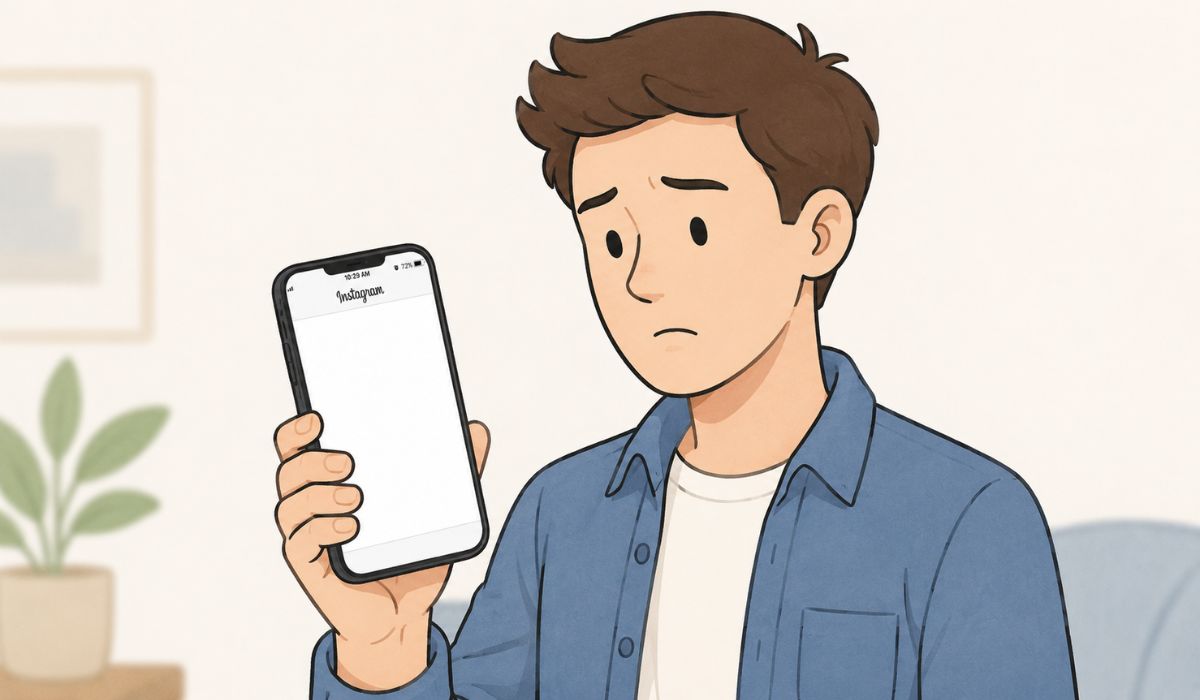

The Instagram blank white screen indicates that the Instagram app or website is opening, but the content is not loading properly. You might not be able to load feed, login session, profile, messages, reels or explore page in the app.
It doesn’t always indicate your account is banned or your phone has a problem. The easy explanation is that Instagram began loading, but something prevented the page or app from loading fully. This “something” may be your device, internet, app cache, browser, or Instagram itself.
Why Is Instagram Showing a Blank White Screen?
This is a situation where the Instagram app request fails or hangs, resulting in a white screen. This might be due to an inability on your phone to load the app data, a shaky internet connection, or even a problem with Instagram. At times it is simply an outdated application and requires an update.
Common causes include:
- Temporary glitch in the Instagram app
- Slow or weak internet connection
- Corrupted Instagram cache
- Outdated Instagram app
- Low phone storage
- Broken login session
- Conflict with VPN or proxy
- Instagram server issue
- Outdated iPhone or Android operating system
- Browser cache or cookie issue
- Browser extension blocking Instagram web
- Battery saver restriction
That’s why the patch isn’t universal. If Instagram is functioning on another phone, then your device or app might be the problem. If it’s a server side issue, a lot of people may be experiencing the same difficulty using Instagram.
How to Fix Instagram Blank White Screen
Attempt the solutions below, one at a time. Once you have done each step, reopen Instagram to see if the white screen is removed. Don’t jump straight to reinstalling unless the simple checks fail.
1. Close Instagram and Open It Again
First, close Instagram altogether. On iPhone or Android, go to the recent apps screen and swipe Instagram off the screen. Wait a few seconds, and open it up again.
This can resolve a temporary app freeze or loading glitch. Instagram could freeze when you are loading your feed, stories, or login. That little bug sometimes can be resolved by starting the app again, no settings changes required.
2. Restart Your Phone
If closing Instagram doesn’t work then try restarting your phone. This resolves temporary memory problems, app processes that are stuck, and minor system glitches. It can additionally be helpful if various applications seem slow and blank.
Power off the iPhone or Android and power it back on after a few seconds. After the phone restarts, open Instagram again. This might resolve the issue instantly, if the white screen was due to a glitch at the phone’s level.
3. Test Your Internet Connection
Instagram requires a stable connection to load photos, videos, reels, stories, messages and your feed. Some websites might work just fine, but a weak or fluctuating internet can cause Instagram to not work.
Try these checks:
- Change from Wi-Fi to cellular data
- Get closer to the router
- If other apps are slow, try resetting the router
- Turn Airplane Mode on and off
- Stop downloads or streaming
- Test Instagram on a different network
If Instagram is working on mobile data and not working on Wi-Fi, your router or Internet provider could be the problem. If it’s still not working on any network, the issue is likely to be the app, phone, account or the Instagram service itself.
4. Check If Instagram Is Down
Sometimes it’s not the blank white screen that’s your fault. Instagram has issues with service at times, and this can cause the app to fail to load for many users. A white screen, feed not loading, stories not opening, or login issues may be displayed.
Ask others if they are having similar problems with Instagram or if it’s working for them. If Instagram is down, local fixes may not be of help. If this is the case, take a break and come back later.
If the problem has occurred all of a sudden and a lot of users are experiencing the problem, don’t keep uninstalling and changing settings. That can be a waste of time.
5. Clear Instagram Cache on Android
Instagram will create a set of temporary files in the cache that will let the app run faster. Sometimes, though, the files in the cache can get corrupted and result in issues with loading. For Android, clearing the cache is amongst the most helpful solutions to fix blank white screen.
On Android, to clear the Instagram cache:
- Open Settings
- Go to Apps
- Select Instagram
- Tap Storage
- Tap Clear Cache
- Restart Instagram
When you clear your cache, your Instagram account typically won’t get deleted, and your posts won’t be lost. It primarily eliminates temporary app files. If Instagram continues to display a white screen after that, you can proceed to the next fixes.
6. Update Instagram
An app that is outdated or is a previous version of Instagram can result in problems with a blank screen, feed loading, log-in, or reels not opening. App updates will also get rid of bugs which users are experiencing in older versions.
To see if Instagram has an update, open the App Store for iPhone or Google Play Store for Android. Install the update, then restart the phone if the problem persists. Then, open Instagram and check if it opens as usual.
Download only from the official app store. Don’t download random Instagram APK files from unknown websites. This can lead to further complications.
7. Free Up Phone Storage
When storage space is low, apps can act erratically. Instagram requires some room to load images, store short-term files, refresh data and generally work properly. If your phone’s storage is almost full, the app might open but not load content.
Remove unused apps, old videos, large downloads or duplicate files. You don’t have to delete your entire phone. Simply provide sufficient space for applications to function properly.
More probable if your phone is warning you about storage. Once space has been cleared, restart your phone and attempt Instagram once again.
8. Turn Off VPN or Proxy
A VPN or proxy can alter the way that Instagram interacts with its servers. There are slow, blocked or unstable VPN routes. This can cause Instagram to fail and the app may display a blank white screen while other apps work just fine.
Disconnect from VPN or proxy, close Instagram and then open it. If Instagram begins to function, the VPN path was most likely to blame. You can change to a different VPN server at a later point, but for testing purposes disable the VPN completely.
This fix will also be helpful if Instagram is working on one network but not the other. People can’t always imagine the significance of location and routing.
9. Sign Out and Sign Back In
Sometimes, an issue during login can cause blank content to appear on Instagram. Your account session is not synced properly, although the app is open. Logging out, then back in will renew that session.
Only do this if you can access Instagram’s settings. Ensure you know your username, password, email or phone number associated with the account before you log out. If you have two-factor authentication, ensure that you can receive the code.
Once you have logged out, close the Instagram app, reopen and log back in. Then see if your feed or profile loads normally.
10. Reinstall Instagram
Reinstalling Instagram can be of assistance if the application continues to display a blank white screen. This removes any damaged app files and provides you with a clean installation. On iPhone, reinstalling can also have a similar effect as a cache reset, since the iOS operating system does not provide a clear cache option as is the case in Android.
Always have login information before uninstalling. Then uninstall Instagram, restart your phone and reinstall it from the official app store. Log back in and try the app out.
Do this only after having attempted the easy fixes. Reinstalling is a good thing, but it’s not the first step each time.
11. Fix Instagram White Screen on Browser
A blank white screen when trying to view Instagram in a browser may be due to cache, cookies, extensions, or a blocked script. It’s not the mobile app problem, so it should be handled as such.
Here are some fixes for the browsers:
- Refresh the Instagram web once
- Clear cache and cookies for Instagram
- Turn ad blockers or browser privacy extensions off
- Use incognito or private mode
- Update your browser
- Try another browser
If Instagram is working in incognito mode, it may be the case that one of your extensions is blocking it. First, turn off ad blockers, privacy extensions or script blockers. Don’t necessarily need to get rid of them for good. Simply try them out and see which one is the issue.
12. Update Your Phone Software
App compatibility problems can occur if the software on the iOS device or Android is outdated. Instagram might improve its application, yet your cell phone system might not. Sometimes that mismatch can result in crashes, loading issues or even a blank screen.
Look for a phone update in your phone settings. When an update is available, charge your phone and then use a stable Wi-Fi connection to install the update. Once the update is complete, open Instagram again and try it out.
Not always the case, but if your phone hasn’t been updated in awhile, you should check to see if this is the case.
What If Instagram Still Displays a Blank White Screen?
If after performing the basic fixes, Instagram is still displaying a blank white screen, then the problem is either with the Instagram account, the device, or Instagram. If you can, test Instagram on another mobile device at this time. Try Instagram web to see if your Instagram account loads on it.
Before asking for help, collect these details:
- Blank white screen screenshot
- Device model
- iPhone or Android version
- Instagram app version
- Whether it is on Wi-Fi or mobile data
- If Instagram is going to function on another gadget
- Does Instagram Web work?
- Fixes already tried
These facts help to clarify the issue. For instance, “Instagram not working only on my iPhone app and works in the browser” is far more descriptive than “Instagram is not working.”
How to Prevent Instagram Blank White Screen Problems
Not every Instagram mistake can be prevented, particularly if Instagram has an issue with its service. However, you can minimize repeat issues by updating the app, maintaining adequate phone storage and having a stable internet connection.
Useful prevention tips:
- Keep Instagram updated
- Install updates for the software of your phone
- Leave storage space free
- Don’t use an unstable VPN connection
- Connect to secure Wi-Fi or cellular data
- If the problem occurs again on Android, clear the cache
- Reboot your phone when apps begin to get sluggish
- Clear browser cache for Instagram website users
If Instagram continues to display a white screen over and over, check for a pattern. Does it only occur through Wi-Fi? Only with VPN? Only after the app update? That is typically a hint to the true reason.
Final Thoughts
Instagram blank white screen most commonly represents an app that opened but failed to load content. The first and easiest things to do are: close Instagram, restart your phone, check the internet, clear cache, update the app, free up storage and disable VPN. If the simpler fixes aren’t working, reinstall Instagram.
If Instagram is not working on any device or network, it might be a problem with Instagram or the account. If it works in some other place, then the issue is with your phone, browser, app cache or your connection. Was the white screen seen on iPhone, Android or Instagram web?