



Live captioning has moved from a helpful accessibility feature to a standard productivity requirement for Mac users. In 2026, professionals expect captions in video meetings, online classes, webinars, interviews, and everyday media playback. The best tools for Mac OS now combine real-time speech recognition, improved accuracy, speaker identification, exportable transcripts, and stronger privacy controls.
TLDR: The best live captioning tool for most Mac users in 2026 is Apple Live Captions because it is built into macOS and works across many audio sources. For meetings, Zoom, Microsoft Teams, and Google Meet offer reliable integrated captions with little setup. For professional workflows, Otter.ai and Ava are stronger choices because they provide collaboration features, transcript exports, and better accessibility support for groups.
What Makes a Good Live Captioning Tool on Mac?
A serious live captioning tool must do more than place words on the screen. It should be accurate enough to follow a discussion, fast enough to avoid distracting delays, and flexible enough to work across different apps. For Mac users, the most important evaluation criteria are:
- Accuracy: How well the tool handles accents, technical vocabulary, fast speech, and background noise.
- Latency: How quickly captions appear after someone speaks.
- App compatibility: Whether captions work system-wide, inside specific meeting platforms, or only in a browser.
- Privacy: Whether speech is processed on device, in the cloud, or by a third-party service.
- Transcript support: Whether users can save, search, edit, or share caption records.
- Accessibility design: Caption size, placement, contrast, and ease of activation.


1. Apple Live Captions
Best for: Everyday Mac users who want built-in, system-level captions.
Apple Live Captions remains one of the most practical options for Mac OS in 2026 because it is integrated directly into the operating system. It can caption audio from many sources, including FaceTime calls, web videos, media playback, and certain app audio. For users who do not want to install extra software or route meeting audio through separate services, this is often the simplest choice.
The major advantage is convenience. Live Captions can be enabled from the Mac accessibility settings, and once active, the caption window can usually be moved and resized. It is especially useful for users who are deaf, hard of hearing, working in quiet environments, or trying to follow audio in a second language.
Its most important strength is that Apple places strong emphasis on privacy and device-level processing where supported. However, users should still review Apple’s current documentation for their region, device model, and macOS version, because language availability and processing behavior can vary.
Limitations: Apple Live Captions may not be the best tool for formal business records. It is designed primarily for real-time access, not advanced transcript management. If you need searchable meeting notes, speaker labels, summaries, or exports, a dedicated transcription platform may be better.
2. Zoom Live Captions
Best for: Business meetings, webinars, online training, and remote collaboration.
Zoom continues to be one of the most widely used meeting platforms, and its live captioning features are mature enough for most professional environments. On Mac, Zoom captions are easy to activate during calls, and organizations can configure captioning options centrally for teams or departments.
Zoom’s live captions are useful because they are integrated directly into the meeting interface. Participants do not need to open a separate tool, and host controls can help maintain consistency. For webinars, captions can also improve attendee engagement and reduce the risk of misunderstanding during technical presentations.
Zoom also supports transcript-related workflows depending on plan, settings, and meeting configuration. For organizations that record meetings, the combination of captions and transcripts can help with compliance, training review, and documentation.
Limitations: Caption quality depends heavily on microphone quality, network stability, and speaker clarity. Zoom is strongest inside Zoom meetings; it is not a system-wide captioning solution for all Mac audio.
3. Microsoft Teams Live Captions
Best for: Organizations already using Microsoft 365.
Microsoft Teams is a strong live captioning option for Mac users in corporate, education, and government environments. Its greatest advantage is integration with the broader Microsoft ecosystem. If your organization already uses Outlook, OneDrive, SharePoint, and Microsoft 365 compliance tools, Teams captions fit naturally into existing workflows.
Teams live captions are particularly helpful in structured workplace calls where speakers use reasonable microphones and clear turn-taking. The platform also supports meeting transcription features in many business plans, which can help teams capture action items and review discussions after the meeting.
For multinational organizations, Teams can be especially valuable where supported language options and translation-related features are available. However, administrators should check the most current Microsoft documentation because feature availability can depend on tenant settings, region, licensing, and compliance configuration.
Limitations: Teams captions are best within the Teams environment. If you need captions for YouTube videos, podcasts, FaceTime, or non-Microsoft apps, you will still need another tool.
4. Google Meet Captions
Best for: Browser-based meetings and Google Workspace users.
Google Meet offers reliable live captions for Mac users, especially when used in Chrome. Captions are simple to turn on, require very little configuration, and work well for classes, office meetings, interviews, and client calls. For users already working in Gmail, Google Calendar, Drive, and Docs, Meet is one of the most frictionless captioning environments available.
The practical appeal of Google Meet is speed. You can join a meeting, enable captions, and immediately improve comprehension. This makes it useful for mixed groups where some participants may not be comfortable installing additional software.
Google’s speech recognition has generally been strong in clear audio conditions, and Meet captions are often dependable for standard business conversations. They are particularly helpful in educational settings where students may need real-time support during lectures or discussions.
Limitations: Google Meet captions are primarily designed for live viewing. Depending on your plan and settings, transcript and recording options may vary. Users concerned about data handling should review Google Workspace privacy and retention policies.

5. Otter.ai
Best for: Meetings, interviews, journalists, researchers, and teams needing transcripts.
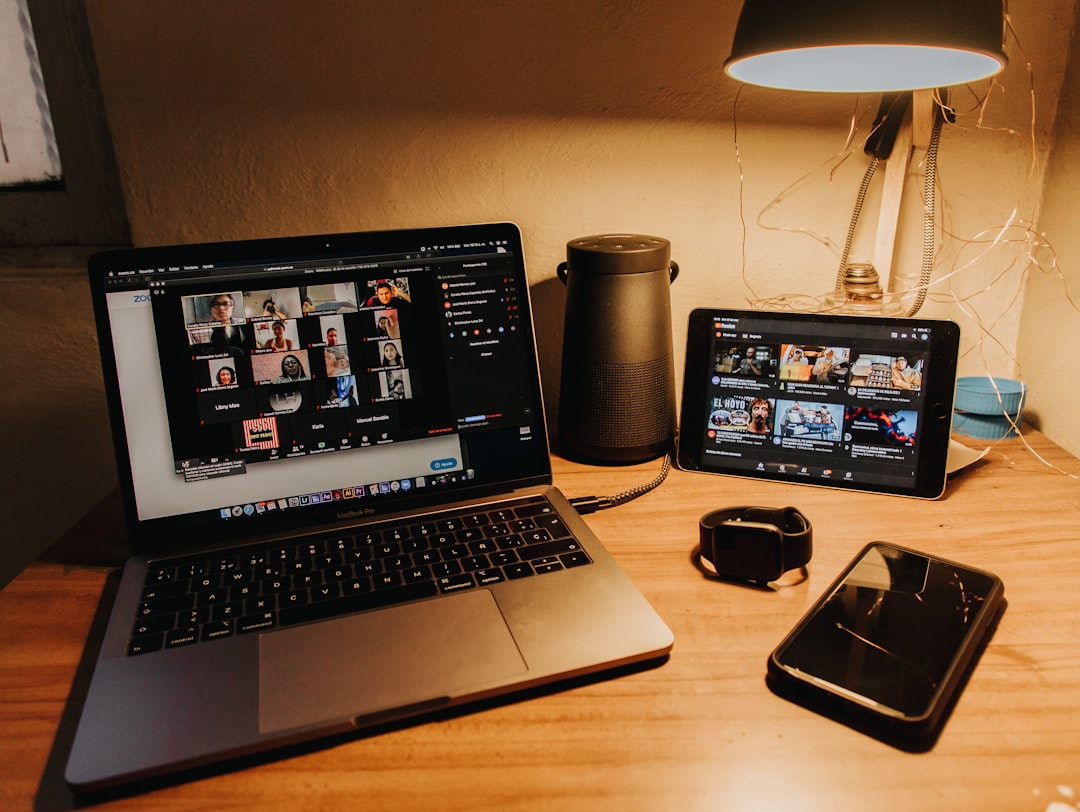
Otter.ai is one of the strongest choices when live captions are only part of the requirement. It is better described as an AI meeting assistant and transcription service that also supports real-time text capture. On Mac, users can access Otter through the browser and meeting integrations, making it suitable for professional documentation workflows.
Otter is especially useful when you need a searchable transcript after a meeting. It can help identify speakers, generate summaries, and organize conversations into records that can be reviewed later. This is valuable for sales calls, research interviews, consulting sessions, lectures, and editorial work.
Compared with built-in live captions, Otter’s advantage is persistence. The content does not simply disappear when the meeting ends. Instead, it becomes a document that can be edited, shared, and used for follow-up work.
Limitations: Otter is a cloud-based service, so privacy and compliance requirements must be carefully reviewed. It may not be suitable for highly confidential conversations unless your organization has approved it and configured it properly.
6. Ava
Best for: Accessibility-focused captioning in workplaces, classrooms, and group conversations.
Ava has long been associated with accessibility-centered live captioning, particularly for deaf and hard-of-hearing users. In 2026, it remains a serious choice for people who need more than casual captions. Ava is designed around real-time participation, making it relevant for classrooms, meetings, conferences, and in-person discussions where multiple speakers may be involved.
One of Ava’s strengths is its focus on group communication. Rather than treating captions as an afterthought, the service is built around making conversations more accessible. Some use cases may also support higher-accuracy human-assisted captioning or professional captioning options, depending on plan and availability.
For Mac users, Ava can be particularly helpful when combined with external microphones or when used in environments where accessibility is a formal requirement. Organizations that take inclusion seriously should consider Ava alongside built-in OS features, rather than seeing it as a replacement only.
Limitations: Ava may require more setup and a paid plan for advanced features. It is best suited for users and organizations with specific accessibility needs rather than people who only occasionally need captions.
7. Krisp
Best for: Users who want cleaner meeting audio plus AI meeting notes.
Krisp is best known for noise cancellation, but its meeting assistant features have made it more relevant to captioning and transcription workflows. For Mac professionals who spend much of the day in calls, Krisp can improve the quality of captured speech by reducing background noise, which indirectly improves caption and transcription accuracy.
While Krisp may not be the first choice if your only requirement is on-screen live captions, it is useful in a complete meeting setup. Better audio input often leads to better captions in Zoom, Teams, Meet, and third-party transcription services. For remote workers in noisy apartments, coworking spaces, or open offices, this can make a notable difference.
Limitations: Krisp should be viewed as a companion tool rather than a full accessibility captioning solution. If you need real-time captions for hearing access, pair it with Apple Live Captions, Ava, or your meeting platform’s caption feature.
How to Choose the Right Tool
The right live captioning tool depends on your primary environment. If you need captions across many types of audio on your Mac, start with Apple Live Captions. It is the most convenient general-purpose option and does not require changing meeting platforms.
If most of your conversations happen in a specific meeting app, use that app’s native captions. Zoom, Teams, and Google Meet are usually more stable inside their own ecosystems than external overlays. They are also easier for IT departments to manage.
If you need records after the conversation, choose a tool with transcript management. Otter.ai is strong for searchable notes and summaries, while Ava is the better candidate when accessibility is the central requirement.
For best results, consider the following practical setup:
- Use a quality microphone instead of relying only on the built-in Mac microphone.
- Reduce background noise before starting calls or recordings.
- Ask speakers to identify themselves in formal meetings when transcripts matter.
- Test captions before important events, especially webinars, classes, or legal discussions.
- Review privacy settings before enabling cloud transcription services.


Privacy and Compliance Considerations
Live captioning often involves sensitive speech data. That may include client information, health details, financial discussions, student records, or internal business strategy. Before adopting any tool, organizations should examine where audio is processed, how transcripts are stored, who can access them, and how long data is retained.
For personal use, Apple’s built-in approach may be preferable because it reduces reliance on extra services. For business use, the best tool is often the one already approved by your IT, legal, or compliance team. Convenience should not override confidentiality.
Final Recommendation
For most Mac OS users in 2026, the best starting point is Apple Live Captions. It is built in, simple, and effective for everyday listening support. For meetings, use the native captions in Zoom, Microsoft Teams, or Google Meet, depending on where your organization works.
For users who need lasting transcripts, summaries, and searchable meeting records, Otter.ai is the strongest general productivity option. For users and organizations with serious accessibility requirements, Ava deserves close consideration. The best overall strategy is not necessarily to choose one tool, but to combine a reliable system-level captioning feature with the meeting and transcription tools that match your workflow, privacy needs, and accessibility standards.