


Efficiency is the foundation of professional video editing. For Mac creators using Final Cut Pro, speed is not just a luxury—it directly affects turnaround times, creative momentum, and profitability. While powerful hardware certainly helps, mastering the right workflow techniques inside Final Cut Pro is what truly transforms performance. The following advanced yet practical methods will help you edit faster without sacrificing quality.
TLDR: Final Cut Pro offers powerful built-in tools that dramatically speed up editing when used strategically. Mastering the magnetic timeline, keyboard shortcuts, compound clips, proxy workflows, roles, and smart collections can eliminate unnecessary friction and repetitive tasks. These techniques reduce technical distractions so you can focus on creative decisions. Implementing even a few of them will significantly improve your workflow efficiency.
1. Master the Magnetic Timeline for Seamless Editing
The Magnetic Timeline is one of Final Cut Pro’s most distinctive features. While beginners sometimes find it unconventional, experienced editors recognize it as a major time-saver. Unlike traditional track-based editors, clips automatically ripple and adjust without leaving gaps, eliminating the need for constant trimming and repositioning.
To speed up your workflow:
- Use Position Tool sparingly: Only when you intentionally want gaps.
- Leverage Clip Connections: Attach B-roll, sound effects, or graphics to primary storyline clips so they remain in sync.
- Create Secondary Storylines: Group connected elements to move them as a unit.
When fully understood, the Magnetic Timeline removes mechanical edits from your process. Instead of fixing alignment issues, you concentrate on pacing and narrative flow.


Editors transitioning from track-based software often experience a temporary slowdown. However, once you trust the timeline’s behavior, you’ll notice fewer manual adjustments and dramatically smoother assembly cuts.
2. Customize Keyboard Shortcuts for Precision Speed
Relying on menus is one of the biggest efficiency killers in video editing. Final Cut Pro’s command customization panel allows full control over keyboard shortcuts, enabling you to tailor the software to your editing style.
Start by mapping frequently used functions such as:
- Blade Tool
- Trim Start to Playhead
- Trim End to Playhead
- Show/Hide Inspector
- Add Marker
Advanced editors often assign complex tasks, like “Create Compound Clip” or “New Multicam Clip,” to single keystrokes. Over time, muscle memory develops, removing the cognitive delay between intention and execution.
Tip: Export your custom command set as a backup. If you switch machines or reinstall macOS, restoring your shortcuts takes seconds.
Optimized keyboard mapping can easily shave hours off long-form editing projects. It also reduces strain, as your hands remain positioned on primary keys instead of constantly reaching for the mouse.
3. Use Compound Clips to Organize Complexity
When timelines become dense with layered footage, audio tracks, effects, and titles, visual clutter slows decision-making. Compound Clips allow you to group multiple clips into a single container that behaves as one unit.
For example:
- Combine interview footage with synced audio.
- Wrap title animations and background music together.
- Group B-roll overlays into a structured block.
Once converted into a Compound Clip, you can collapse detailed sequences and keep your primary timeline clean. If changes are needed, simply double-click to open and edit internally without disturbing the larger structure.


This technique is particularly valuable for:
- Documentary editing
- YouTube series production
- Corporate training videos
- Multi-scene promotional content
By reducing visual overload, Compound Clips protect your focus and speed up navigation across complex projects.
4. Implement a Proxy Workflow for High-Resolution Media
Modern cameras produce high-resolution footage—4K, 6K, even 8K—that demands significant processing power. Even on powerful Macs, editing native files can slow playback and introduce rendering delays.
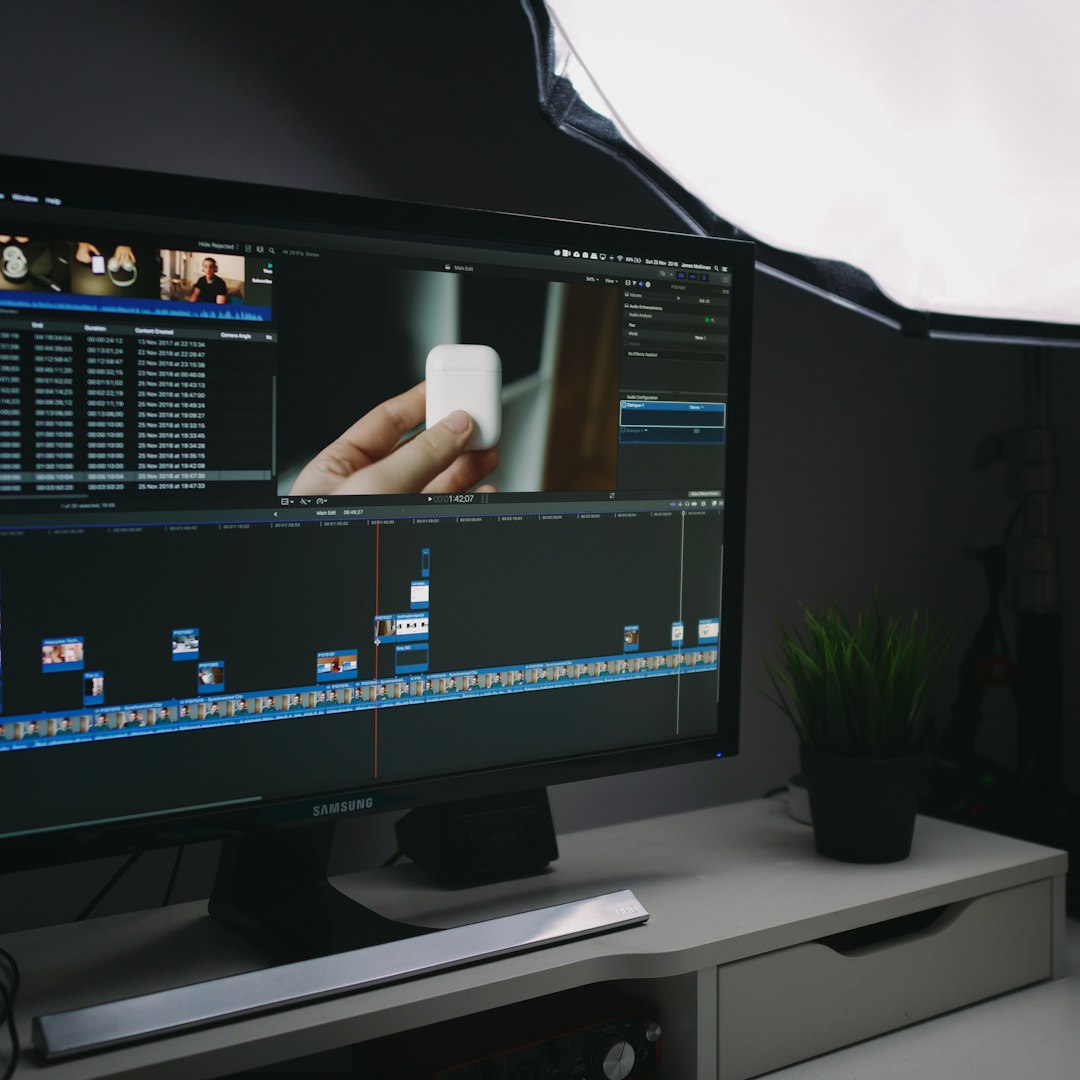
Final Cut Pro’s proxy workflow solves this problem by creating lower-resolution, performance-optimized copies of your footage. You edit using proxies while preserving full-quality originals for final export.
The process is straightforward:
- Import media and choose Create Proxy Media.
- Select an efficient proxy format such as ProRes Proxy.
- Switch viewer settings to Proxy Only.
The result is drastically smoother playback and near-instant scrubbing. This is especially important when working with multicam edits, motion graphics, or color grading.

Professional post-production teams rely heavily on proxy workflows. For solo Mac creators, it provides the same level of efficiency without requiring constant hardware upgrades.
5. Leverage Roles for Faster Audio and Export Management
Roles are one of Final Cut Pro’s most underrated yet powerful organizational tools. They allow you to assign metadata labels—such as Dialogue, Music, Effects, or Titles—to clips for structured management.
Roles accelerate workflow in several key ways:
- Timeline Organization: Color-coded lanes clarify project structure.
- Select by Role: Instantly isolate dialogue or music.
- Audio Mixing: Adjust levels by role rather than by individual clip.
- Export Stems: Deliver separate audio files without rebuilding sequences.
For creators delivering content to clients, networks, or streaming platforms, roles simplify compliance with technical specifications. Instead of manually muting and exporting multiple versions, Final Cut handles separation automatically.
Over long-term use, role-based organization prevents chaos and dramatically speeds up revisions.
6. Automate Organization with Smart Collections
Searching through hours of footage wastes valuable editing time. Smart Collections automatically group clips based on metadata criteria such as:
- Frame size
- Frame rate
- Media type
- Keyword tags
- Favorites and rejected clips
For instance, you can create a Smart Collection that instantly shows:
- All 60fps clips for slow motion sequences
- Only drone footage
- Favorite takes from interviews
Combined with keyword tagging and ratings, Smart Collections eliminate manual searching. This is invaluable during revisions, when clients request specific variations or alternate shots.
Professional editors often structure libraries like this:
- Event: Main project
- Keyword Collections: Scene-based grouping
- Smart Collections: Automatic technical filtering
The result is a highly searchable database rather than a chaotic clip repository.
Bringing It All Together: Workflow Integration
Individually, each technique improves efficiency. Combined, they create a cohesive professional workflow:
- The Magnetic Timeline keeps structural edits fluid.
- Keyboard shortcuts eliminate physical hesitation.
- Compound Clips control complexity.
- Proxy media maintains smooth playback.
- Roles streamline audio and delivery.
- Smart Collections automate organization.
The key is consistency. Workflow speed does not come from occasional optimization but from habitual structure. Editors who systematize their approach spend less time repairing errors and more time refining storytelling.
Why Workflow Speed Matters Professionally
For Mac creators—whether YouTubers, filmmakers, educators, or agency professionals—time saved in editing directly translates into competitive advantage. Faster turnaround allows:
- Higher publishing frequency
- Quicker client delivery
- More room for creative experimentation
- Reduced burnout
Importantly, speed should never compromise quality. The most effective workflows accelerate mechanical processes so creative decisions receive greater attention. Final Cut Pro’s architecture is specifically designed to support this philosophy.
Final Thoughts
Final Cut Pro remains one of the most optimized professional editing platforms available for macOS. Its deep integration with Apple hardware ensures strong performance, but true efficiency comes from mastering workflow techniques rather than relying solely on processing power.
By committing to structured organization, proxy usage, keyboard customization, thoughtful timeline management, and intelligent role assignments, Mac creators can transform their editing pace. These techniques are not shortcuts in the traditional sense—they are strategic optimizations used by seasoned professionals.
In a competitive digital landscape where content production speed often determines success, refining your editing workflow is not optional. It is essential. Implement these six Final Cut Pro techniques with discipline, and you will notice measurable gains in productivity, clarity, and creative control.