
Turn off location sharing at the permission level first. That is the quietest move on both iPhone and Android. It stops apps from seeing your GPS without sending a “Hey, they turned it off!” alert to friends. Privacy worries are common too: Pew Research found that 81% of Americans felt the risks of company data collection outweighed the benefits [source: Pew Research].
TLDR: On iPhone, go to Settings > Privacy & Security > Location Services and change app access to Never or While Using. On Android, go to Settings > Location > App location permissions and do the same. For example, if Snapchat or Instagram has location access, you can remove it in about 30 to 60 seconds, and your friends usually get no notification. Shared services like Find My, Google Maps, or family safety apps may still show that your location is missing.

First, the big thing people mix up
There are two different types of location sharing.
- App location access: Apps like weather, camera, rideshare, maps, and social apps can use your phone’s location.
- People location sharing: Friends or family can see you through Find My, Google Maps, Life360, or similar apps.
If you turn off app access, people are not notified. The app just loses your location.
If you stop sharing with a person, they may not get a push alert. But they may notice later. Your dot may vanish. Your status may say location unavailable. Honestly, it feels like phones make this more awkward than it needs to be.
iPhone: turn off location sharing quietly
For most iPhone users, start here.
- Open Settings.
- Tap Privacy & Security.
- Tap Location Services.
- Pick an app.
- Choose Never, Ask Next Time, or While Using the App.
- Turn off Precise Location if you only want to hide your exact spot.
This is usually the best “quiet mode.” No friend gets a banner. No family member gets a trumpet sound. The app may complain later, but that is between you and the app.
Quick tip: Use While Using the App for maps and rideshare apps. Use Never for apps that do not need your location. Yes, that random shopping app does not need to know you are near a sandwich shop.
iPhone: stop sharing in Find My
If you share your live location through Apple’s Find My, use this method.
- Open the Find My app.
- Tap Me.
- Turn off Share My Location.
You can also stop sharing with one person:
- Open Find My.
- Tap People.
- Choose the person.
- Tap Stop Sharing My Location.
Apple says the other person is not notified when you stop sharing your location [source: Apple]. Still, they may notice if they check. So it is quiet, not invisible.
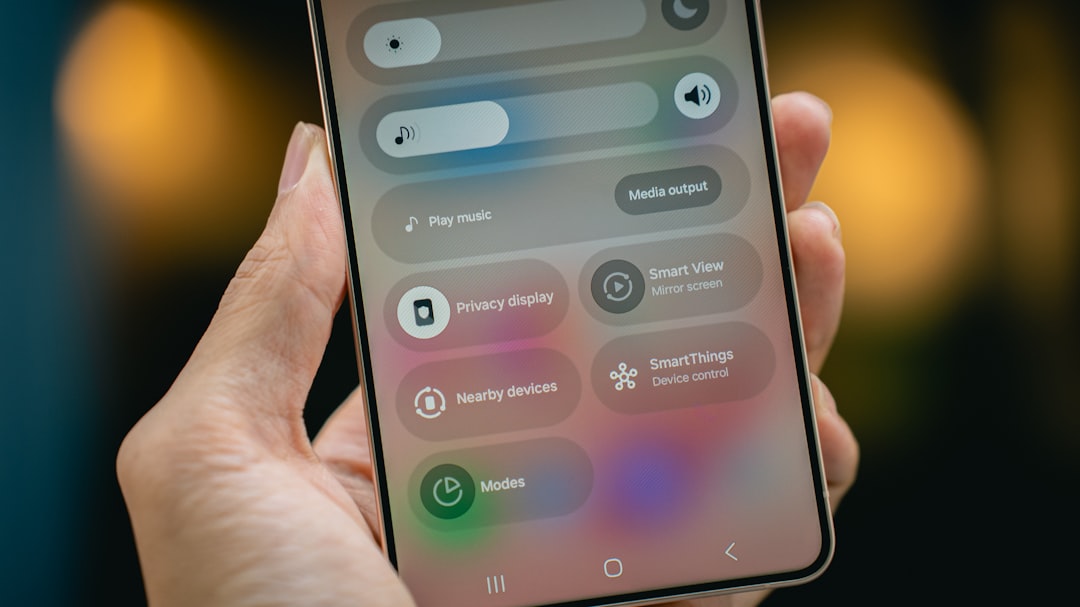
Android: turn off location sharing quietly
Android menus vary a bit. Samsung, Pixel, OnePlus, and Motorola all like to move buttons around. It drives me crazy that the same setting can take five extra taps on one phone.
Try this first:
- Open Settings.
- Tap Location.
- Tap App location permissions.
- Choose an app.
- Select Don’t allow or Allow only while using the app.
On newer Android phones, you can also turn off Use precise location. This lets an app see a rough area instead of your exact street corner.
This is the Android version of a quiet shutoff. Apps lose access. Friends are not pinged. The app may ask again later with a dramatic pop-up. Just say no if you want.
Android: stop sharing in Google Maps
If you share your live location through Google Maps, do this:
- Open Google Maps.
- Tap your profile picture.
- Tap Location sharing.
- Pick the person.
- Tap Stop.
Google Maps location sharing is tied to your Google account, not just your phone settings [source: Google]. So turning off phone GPS may not be the same as ending the share. Check both places if you want it fully off.
What about family apps?
Family safety apps are a different beast.
- Life360 may show “location paused” or “no network.”
- Family Link may still show account or device info.
- Carrier family plans may have their own location tools.
These apps are built to report status changes. So the “no notification” part is not always under your control. Expect to waste time on app-specific menus.
Best quiet privacy setup
Use this simple setup if you want less tracking without drama:
- Set most apps to Never.
- Set maps and rideshare apps to While Using.
- Turn off Precise Location for social apps.
- Review Find My or Google Maps sharing once a month.
- Remove old devices from your Apple or Google account.

One last reality check
Turning off location sharing without alerts is often possible. But it is not magic. People may still infer things. Apps may show missing data. Shared services may update your status.
The safest move is simple. Control app permissions first. Then check person-to-person sharing. That gives you privacy without making your phone act like a spy movie prop.