
Taking a screenshot on a Surface Pro is one of the fastest ways to capture information, save important details, or share something visually with others. Whether it is for work, study, troubleshooting, or creativity, knowing the quickest and most efficient screenshot methods can save significant time. Surface Pro devices, powered by Windows, offer several built-in ways to capture the screen using the keyboard, touchscreen, Surface Pen, and software tools.
TLDR: Surface Pro users can take screenshots instantly using keyboard shortcuts like Windows + Shift + S or Windows + PrtScn. Tablet mode also allows quick captures with the Power and Volume Up buttons. The Snipping Tool and Surface Pen add extra flexibility for precision screenshots, annotations, and fast edits. Choosing the right method depends on whether speed, customization, or convenience is the priority.
Why Knowing Multiple Screenshot Methods Is Important
Every Surface Pro user works differently. Some use it primarily as a laptop with a keyboard attached, while others prefer tablet mode with touch controls. Because of this flexibility, Microsoft provides multiple screenshot options to accommodate different scenarios.
Using the right method allows users to:
- Capture full screens instantly
- Select specific areas for precision
- Annotate screenshots immediately
- Save images automatically without extra steps
- Work faster in professional environments
Understanding each method ensures that screenshots are taken efficiently without interrupting workflow.
Method 1: The Fastest Keyboard Shortcut (Windows + Shift + S)
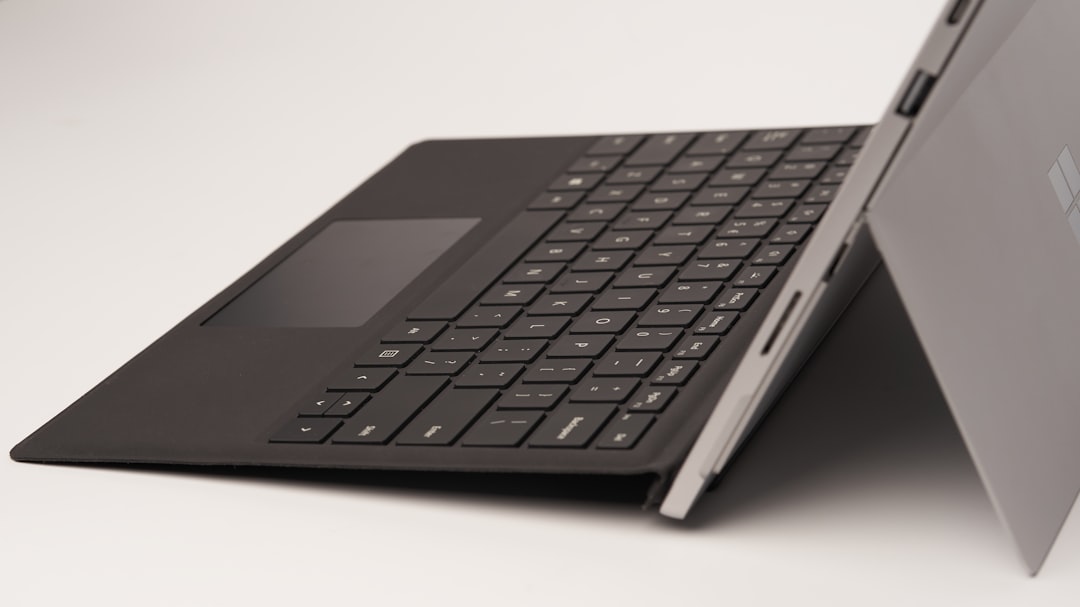
For most users, the quickest and most flexible way to take a screenshot on a Surface Pro is by pressing Windows + Shift + S. This shortcut opens the Windows Snipping overlay instantly.
Once activated, the screen dims slightly and a small toolbar appears at the top. Users can choose from:
- Rectangular Snip – Drag to capture a custom rectangle
- Freeform Snip – Draw an irregular shape
- Window Snip – Capture a specific open window
- Full-screen Snip – Capture the entire display
After selecting the desired area, the screenshot is automatically copied to the clipboard. A notification appears, allowing the user to click and edit the screenshot inside the Snipping Tool.
Why it is fast: No files are automatically saved unless chosen, and the tool launches instantly without opening a full program.
Method 2: Capture and Save Instantly (Windows + PrtScn)
If the goal is to capture the entire screen and automatically save it as a file, the fastest method is pressing Windows + Print Screen.
When pressed:
- The screen briefly dims to confirm capture.
- The screenshot saves automatically in the Pictures > Screenshots folder.
This is ideal for users who need to take multiple screenshots quickly without editing each one immediately.
Tip: On some Surface Type Covers, the Print Screen key may require using the Fn key as well.
Method 3: Using Tablet Mode (Power + Volume Up)
Surface Pro devices are designed as 2-in-1 computers, which means many users operate them as tablets. In tablet mode, the fastest way to take a screenshot is by pressing:
Power Button + Volume Up Button
Image not found in postmeta
This method works similarly to taking a screenshot on a smartphone. The screen dims briefly to confirm it has been captured, and the file is saved automatically in the Screenshots folder.
Best for:
- Users without a keyboard attached
- Quick captures while on the move
- Touch-only workflow environments
Method 4: Snipping Tool Application
The updated Snipping Tool in Windows combines the classic Snipping Tool and Snip & Sketch into one streamlined application.
Users can open it by:
- Searching for Snipping Tool in the Start menu
- Pressing Windows + Shift + S and clicking the notification
Inside the Snipping Tool, users can:
- Delay screenshots by a few seconds
- Annotate with pens and highlighters
- Crop images
- Save in multiple formats
This method is ideal when screenshots require editing before being sent or stored.
Method 5: Using the Surface Pen Shortcut
Surface Pro users with a Surface Pen have an additional powerful screenshot method. By default, clicking the top button on the Surface Pen can open the Snipping Tool (depending on settings).
Image not found in postmeta
To customize this feature:
- Open Settings
- Go to Bluetooth & Devices
- Select Pen & Windows Ink
- Configure shortcut behavior
This is particularly useful for:
- Designers
- Students taking visual notes
- Professionals annotating documents
The ability to capture and immediately write on the screenshot makes it one of the most efficient tools available.
Method 6: Alt + Print Screen for Active Window
When only a single active window needs to be captured, pressing Alt + Print Screen is one of the fastest methods.
This shortcut:
- Captures only the active window
- Copies it directly to the clipboard
- Requires pasting into an app like Paint or Word
This eliminates the need to crop out unnecessary background content.
Where Screenshots Are Saved
Depending on the method used, screenshots may be:
- Saved automatically in Pictures > Screenshots
- Copied to the clipboard for manual pasting
- Opened directly inside the Snipping Tool editor
If a screenshot cannot be found, users should check the clipboard (by pasting into Paint) or search the Screenshots folder.
Tips for Taking Screenshots Even Faster
Speed improves when users optimize their setup. Consider these efficiency tips:
- Memorize one primary shortcut for daily use
- Keep the keyboard attached if frequently capturing screens
- Enable Pen shortcuts for creative tasks
- Use clipboard history (Windows + V) to manage multiple screenshots
- Organize Screenshots folder regularly to avoid clutter
Small workflow adjustments can significantly reduce capture time.
Common Screenshot Problems and Quick Fixes
Even though screenshot functionality is simple, occasional issues may arise.
Problem: Print Screen key does not work.
Solution: Check if the Fn key must be pressed, or verify keyboard settings.
Problem: Screenshot not saving.
Solution: Confirm storage space and check the Screenshots folder.
Problem: Surface Pen shortcut not responding.
Solution: Reconnect Bluetooth and review Pen & Windows Ink settings.
Most issues can be resolved within settings without requiring technical assistance.
Choosing the Best Method for Different Scenarios
The ideal screenshot method depends on how the Surface Pro is being used:
- Office Work: Windows + Shift + S for quick region capture
- Bulk Capturing: Windows + PrtScn for automatic saving
- Tablet Usage: Power + Volume Up
- Detailed Annotations: Surface Pen with Snipping Tool
- Single Window Capture: Alt + PrtScn
By mastering two or three of these methods, users can handle nearly any situation with ease.
FAQ: How to Take a Screenshot on Surface Pro
- What is the fastest way to screenshot on Surface Pro?
The fastest general method is pressing Windows + Shift + S, which immediately opens the screen snipping overlay. - Where do Surface Pro screenshots go?
If using Windows + PrtScn or Power + Volume Up, screenshots are saved in Pictures > Screenshots. Clipboard-based screenshots must be pasted into an application manually. - How do you screenshot without a keyboard?
Press the Power button + Volume Up at the same time while in tablet mode. - Can you take a scrolling screenshot on Surface Pro?
Windows does not natively support full scrolling screenshots for all apps, but some browsers and third-party tools offer this feature. - How do you paste a screenshot after taking it?
Press Ctrl + V in an app such as Paint, Word, or an email message. - Why is the Print Screen button not working?
It may require pressing the Fn key simultaneously, or the keyboard settings may need adjustment. - Can screenshots be edited immediately?
Yes. After using Windows + Shift + S, click the notification to open editing tools within Snipping Tool. - Does Surface Pro support screenshot gestures?
It primarily relies on button combinations and shortcuts rather than swipe gestures.
Mastering these screenshot techniques ensures that Surface Pro users can capture content quickly, efficiently, and without breaking workflow. With just a few shortcuts and tools, taking screenshots becomes second nature and significantly enhances productivity.